Mothers
Video Guide for Onboard Mothers
How to Onboard Mothers
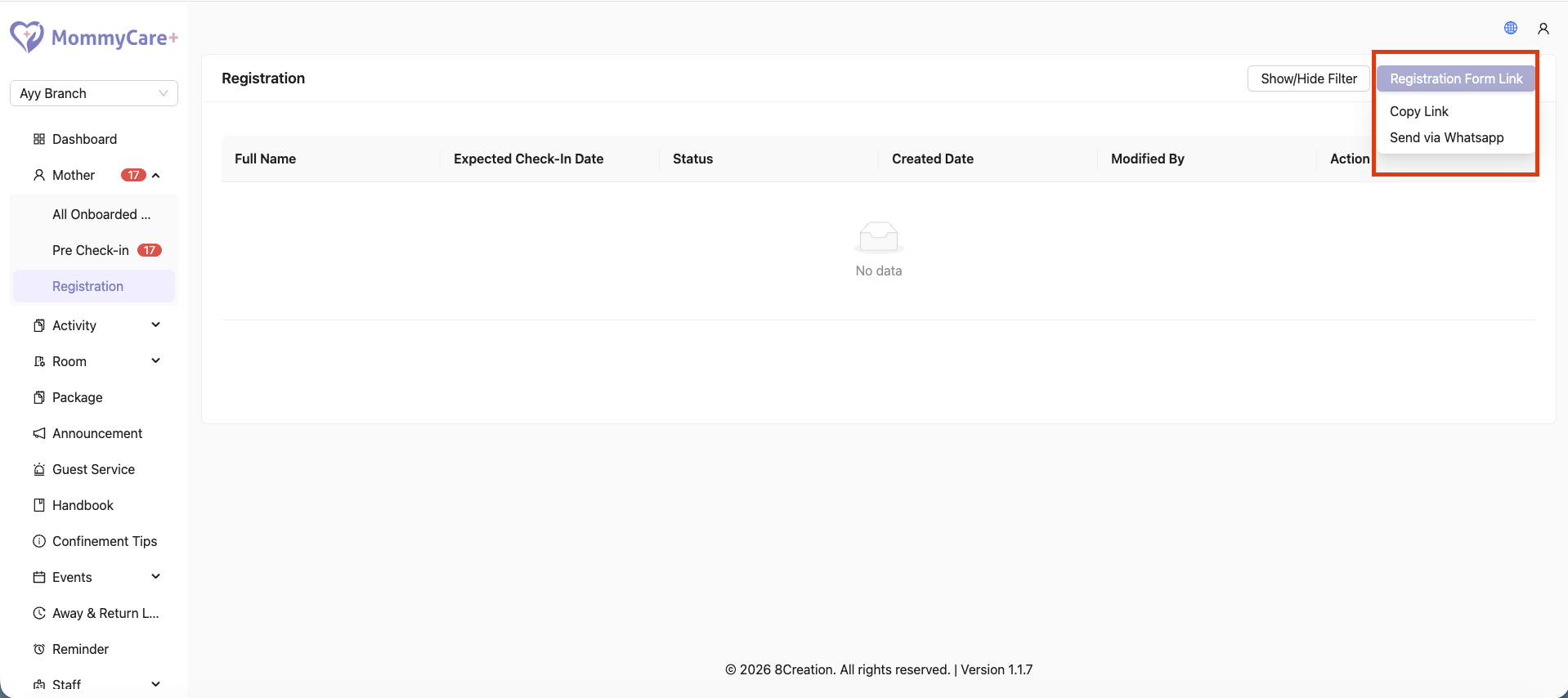
- Location: Mother -> Registration
- Click “Copy Registration Form Link”
- Select "Copy Link" or "Send via WhatsApp" to share the registration form with the mother
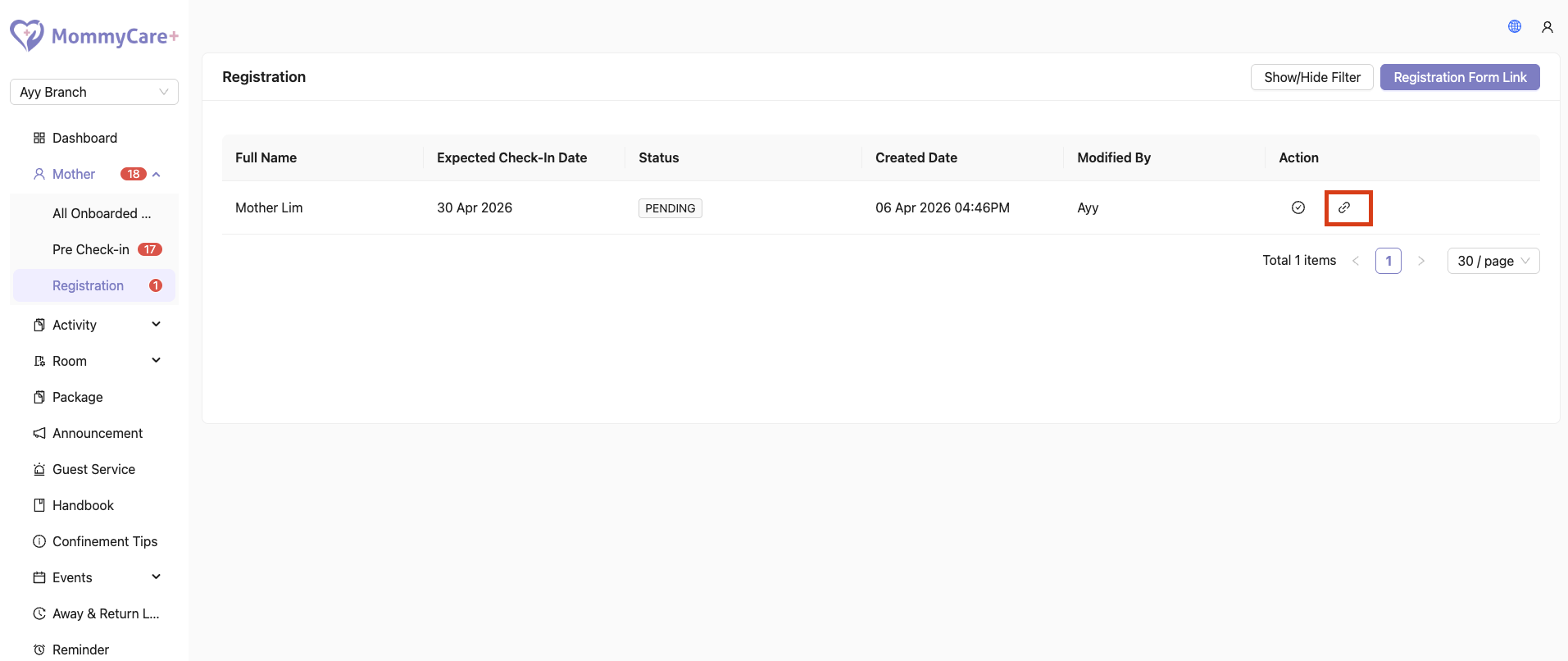
- After the mother submits the form, her name will appear in the registration list
- Click “Copy Consent Form Link” and send it to the mother for signing
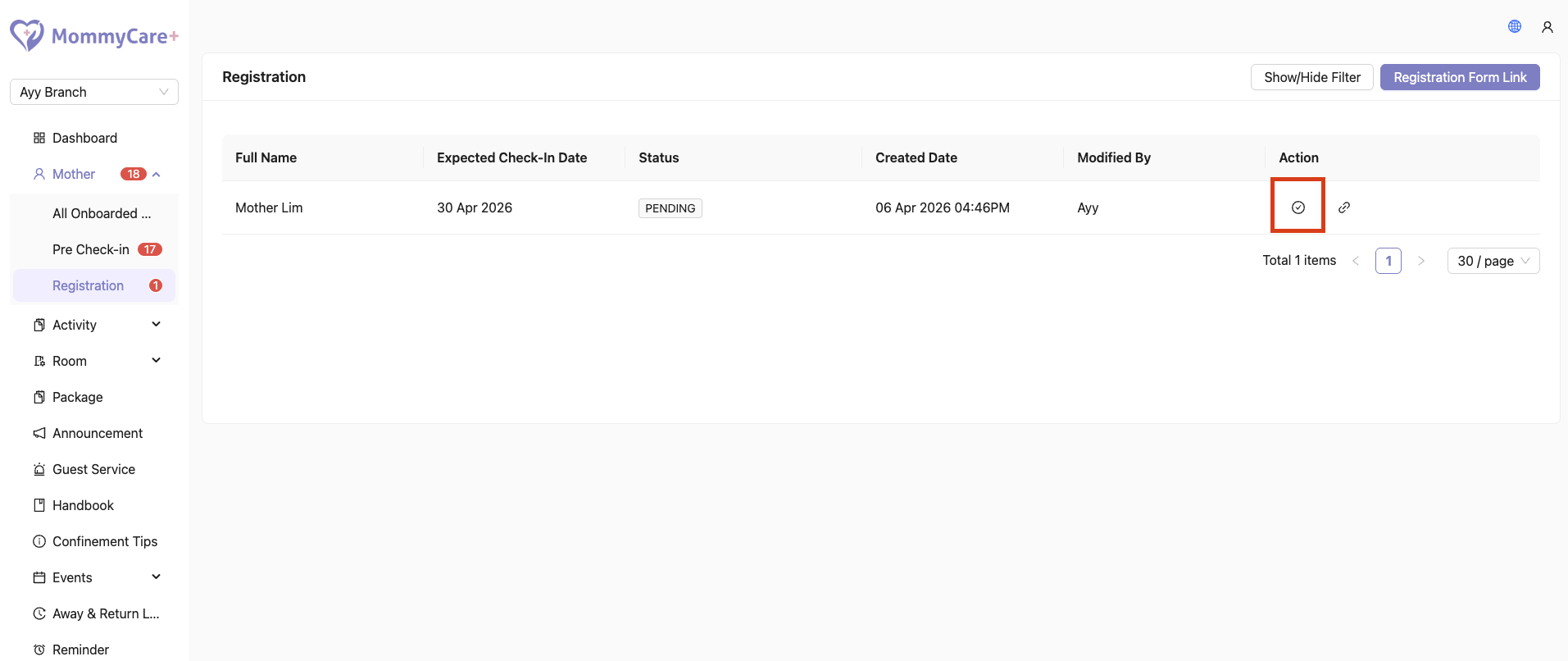
- Once the consent form is signed, click “Onboard”
- Fill in the package details and deposit payment
- Click “Onboard” to complete the onboarding process
- The mother will appear in the Pre Check-In page
How to Check-In Mothers
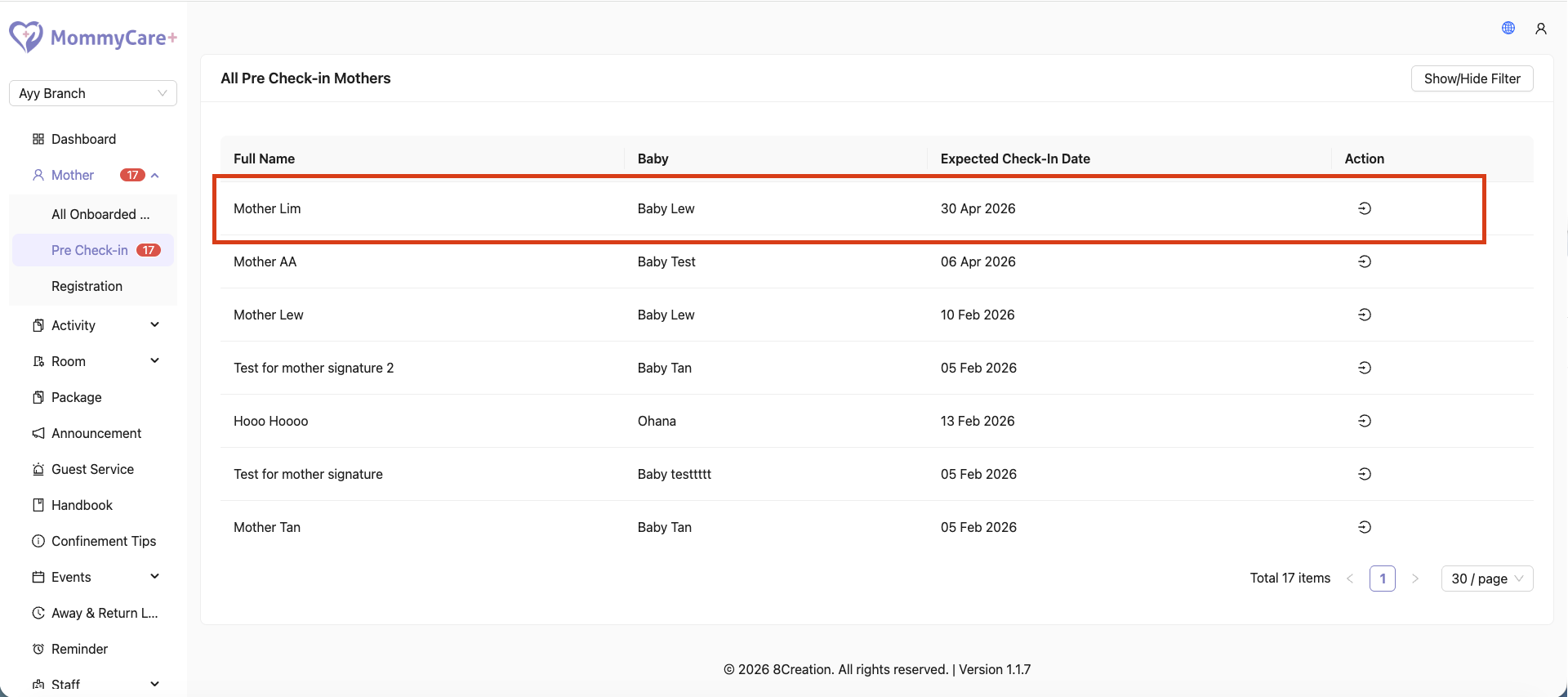
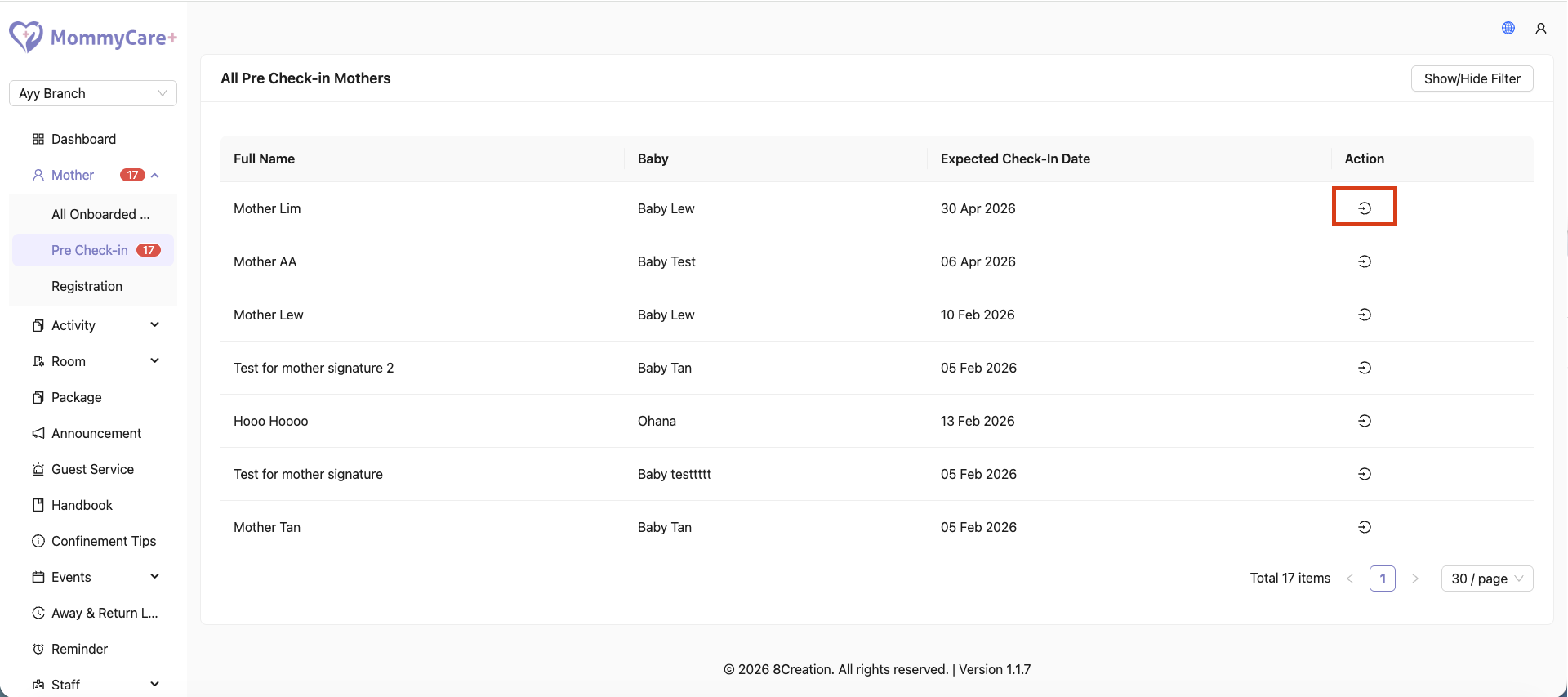
- Location: Mother -> Pre Check-In
- Locate the mother’s name
- Click “Check In”
- Fill in the required check-in information and submit
How to Send Sign-Up Invitation
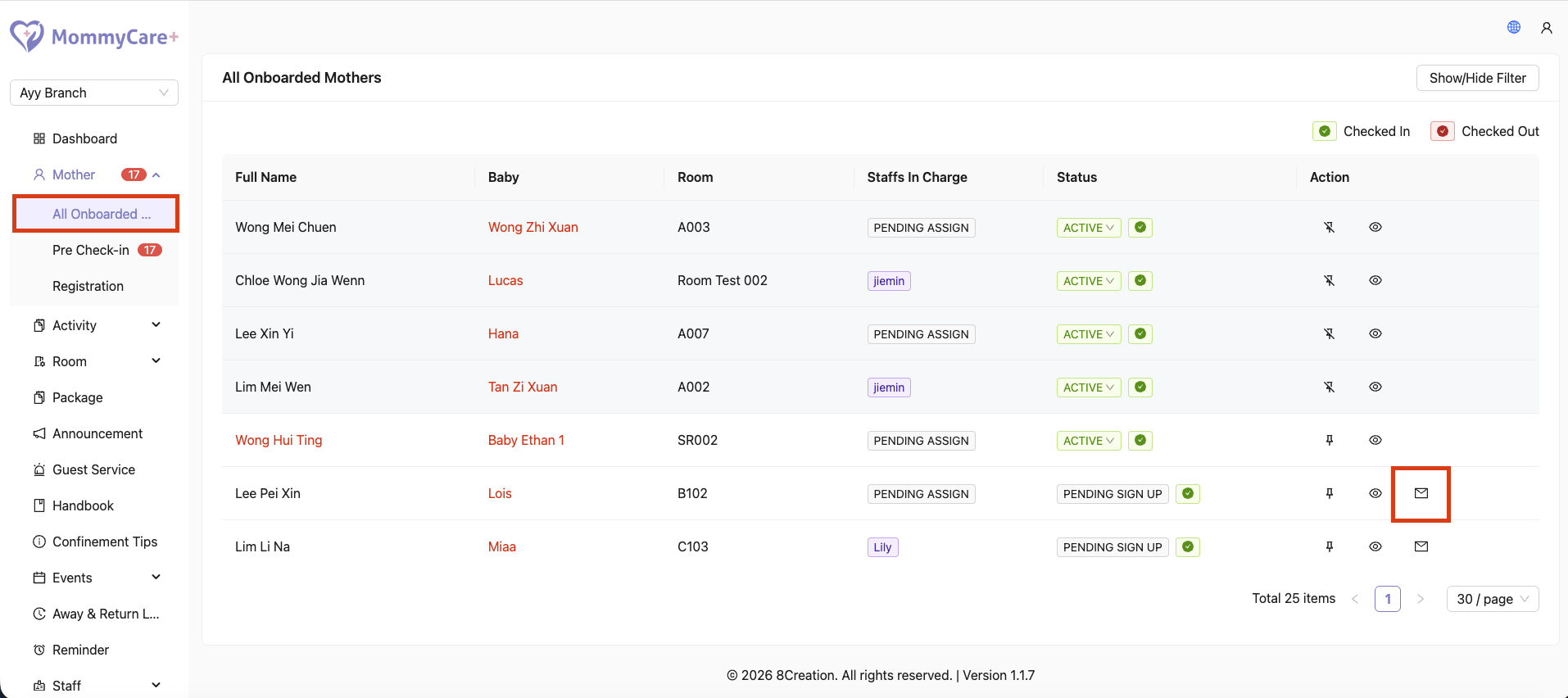
- Location: Mother -> All Onboarded Mothers
- Locate the mother’s name
- Status will show “Pending Sign Up”
- Click “Send Invitation Link” to invite the mother to sign up
- Once completed, the status will update to “Active”
How to Manually Resend Invitation WhatsApp Message
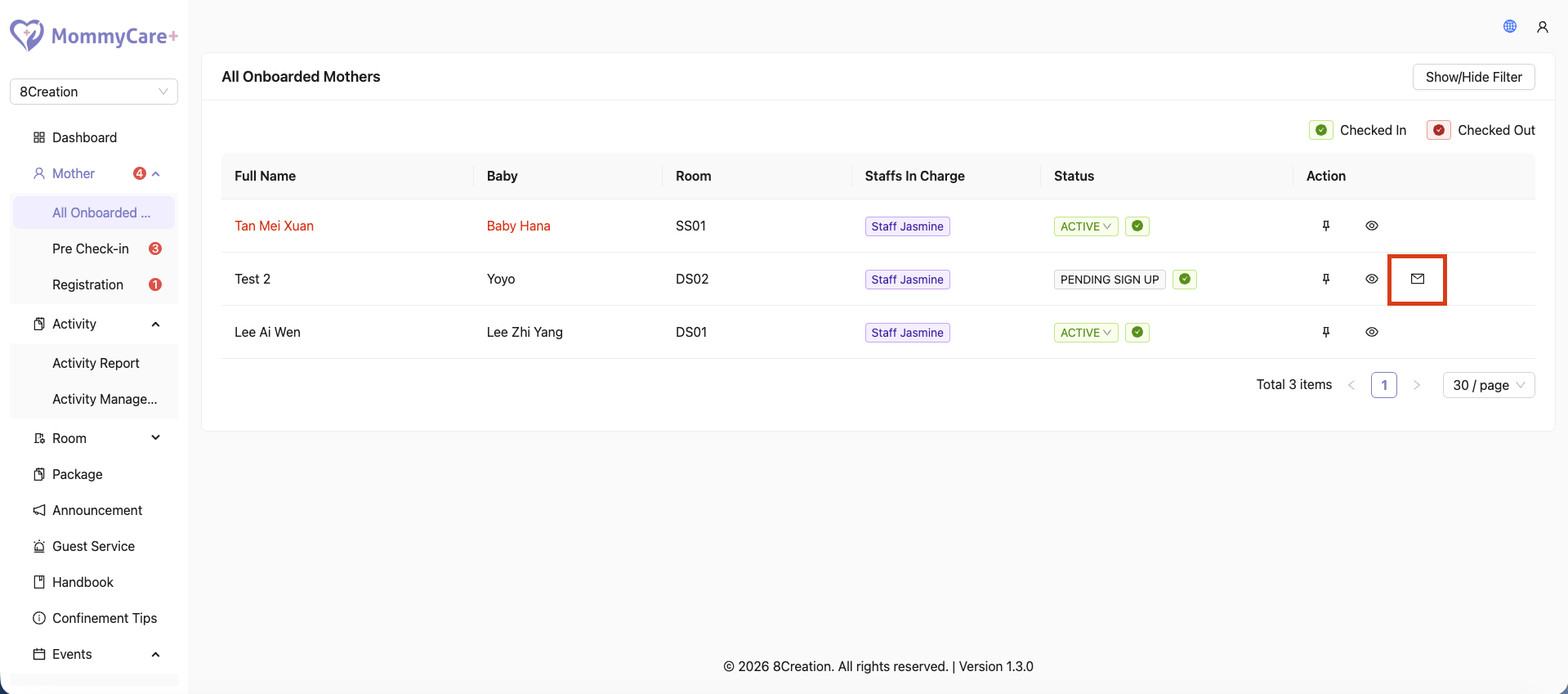
- Location: Mother -> All Onboarded Mothers
- Locate the mother’s name
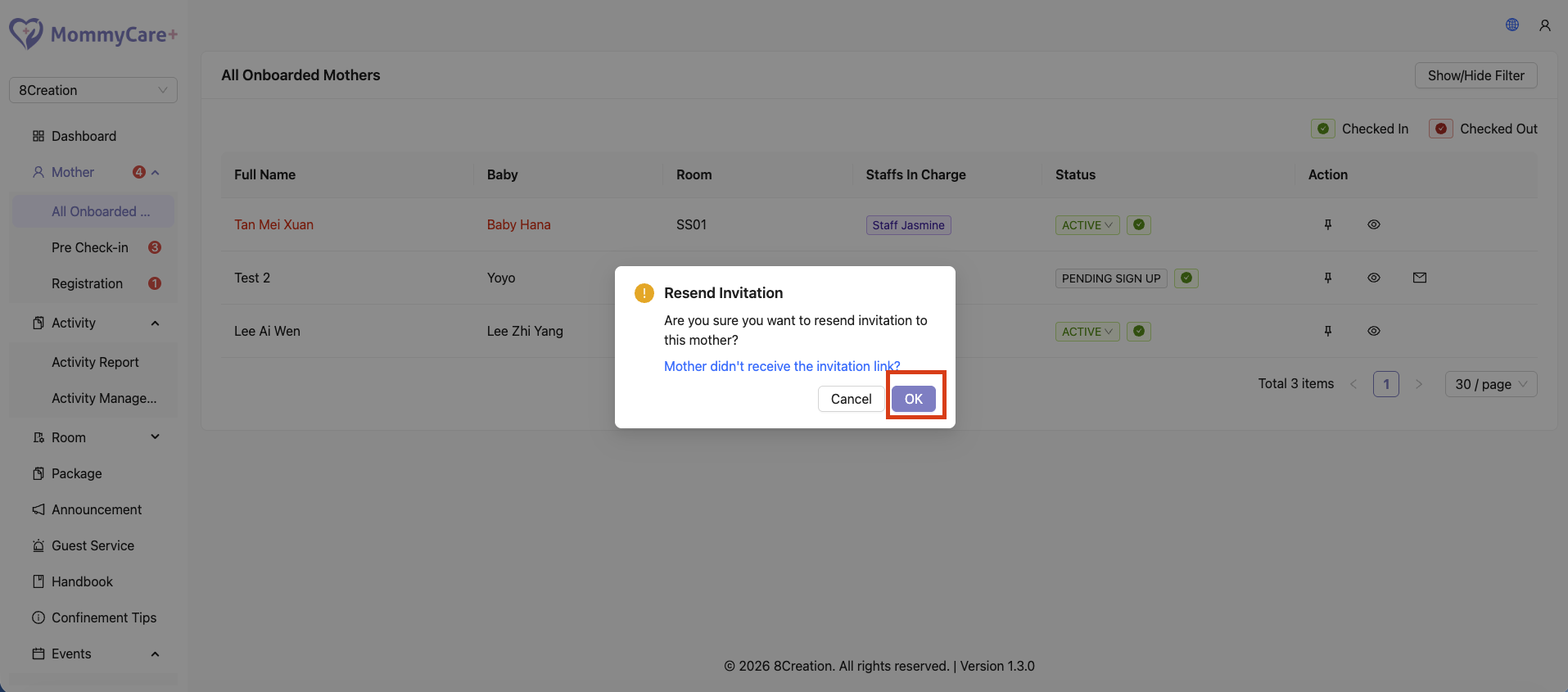
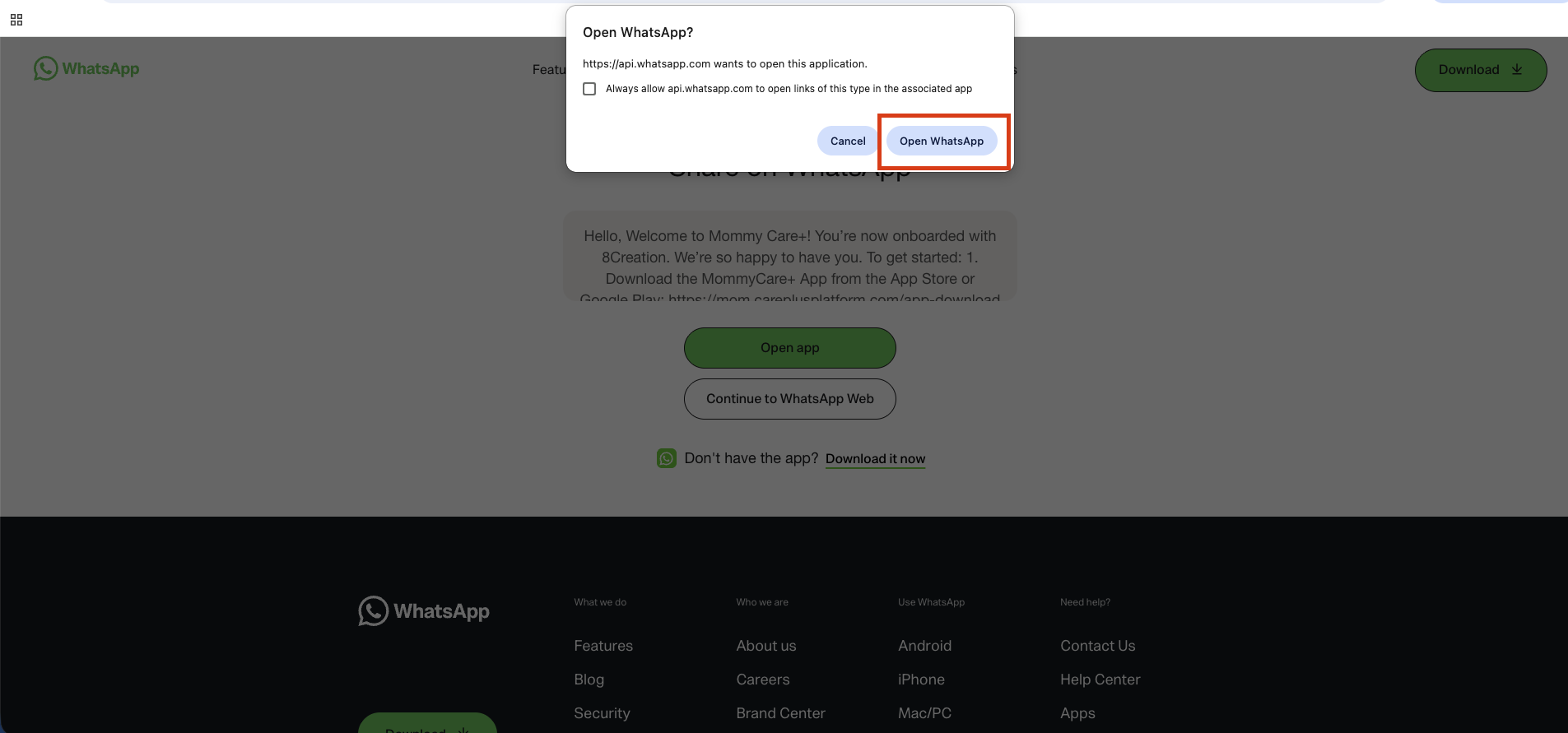
- If the mother did not receive the invitation WhatsApp message, click “Send Invitation Link” again
- The invitation WhatsApp message will be resent manually to the mother
How to Delete Mother Registration Record
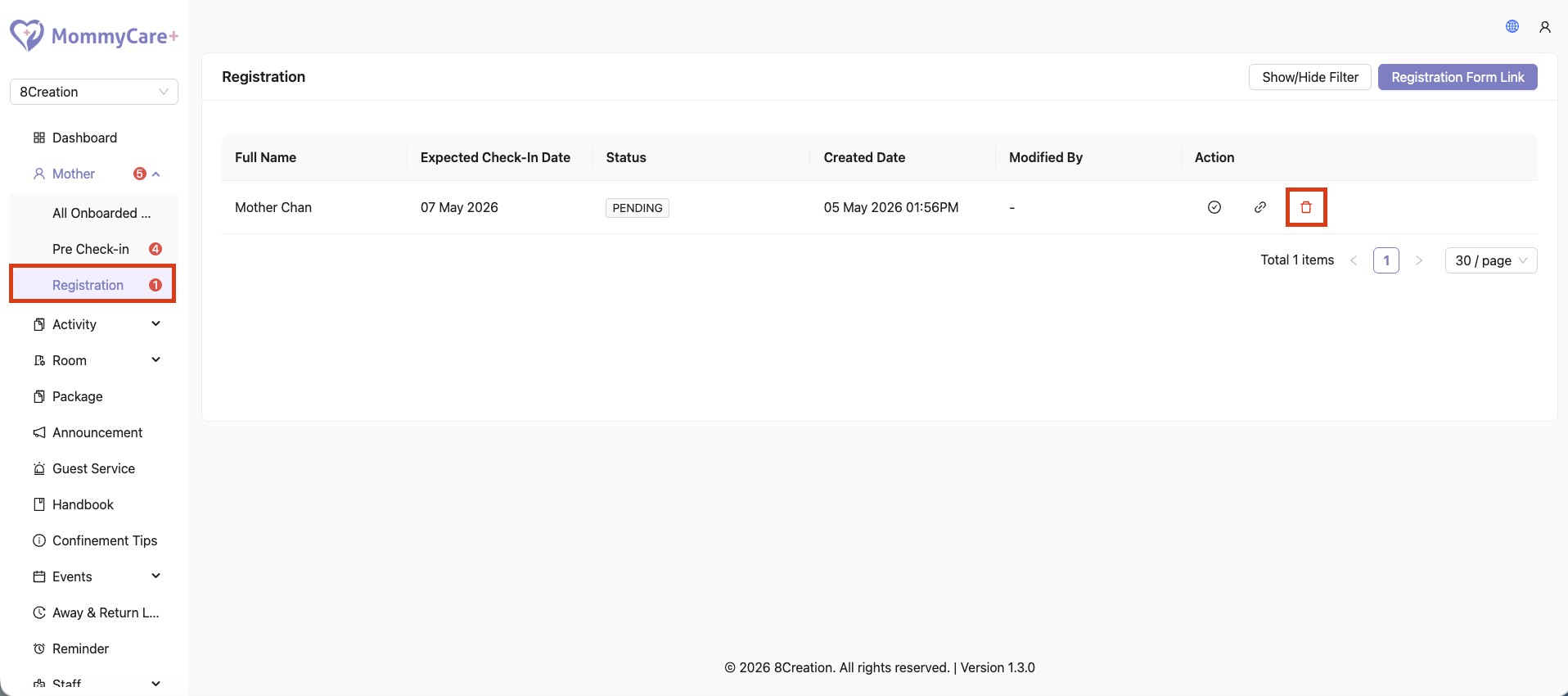
- Location: Mother -> Registration
- Locate the mother’s registration record
- Click the Delete icon
- Confirm the deletion to remove the registration record from the system
How to Monitor Checked In Mothers
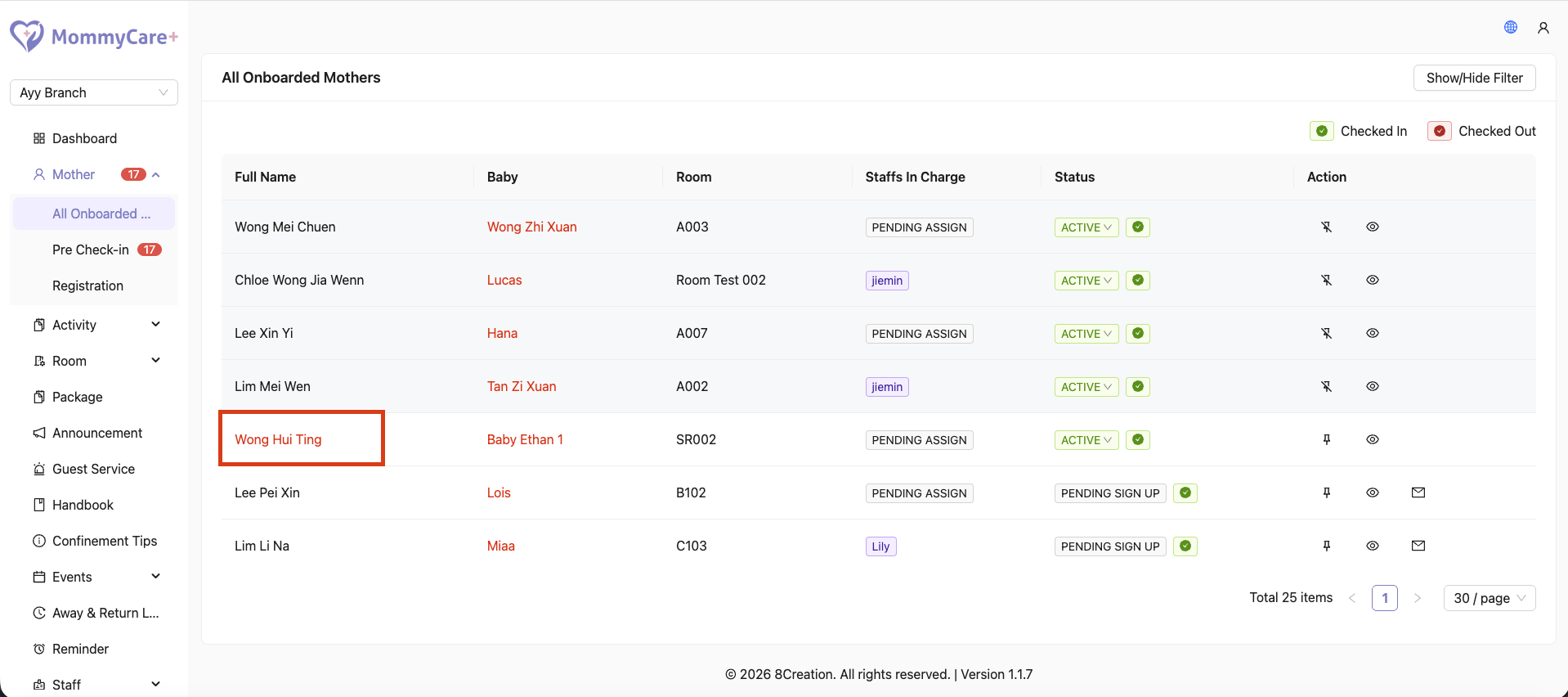
- Location: Mothers -> All Onboarded Mothers
- Mother’s name will be highlighted in red when alert triggered
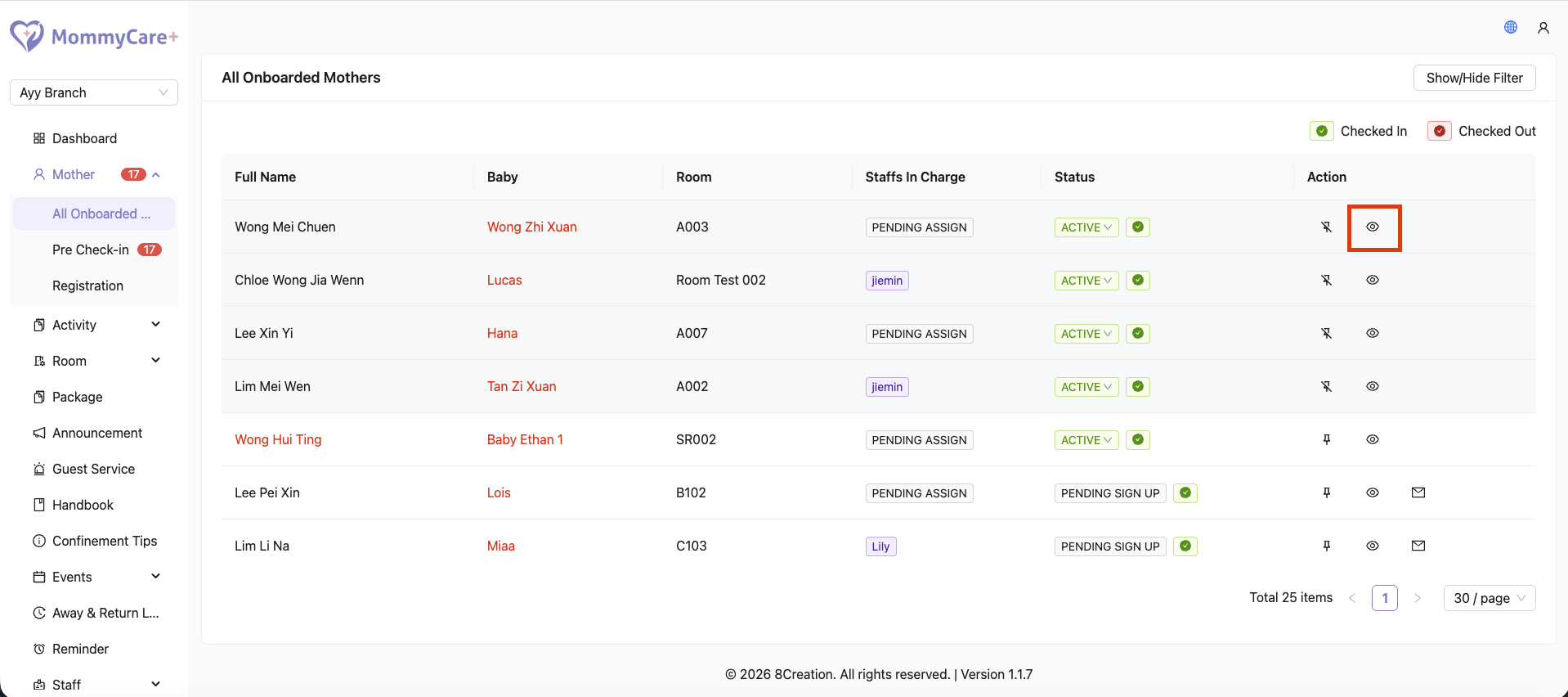
How to View Mother's Profile
- Location: Mothers -> All Onboarded Mothers
- Click on the view profile icon
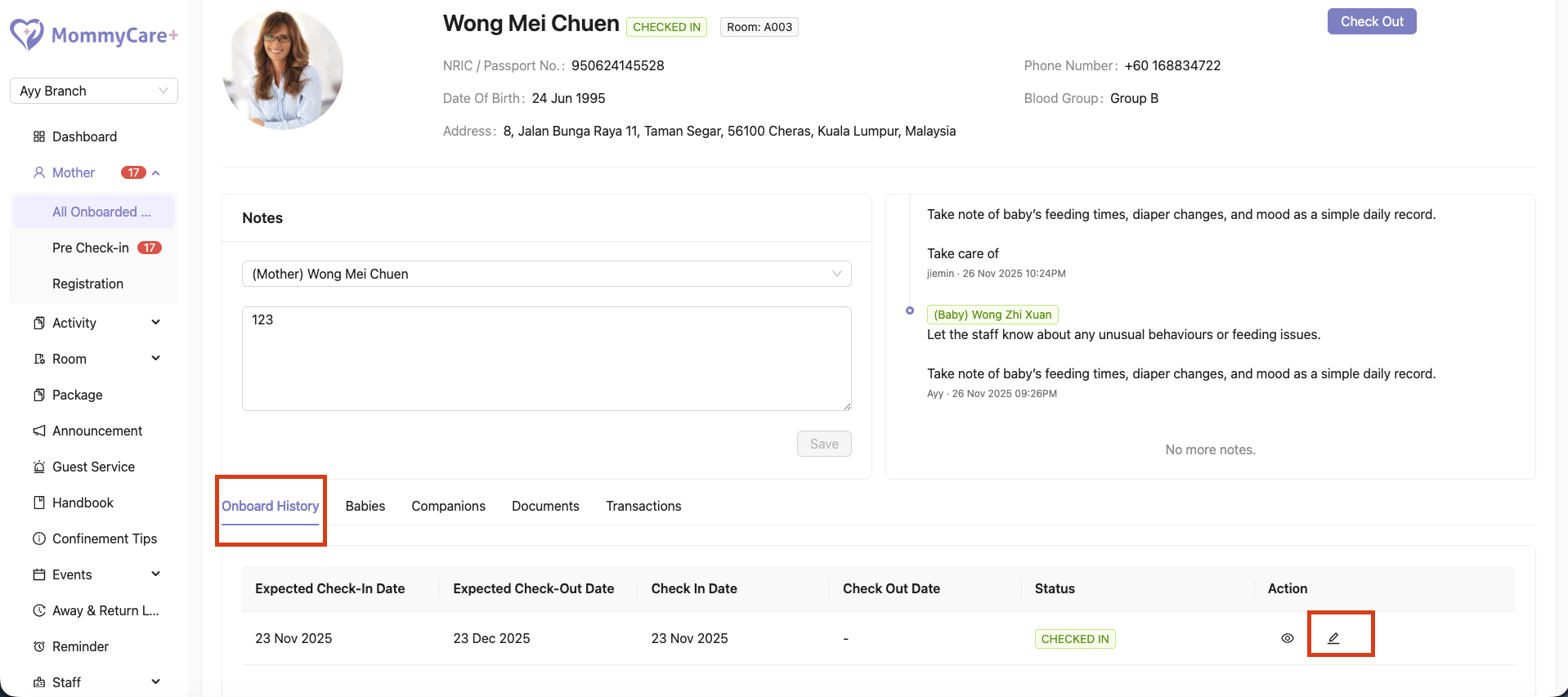
How to Edit Mother's Onboard History
- Location: Mothers -> All Onboarded Mothers
- Click on the view profile icon
- Click "Onboard History"
- Click on the "Edit" icon
- Make changes to the required field, then click “Save”
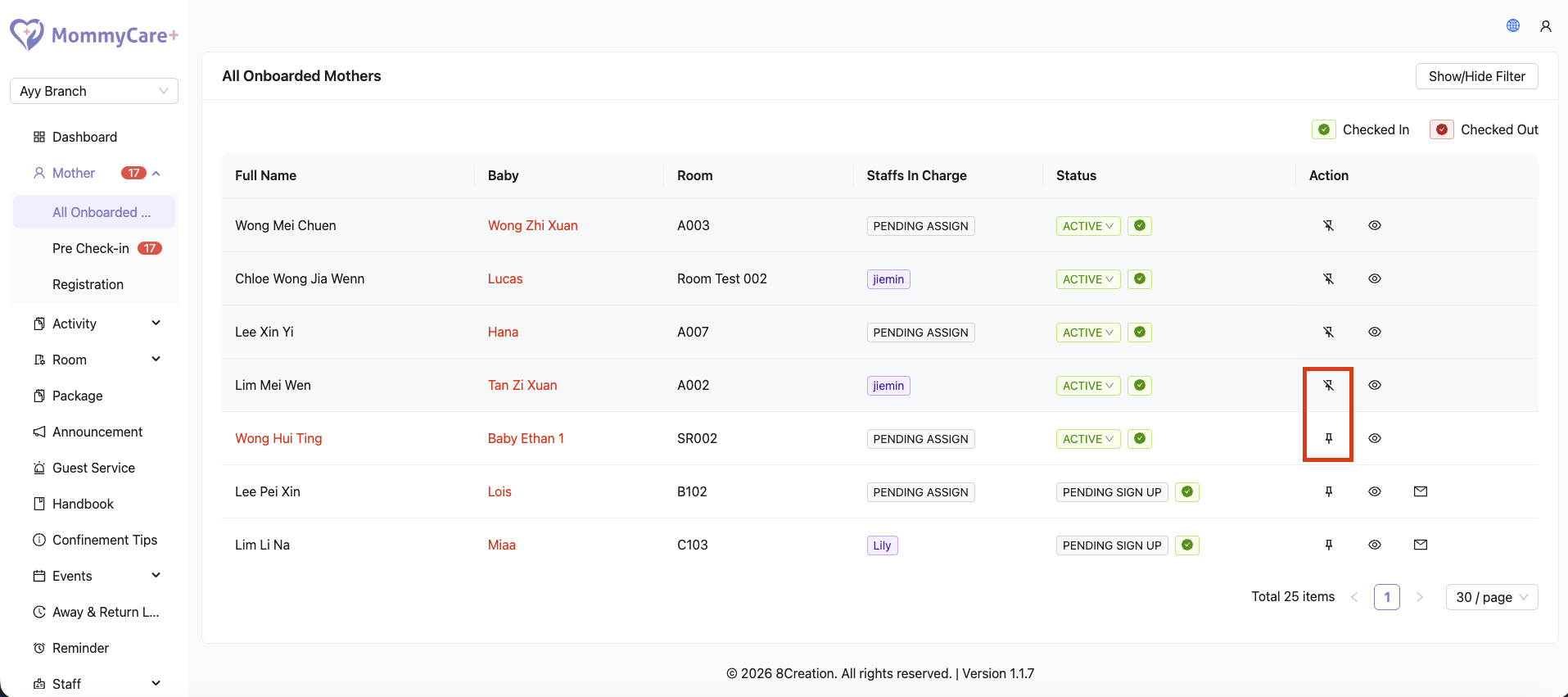
How to Pin / Unpin Mother On Top
- Location: Mothers -> All Onboarded Mothers
- Click on the pin icon
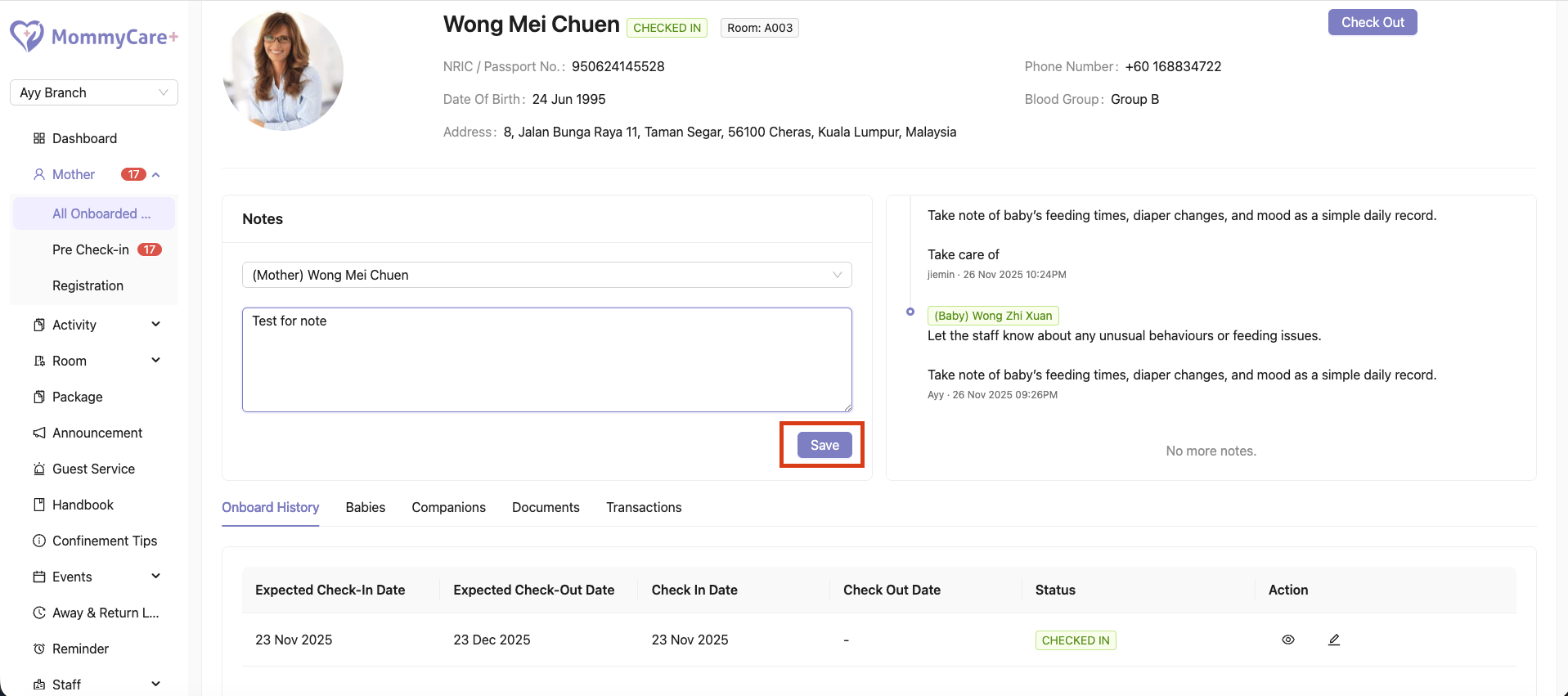
How to Edit Mother's Note
- Location: Mothers -> All Onboarded Mothers
- Click on the view profile icon
- Look for the Note section
- Click “Save” after updates
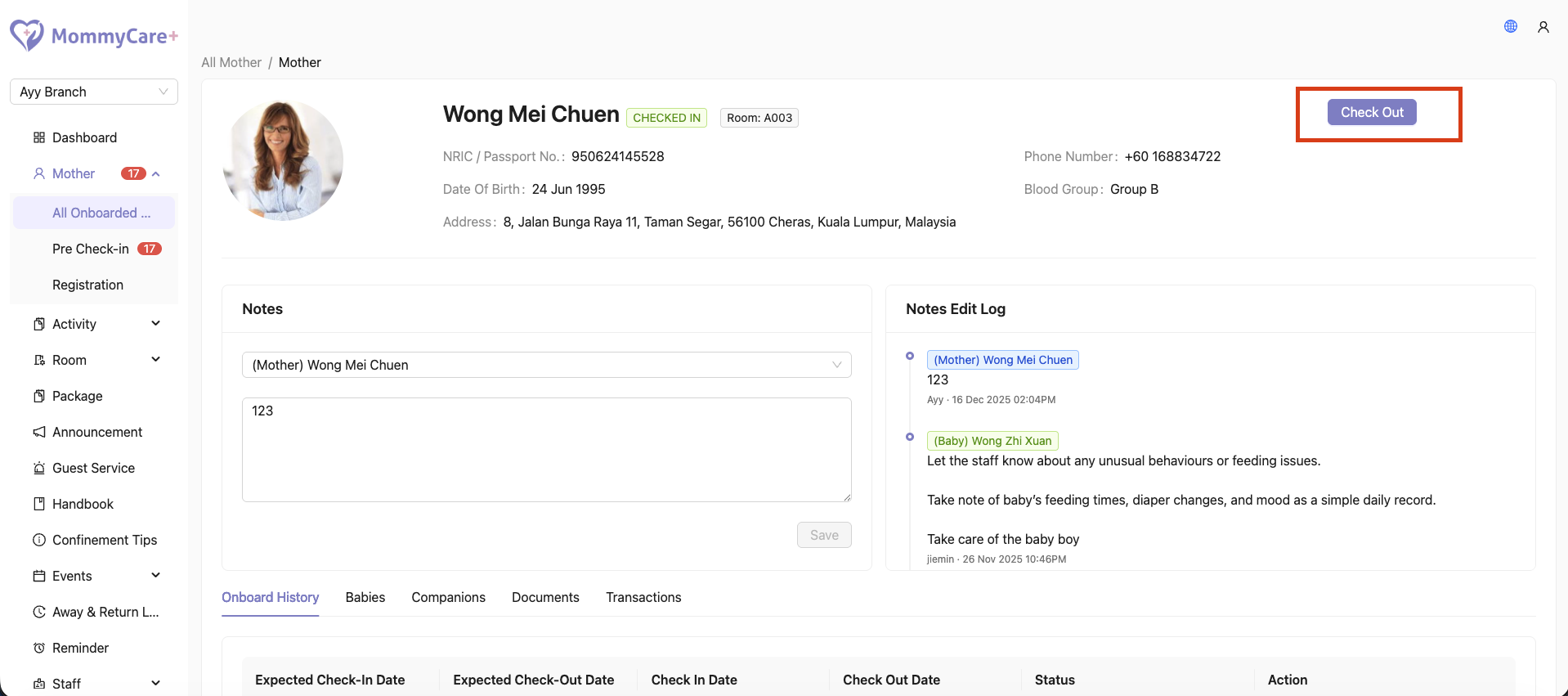
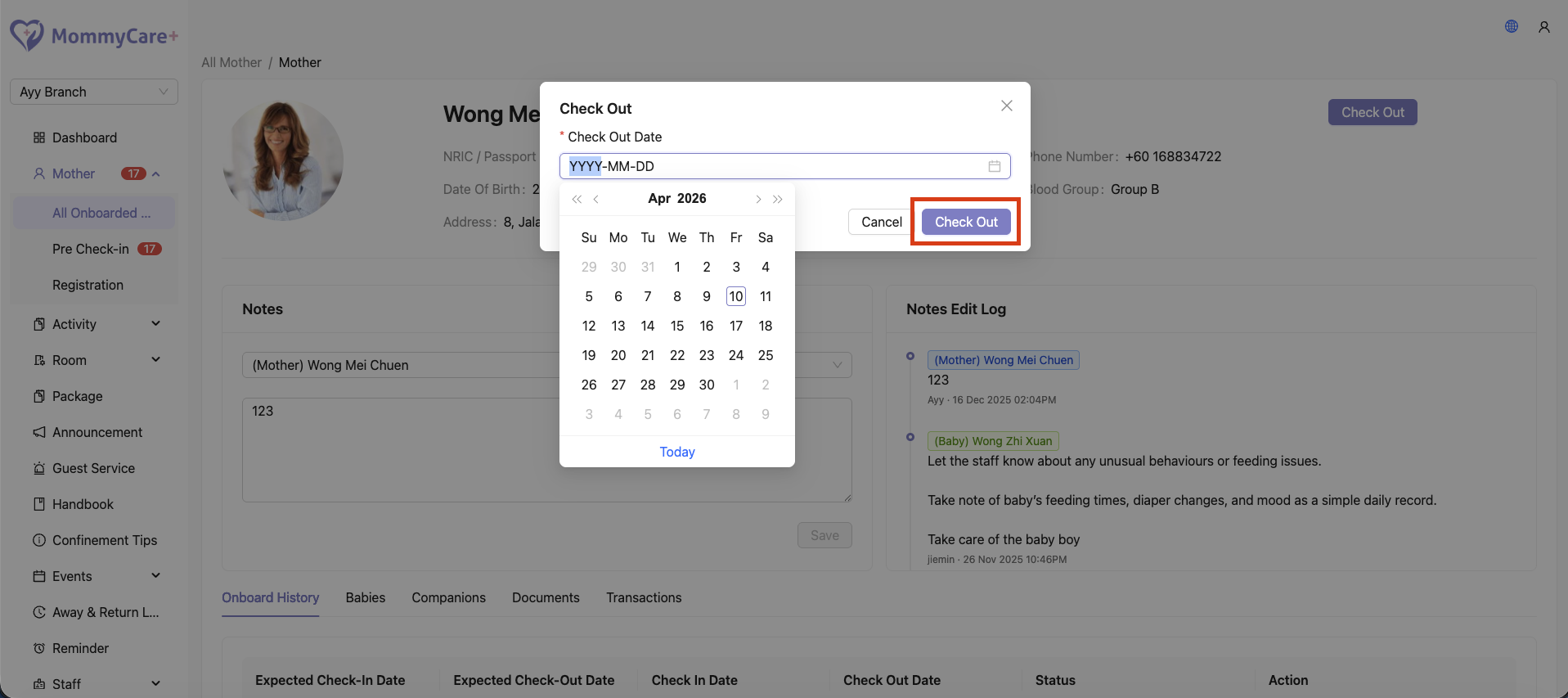
How to Check Out Mothers
- Location: Mothers -> All Onboarded Mothers
- Click on the view profile icon
- Click “Checked Out"
- Select Check Out Date, then confirm by clicking "Check Out" again
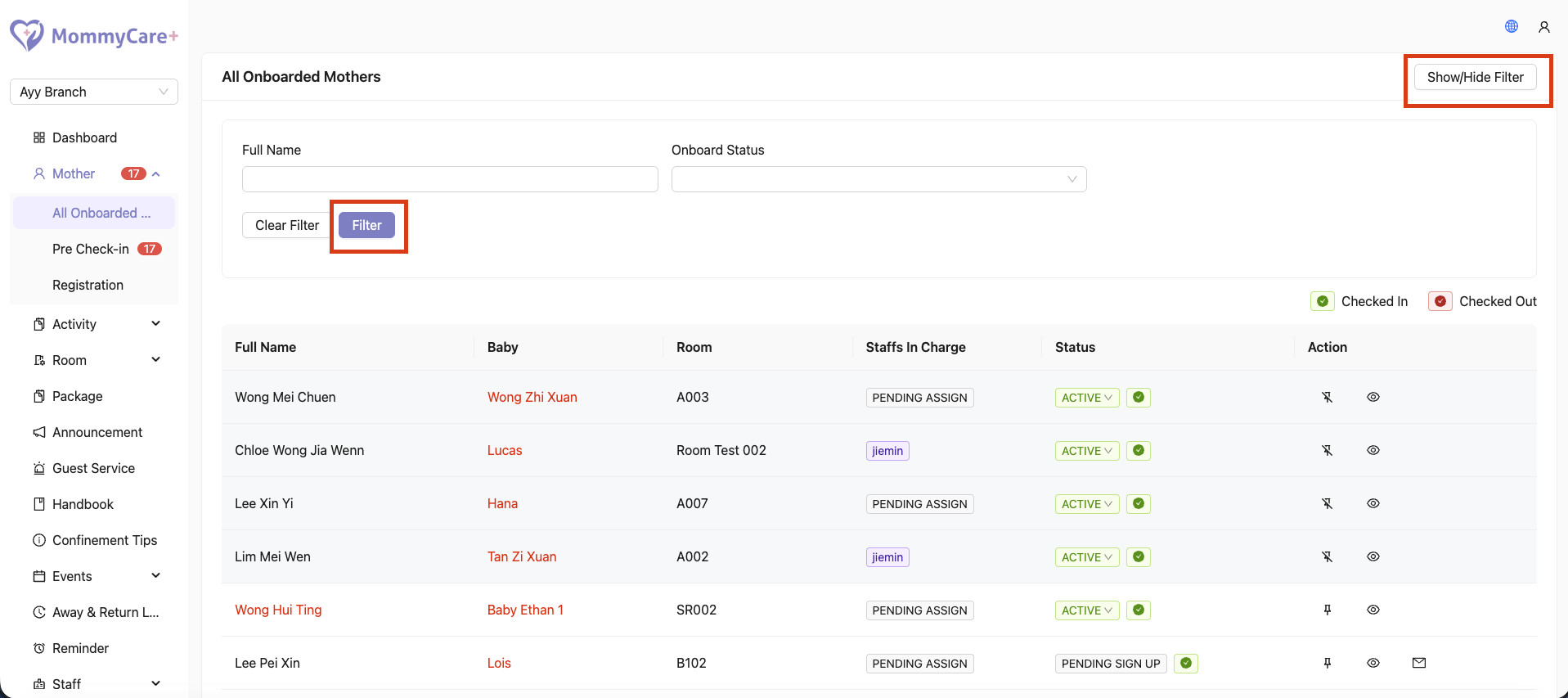
How to Filter Mother
- Location: Mothers -> All Onboarded Mothers
- Click “Show/Hide Filter”
- Fill in the field that you wish to filter, then click “Filter”
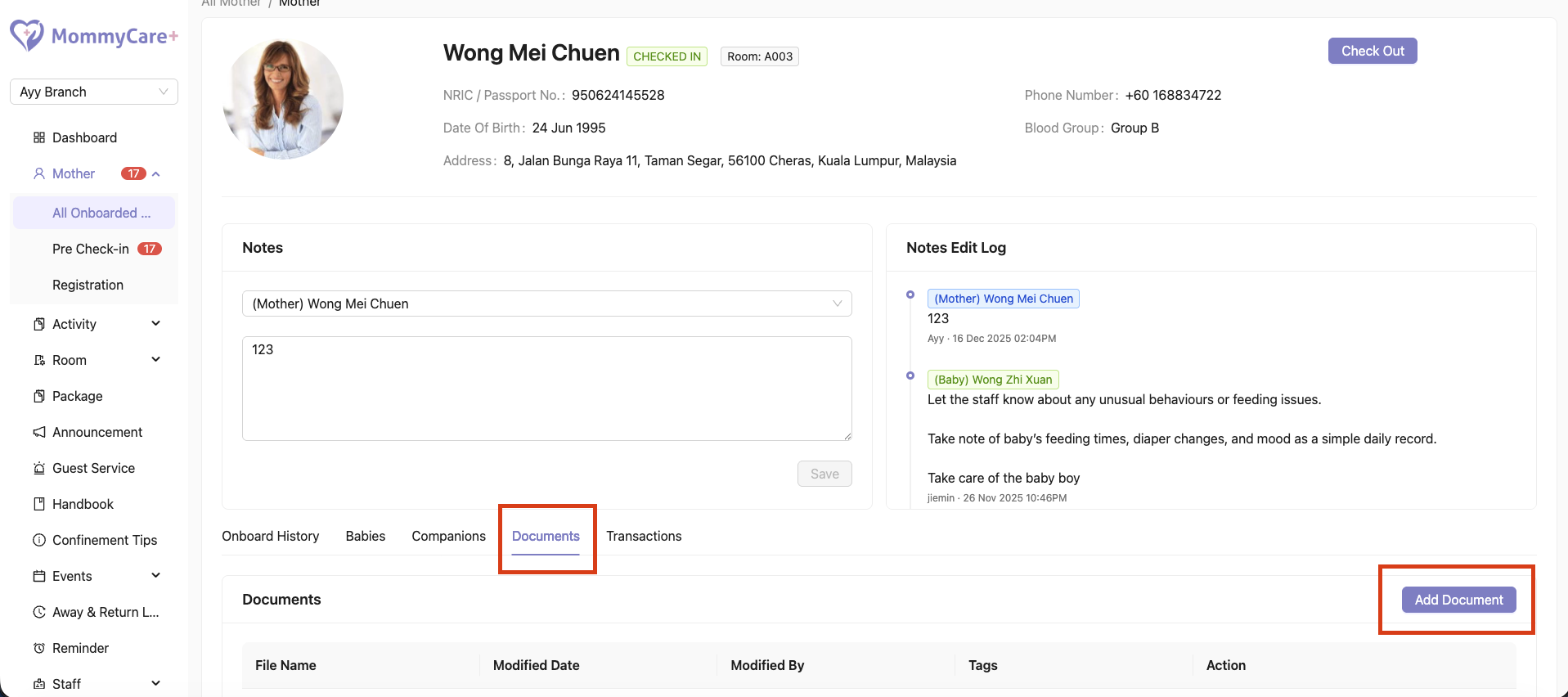
How to Add Mother's Document
- Location: Mothers -> All Onboarded Mothers
- Click on the view profile icon
- Click "Documents"
- Click "Add Document"
- Make changes and upload document to the required field, then click “Save”
Note:
Tags are keyword labels attached to documents and to help users categorize, filter, and quickly find documents using filter chips.
How to Add Mother's Payment
- Location: Mothers -> All Onboarded Mothers
- Click on the view profile icon
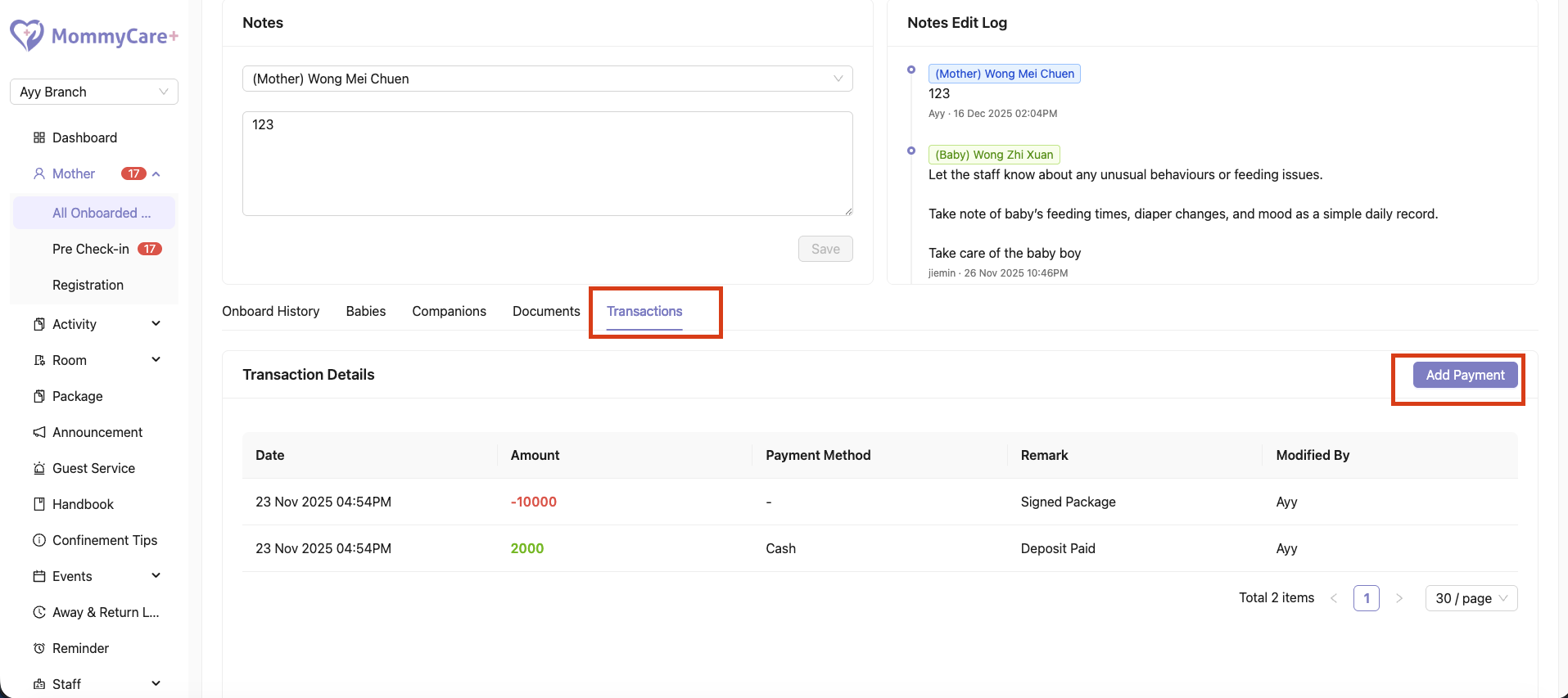
- Click "Transactions"
- Click "Add Payment"
- Make changes and upload document to the required field, then click “Save”