Two-Factor Authentication (2FA)
- Only superadmin can enable/disable the Two-Factor Authentication (2FA)
- After enabled the Two-Factor Authentication (2FA), all account included superadmin and admin will be forced logout and need to verify their account for logging in
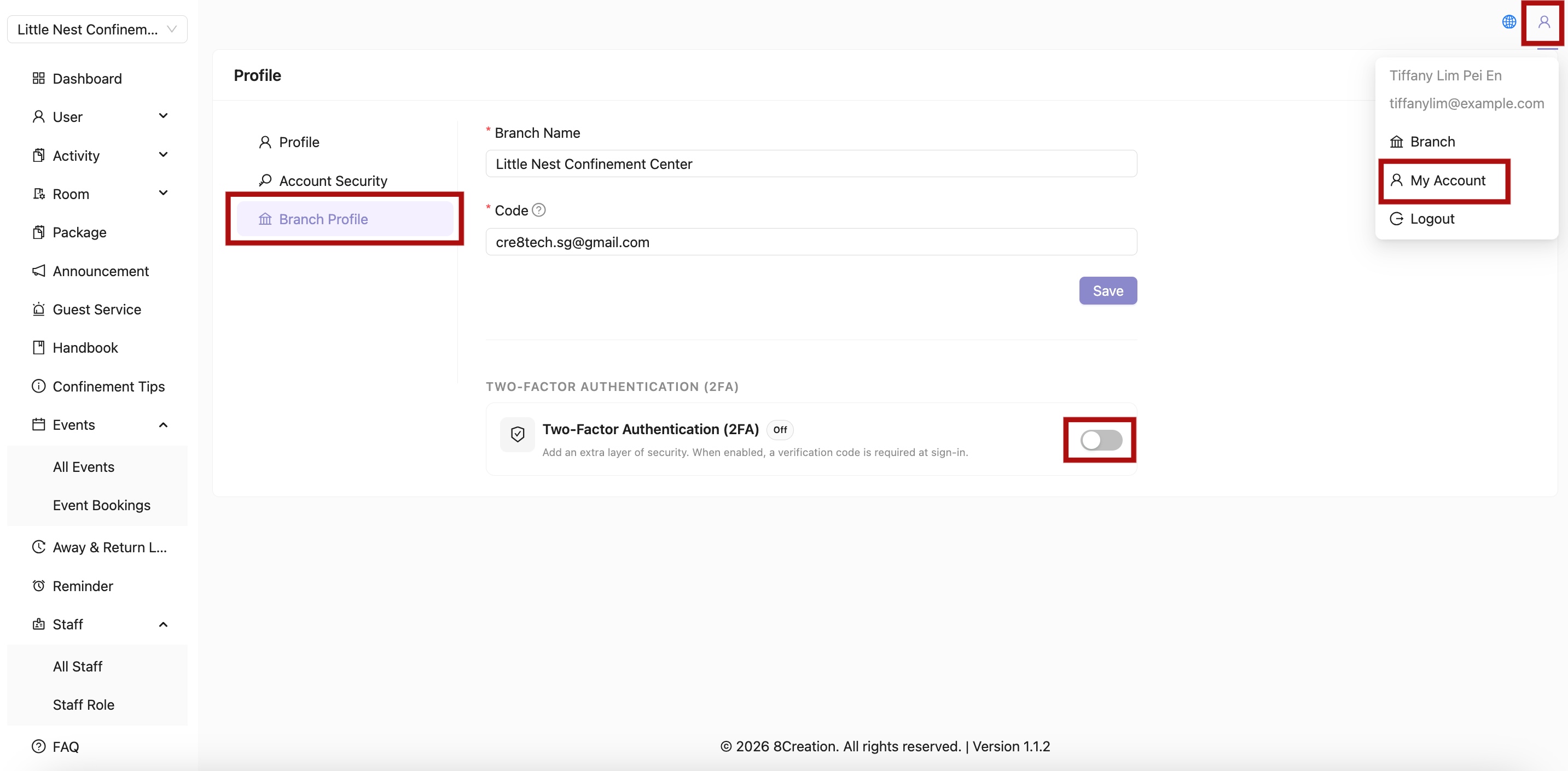
How to Enable Two-Factor Authentication (2FA)
- Click the profile icon and select My Account
- Navigate to "Branch Profile"
- Click the toggle switch button to enable 2FA
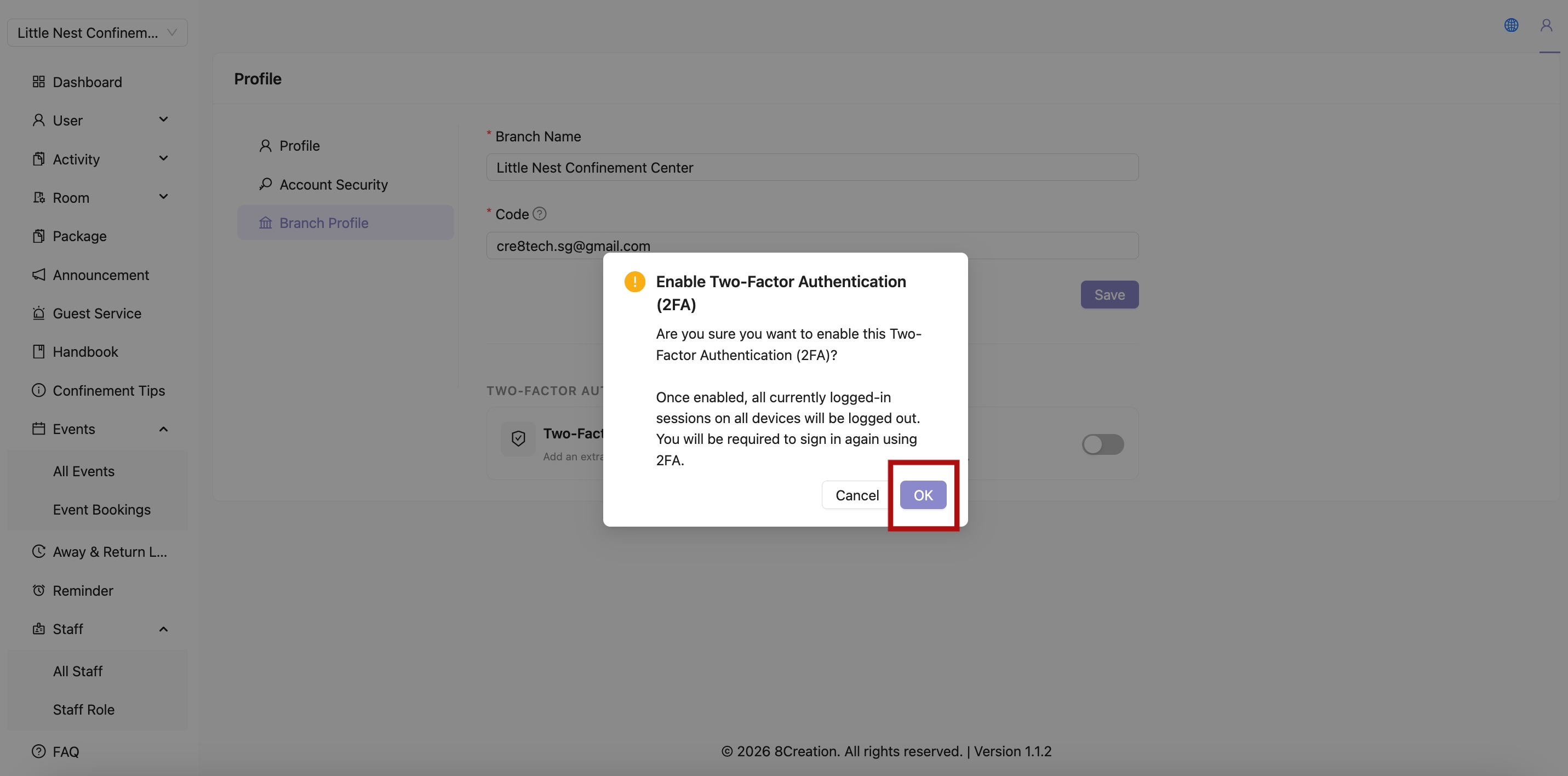
- Click "OK" button
How to Setup Two-Factor Authentication (2FA)
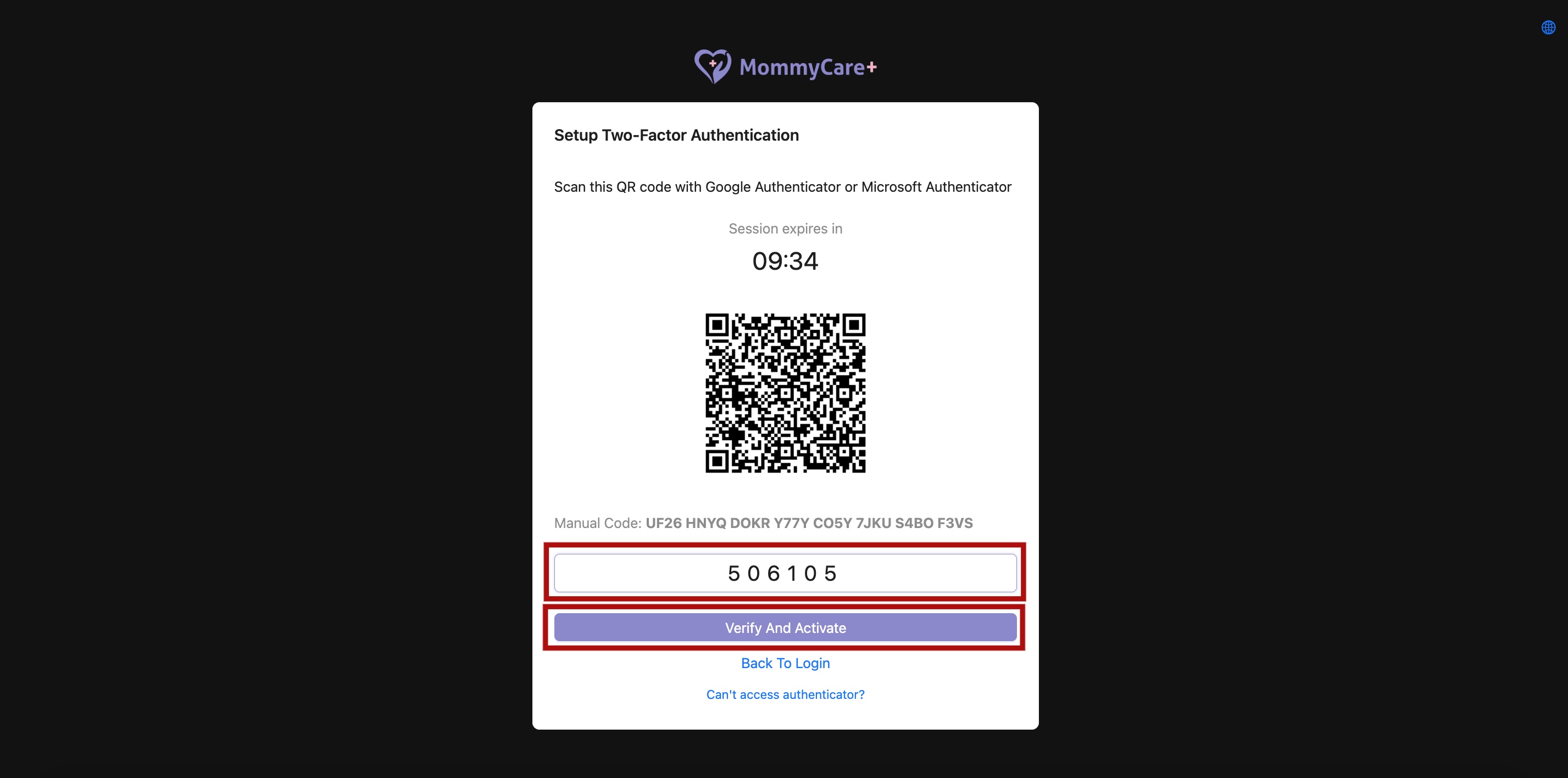
- Scan the QR code with Google Authenticator / Microsoft Authenticator or enter the setup key manually
- Enter the 6-digit verification code generated by the authenticator app into the system
- Click "Verify And Activate" button
How to Login with 2FA
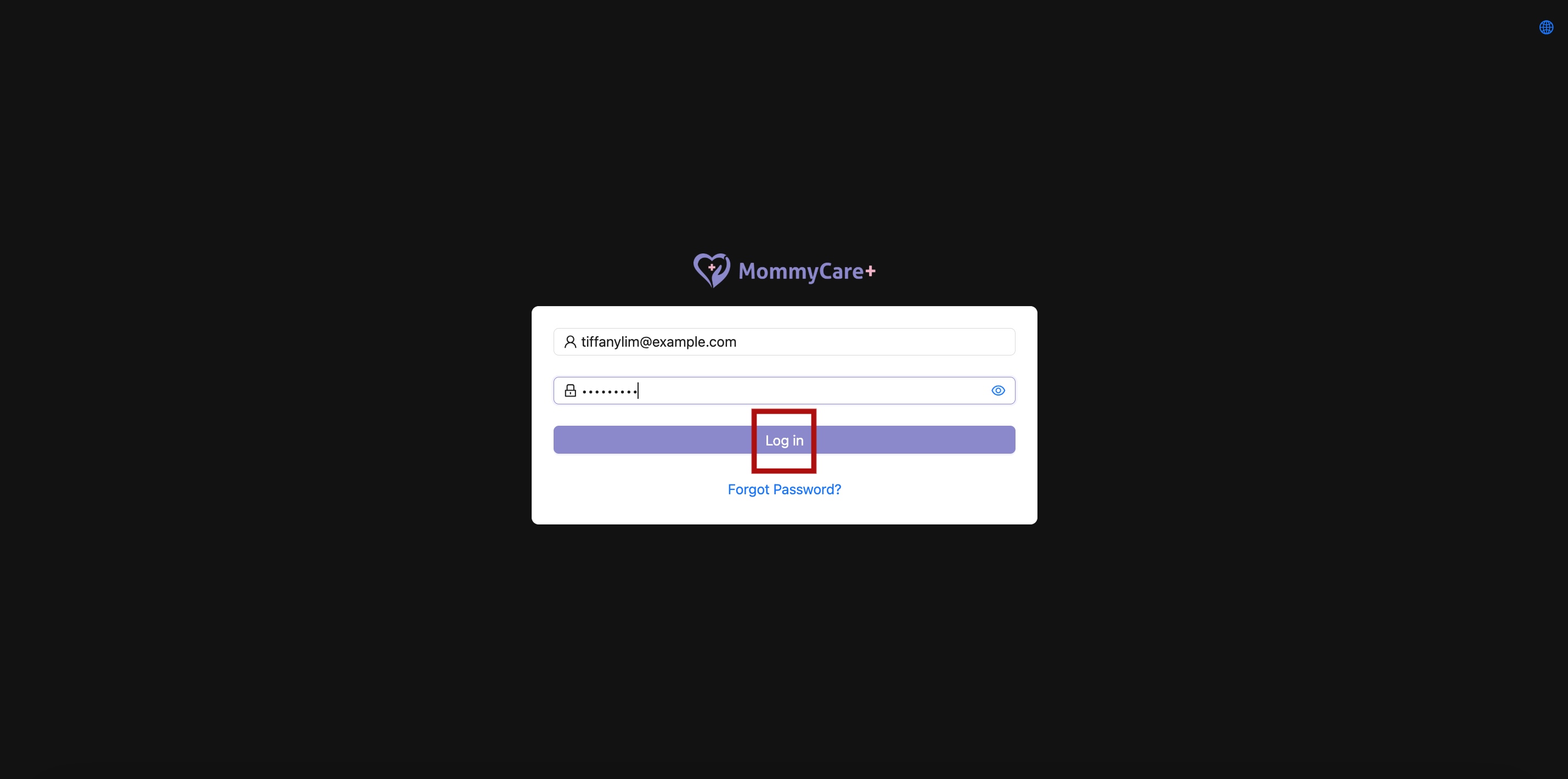
- Enter valid Email and Password
- Click Login button
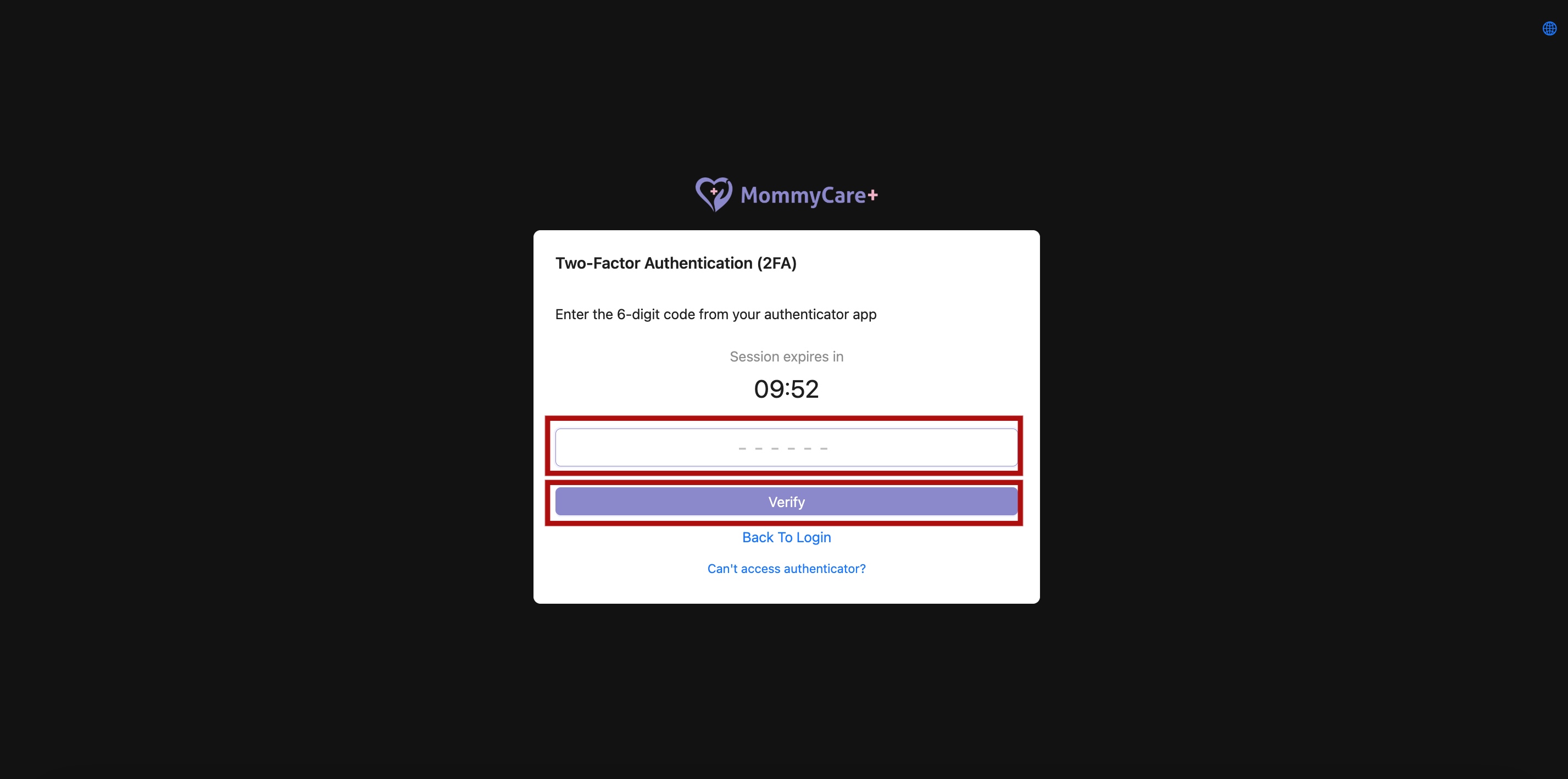
- Enter the 6-digit verification code generated by the authenticator app into the system
- Click "Verify" button
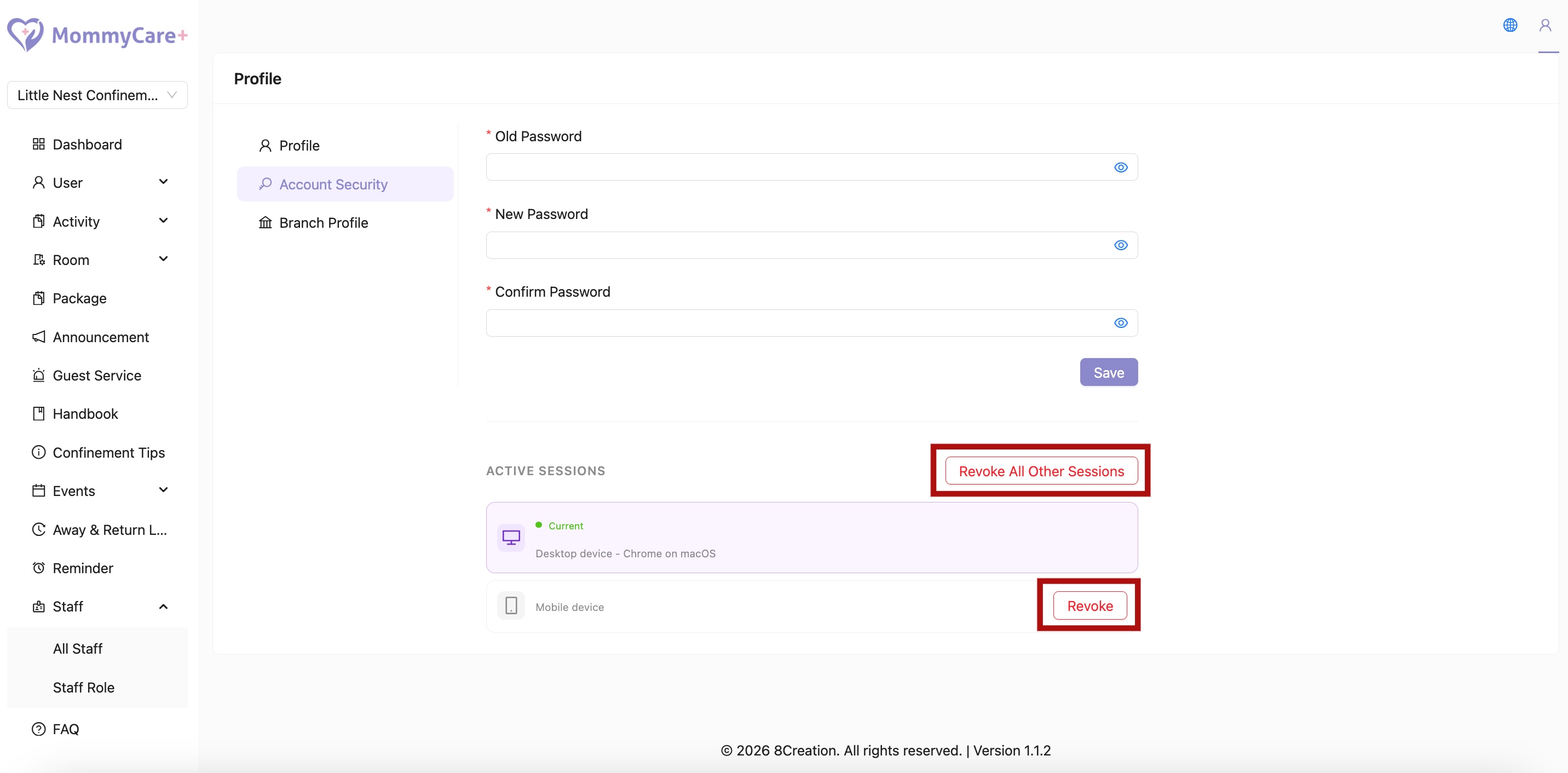
How to Revoke A/All Session(s)
- Click the profile icon and select My Account
- Navigate to "Account Security"
- Click "Revoke" to revoke selected session or click "Revoke All Other Sessions" to revoke all other session except the session that you're currently logged in
- The session that had been revoked will be forced to logout