Notifications
Everything the centre sends you is kept in the Notifications tab, even if you missed it on your phone. The red number on the tab shows how many you haven't read.
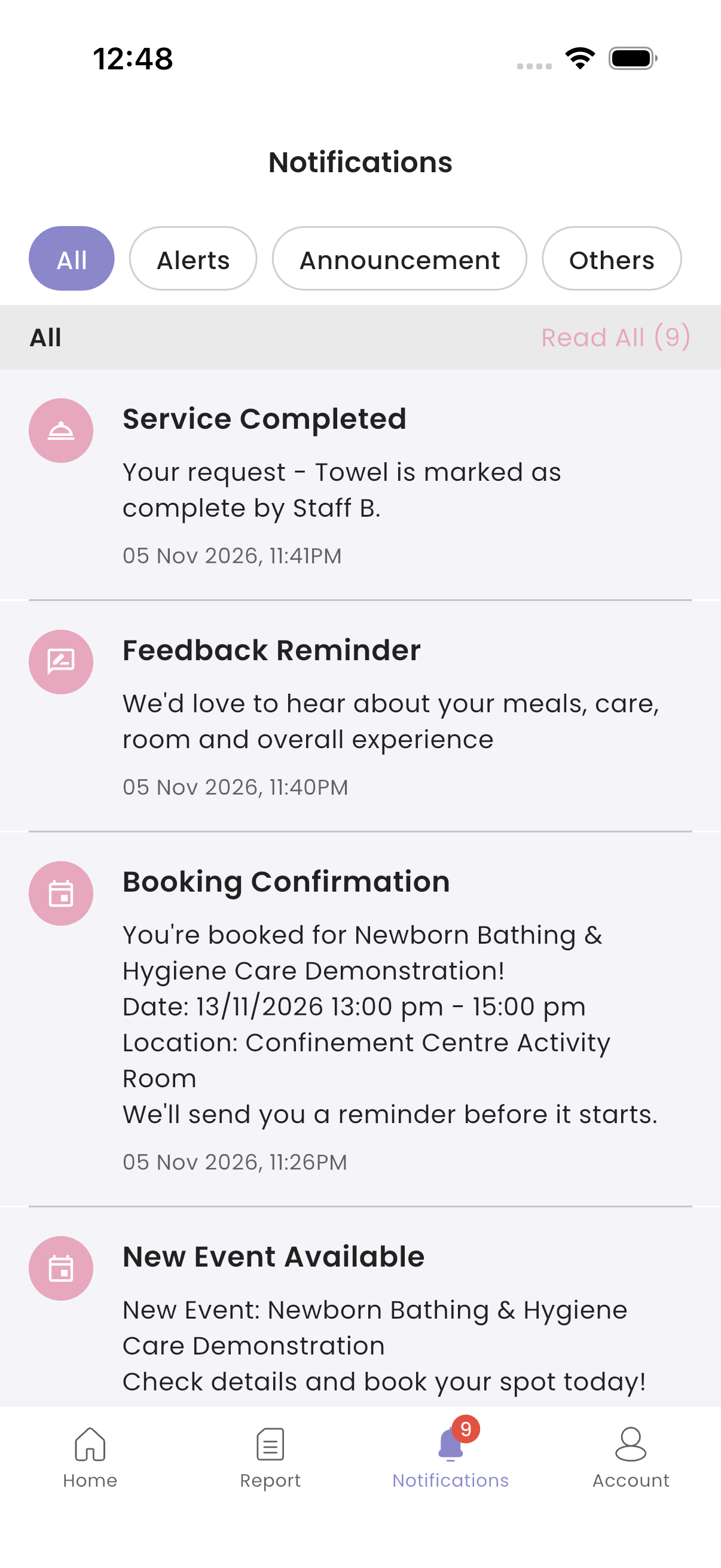
What you get
| Notification | When |
|---|---|
| New <activity> Report, for example "New Activity A Report" | The staff sent you a report about you or your baby. It names the activity, who it is for and the start time. |
| ⚠️ Report Alert | A report has a value outside the normal range |
| New Reminder | 10 minutes before a reminder |
| Service Completed | The staff completed your service request |
| Booking notifications | The centre confirms, moves or cancels your benefit booking, and reminders before it |
| New Event Available, Event Reminder | You're invited to an event, and the day before it |
| Announcements | The centre publishes news for you |
| Mom's Guide | A new guide for you |
| Feedback Reminder | The centre asks for your feedback |
| New Benefit Added | The centre added a benefit for you to book |
How to read notifications
- Open the Notifications tab.
- Choose a filter: All, Alerts, Announcement or Others.
- Tap a notification to open what it's about. It is marked as read.
Each notification has a round icon for its group, for example reports, events or benefits. Above 99 unread, the tab shows 99+.
Tap Read All to mark everything in the current filter as read.
Troubleshooting
| What you see | Why, and what to do |
|---|---|
| You see notifications in the app but not on your phone | Turn on notifications for the app in your phone settings, and make sure you're logged in on this phone. |
| A report notification isn't under any filter except All | That's normal. Report notifications only show under All. |
| "Announcement not found." | The centre has taken that announcement down. |
| Notifications are in the wrong language | They follow your app language. Change it in Account → Switch Language. |