Activity Management
- Activity management enables admin to customize the activities they hope to monitor in the report, e.g. blood pressure, sleeping hours, etc
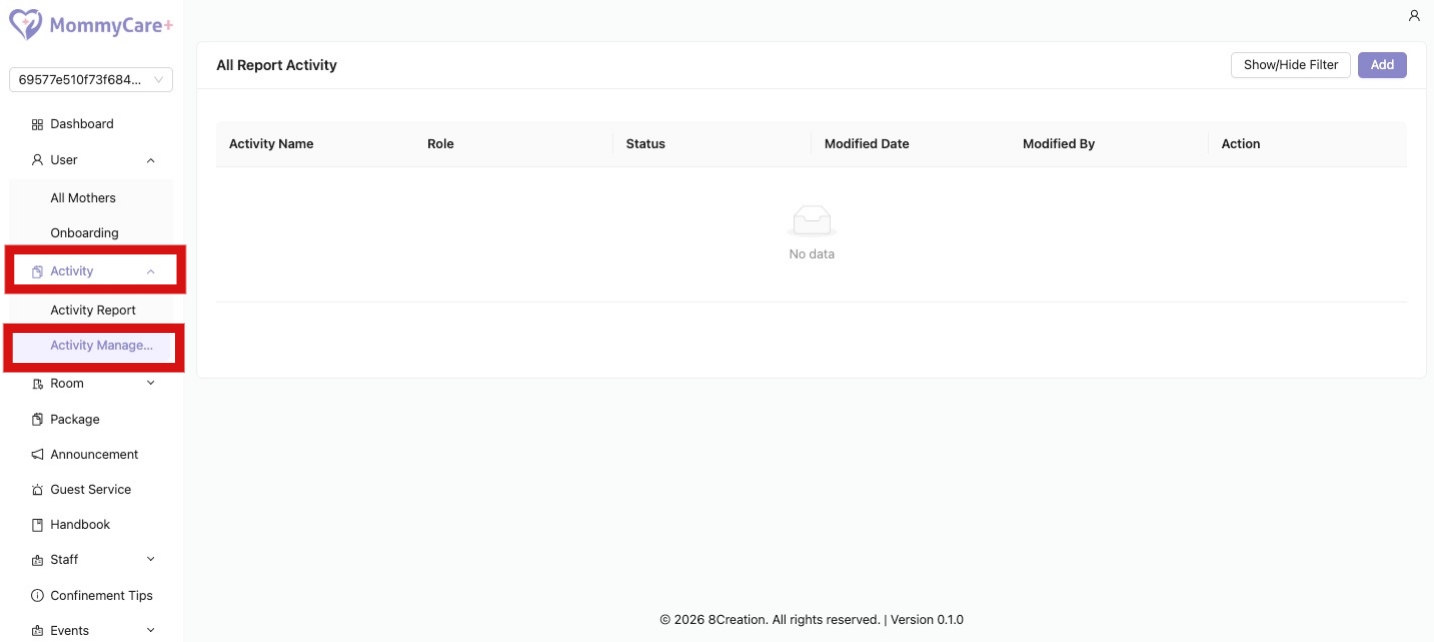
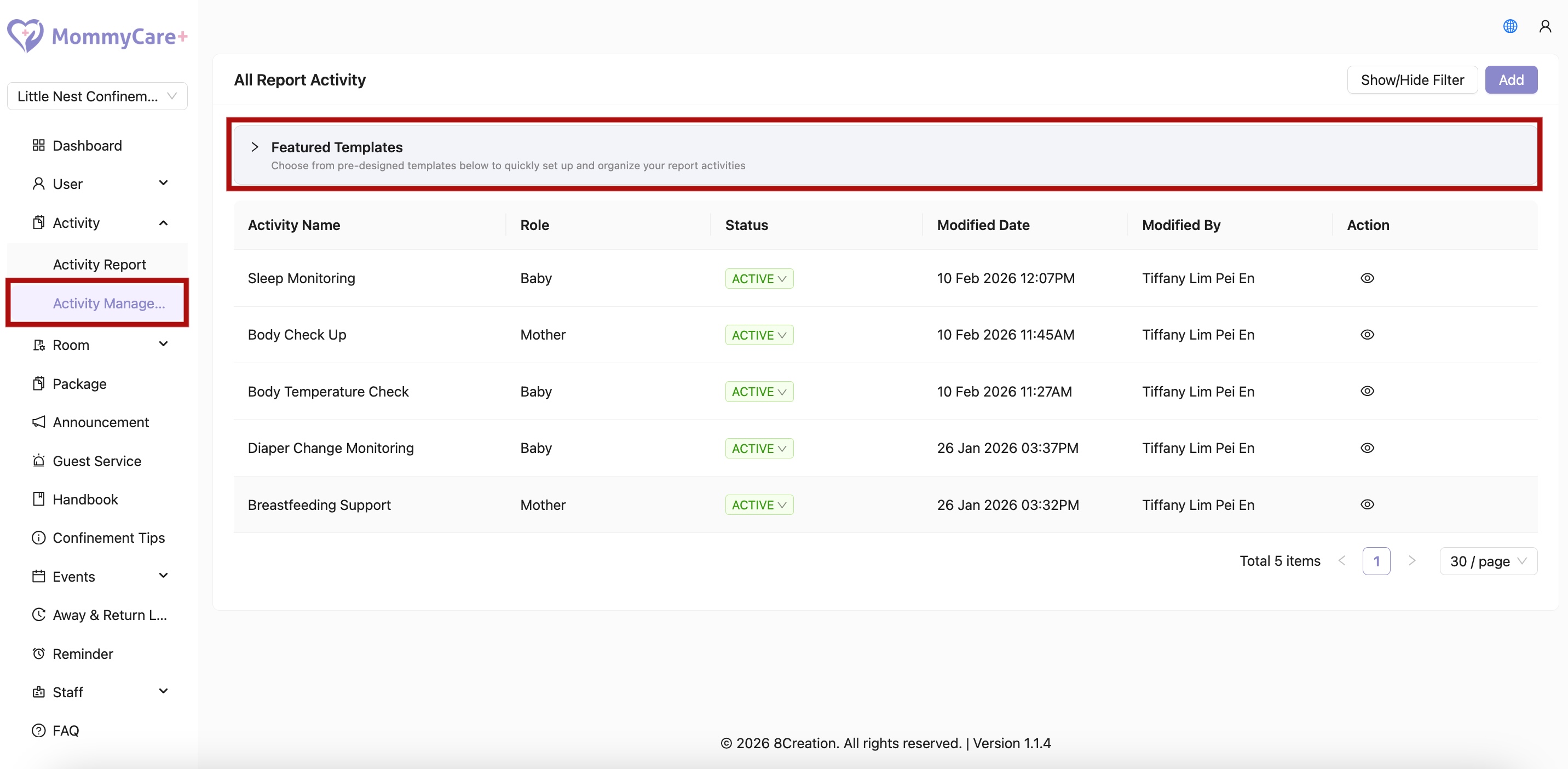
- Location: Activity -> Activity Management
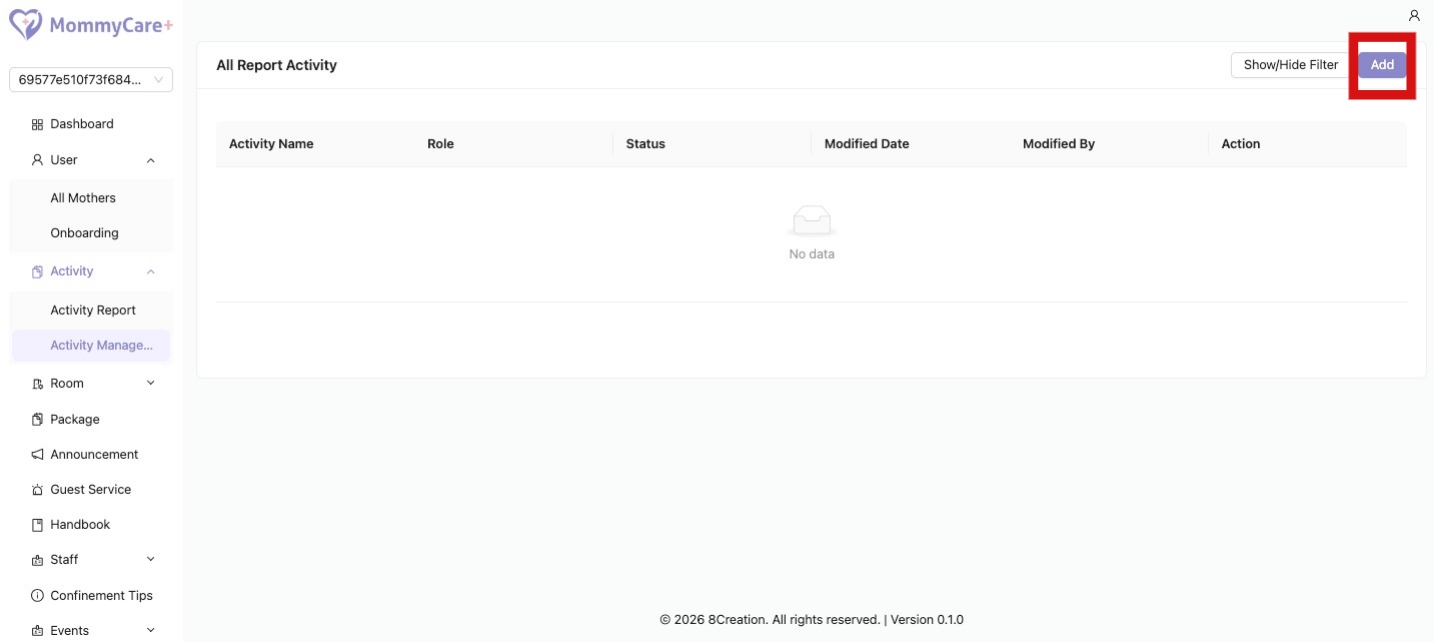
How to Add Activity
- Click “Add”
- Fill in the required fields
How to Add Customize Fields to the Report
- Under “Additional Fields”, fill in a field name. For example, if the activity name is “Blood Pressure”, “Systolic Blood Pressure” can be one of the additional fields
- Then select a field type
How to Select Field Type for Additional Field
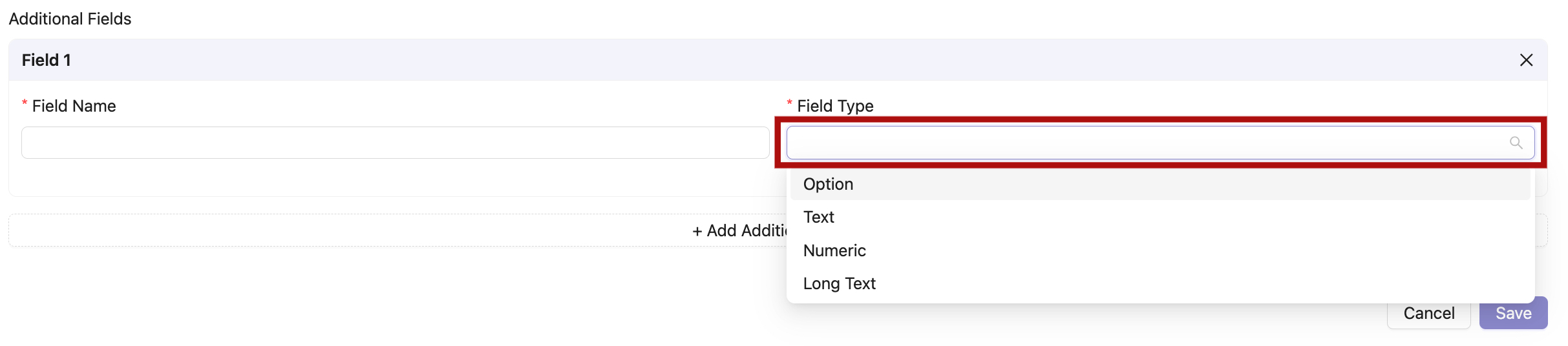
- Click the dropdown button “Field Type” under the additional field
- There are 4 selections for the field type: “Option”, “Text”, “Numeric”, and "Long Text"
a. Option
- By selecting “Option”, staff are only able to fill in the report with the given options added by admin
- Enter the option in the field, then click “Add”
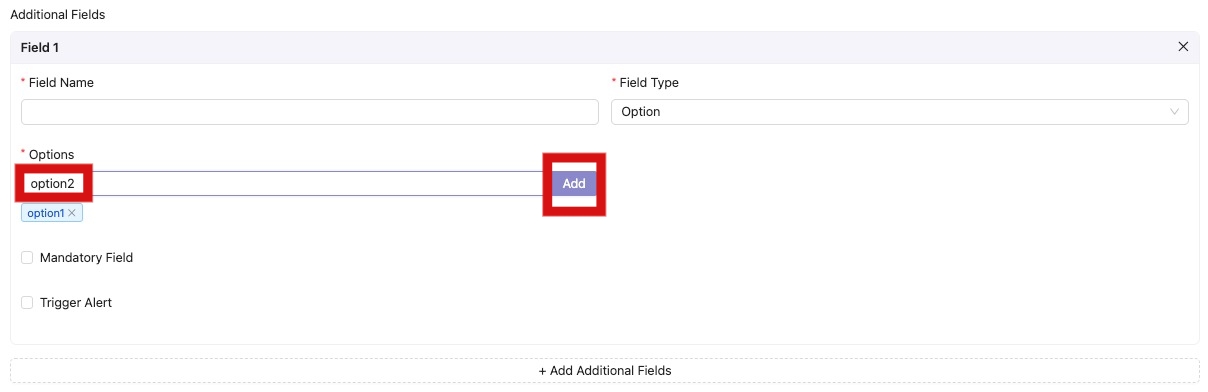
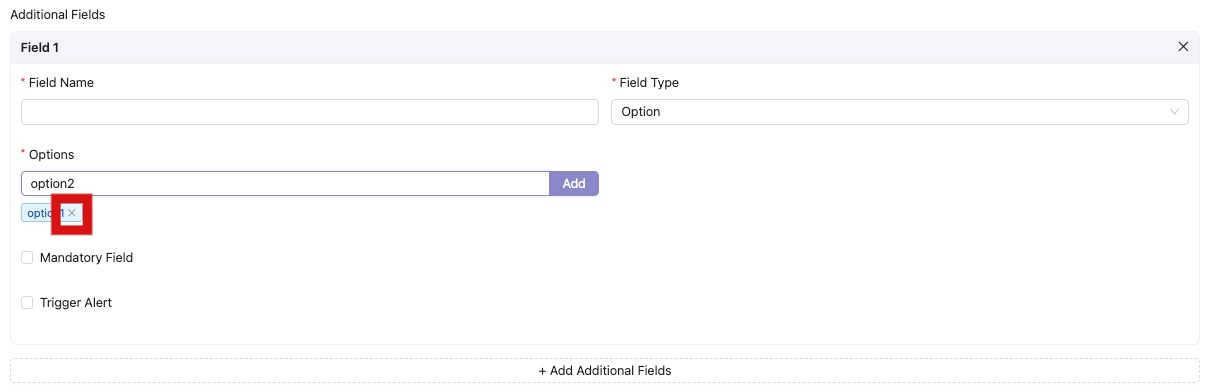
- The option added can be remove
- Click on the "X" next to the added option that you wish to remove
b. Text
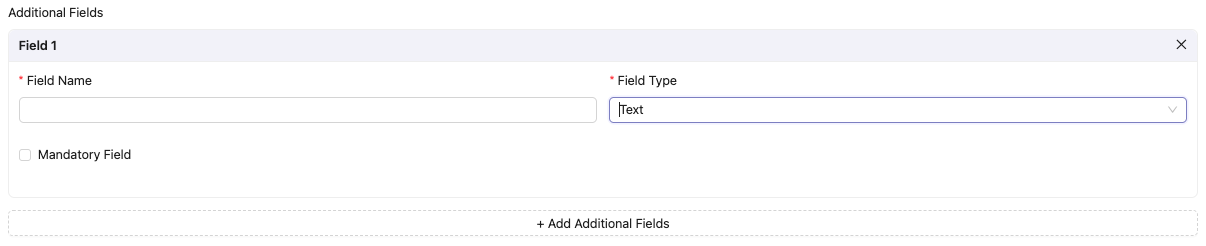
- By selecting “Text”, staff are capable to enter free text in the report
- Alert cannot be triggered in this field
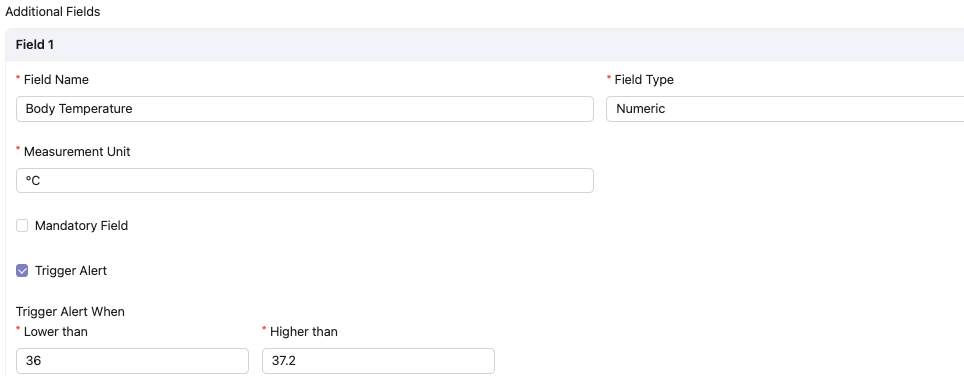
c. Numeric
- By selecting “Numeric”, staff can only enter numbers under the specific measurement unit
- For example, if the admin hopes to monitor on readings such as systolic blood pressure, fill in “mmHg” as the measurement unit
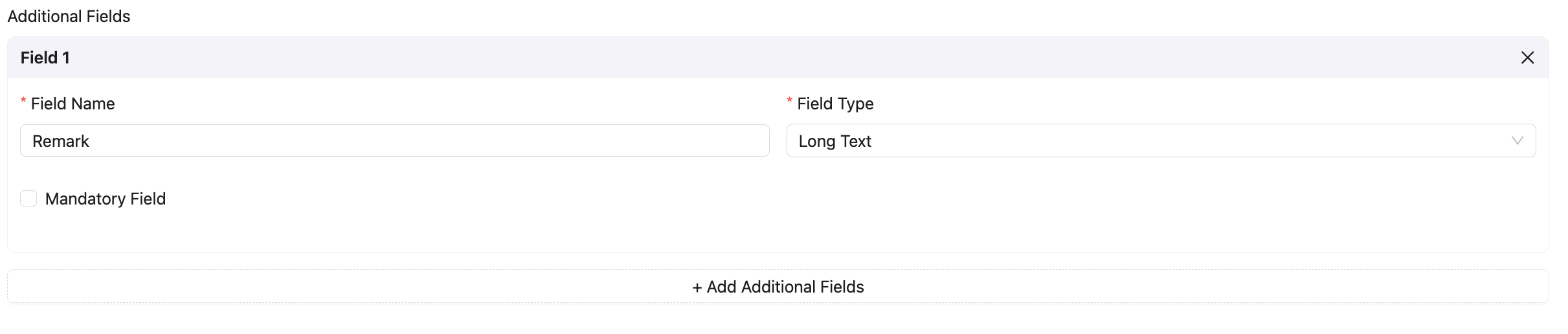
d. Long Text
- By selecting “Long Text”, staff can enter extended written content without strict character limitations
- For example, if the admin wants to record detailed observations or notes such as patient condition or daily remarks, staff can input full descriptions in this field
How to Trigger Alert for Additional Field
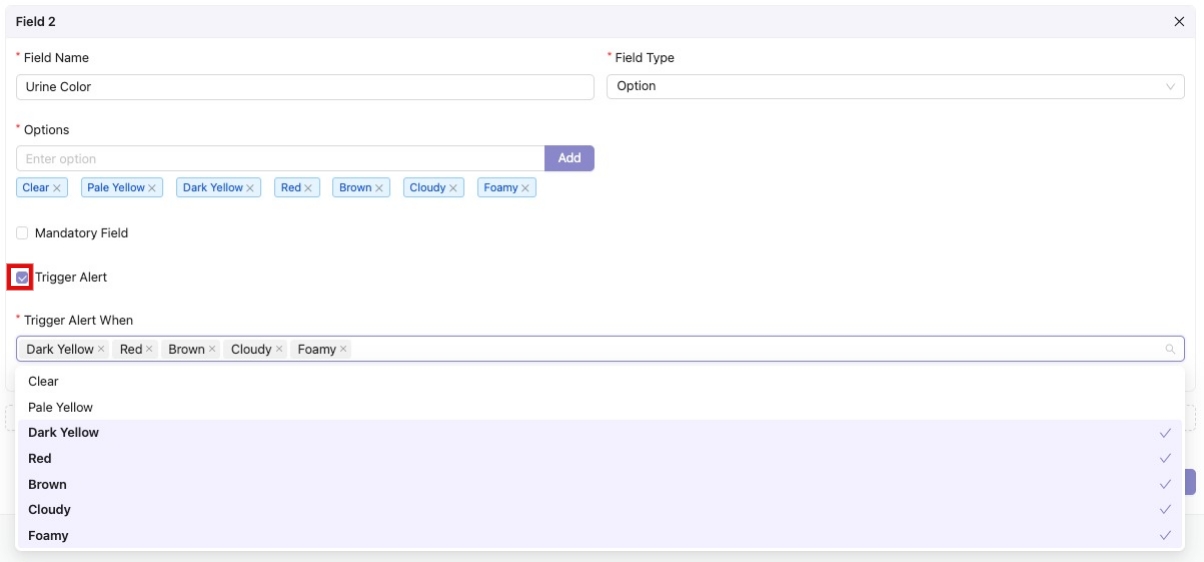
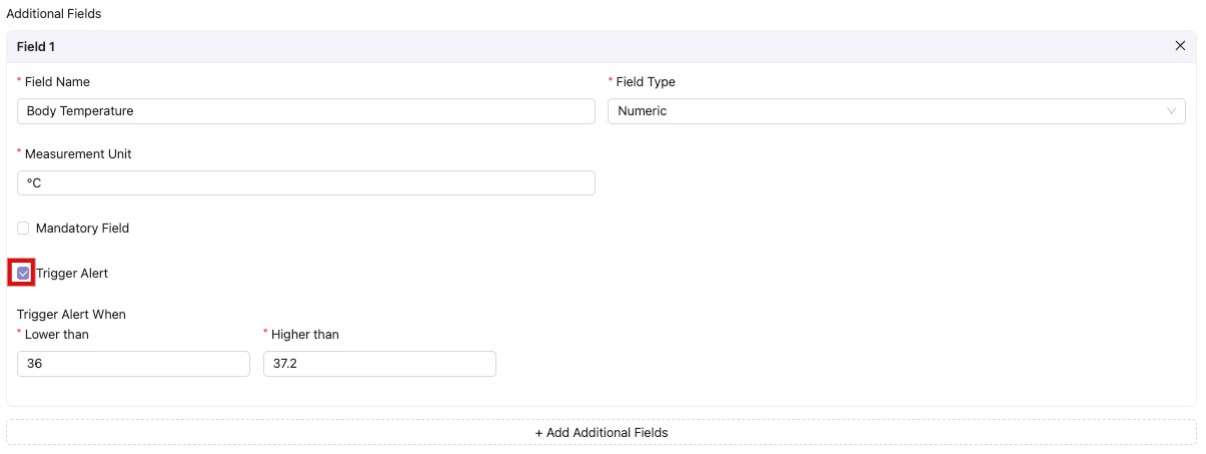
- Trigger alert is only applicable for field type “Option” and “Numeric"
- Tick on the tickbox “Trigger Alert”
- For “Option”, select the options that alert will be triggered
- For “Numeric”, fill in the range that alert will be triggered
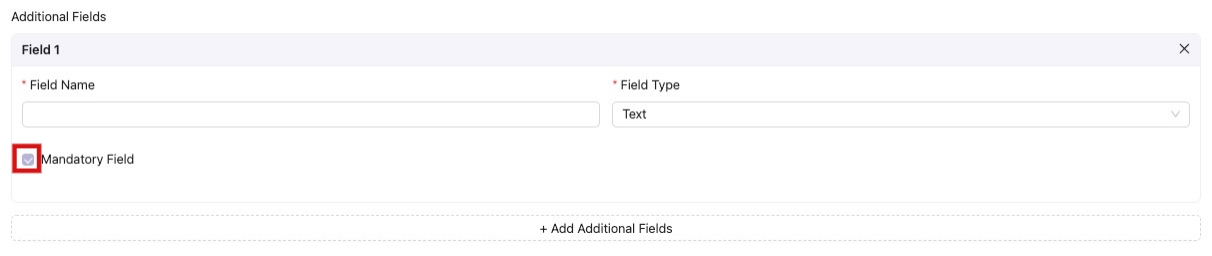
How to Set Additional Field as Mandatory to Fill In
- Tick on the tickbox “Mandatory Field”
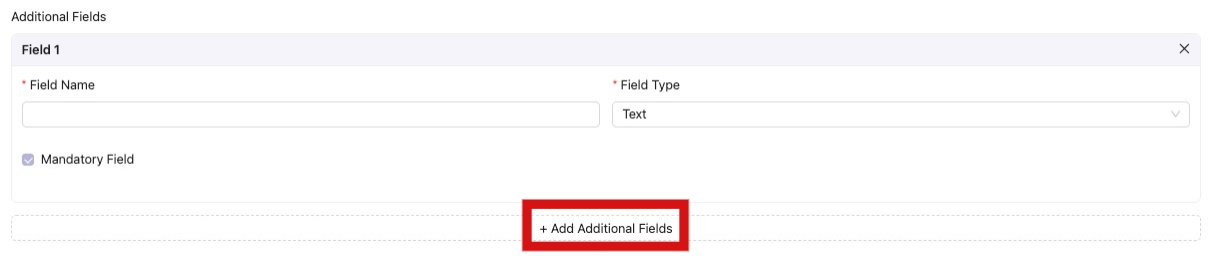
How to Add Another Additional Field
- Click “+ Add Additional Field”
- Fill in the required fields
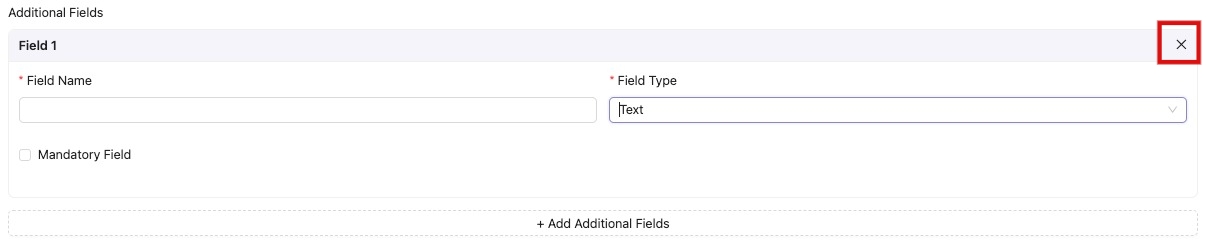
How to Remove An Additional Field
- Click “X” of the field
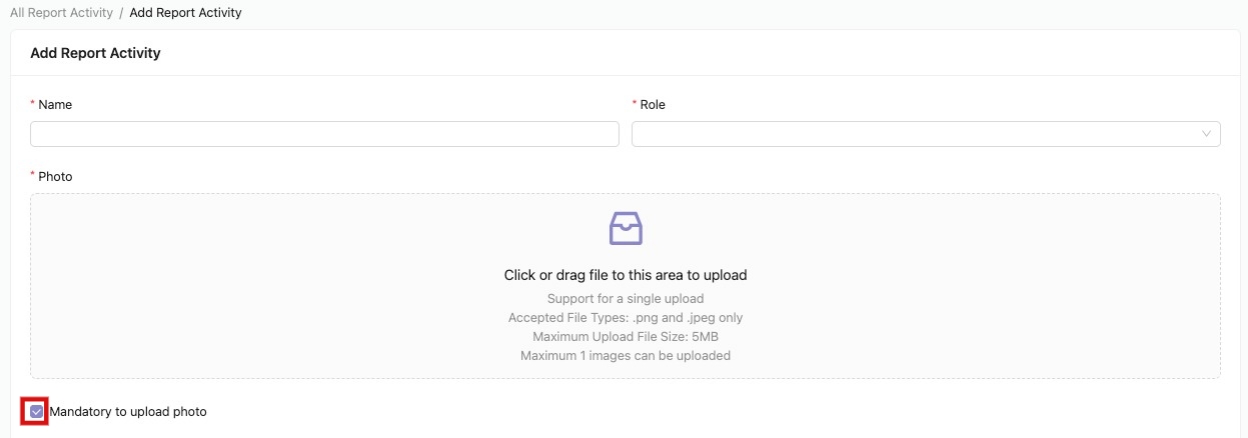
How to Set Mandatory to Upload Photo for This Activity
- Tick on the tickbox “Mandatory to upload photo”
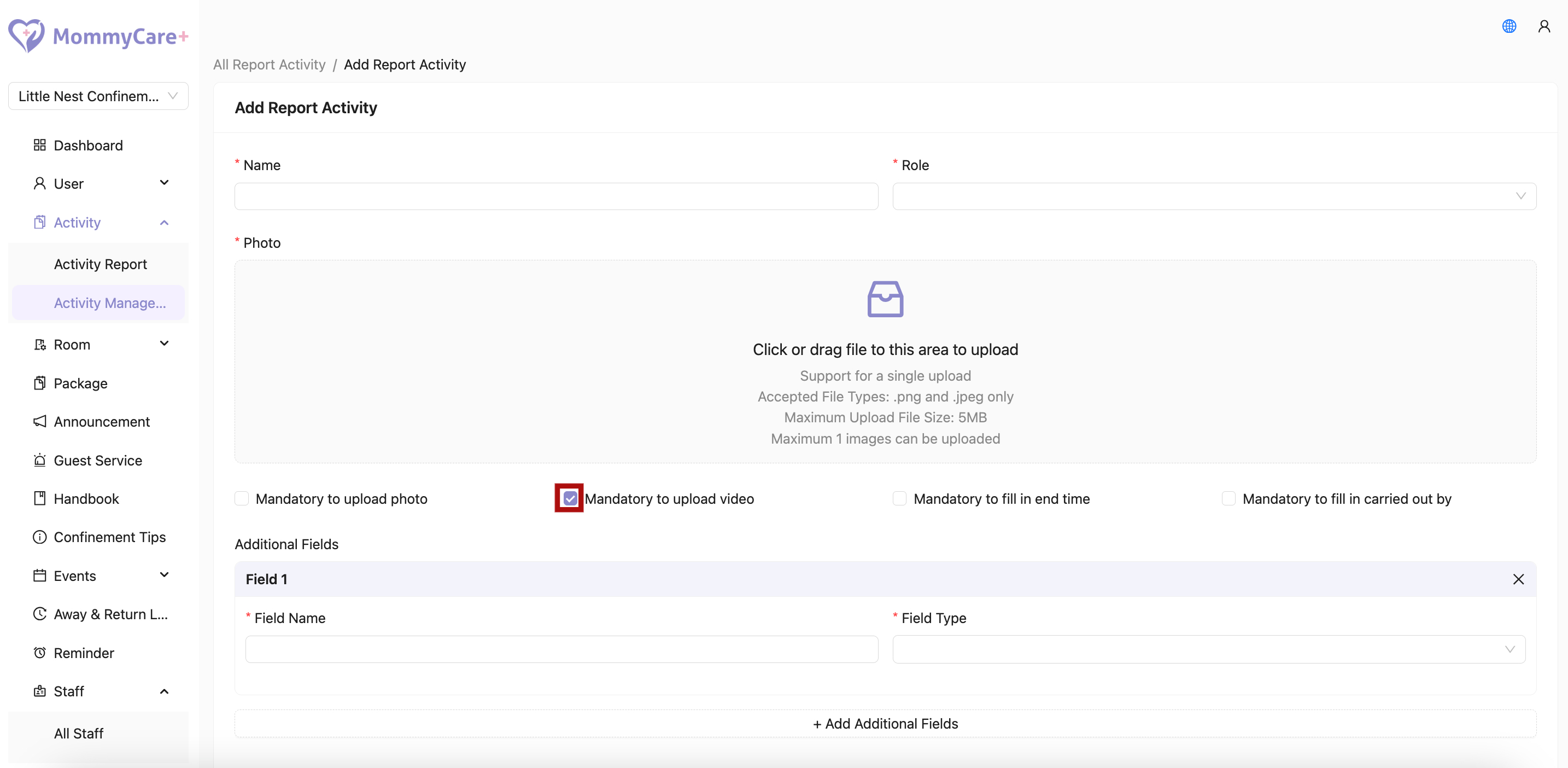
How to Set Mandatory to Upload Video for This Activity
- Tick on the tickbox "Mandatory to upload video"
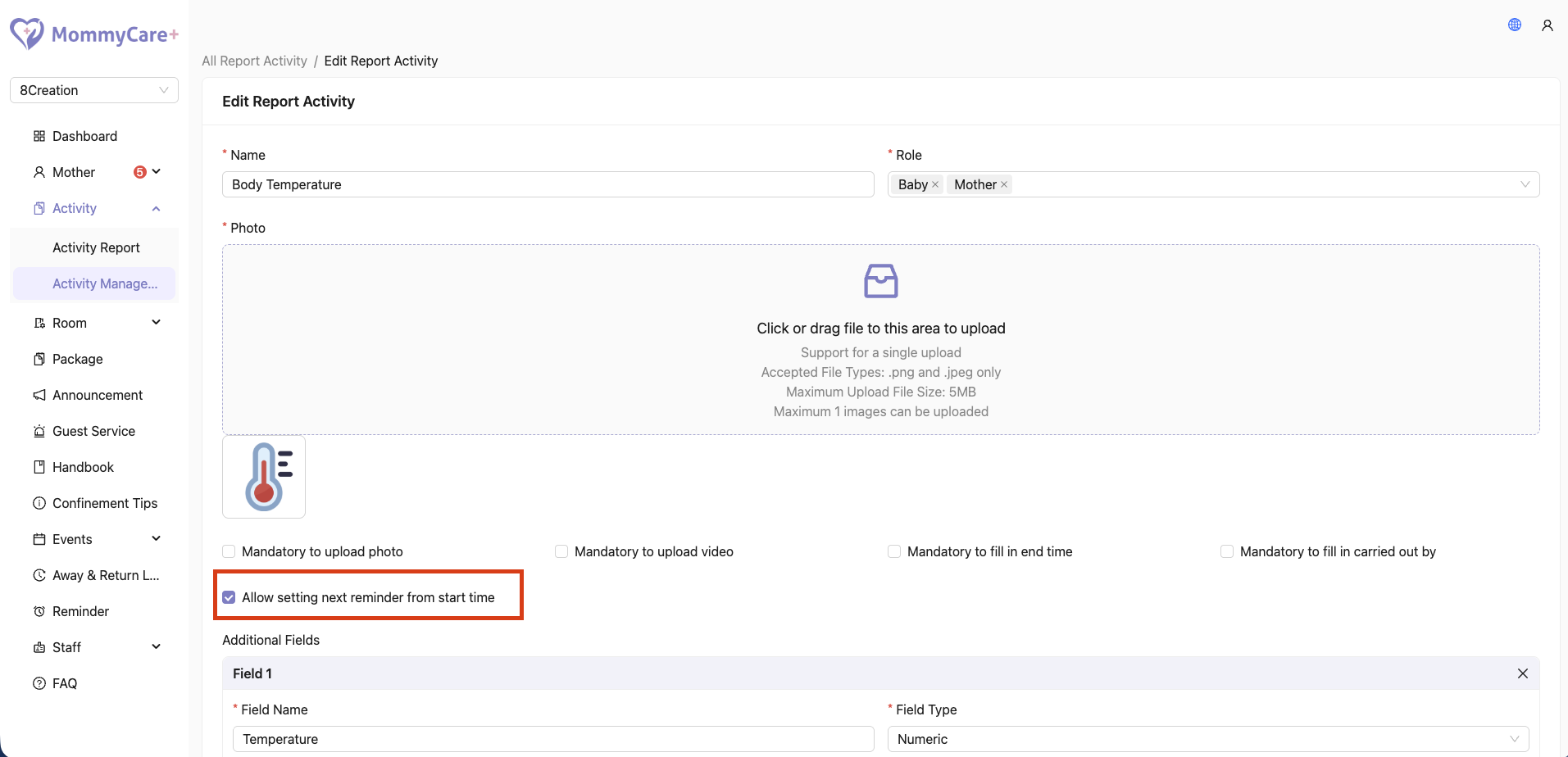
How to Allow Setting Next Reminder from Start Time
- Tick on the tickbox “Allow setting next reminder from start time”
- This allows staff to see the “Set Next Reminder” option when creating a report for this activity
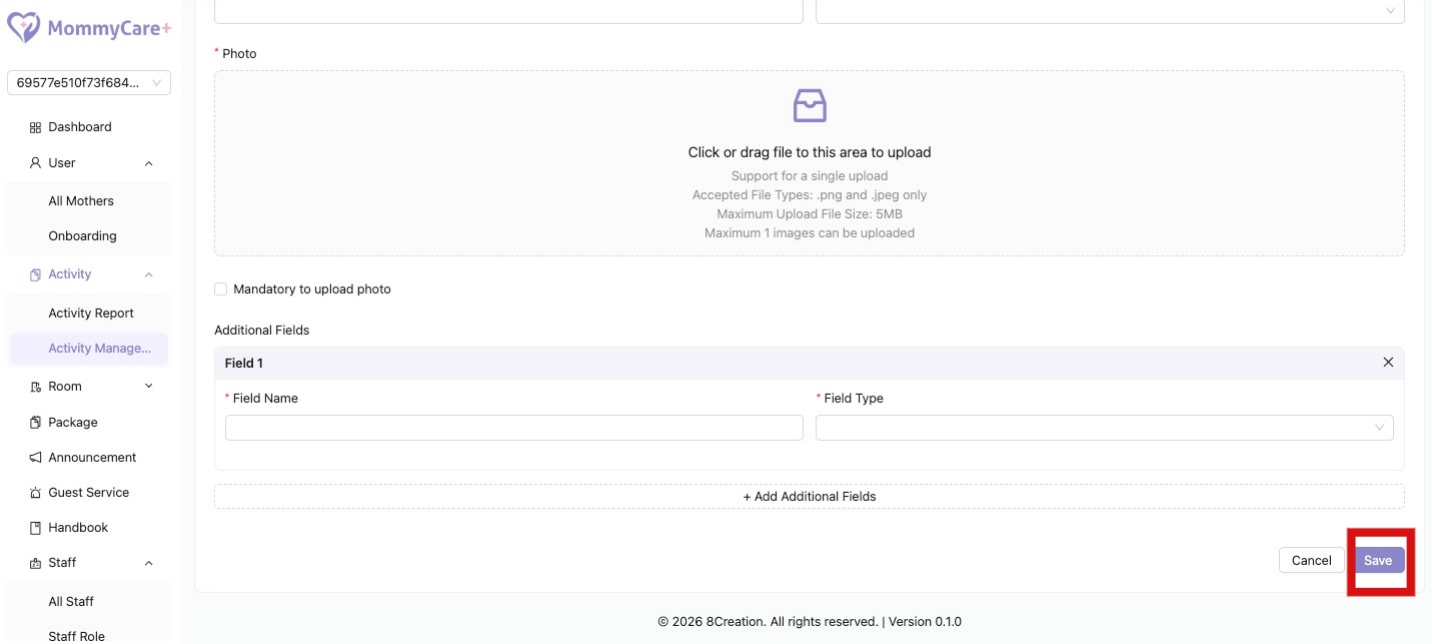
How to Save Activity
- After done creating the activity, be sure to click “Save”
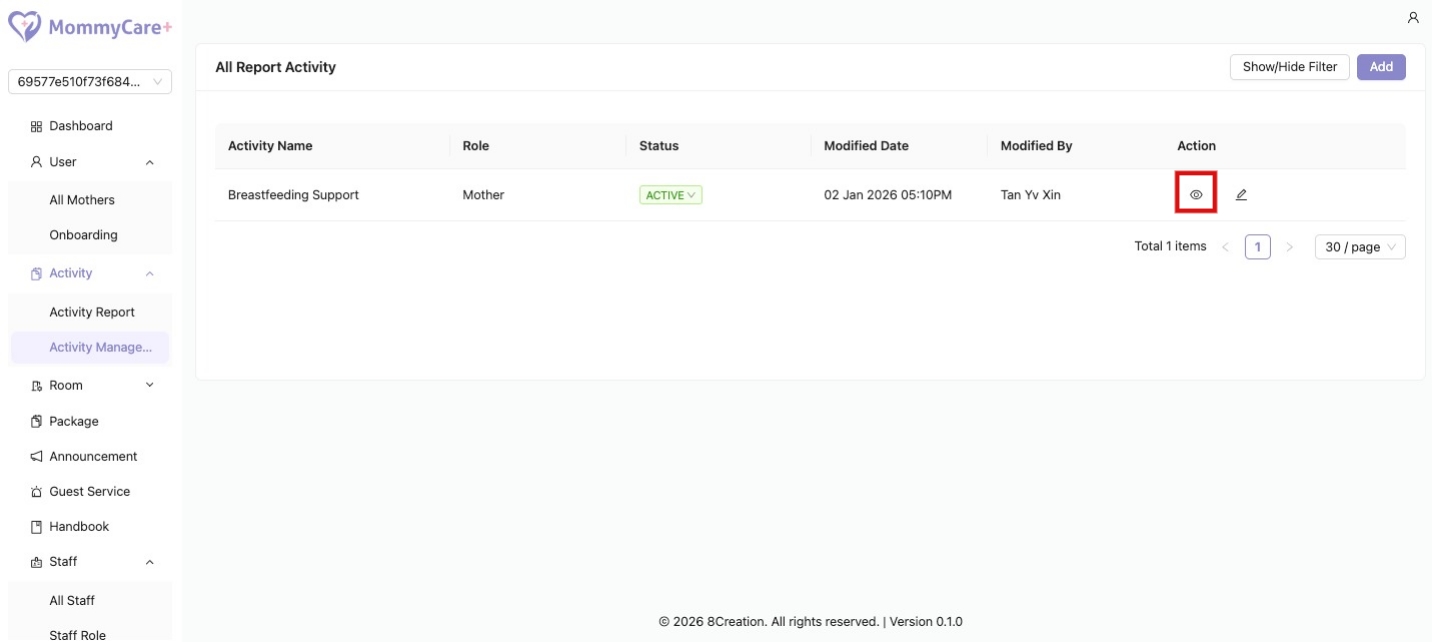
How to View Activity
- Click on the Eye icon
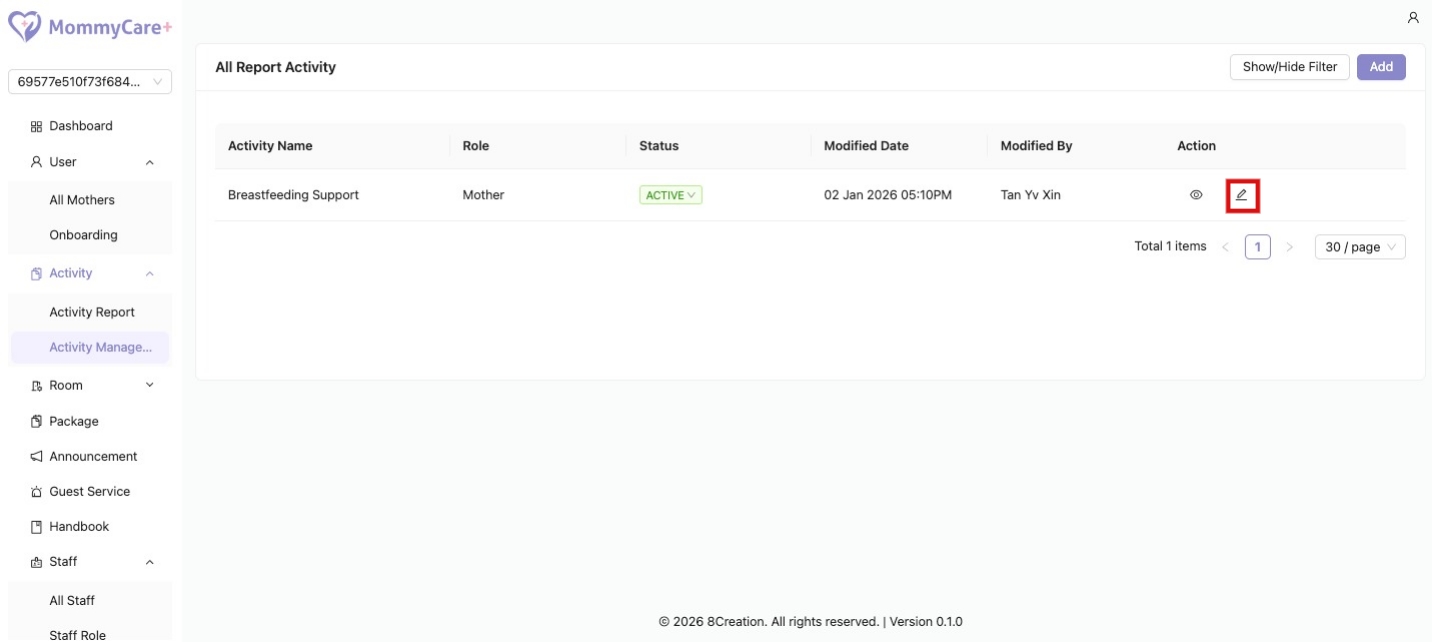
How to Edit Activity
- Click on the Edit icon
- Make changes in the required field, then click “Save”
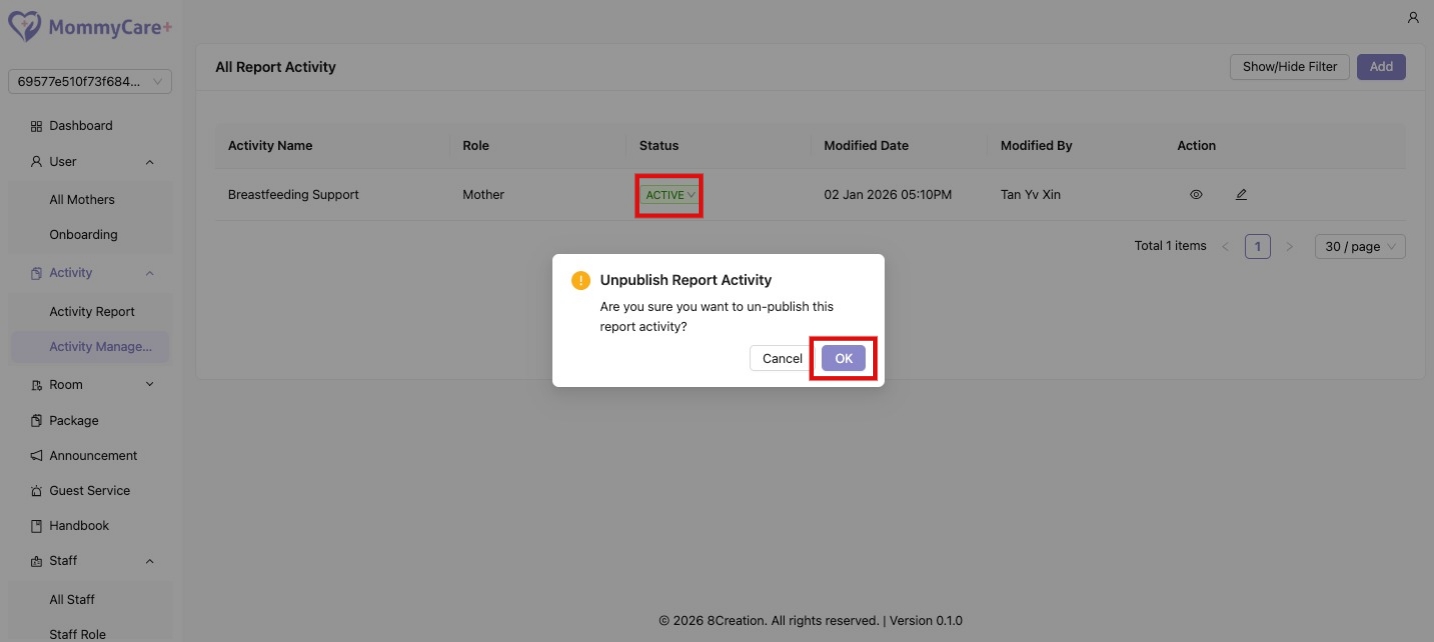
How to Unpublish Activity
- Click “Active” under status, then click “OK”
- The activity status is switched to “Inactive”
- Unpublished activity will be hidden from the selection of activity in the staff mobile app
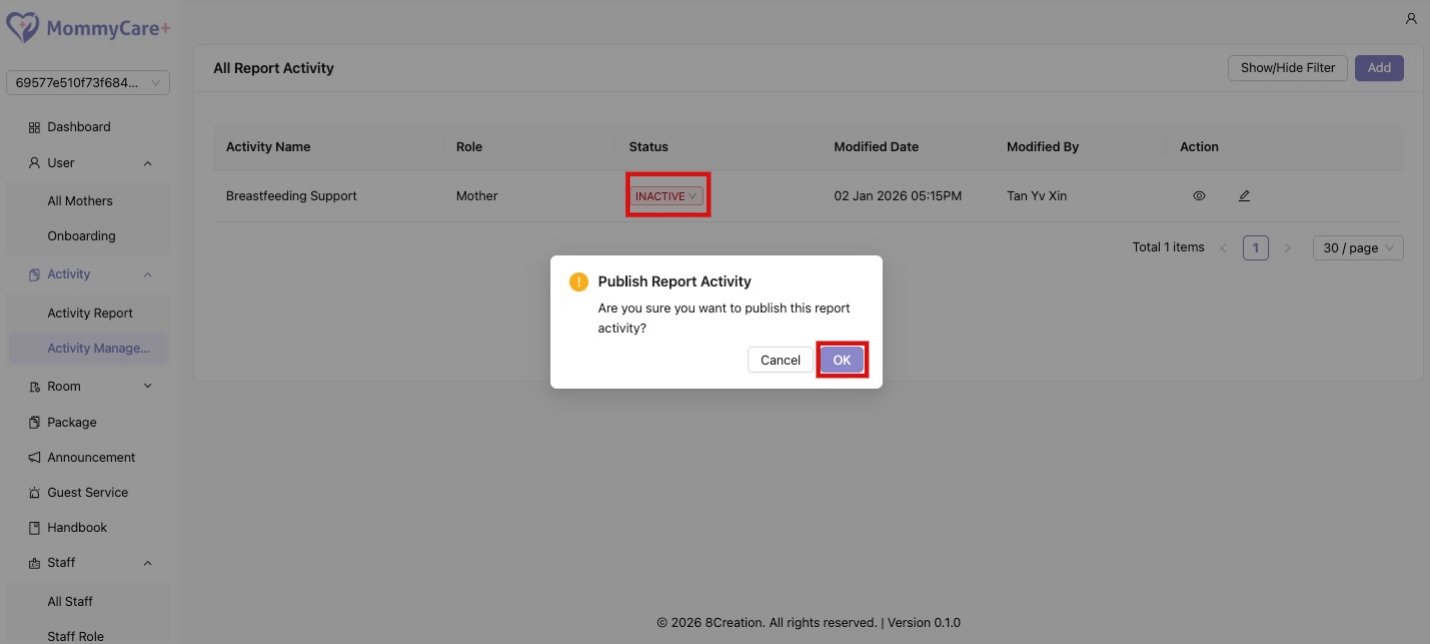
How to Publish Activity
- Click “Inactive” under status, then click “OK”
- The activity status is switched to “Active”
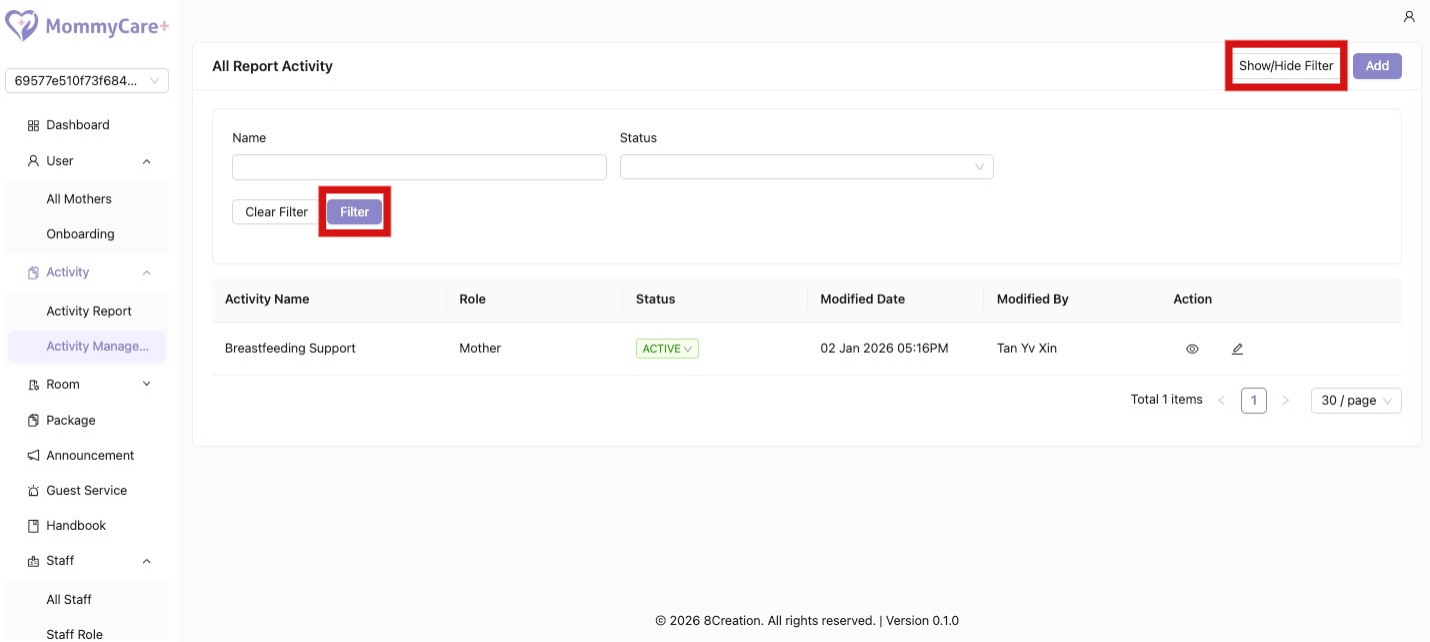
How to Filter Activity
- Click “Show/Hide Filter”
- Fill in the field that you wish to filter, then click “Filter”
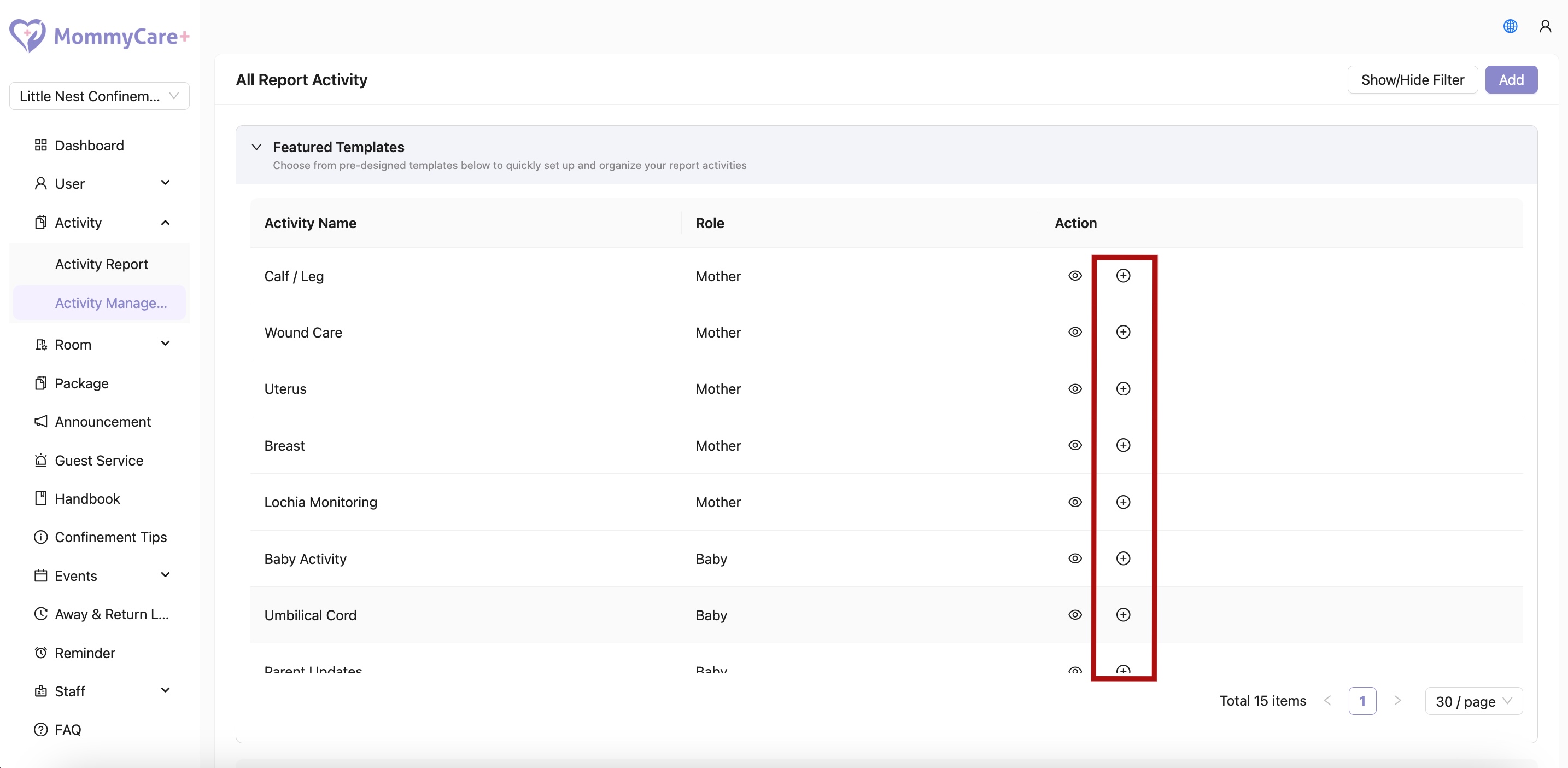
Activity Templates
How to View Activity Templates
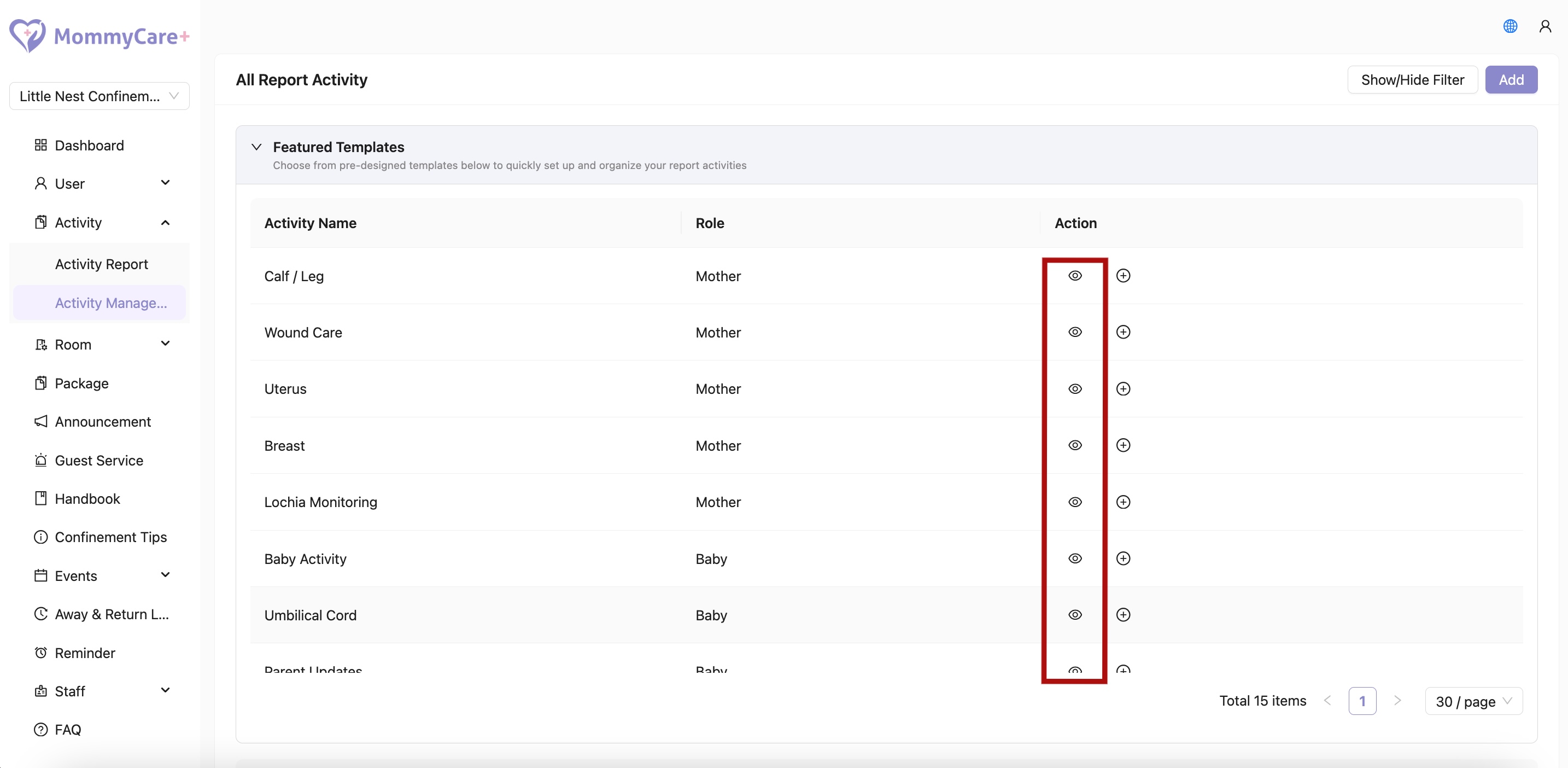
- Click Featured Templates dropdown card
- Click View icon
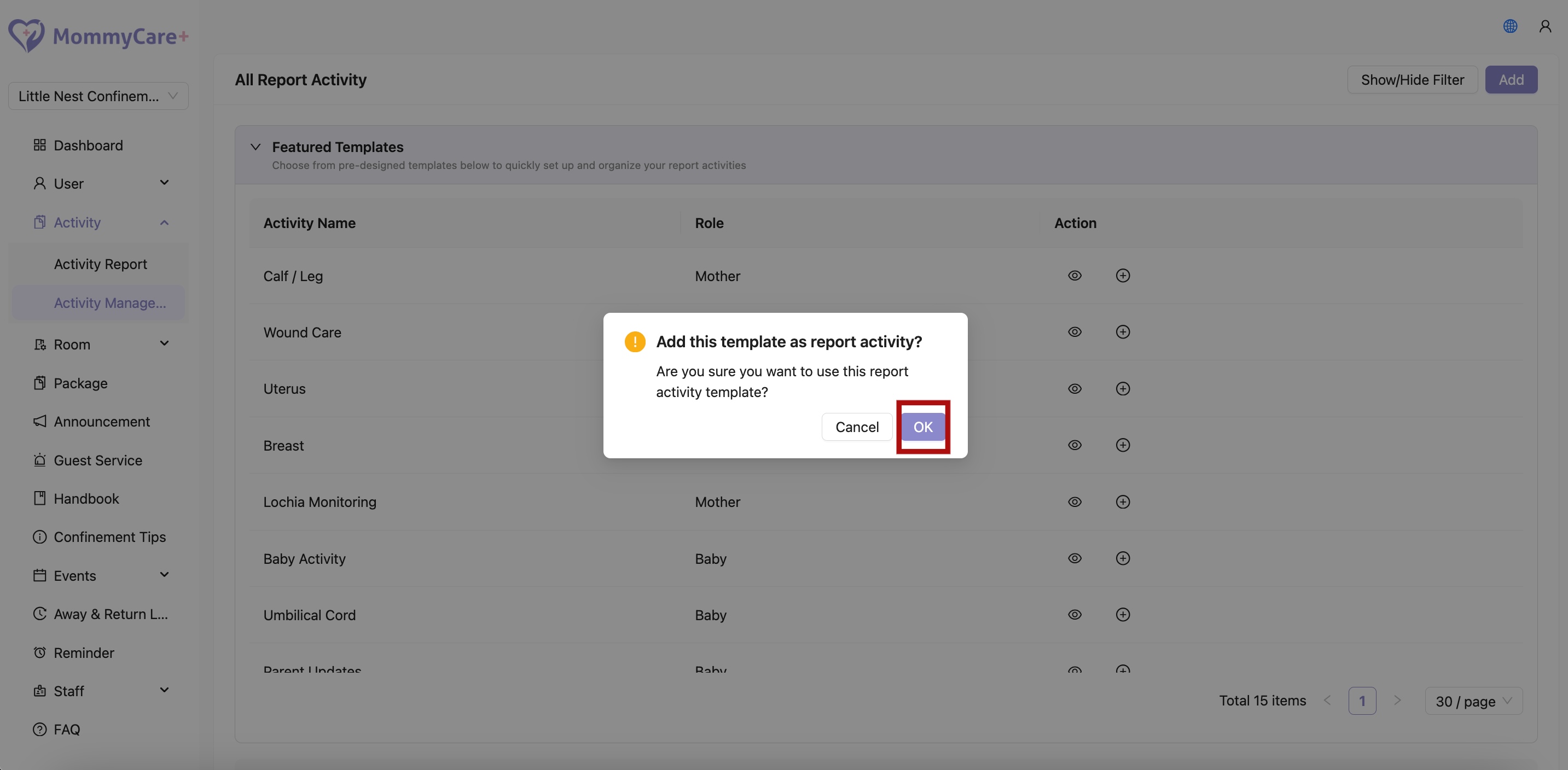
How to Add Activity Templates
- Click Add icon
- Click OK