Dashboard & search
The Dashboard is the first page you see after logging in. It shows how your branch is doing today: who is checked in, rooms, bookings, requests, arrivals and departures, alerts and who is on duty.
- Location: Dashboard
- Who can do this: everyone with Portal access. Each card only shows if your role can see that area (see the table at the end).
The icons at the top right switch between Dashboard, Calendar, Baby Overview and Mother Overview.
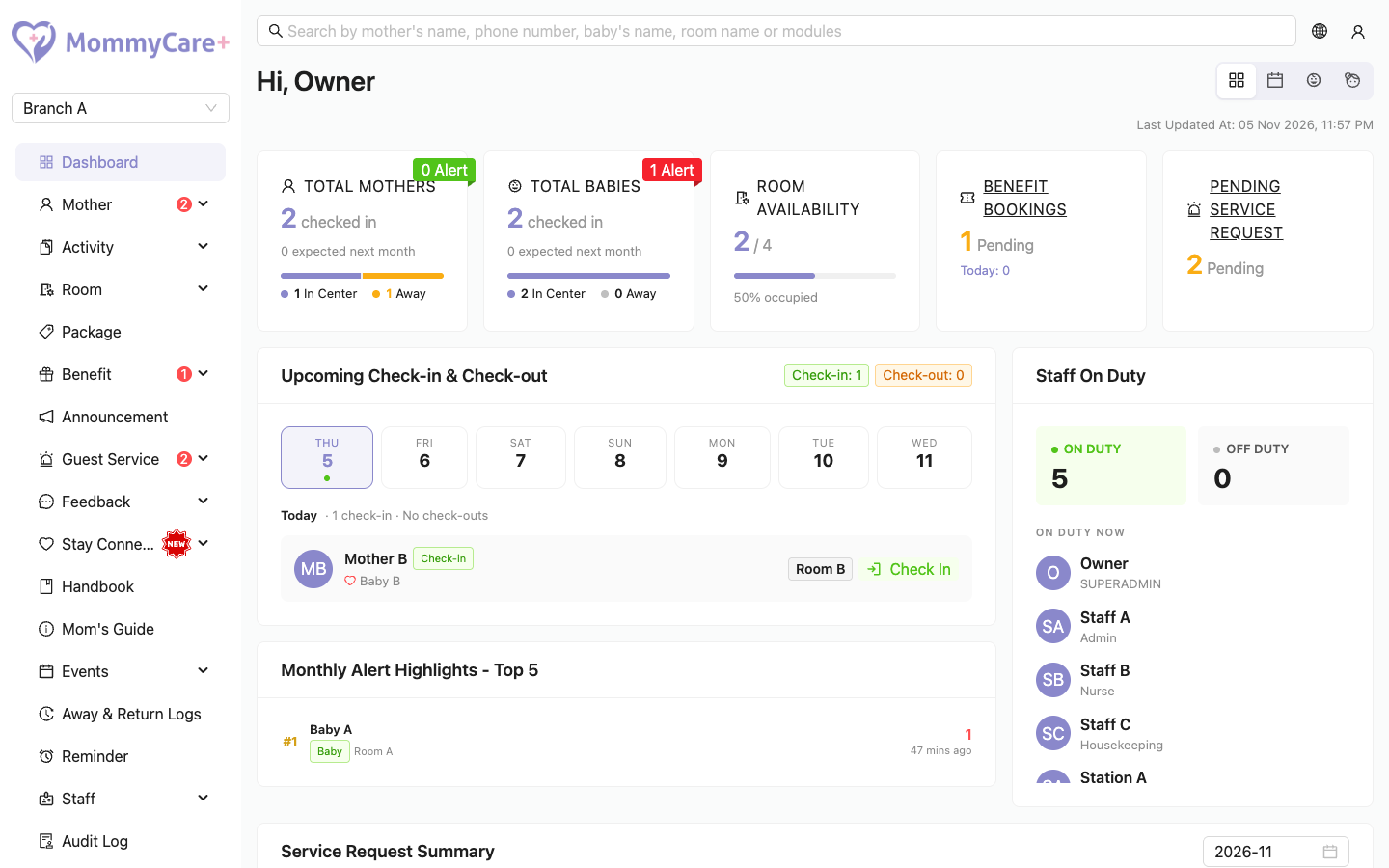
The Dashboard loads once when you open it. "Last Updated At" shows when. Reload the page to see the latest numbers.
The summary cards
| Card | What it shows | Click it to open |
|---|---|---|
| Total Mothers | Mothers checked in, how many are In Center and Away, how many have an alert (red ribbon), and how many are expected next month | — |
| Total Babies | The same for babies, including babies who stayed after their mother checked out | — |
| Room Availability | Free rooms out of all rooms, and the percentage occupied | — |
| Benefit Bookings | Pending bookings, and bookings today | Benefit → Booking, Pending tab |
| Pending Service Request | Requests waiting for staff | Service Request Log, Pending tab |
The panels
Upcoming Check-in & Check-out
The week's arrivals and departures, day by day, starting today. Choose a day to see who is arriving (Check-in) and leaving (Check-out), with their babies, room and days of stay.
- Click Check-in to open her check-in page. See Onboard & check in.
- Click Check-out to check her out straight from here, with the same choice for each baby. See Check-out.
Mothers who are late to arrive or leave are listed under Today.
Monthly Alert Highlights - Top 5
The five mothers or babies with the most alert reports this month (still checked in), with their room, alert count and when the latest alert was.
Staff On Duty
How many staff are On Duty and Off Duty. Click a number to see who.
Service Request Summary
For a chosen month: completed and pending requests, the average time to complete, and a tile per service.
Calendar
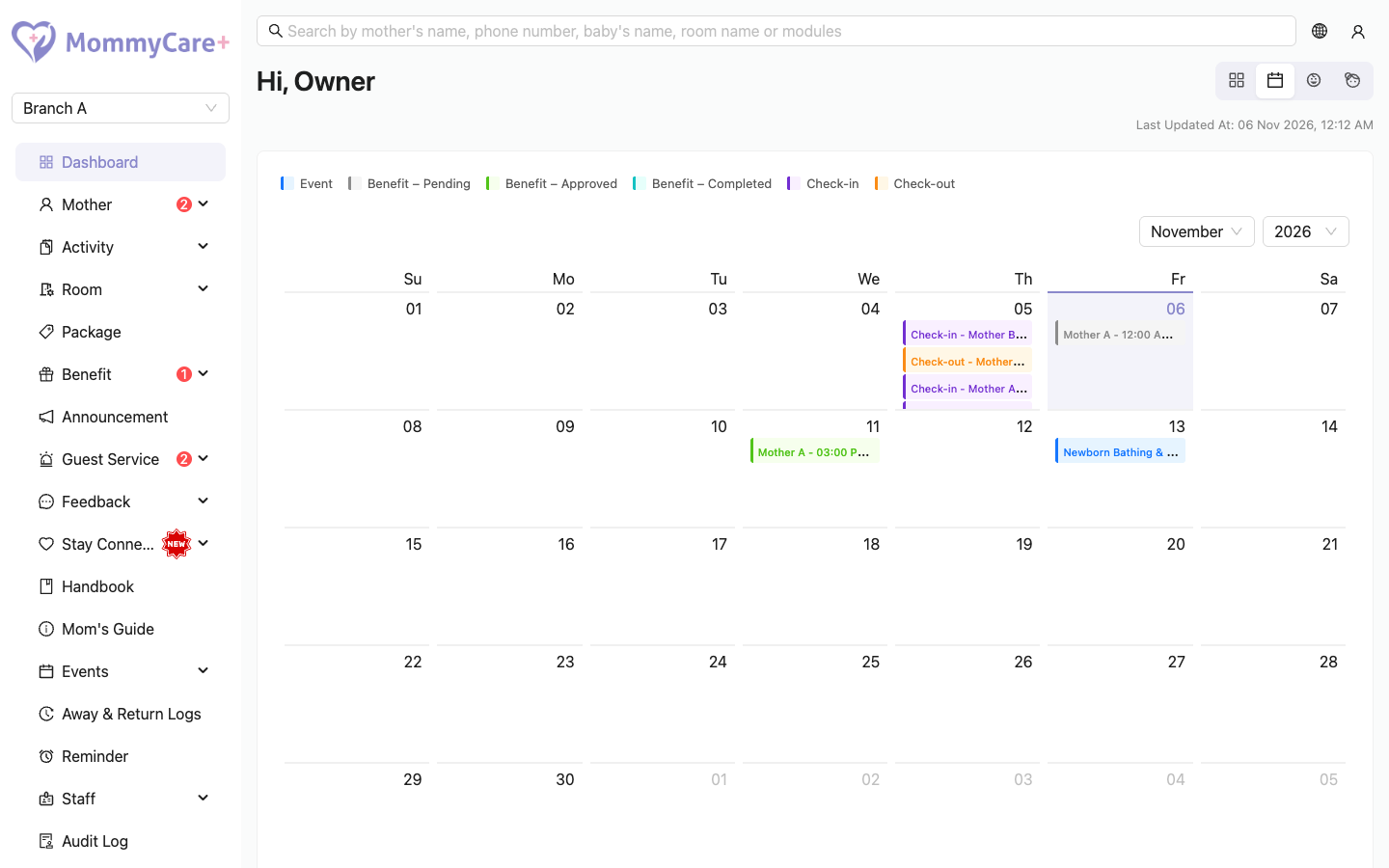
Click the Calendar icon to see a month at a glance:
- Check-in and Check-out: expected dates for mothers not yet arrived, actual dates for the rest. Click to open her check-in page or stay.
- Events, with how many are going out of the capacity
- Benefit bookings, coloured by status (pending, approved, completed). Click a pending one to open the booking list.
Baby Overview and Mother Overview
If your branch has Baby Overview and your role has Room Service Dashboard access, the Baby and Mother icons show a card for every baby and mother in the centre, in In Center and Away tabs, with alert cards first. They refresh every minute. These are the same cards as on the Room Service Dashboard.
Choose what the cards show in Room Dashboard settings.
The red menu badges
The red numbers in the menu show work waiting:
| Menu | Counts |
|---|---|
| Mother → Pre Check-in | Bookings not checked in yet |
| Mother → Registration | Registrations waiting to be onboarded |
| Benefit → Booking | Pending benefit bookings |
| Guest Service → Service Request Log | Pending service requests |
| Feedback → Feedback Log | New feedback not yet reviewed |
How to search
The search box at the top of every page finds mothers (by name, phone number or room), babies, and Portal pages.
- Type at least part of a name, at least 3 digits of a phone number, or a room name.
- Use the arrow keys to move through the results, and press Enter (or click) to open one.
A mother opens on her stay (or her pre-check-in page if she isn't checked in yet). A baby opens on the baby's details.
What each role sees
| Part of the Dashboard | Shown if your role has |
|---|---|
| Total Mothers, Total Babies, Room Availability | Always shown |
| Benefit Bookings card, bookings on the Calendar | Benefit Booking view |
| Pending Service Request card, Service Request Summary | Guest Service view |
| Upcoming Check-in & Check-out, check-ins and check-outs on the Calendar | All Onboarded Mothers |
| Monthly Alert Highlights | Activity Report view |
| Staff On Duty | Staff view |
| Events on the Calendar | Events view |
| Baby and Mother overviews | Room Service Dashboard login access, and the branch has Baby Overview |
Troubleshooting
| What you see | Why, and what to do |
|---|---|
| A card or panel is missing | Your role doesn't have that area's permission. See the table above. |
| No Baby or Mother icon | Your branch doesn't have Baby Overview, or your role doesn't have Room Service Dashboard access. |
| No Check-in button on an arrival | Your role doesn't have All Pre Check-in Mothers. |
| The numbers look out of date | Reload the page. |
| A mother who should have left days ago is under Today | Her check-out is overdue. Check her out, or change her expected date. |
| Search finds no mothers | Your role can't see mothers, or the phone search has fewer than 3 digits. A room only finds a mother who is checked in to it. |
| An unpublished event shows on the Calendar | The Calendar shows unpublished events too. |
| Staff On Duty includes a Room Service Dashboard account | Dashboard accounts count as staff, and are on duty by default. |