Log in & set up the screen
The Room Service Dashboard runs in a web browser on a TV, tablet or computer at the nurses' station. It shows mothers' service requests as they arrive and, if your branch has Baby Overview, a live card for every baby and mother.
- Who can use it: staff whose role has Room Service Dashboard login access, and the centre owner. See Staff roles.
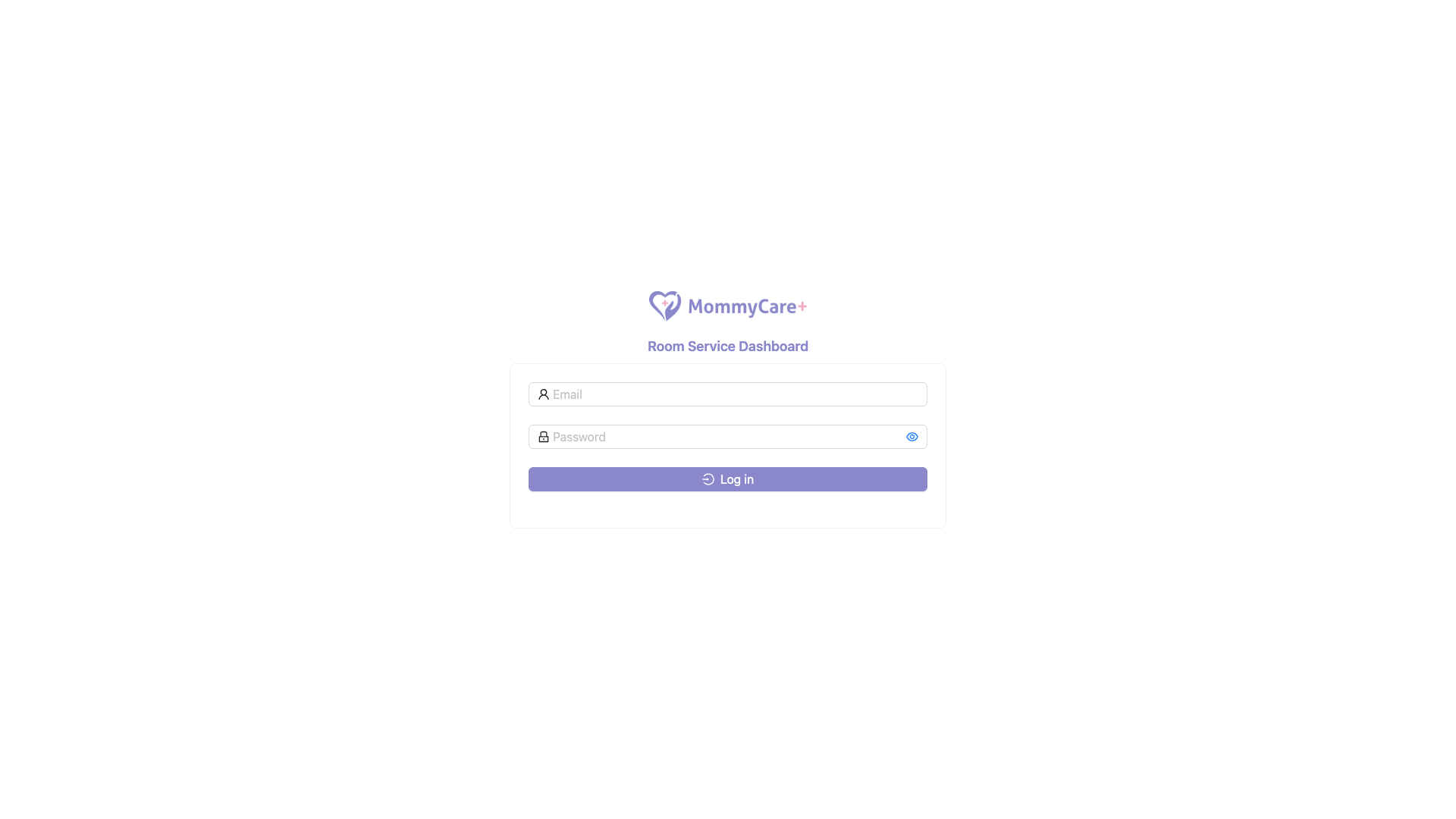
How to open and log in
- Open the dashboard address. From the Portal, click Room Service Dashboard on the Guest Service list (or on Setting → Room Dashboard). The login page opens in a new tab.
- Enter the email and password of an account with Room Service Dashboard access.
- Log in.
The Service Request page opens. The dashboard doesn't ask for a two-factor code, even if your branch uses 2FA.
A new staff account must first finish its setup by logging in to the Portal once (WhatsApp code and password). See Log in.
Moving between pages
The navigation panel has a card for each page:
- Service Request, with the number of pending requests
- Babies and Mothers, each with the number of alerts. These only appear if your branch has Baby Overview.
Keep the dashboard open: it updates by itself and plays a sound for new requests and new alerts.
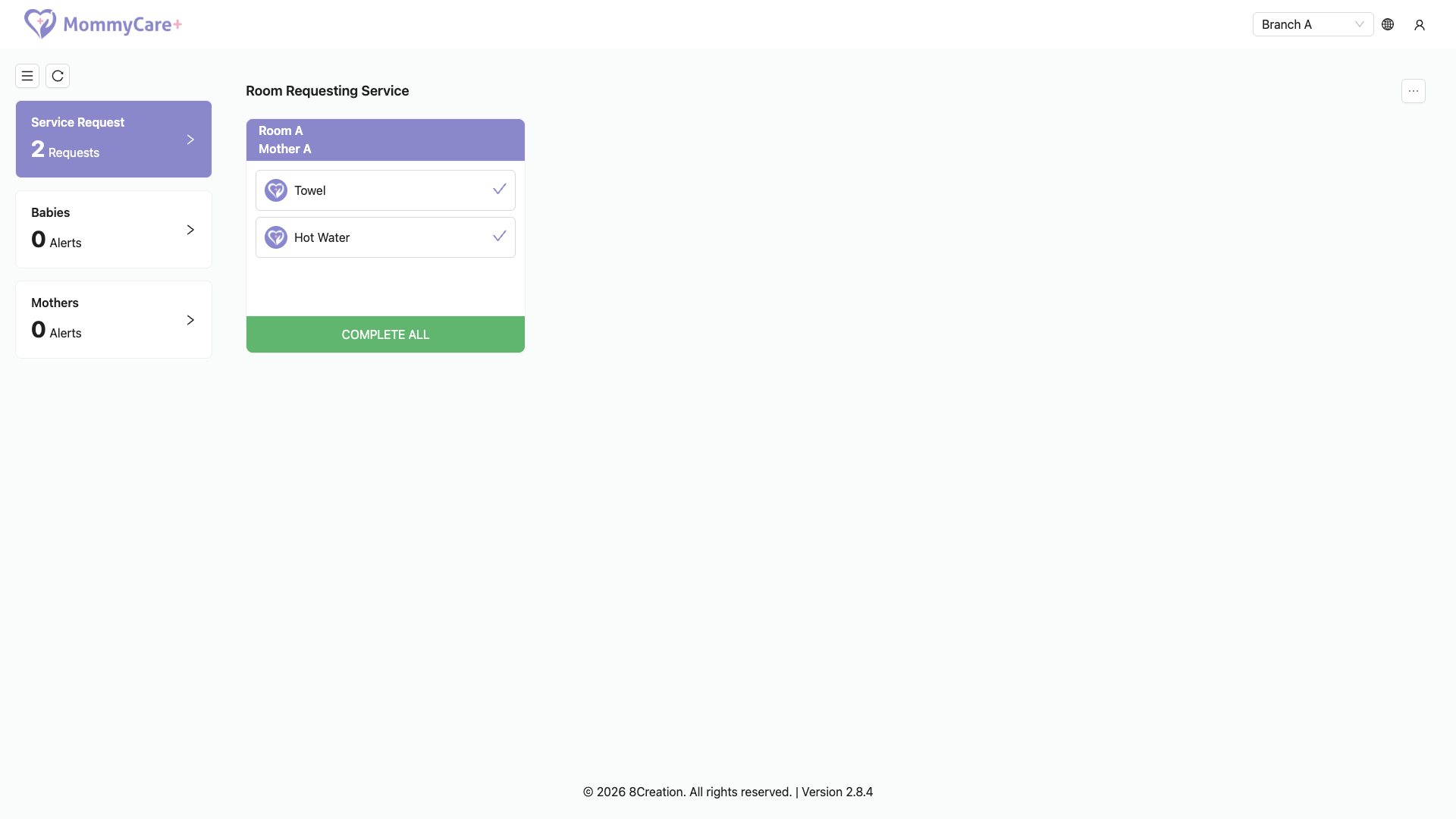
Browsers block sound until someone has tapped or clicked the page once. After opening the dashboard, click anywhere on it once so the alert sound can play.
How to fit the screen
Open the … (Display) menu in the header:
- Zoom: use − and + to shrink or enlarge everything (50% to 100%), so more cards fit on a TV or tablet. The screen remembers the zoom.
- Full screen / Exit full screen: fill the whole screen. Some browsers, such as Safari on iPhone, don't offer this.
How to switch branch, change language or log out
- Branch: choose another branch from the branch menu in the header. You only see branches where your account has dashboard access.
- Language: choose English, Chinese or Malay from the language menu in the header.
- Log out: open the account menu and choose Logout.
Troubleshooting
| What you see | Why, and what to do |
|---|---|
| "Please log in to the portal first to verify your account and set your password." | The account hasn't finished its first login. Log in to the Portal once first. |
| "You're not allowed to access this." | The role doesn't have Room Service Dashboard login access. |
| Only Service Request is shown | Your branch doesn't have Baby Overview. |
| No sound | Click the page once. Sound only plays for new requests and new alerts, not for ones already showing when the page loads. |
| No Full screen option | The browser doesn't support it. |
| The dashboard logged out | The account's password or role was changed, or the session was revoked. Log in again. |