Baby & Mother overview
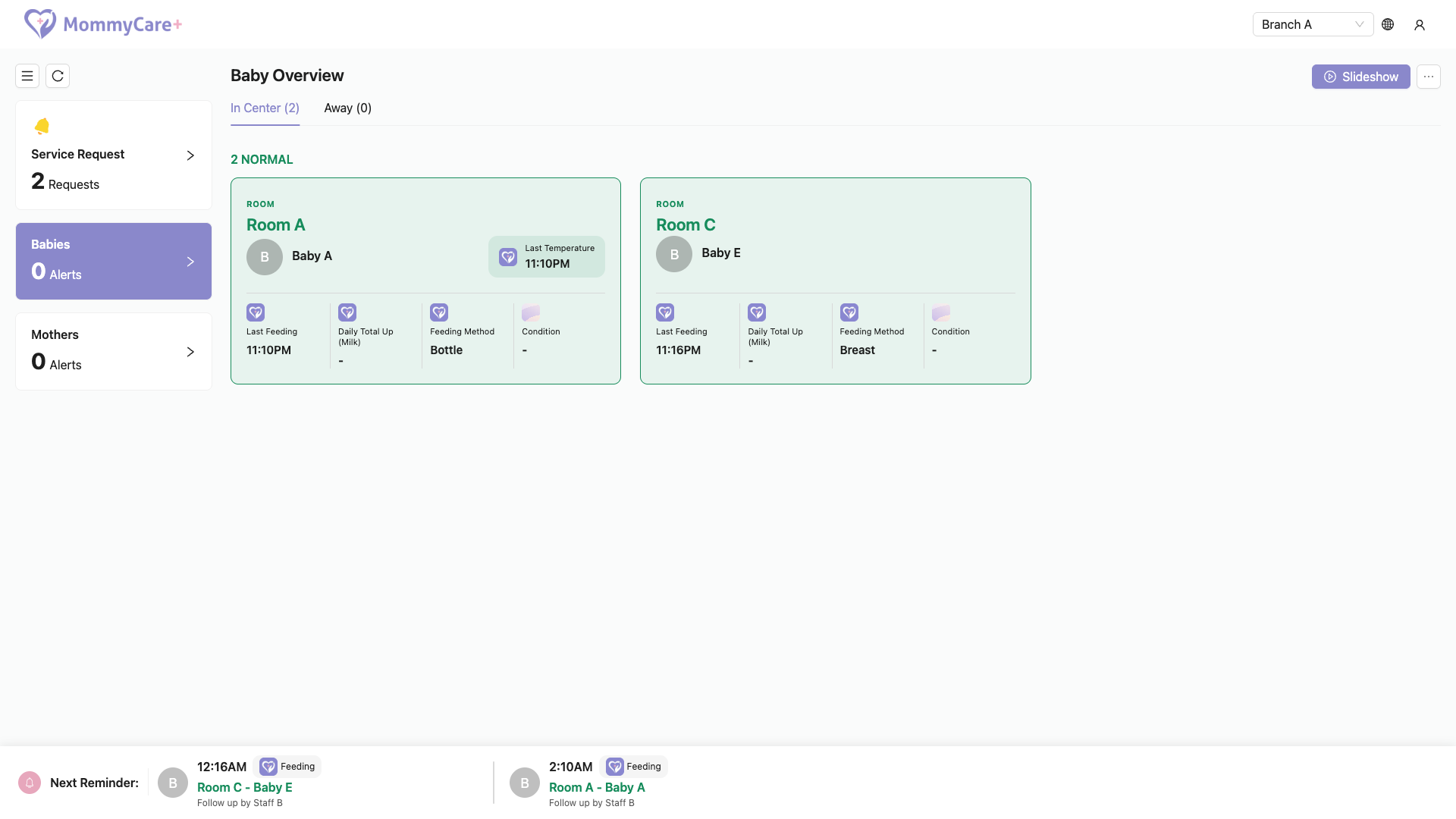
Babies and Mothers show a card for every checked-in baby and mother, with their latest care values. Cards with an alert come first, so the station can see at a glance who needs attention.
- Needs: your branch has the Baby Overview feature
- What each card shows is set in the Portal under Room Dashboard settings
The cards
Each card shows:
- the room and name (and photo), and the baby's age in days or the mother's day of stay (for example "Day 5")
- the highlight value, large, and up to 4 stats, each with its activity icon and unit
- "Last (activity)": when it was last recorded, for example "Last Feeding"
- "Daily Total Up (field)": today's total, for example today's milk
- for babies, a room-status badge such as In Room or Out of Room, if your branch uses the room-status template
A card is an alert when any value on it is outside the activity's normal range. Alert values are red.
In Center and Away
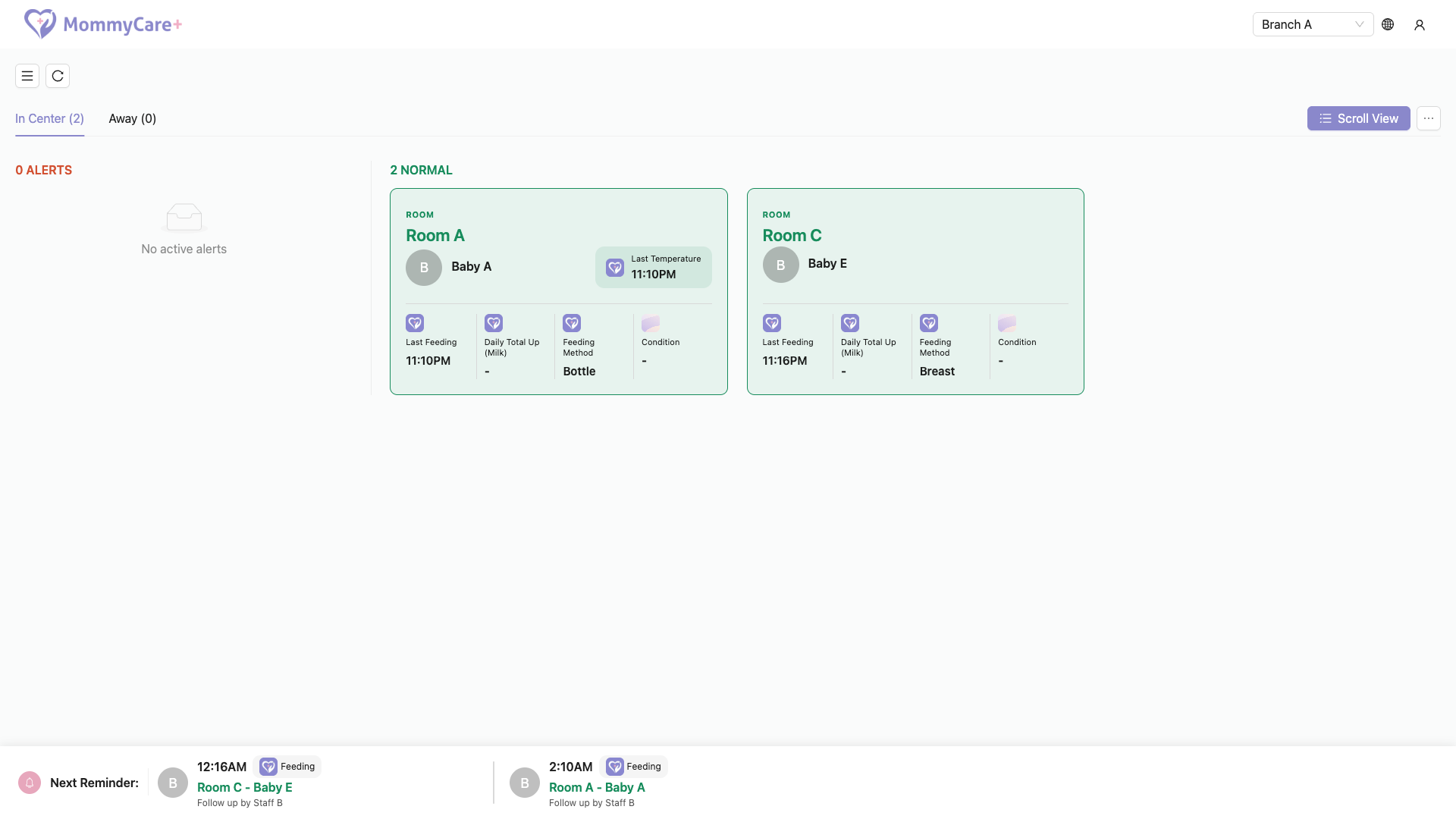
The In Center and Away tabs split the cards by who is in the centre and who has gone out (recorded in the Staff App with Away & Return). Each tab shows its count. Within a tab, alert cards are listed first under ALERTS, then the rest under NORMAL.
A baby who stayed in the centre after the mother checked out is still shown on Babies.
Next Reminder bar
The bar at the bottom lists upcoming (and overdue) next reminders set from reports: the baby or mother, room, activity, time, and "Follow up by (name)". Reminders for someone with an alert are red. Use the up and down buttons to see more. Which activities appear is set in Room Dashboard settings.
Scroll View or Slideshow
Choose in the header:
- Scroll View: ALERTS above NORMAL, scroll down to see everything
- Slideshow (for a TV): ALERTS and NORMAL side by side, filling the screen. Each side turns its own pages ("Page 1 of 3") every 5 seconds. Pointing at a side pauses it. The screen remembers your choice.
Phones always use Scroll View.
Keeping it up to date
Cards update by themselves within seconds when staff save, edit or delete a report. The sound plays when a new alert appears. Click Refresh to reload now.
Troubleshooting
| What you see | Why, and what to do |
|---|---|
| "No baby overview monitoring template is configured for this branch yet." | No fields are chosen for the cards. Choose them in Room Dashboard settings. |
| A baby or mother is missing | Only checked-in stays are shown, and inactive babies are left out. Check the Away tab too. |
| A card is an alert, but the report wasn't (or the other way round) | The card checks the latest value against the activity's current alert range, which may have changed since the report was saved. |
| The screen turns pages by itself | Slideshow is on. Choose Scroll View. |
| The Next Reminder bar is empty or missing | No upcoming reminders, or no activity is chosen for the bar. |
| No room-status badge | Your branch hasn't added the room-status featured template in Activities. |
| A value didn't update | Check the network, or click Refresh. |