Log in
The Portal is for the centre owner and staff whose role has Portal login access. You log in with your email and password.
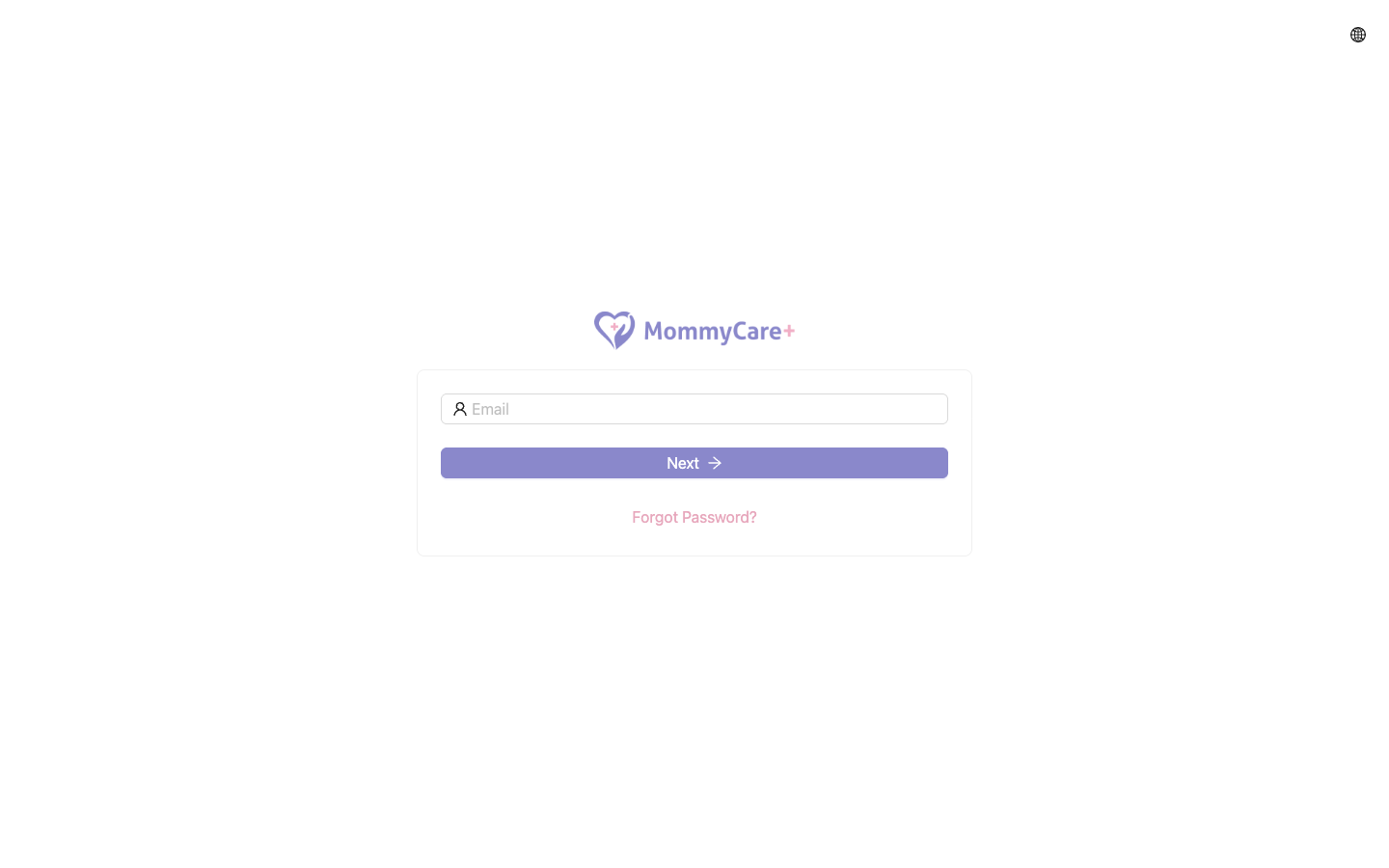
How to log in
- Open the Portal link your centre gave you.
- Enter your email, then click Next.
- Enter your password, then click Log in.
- If your branch uses two-factor authentication, enter the 6-digit code from your authenticator app. See Two-factor authentication.
The Dashboard opens. If you work in more than one branch, the Portal opens the branch you used last. To change branch, use the branch menu in the header.
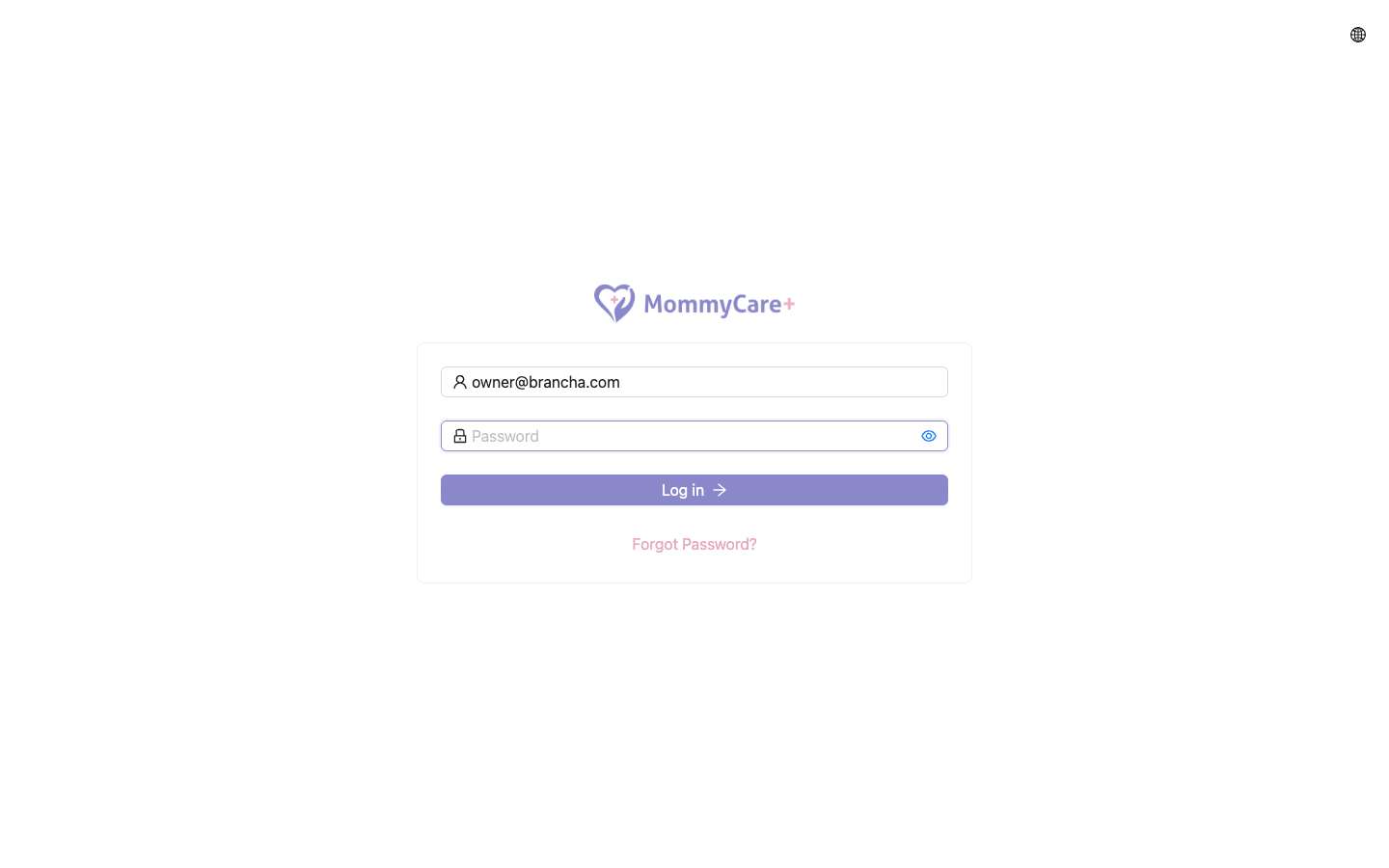
How to set up your account (first login)
When the centre adds you as a staff member, you don't have a password yet. Your status shows Pending until you finish this setup.
- Open the Portal, enter your email and click Next.
- A 6-digit code is sent to your phone by WhatsApp. The screen shows the last digits of that phone number.
- Enter the code. If it doesn't arrive, wait for the countdown to finish, then click Resend code.
- Set your password and confirm it.
You are logged in, and your status becomes Active in every branch you were added to.
At least 8 characters, with at least one upper-case letter, one lower-case letter and one digit. Symbols are allowed.
Finish the setup within 30 minutes of entering your email. If you take longer, start again from the email step.
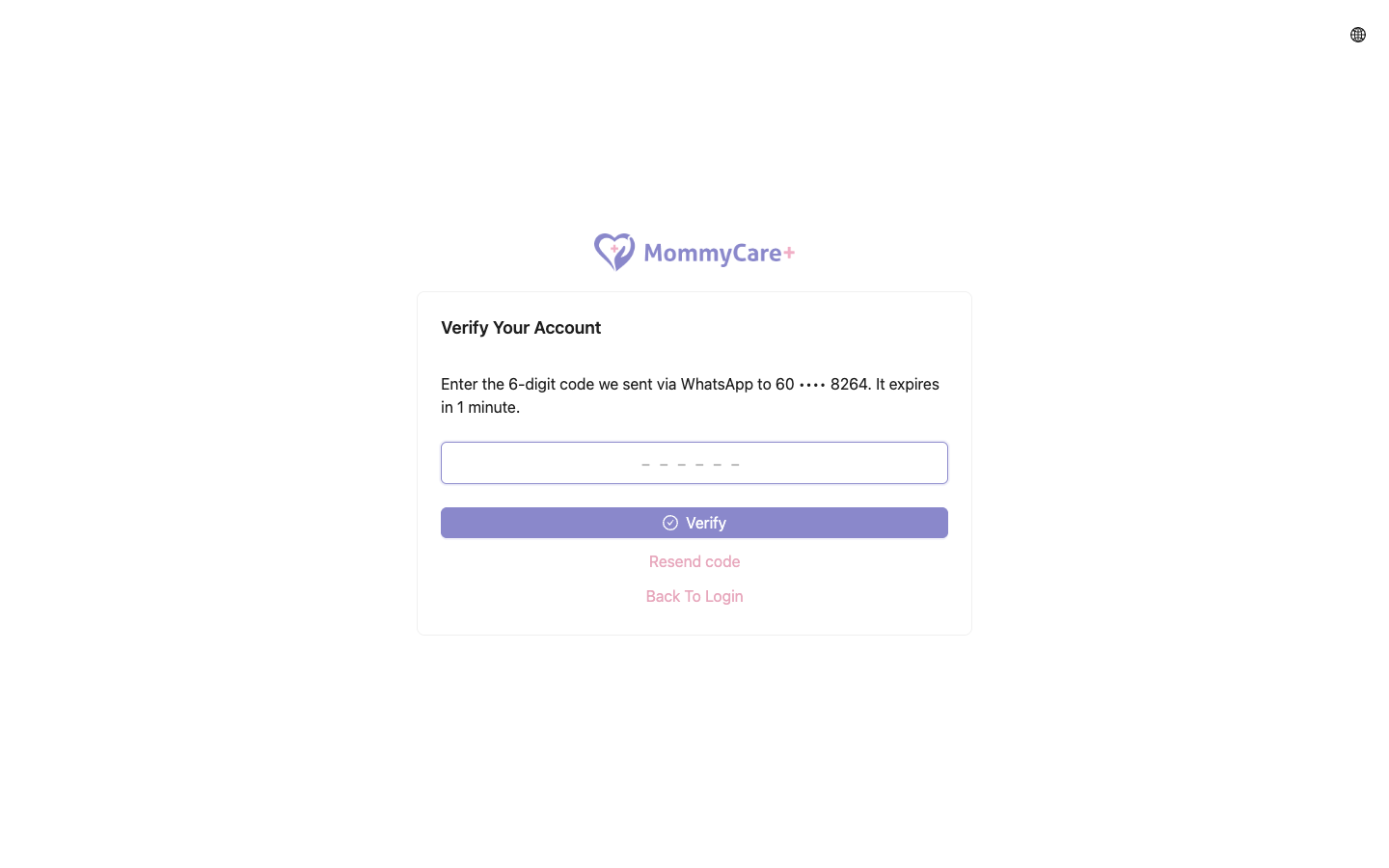
How to reset a forgotten password
- On the login page, click Forgot Password.
- Enter your email and submit it. A password reset email is sent to you.
- Open the link in the email, enter your new password twice, and submit.
- Log in with the new password.
If the email doesn't arrive, use the resend option on the "check your email" page. Each reset link works once and expires after a while. If it says "This link has expired.", request a new one.
New centre owner: activate your account
A new centre owner gets an invitation email with a sign-up link. The sign-up form asks for your full name, phone number, password, and the name and code of your first branch. When you submit it, your account and first branch are created, a welcome email is sent, and you can log in.
"New version available!"
If a red New version available! button appears in the header, click it. The page reloads with the latest version of the Portal.
Troubleshooting
| What you see | Why, and what to do |
|---|---|
| "This record is not exists." | This email isn't registered as a staff account. Check the spelling, or ask your centre owner to add you. |
| "The password you entered is incorrect." | Wrong password. Try again, or use Forgot Password. |
| "You're not allowed to access this." | Your role doesn't include Portal login access in any branch (for example, it's a Staff App-only role). Ask your centre owner. |
| "Your account is inactive and you currently have no access to the portal…" | You have been deactivated in every branch. Ask your centre owner. |
| "User not signed up yet. Please check your email for the signup link." | You haven't finished your account setup, or your account has no phone number for the WhatsApp code. Ask your centre owner to check your phone number. |
| "The code you entered is incorrect." | Use the latest WhatsApp code. Older codes stop working. |
| "A code was just sent…" or "…maximum number of OTP requests…" | Codes can only be sent a few times in a short period. Wait 5 minutes, then try again. |
| You were logged out unexpectedly | Your password or role was changed, a session was revoked, or the centre owner turned on two-factor authentication. Log in again. |
| WhatsApp codes never arrive | See Common Questions. |