Staff roles
A role is a set of login access and permissions. Create roles first, then give one to each staff member. Roles belong to the branch you're in, so each branch has its own roles. For an overview, see Roles & access.
- Location: Staff → Staff Role
- Who can do this: staff whose role has the Staff Role permissions (view, add, edit, delete)
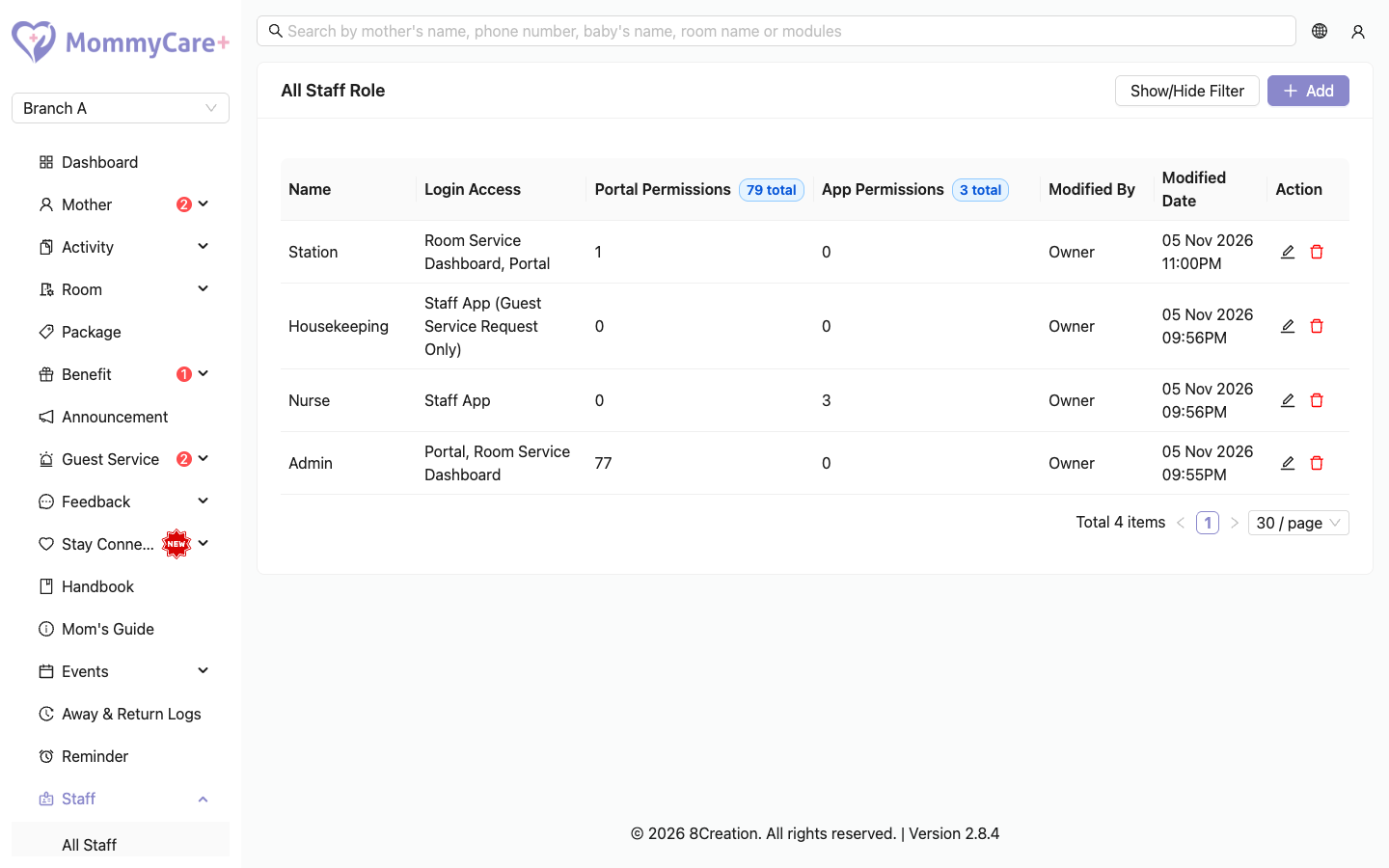
The list doesn't show the centre owner's role: it is built in and can't be changed.
How to add a role
- Click Add.
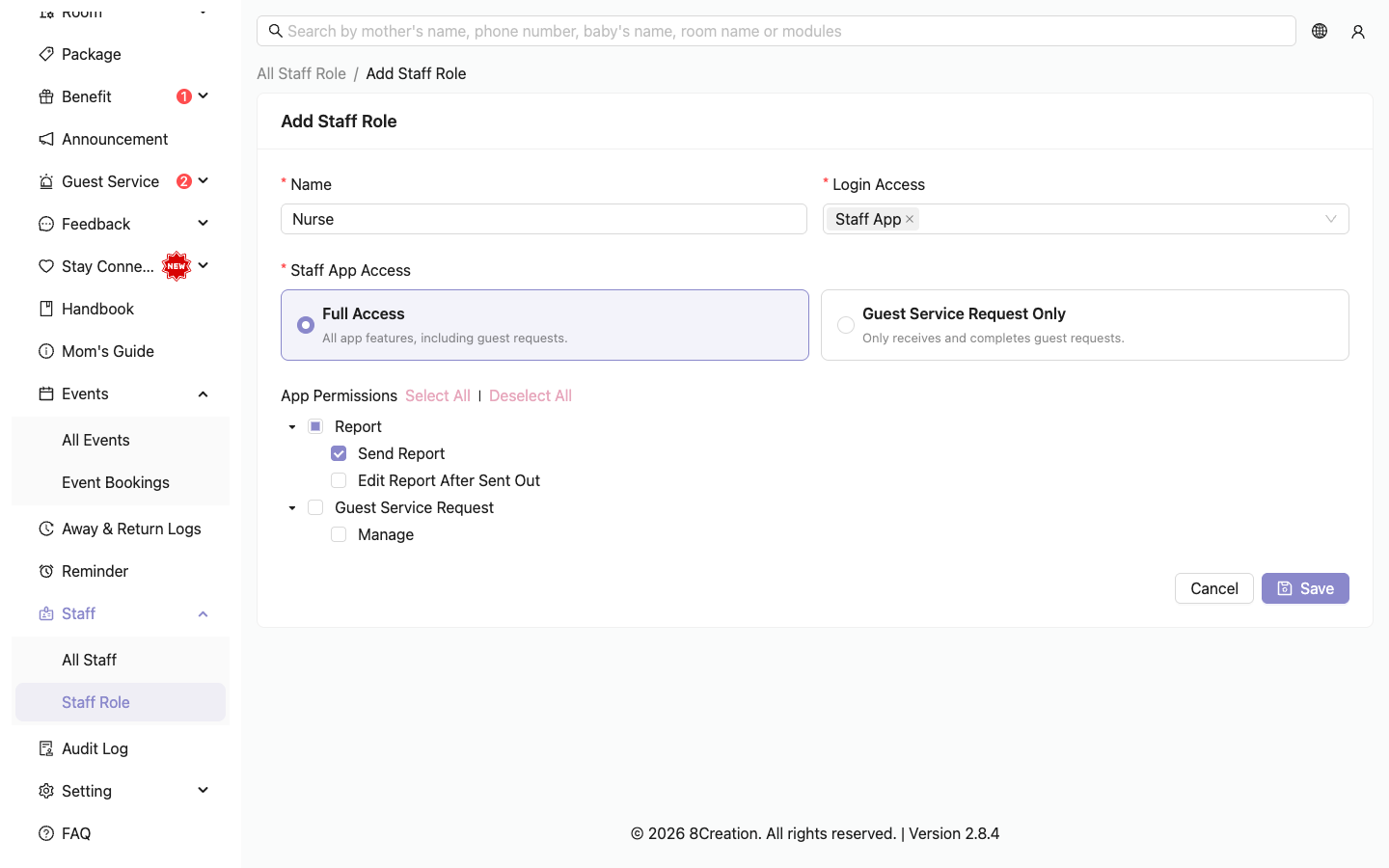
- Enter a Name, for example "Nurse".
- Under Login Access, tick at least one:
- Portal
- Staff App, then choose Full Access (all app features, including guest requests) or Guest Service Request Only (only receives and completes guest requests)
- Room Service Dashboard
- Under Portal Permissions, tick what this role can do in the Portal. Each area has its own actions, for example Announcement → View, Add, Edit, Delete, Publish.
- Under App Permissions (Staff App, Full Access only), tick what applies:
- Report → Send Report: send saved reports to mothers
- Report → Edit Report After Sent Out: edit a report the mother has already received
- Guest Service Request → Manage: receive and complete mothers' service requests
- Click Save.
note
- Full Access and Guest Service Request Only can't be combined. Choosing Guest Service Request Only clears the app permissions.
- Manage Room Dashboard Setting only appears if your branch has the Baby Overview feature.
- A role with Portal or Room Service Dashboard access needs an email for each staff member who has it.
How to edit a role
- Click the Edit icon on the role.
- Make your changes and click Save.
When the changes take effect:
| What you changed | When staff see it |
|---|---|
| Login access | Immediately. For example, if you remove Portal access, its staff are logged out of the Portal the next time they click anything. |
| Portal permissions | The next time they load a page |
| App permissions | The next time they log in or switch branch in the app |
If the role has staff without an email but needs one, the edit page warns you how many, with a link to them.
caution
If you remove Staff App access from a role, its staff are removed as the staff in charge of checked-in mothers, and from active reminders.
How to delete a role
- Click the Delete icon on the role.
- Confirm.
You can only delete a role nobody has, including deactivated staff. Change their role first.
How to find a role
Click Show/Hide Filter, enter the name, and click Filter.
Troubleshooting
| What you see | Why, and what to do |
|---|---|
| "This role cannot be deleted because staff members are associated with it." | Some staff (active or inactive) still have this role. Give them another role first. |
| "This record already exists…" | Another role in this branch has that name. "superadmin" is reserved. |
| Can't save: login access missing | Tick at least one login access. |
| A new menu doesn't appear for staff | They need to reload the page. |
| A guest service shows Unassigned after deleting a role | The deleted role was the only one receiving that service. Edit the service and choose who receives it. |