Activities
An activity is a type of care your staff record, for example Feeding, Temperature or Blood Pressure. It decides which fields staff fill in, which values count as an alert, and how the report reaches the mother.
- Location: Activity → Activity Management
- Who can do this: staff whose role has the Activity Management permissions (view, add, edit, publish)
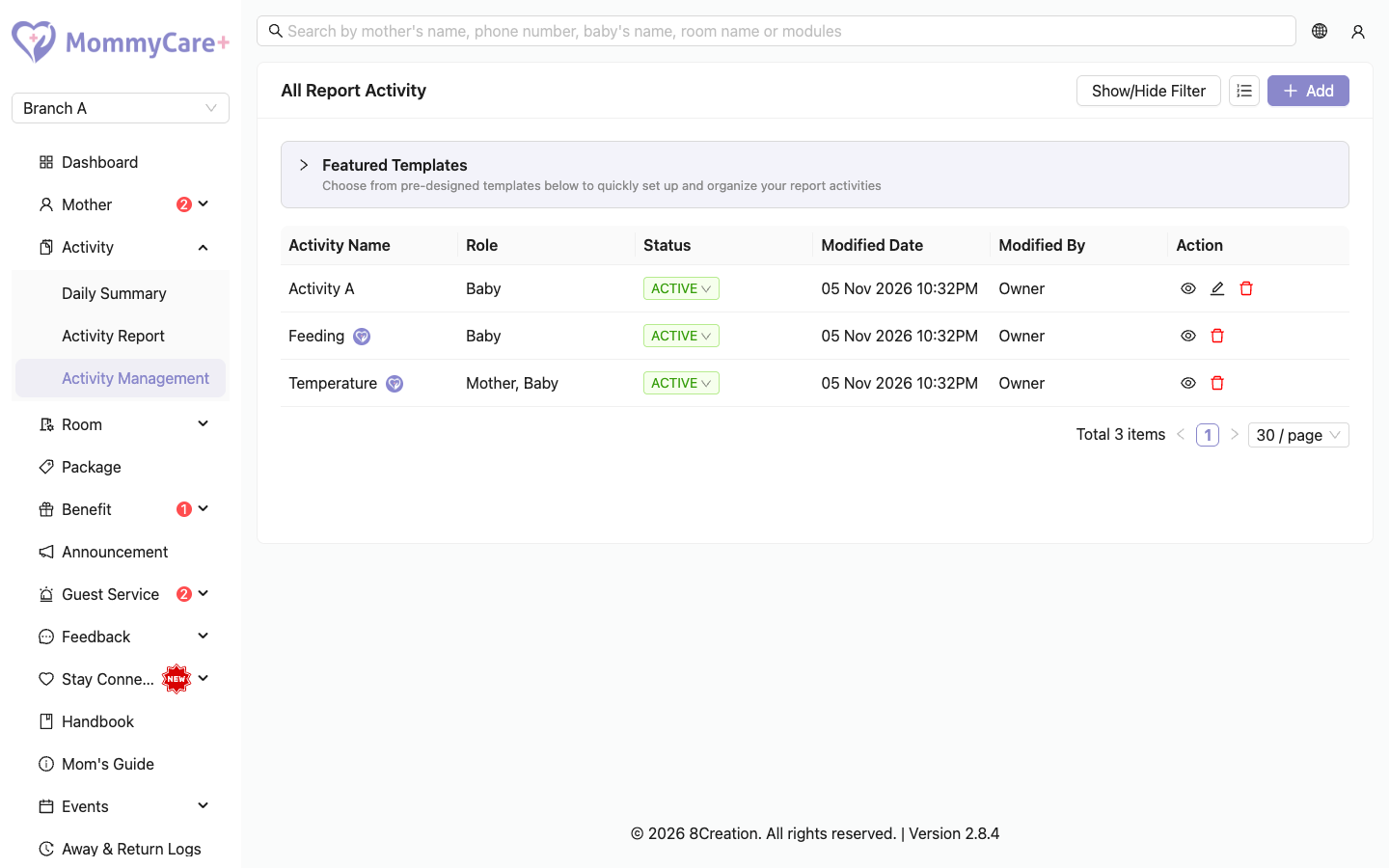
The list shows each activity's name, who it's for (mother, baby or both), its status (Active, meaning published, or Inactive, meaning unpublished), and when it was last changed and by whom. An icon next to the name means it was Added from template.
How to add an activity from a featured template
The quickest way to start is with a ready-made activity.
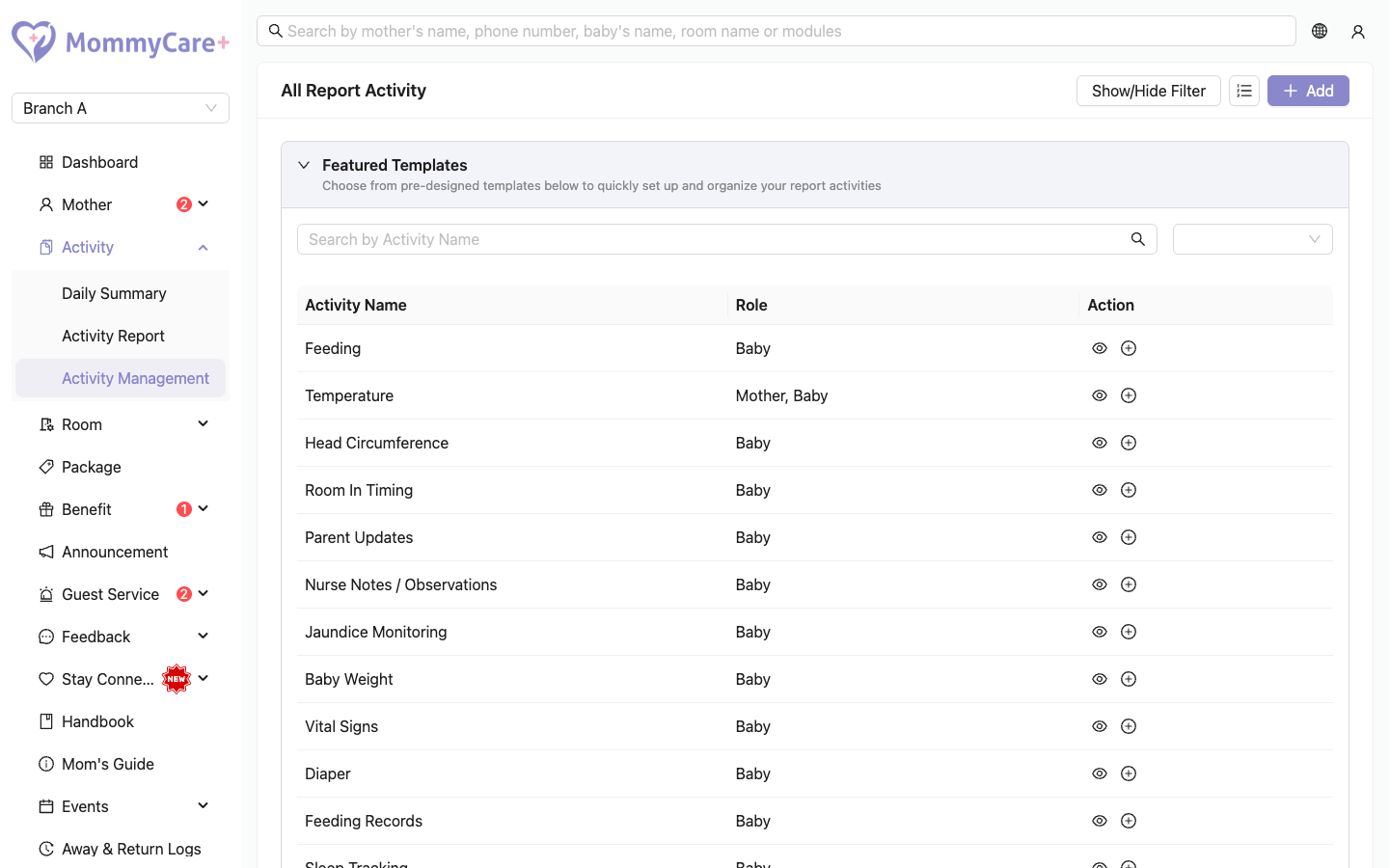
- Open the Featured Templates section at the top of the page.
- To look at a template first, click its View icon.
- Click Add on the template, then OK.
An Active copy of the activity appears in your list, with the same fields. Adding the same template twice creates two separate activities.
Some templates are locked. Their copies can't be edited, only published, unpublished or deleted. Others can be edited, except for some locked fields, whose type and options can't change.
How to add your own activity
- Click Add.
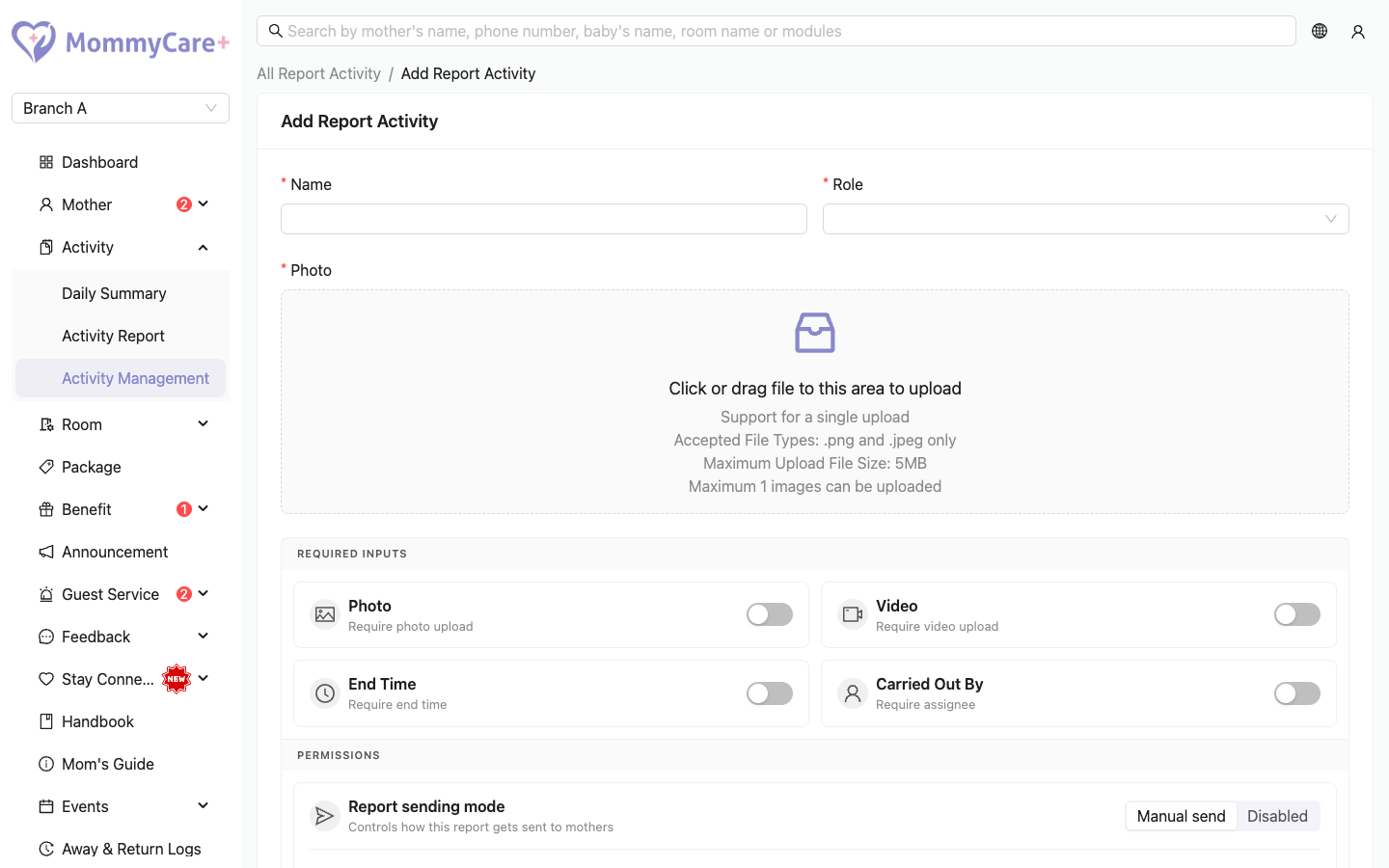
- Enter the Name, upload a Photo (the activity's icon), and choose who it's for: Mother, Baby, or both.
- Under Required Inputs, tick what every report must include:
- Require photo upload
- Require video upload
- Require end time
- Require assignee: staff must choose who carried out the activity
- Under Permissions, choose:
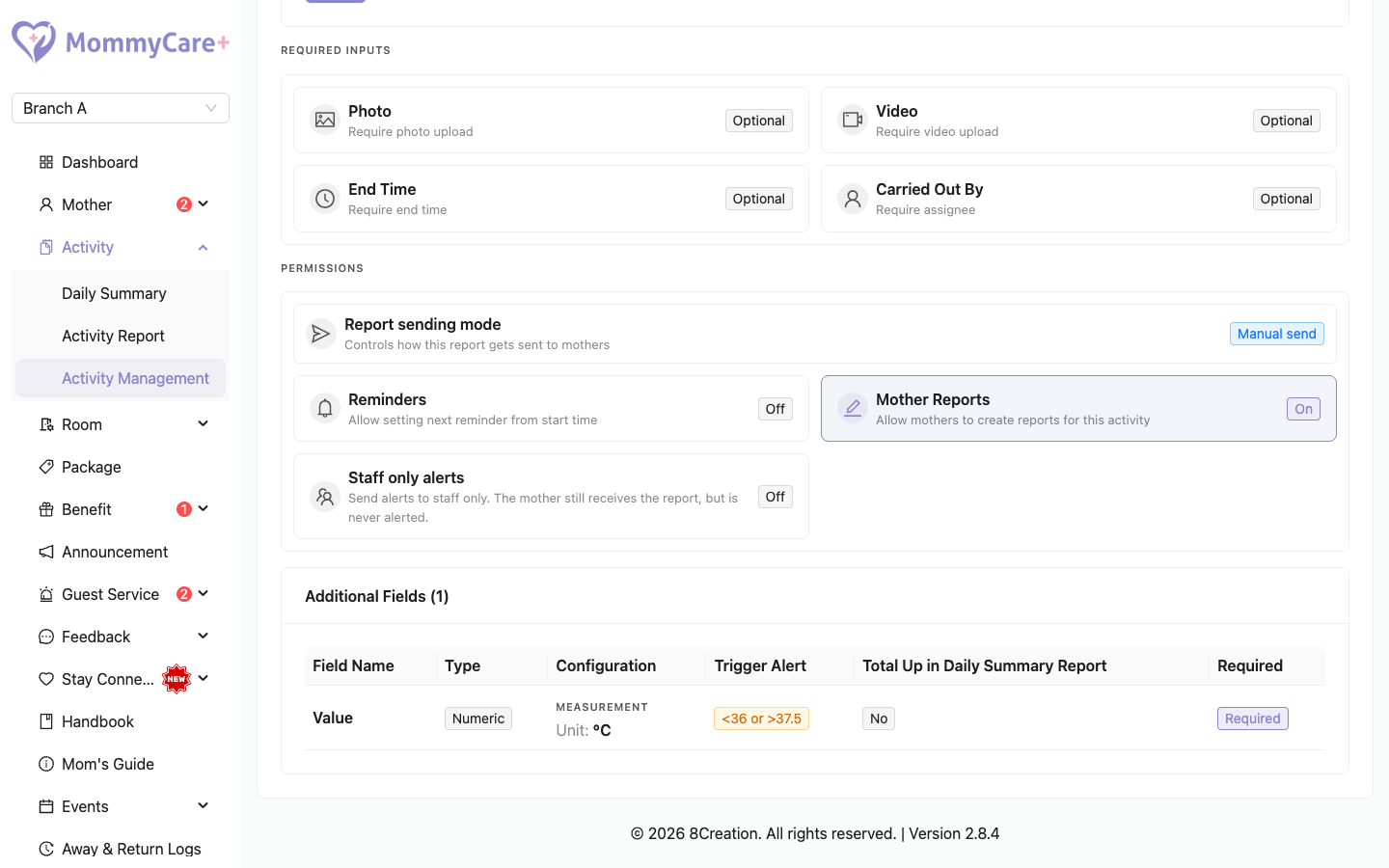
- Report sending mode: Manual send (the report is saved, and staff send it to the mother afterwards) or Disabled (the report is never sent to the mother)
- Reminders: Allow setting next reminder from start time lets staff set the next reminder when they record this activity. Tick Mark as required to make it compulsory.
- Mother Reports: lets a checked-in mother record this activity herself in the Mother App
- Staff only alerts: alerts go to staff only. The mother still gets the report, but is never alerted.
- Add at least one field (see below).
- Click Save.
The new activity is Active, so staff can choose it in the Staff App straight away.
Fields
Each activity has one or more fields. Drag them to change their order. For each field, enter a Field Name, choose a Field Type, and tick Mandatory Field if staff must fill it in.
| Field type | Staff enter | Extra settings |
|---|---|---|
| Option | One choice from your list | The options (at least one). Alert options. Total Up in Daily Summary Report |
| Multi Select Option | One or more choices from your list | As Option |
| Text | A short text | — |
| Numeric | A number | Measurement Unit (required, for example °C or ml). Alert range. Total Up in Daily Summary Report |
| Long Text | A longer note | — |
| Drawing | A drawing on the screen | Guide image (required): shown behind the drawing area as a guide, for example a body outline |
Total Up in Daily Summary Report adds up the field's values in the Daily Summary. Only numeric options are counted.
Alerts
Tick Trigger Alert on an Option, Multi Select Option or Numeric field:
- Numeric: enter the values that trigger an alert, lower than and/or higher than. For example, Temperature lower than 36 or higher than 37.5.
- Option and Multi Select Option: choose the options that count as abnormal.
When a report has a value outside the range, it is an alert. On-duty staff are told straight away, and usually the mother too (unless Staff only alerts is on).
How to edit an activity
- Click the Edit icon on the activity.
- Make your changes and click Save.
You can edit an activity even when reports already use it. Reports already saved keep their old details.
If a field is shown on the Room Dashboard and you change its type to one the dashboard can't show (anything other than Numeric or Option), it is removed from the dashboard. You're asked to confirm first. Which fields show on the dashboard is set in Room Dashboard settings.
How to publish or unpublish an activity
- Click the activity's status tag (Active or Inactive).
- Click OK.
Inactive (unpublished) activities aren't offered in the apps. Existing reports aren't affected. Unpublishing also removes the activity's fields from the Room Dashboard.
How to delete an activity
- Click the Delete icon on the activity.
- Confirm.
You can only delete an activity that has no reports. Otherwise, unpublish it.
How to change the order staff and mothers see
- Click Arrange Order.
- Choose Baby activities or Mother activities. Each has its own order.
- Drag the activities. Template activities (added from featured templates) and Custom activities (created by your branch) are ordered separately.
- Click Save order. To undo your changes before saving, click Reset.
New activities, and activities that are published again, go to the end of their group.
How to find an activity
Click Show/Hide Filter, choose the name, status or who it's for, and click Filter.
Troubleshooting
| What you see | Why, and what to do |
|---|---|
| The activity has no Edit icon | It was added from a locked template. You can still publish, unpublish or delete it. |
| "At least one field is required" | Add a field before saving. |
| "This report activity cannot be deleted because it is linked to existing reports." | Reports were recorded with it. Unpublish it instead. |
| Staff can't find the activity in the Staff App | It is Inactive (unpublished), or it isn't for that type of person (mother or baby). |
| A mother can't record the activity in her app | Mother Reports is off, or she isn't checked in. |
| Reports of this activity never appear in the staff Send Report list | Report sending mode is Disabled. |
| Staff can't set a next reminder | Allow setting next reminder from start time is off. |
| A field disappeared from the Room Dashboard | The activity was unpublished, the field was deleted, or its type was changed. |