Room Dashboard settings
Choose what each baby and mother card shows on the Baby Overview and Mother Overview, on the Room Service Dashboard and the Portal Dashboard.
- Location: Setting → Room Dashboard
- Who can do this: staff whose role has Manage Room Dashboard Setting
- Needs: the Baby Overview feature for your branch. Without it, this page doesn't appear.
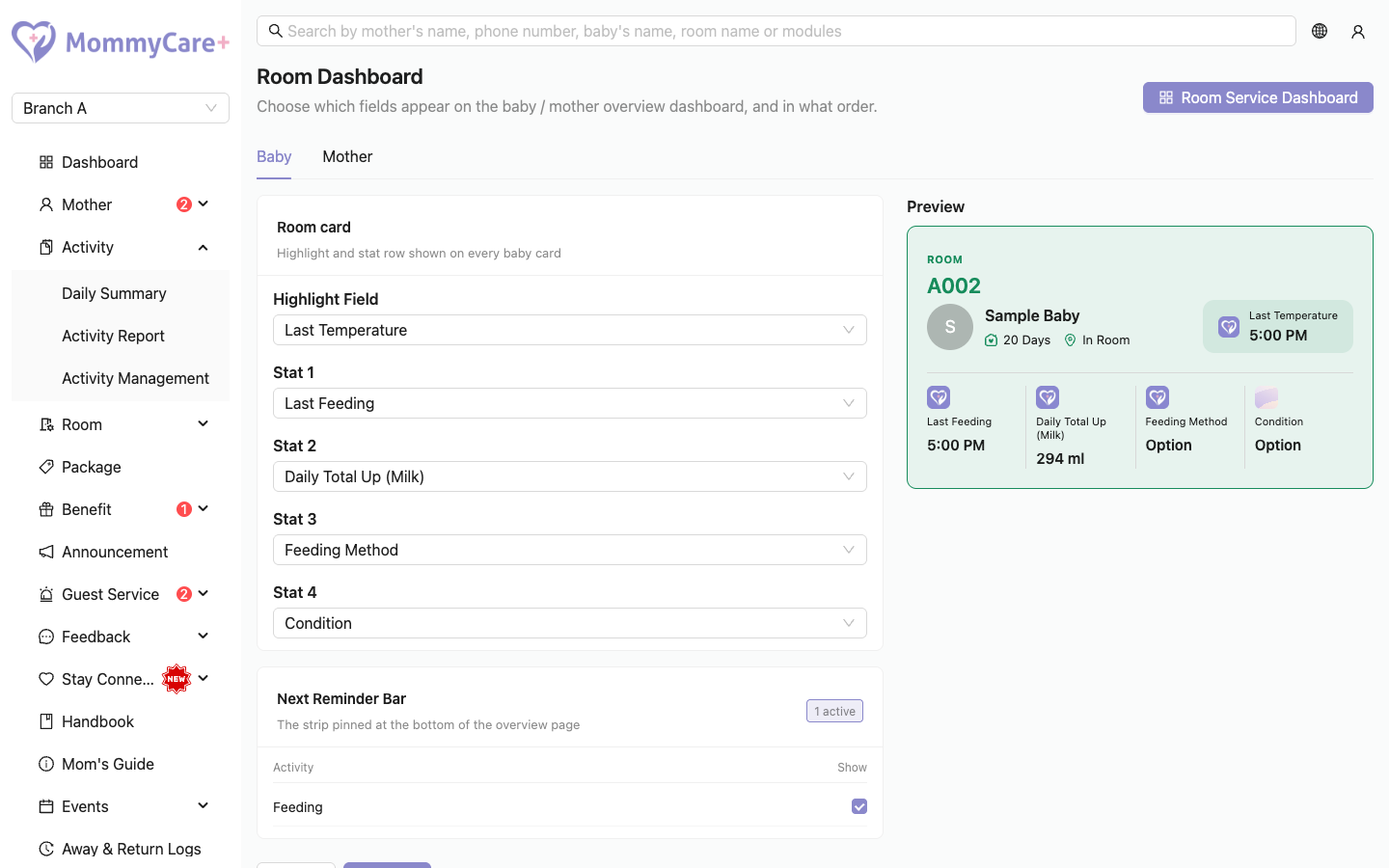
How to choose what the cards show
- Go to Setting → Room Dashboard.
- Choose the Baby or Mother tab. Each tab is set up separately.
- Under Room card, pick:
- Highlight Field: the one value shown largest on each card
- Stat 1 to Stat 4: up to four more values, in order. Choose None to leave a slot empty.
- Check the Preview card.
- Save.
You can pick:
- the Numeric and Option fields of your published activities for babies (Baby tab) or mothers (Mother tab)
- Last (activity): when the activity was last recorded, for example "Last Feeding"
- Daily Total Up (field): today's total of a field that has Total Up in Daily Summary Report turned on
A field can only be used once per card.
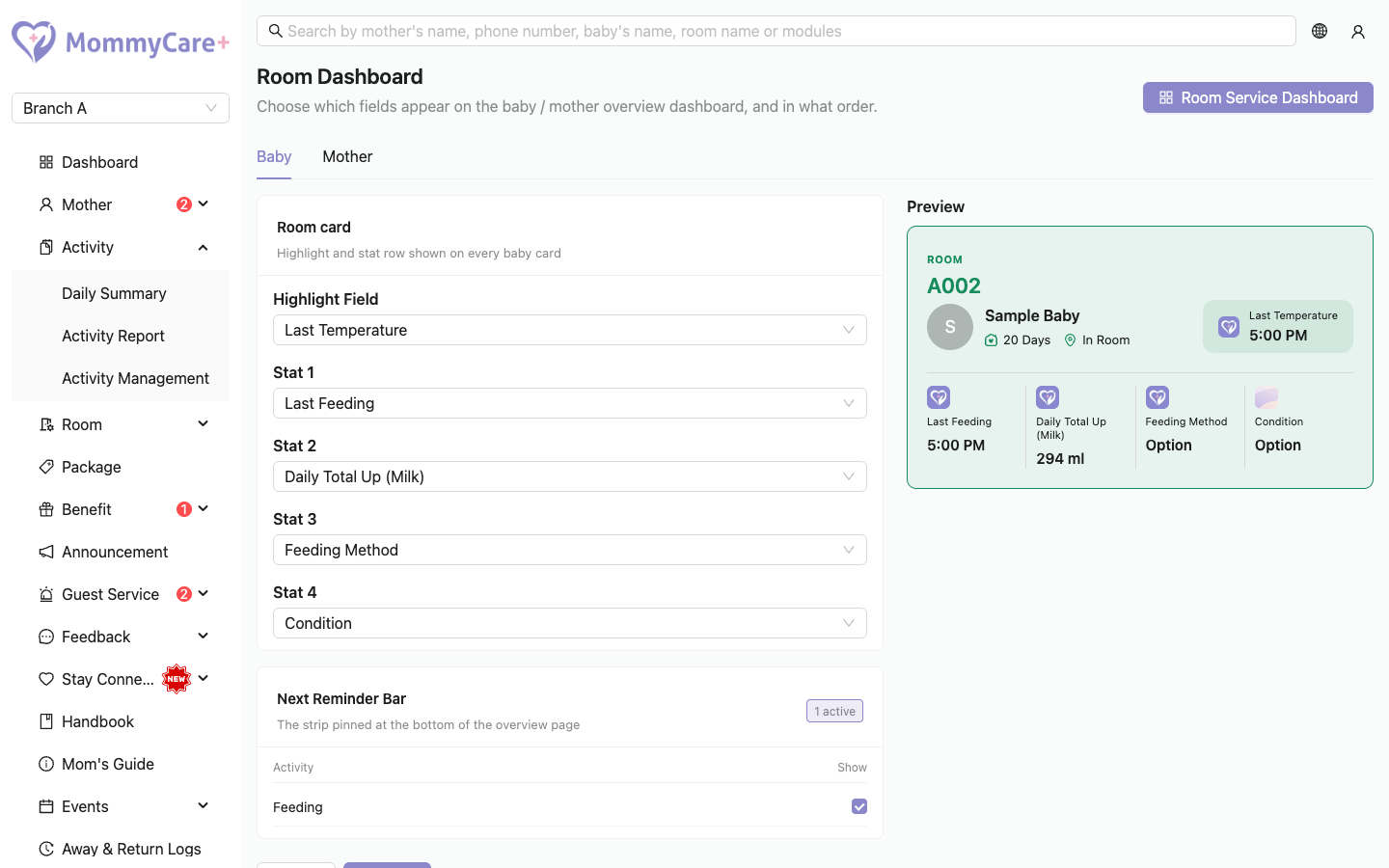
How to choose the Next Reminder bar activities
The Next Reminder Bar is the strip at the bottom of the overview. It lists upcoming next reminders set from reports.
- On the same tab, find Next Reminder Bar.
- Tick Show for each activity you want on the bar.
- Save.
Only activities with Allow setting next reminder from start time turned on can be shown. The card tells you how many are eligible. To turn reminders on for an activity, follow the Activity settings link, or see Activities.
How to open the Room Service Dashboard
Click Room Service Dashboard on this page. The dashboard's login opens in a new tab.
Troubleshooting
| What you see | Why, and what to do |
|---|---|
| Setting → Room Dashboard isn't in the menu | Your role doesn't have Manage Room Dashboard Setting, or your branch doesn't have Baby Overview. |
| "You can only display up to 4 stat fields on the room dashboard." | All four stat slots are used. Set one to None first. |
| "You can only have 1 highlight field on the room dashboard." | Change the current highlight field first. |
| A field isn't offered | Only Numeric and Option fields of published activities can be shown. |
| "No activities with "Allow setting next reminder from start time" enabled" | Turn on reminders for at least one activity in Activities. |
| A field disappeared from the cards | Its activity was unpublished, or the field was deleted or changed to another type. Pick it again. |