Events
Events are centre activities mothers can sign up for, for example a breastfeeding talk. Invited mothers see the event in the Mother App, confirm they are going, and show a QR code at the door. Staff scan it to record attendance.
- Location: Events → All Events and Events → Event Bookings
- Who can do this: staff whose role has the Events permissions (view, add, edit, delete)
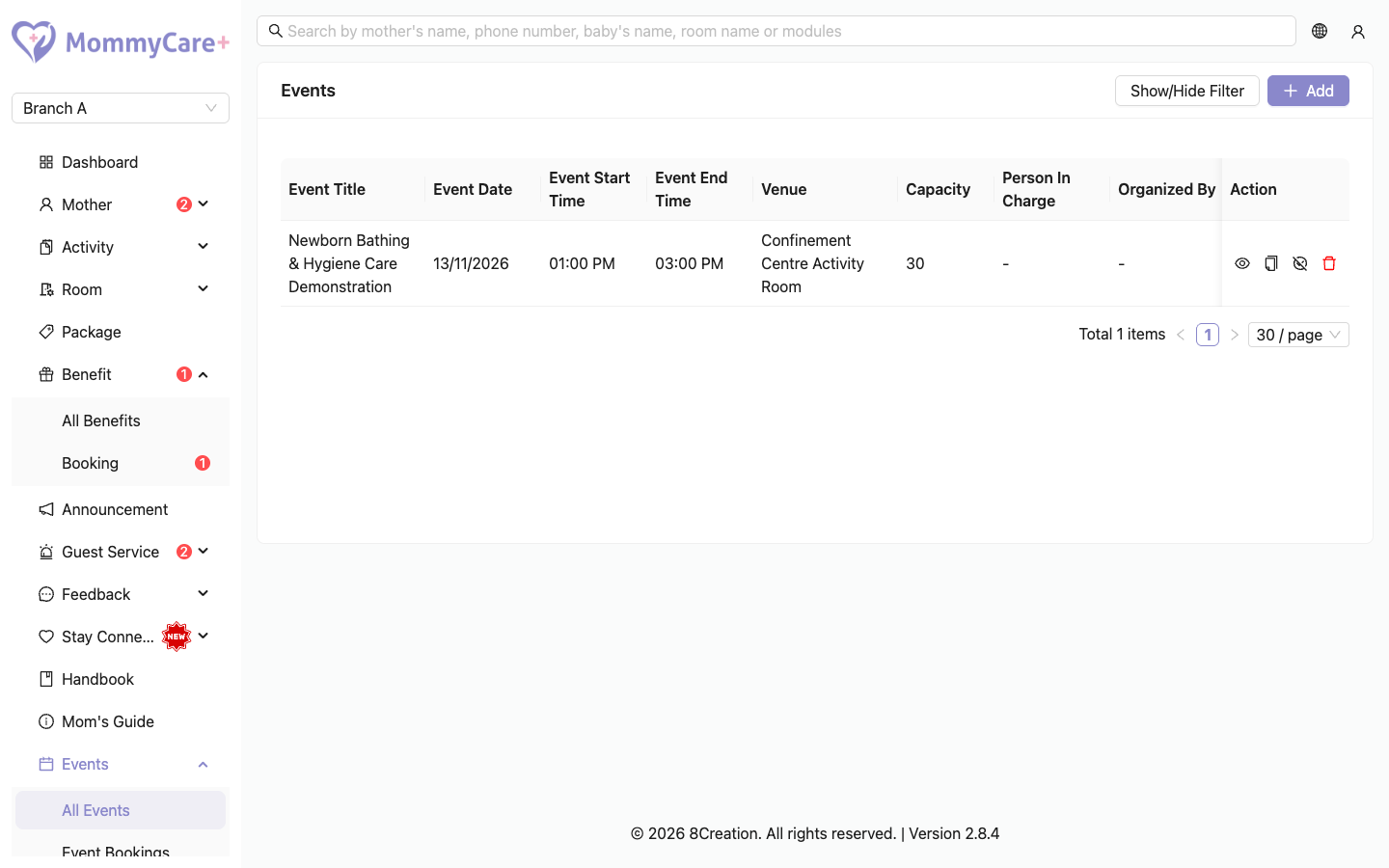
The list shows each event's title, date and time, venue, capacity, Person In Charge and whether it is published. Past events are hidden: tick Include Past Events in the filter to see them.
How to add an event
- Click Add.
- Fill in:
- Event Title, Event Start Time and Event End Time, Venue, Capacity and Description, and add photos
- Person In Charge (a staff member) and Organized By
- Reminder Notes: shown to the mother before she confirms, for example what to bring
- Button Label: the text on the mother's confirm button, for example "I'm going"
- Under Target Audience, choose who is invited:
- Specific Users: only the mothers you select
- By Status: every mother whose stay is Pre Check In, Checked In and/or Checked Out
- Click Save.
The event is saved as Unpublished. Nobody is told until you publish it.
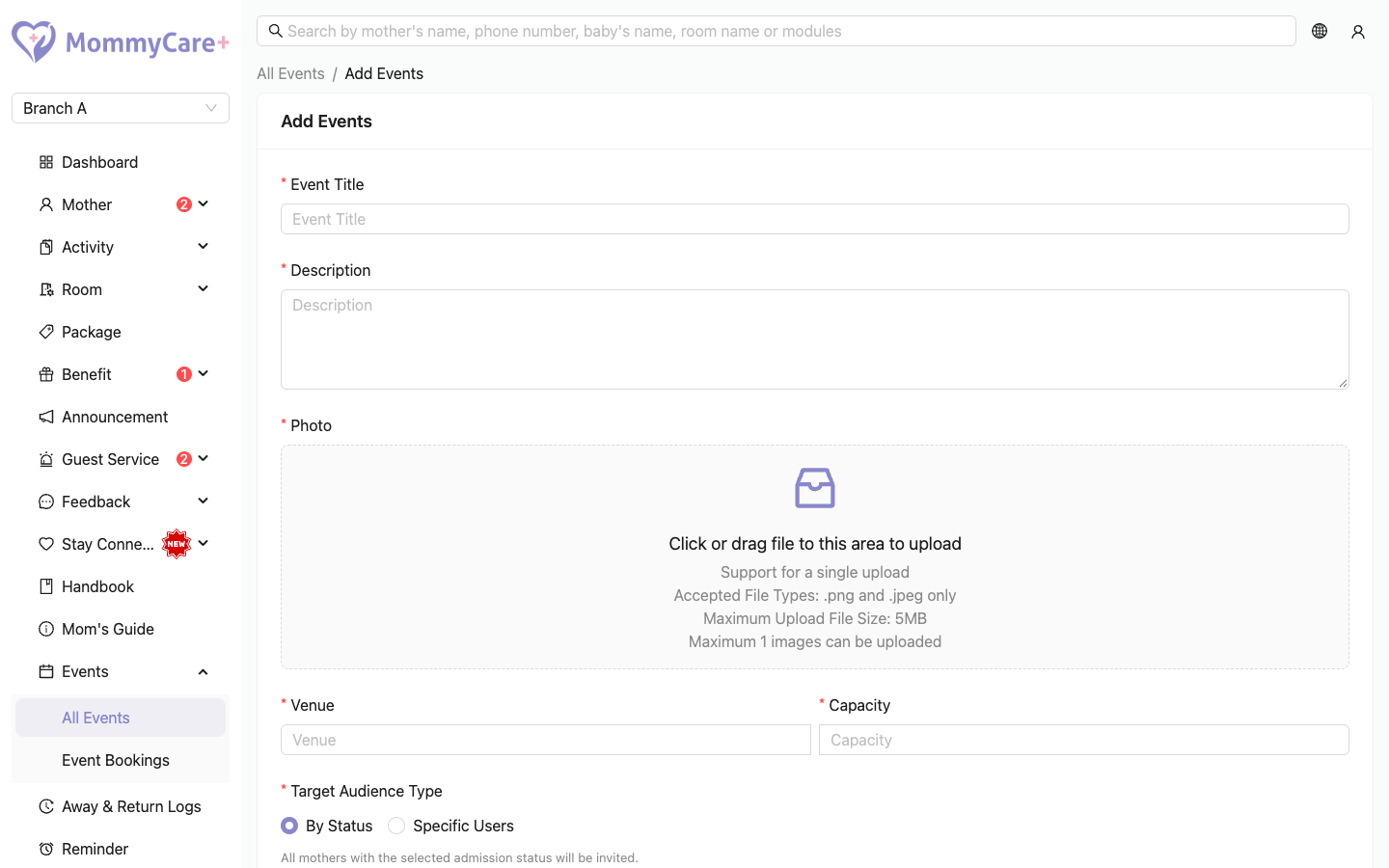
By Status follows each mother's stay. For example, an event for pre-check-in mothers disappears for a mother once she checks in.
How to publish an event
- Click the Publish icon and confirm.
The invited mothers get a "New Event Available" notification, and so do all Staff App users. You can only publish an event that hasn't started yet, and that has someone invited.
How to edit or duplicate an event
- Edit: only an unpublished event can be edited. Click Edit, make your changes and click Save.
- Duplicate: click Duplicate to start a new event with the same details, for example for a weekly talk. Choose the mothers again, and save.
To change a published event, unpublish it, edit it and publish it again. Be aware this removes its bookings (see below), and everyone is notified again when you publish.
How to unpublish an event
- Click the Unpublish icon.
- Read the warning: "All current bookings for mothers will be removed." and confirm.
The event is hidden from mothers and staff, its bookings are removed, and no reminders are sent.
How to delete an event
Click the Delete icon and confirm.
Deleting a published event doesn't stop its reminder: going mothers still get it the day before. Unpublish the event first, then delete it.
How to see an event's details
Click the View icon. Event Details shows the event, the organiser, the reminder notes, who is invited, the capacity, and each invited mother's history across copies of the event (for example "Attended for (date)").
What mothers and staff get
| When | Who | Notification |
|---|---|---|
| You publish the event | Invited mothers and all Staff App users | "New Event Available" |
| A mother confirms she is going | That mother | "Booking Confirmation", with the date and venue. Her QR code appears in the app. |
| The day before (or on the day, if she booked that day) | Going mothers and all Staff App users | "Event Reminder" |
A mother's "going" can't be undone, by her or by staff.
Event bookings
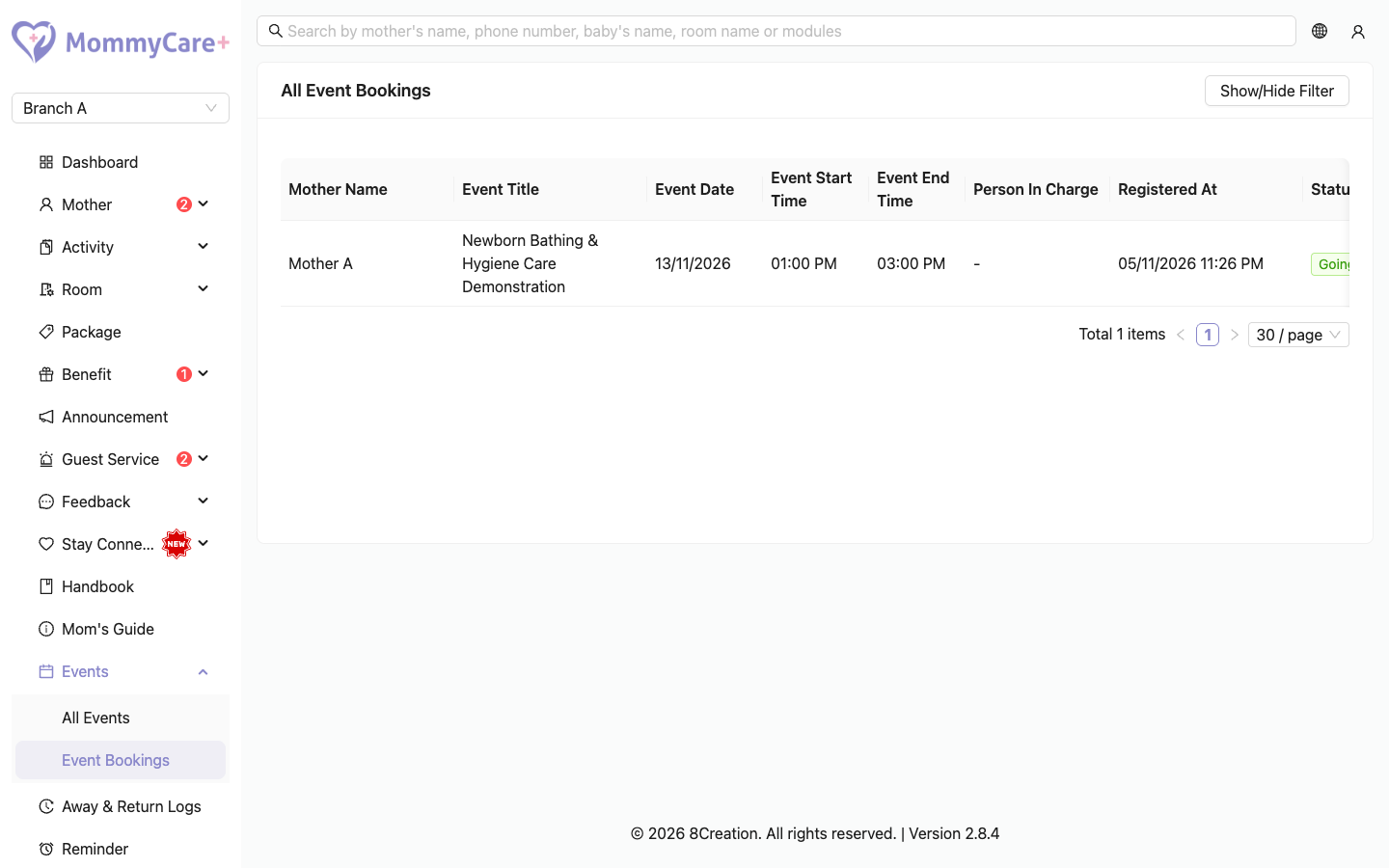
Events → Event Bookings lists every booking: the event, time, mother, Person In Charge, status and when she registered. Filter by event name, mother name or status.
On the day, staff open Scan Attendees in the Staff App and scan each mother's QR code to record attendance. See Scan attendees.
Troubleshooting
| What you see | Why, and what to do |
|---|---|
| A mother can't see the event | It isn't published, it is in the past, or she isn't invited (not selected, or her stay status isn't one of those chosen). |
| No Publish icon | The event has already started. |
| No Edit icon | The event is published. Unpublish it first (this removes its bookings). |
| "The target audience for this event is invalid or incomplete…" | Choose at least one mother (Specific Users) or one status (By Status). |
| A mother sees "This booking is full. No additional slots are available." | Every seat is taken. Raise the Capacity if you can. |
| A mother sees "This event has already ended." | She tried to book after the end time. |
| A mother wants to cancel her "going" | It can't be changed once confirmed. |
| Bookings disappeared | The event was unpublished. |
| Mothers got a reminder for a deleted event | It was deleted while published. Unpublish events before deleting them. |
| A staff member got the reminder but isn't in charge | Event reminders go to all Staff App users. |