Guest services & request log
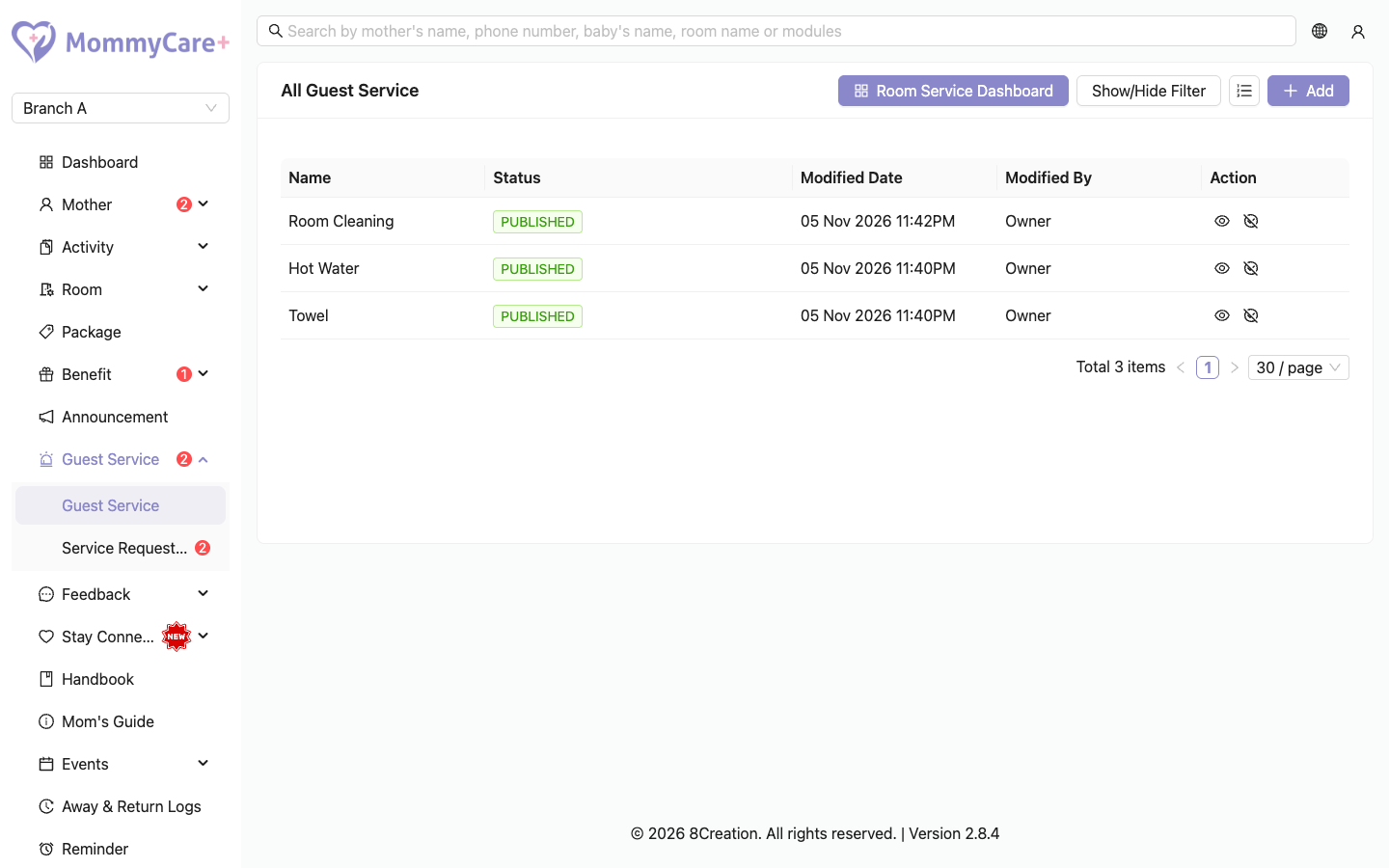
Guest services are things a checked-in mother can request from her room in the Mother App, for example a towel or hot water. Her request goes straight to the staff who handle it, in the Staff App and on the Room Service Dashboard.
- Location: Guest Service → Guest Service (set up) and Guest Service → Service Request Log
- Who can do this: staff whose role has the Guest Service permissions (view, add, edit, delete, publish)
Who receives requests
Only staff who handle service requests receive them:
- staff with Room Service Dashboard login access
- staff with Staff App (Guest Service Request Only) login access
- staff with full Staff App access and the Guest Service Request → Manage permission
- the centre owner
Each service then narrows this down: all of them, specific roles, or specific people. Of those, only the staff who are On duty get a phone notification. Everyone else still sees the request in their notifications list. See Staff roles.
If nobody who receives a service is on duty (the centre owner doesn't count), the mother sees "Service is currently unavailable." and can't send the request.
How to add a guest service
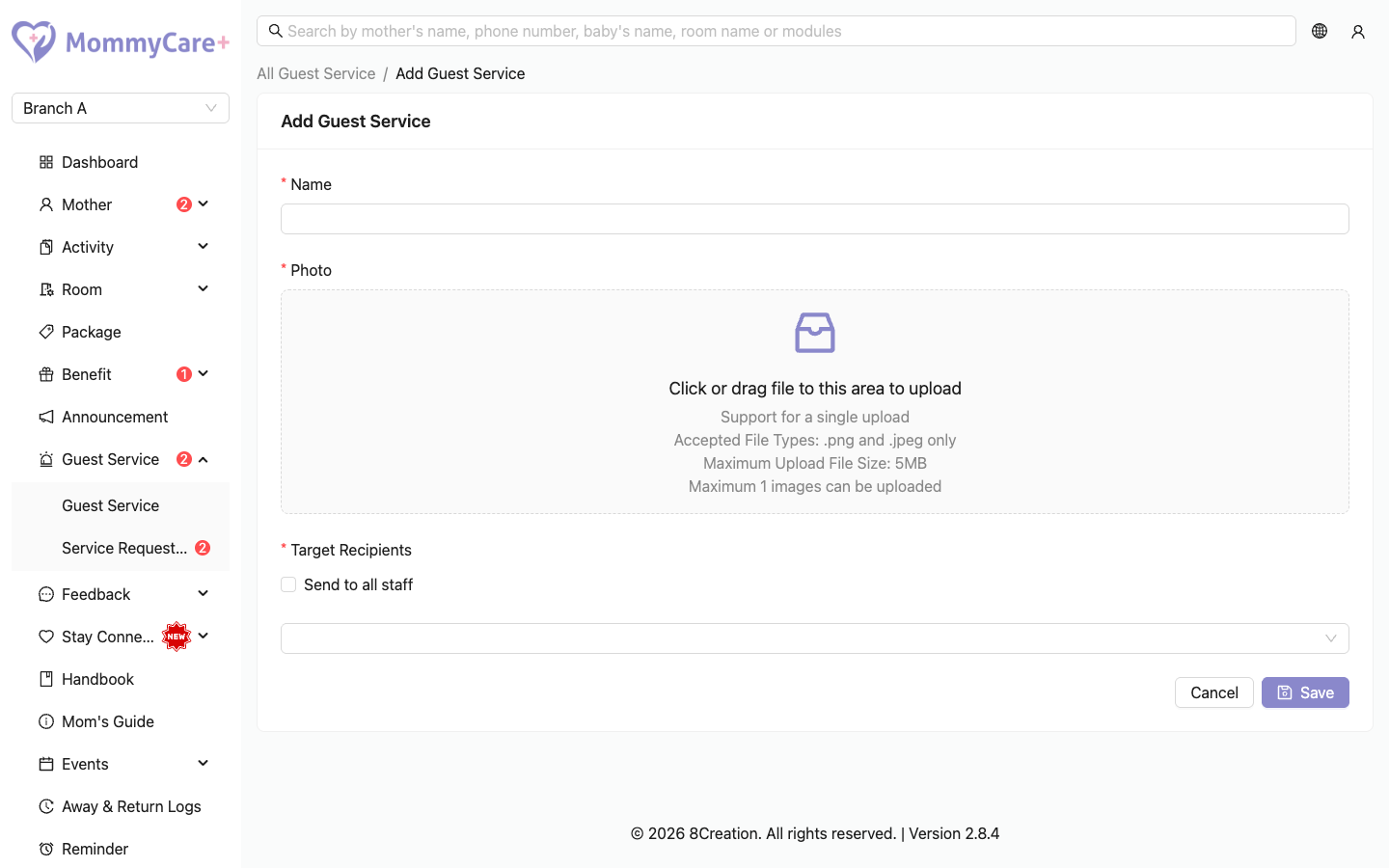
- Click Add.
- Enter the Name and upload a Photo.
- Under Target Recipients, choose:
- Send to all staff, or
- Specific Role (choose the roles; each shows how many active staff it has) and/or Specific User (choose the people)
- Click Save.
The service is saved as Pending. Mothers can't see it until you publish it.
How to publish or unpublish a service
- Publish: click the Publish icon and confirm. The service shows as Published, and checked-in mothers see it on the Service card in the Mother App.
- Unpublish: click the Unpublish icon and confirm. It disappears from the Mother App. Requests already sent can still be completed.
How to edit or delete a service
You can only edit or delete a service that isn't published. Unpublish it first.
- Edit: click the Edit icon, change the name, photo or recipients, and click Save.
- Delete: click the Delete icon and confirm. Past requests stay in the request log under the service's name.
How to change the order mothers see
- Click Arrange Order.
- Drag the services into the order you want on the Mother App's Service card.
- Click Save order. To undo your changes before saving, click Reset.
Only published services are listed. A service that is unpublished and published again goes to the end.
Service statuses
| Status | Meaning | What you can do |
|---|---|---|
| Pending | Saved, never published | Edit, publish, delete |
| Published | Mothers can request it | View, unpublish |
| Unpublished | Hidden from mothers | View, edit, publish, delete |
| Unassigned (tag) | Nobody receives it, for example because the only person or role it was sent to was deactivated or deleted | Edit it and choose recipients again |
How to review requests (Service Request Log)
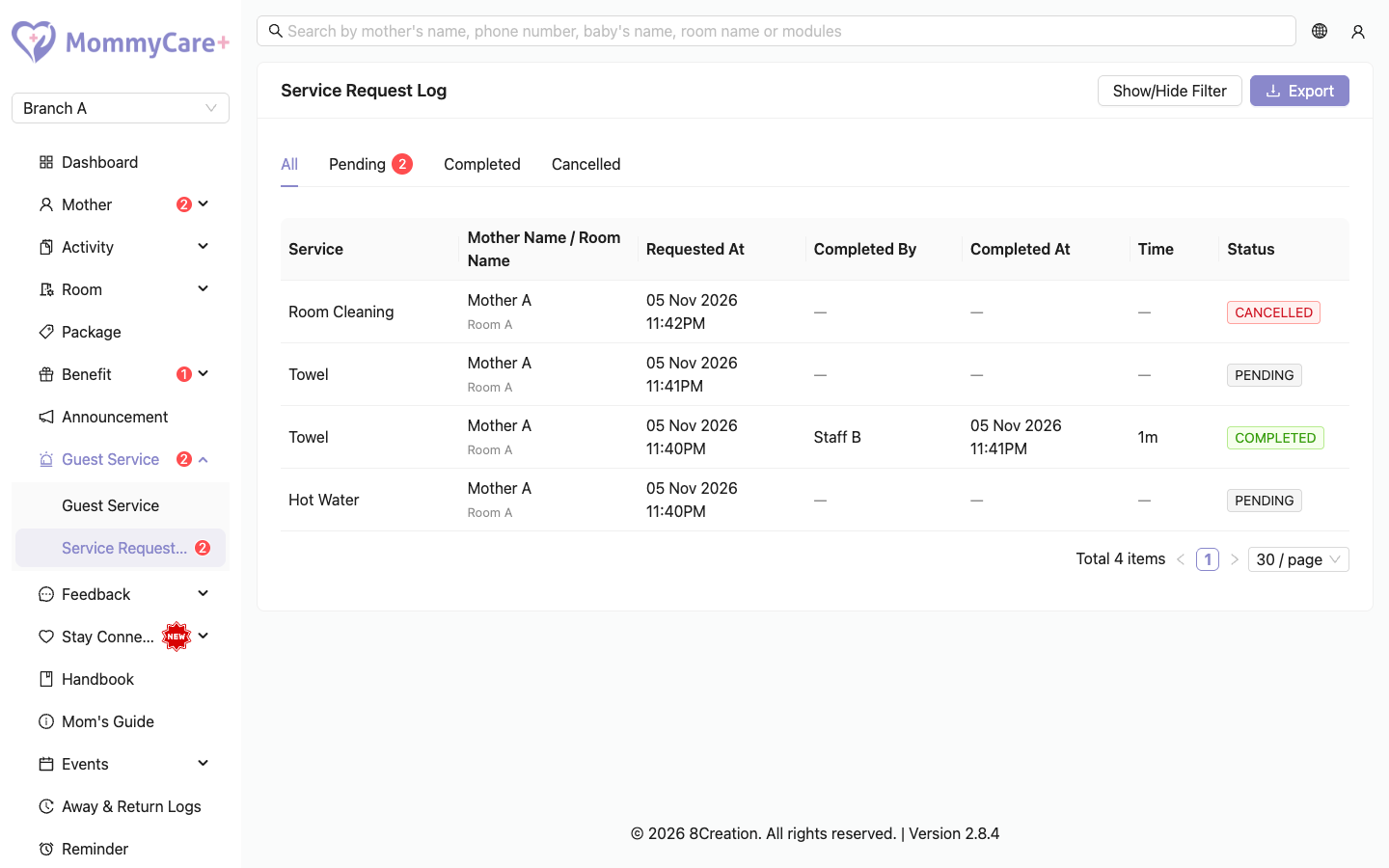
- Go to Guest Service → Service Request Log.
- Choose a tab: All, Pending (with a count), Completed or Cancelled.
- Filter by Date (up to one month at a time), Service or Room.
Each request shows the service, the mother and room, when it was requested, who completed it and when, and how long it took (for example "1h 30m").
The Guest Service menu shows a red badge with the number of pending requests. On the Dashboard, the Pending Service Request card opens the Pending tab.
How to export the request log
- Filter the log to the requests you want.
- Click Export, then choose:
- Download Excel: the file downloads now. For a long date range, it may take too long. Use email instead.
- Export via Email: the file is emailed to you, zipped, within about a minute.
The Room Service Dashboard
The Room Service Dashboard is a screen for a TV or tablet at the nurses' station. It shows live requests, plays a sound when a new one arrives, and lets staff complete them. Click Room Service Dashboard on the Guest Service list to open its login page in a new tab. See Room Service Dashboard.
Reception phone numbers
If a request waits more than a minute, the mother can tap Call Reception to message the reception by WhatsApp. Set the numbers in App settings.
Troubleshooting
| What you see | Why, and what to do |
|---|---|
| A mother doesn't see the Service card | She isn't checked in, or no service is published. |
| The mother sees "Service is currently unavailable." | Nobody who receives that service is on duty, or the service is Unassigned. |
| The mother sees "This service has already been requested." | She already has a pending request for it. |
| The mother sees "You've reached the maximum number of times this service can be requested…" | She requested or cancelled the same service too many times in a short period. Wait a while. |
| A staff member gets no notifications | They are off duty, their role doesn't handle service requests, or the service isn't sent to their role or to them. |
| No Edit or Delete on a service | It is published. Unpublish it first. |
| "The target receiver for this guest service is invalid or incomplete…" when publishing | The service has no recipients. Edit it and choose them. |
| "This record already exists…" | Another service has that name. |
| The export says it is taking too long | Shorten the date range, or use Export via Email. |