Benefits & bookings
A benefit is something a mother gets with her package, or as an extra:
- a service she books for a date, for example a massage or a baby spa. Staff confirm a time, and on the day they scan her QR code.
- a product handed over at the counter, for example a gift set. Staff mark it as claimed in the Portal.
At check-in, the benefits in her package are added to her account. These are her vouchers.
- Location: Benefit → All Benefits (set up), Benefit → Booking (bookings), and the Benefits tab on a mother's profile
- Who can do this: staff whose role has the Benefit and Benefit Booking permissions. The mother's Benefits tab needs All Onboarded Mothers.
Setting up benefits
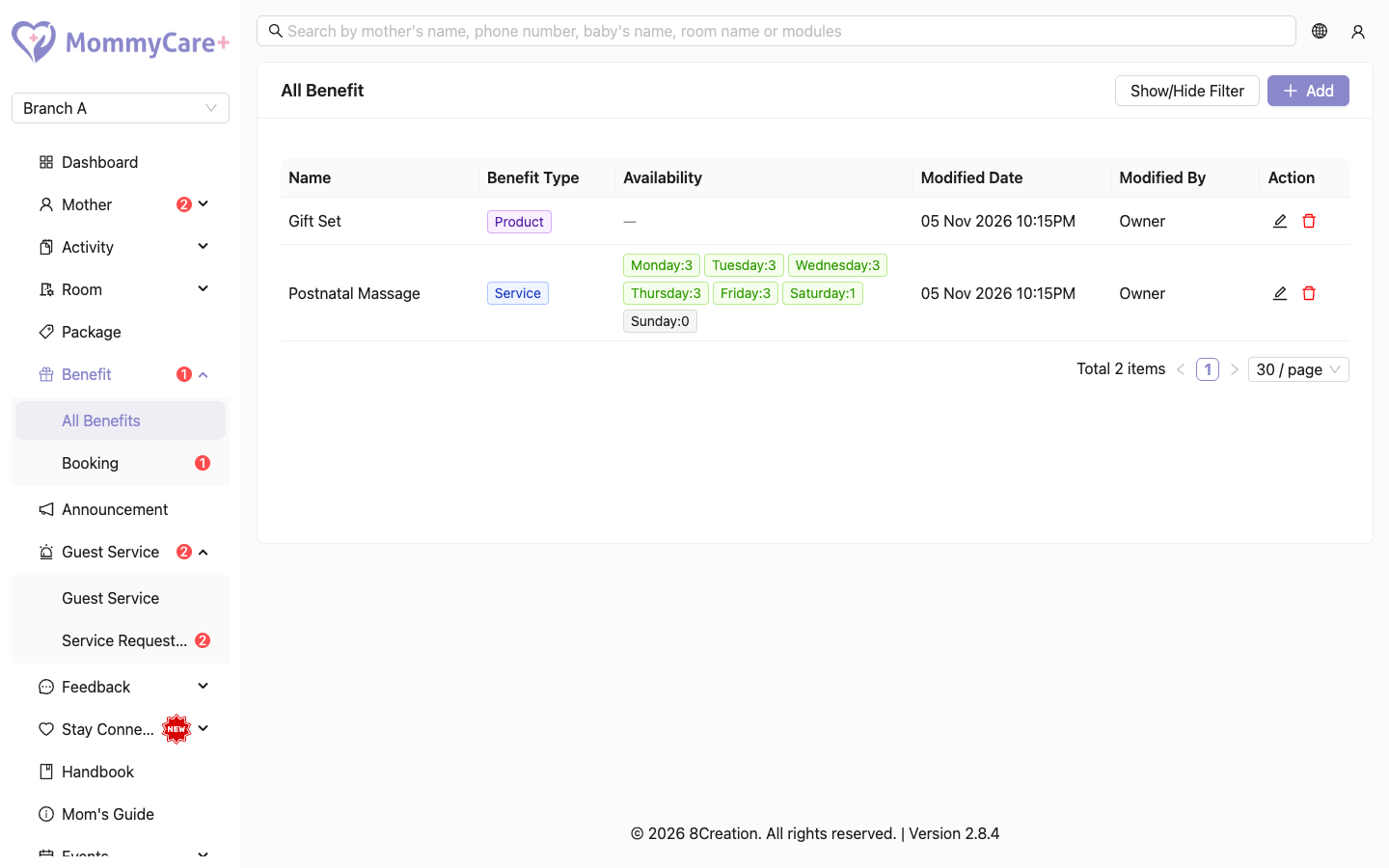
How to add a benefit
- Go to Benefit → All Benefits and click Add.
- Choose the Benefit Type: Service or Product.
- Enter the Benefit Name, upload a Photo, and add a Description.
- For a service, also set:
- Daily Slot for each day of the week: how many bookings it takes that day. 0 means it can't be booked that day.
- Default Expiry Days: a mother's vouchers expire after this many days (1 or more).
- Reminder Note: shown to the mother with her booking, for example "Please bring comfortable clothing".
- Click Save.
Then add the benefit to your packages.
How to edit a benefit
Click Edit, make your changes and click Save. Bookings already made keep their name, photo and reminder note. If you reduce the slots, existing bookings stay.
How to delete a benefit
- Click Delete.
- The Portal shows what will change: how many mothers have unused vouchers that will be removed, and which packages include it. Existing bookings aren't affected.
- Confirm.
A mother's benefits
Open the mother's profile and go to the Benefits tab. It lists her vouchers with the quantity, how many are used and left, and the expiry date, under All, Claimable and Claimed.
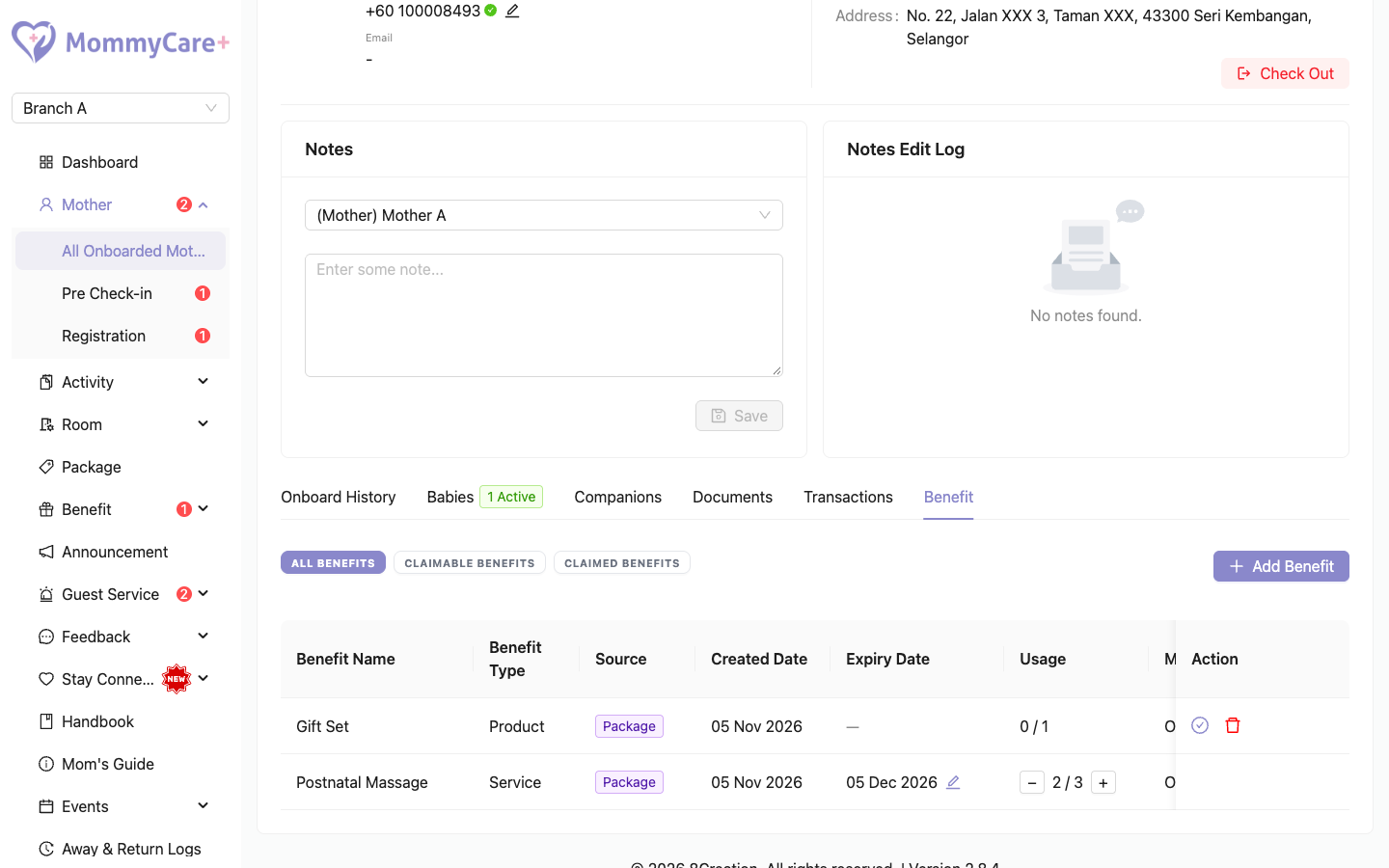
How to give her an extra benefit
- On her Benefits tab, add a benefit.
- Choose the benefit, the quantity and the expiry date. The expiry is filled in from the benefit's default.
- Save.
For a service, she gets a "New Benefit Added" notification and can book it straight away.
How to change the quantity or expiry, or remove a voucher
- Use + and − to change the quantity by one.
- Set a new expiry date, for example if hers has passed.
- Remove the voucher. You can't remove one that is fully used.
How to mark a product as handed over
- Click Mark as Claimed on the product.
- Enter how many were handed over, and confirm.
They are listed under Claimed with today's date.
- Pending, approved, rescheduled, completed and claimed bookings all use up a voucher. Rejected and cancelled bookings give it back.
- Check-in replaces her package benefits with those of the package she checks in with. Extra benefits stay.
- Changing her package during the stay doesn't change her benefits. Adjust them here.
Bookings
What the mother does
In the Mother App, she opens Redeem Benefits, taps Book Now, picks a date (from tomorrow, up to 30 days ahead, and before her voucher expires), enters a preferred time such as "Morning" or "3:00 PM", and taps Confirm & Book. Her booking is Pending until you approve it.
The booking list
Go to Benefit → Booking. The tabs are All, Upcoming (approved or rescheduled, from today), Pending (with a count) and Today. Filter by mother, benefit or date. Each row shows the status, date and time, her preferred time, and any reason given for rejecting or cancelling it.
The Booking menu shows a red badge with the number of pending bookings.
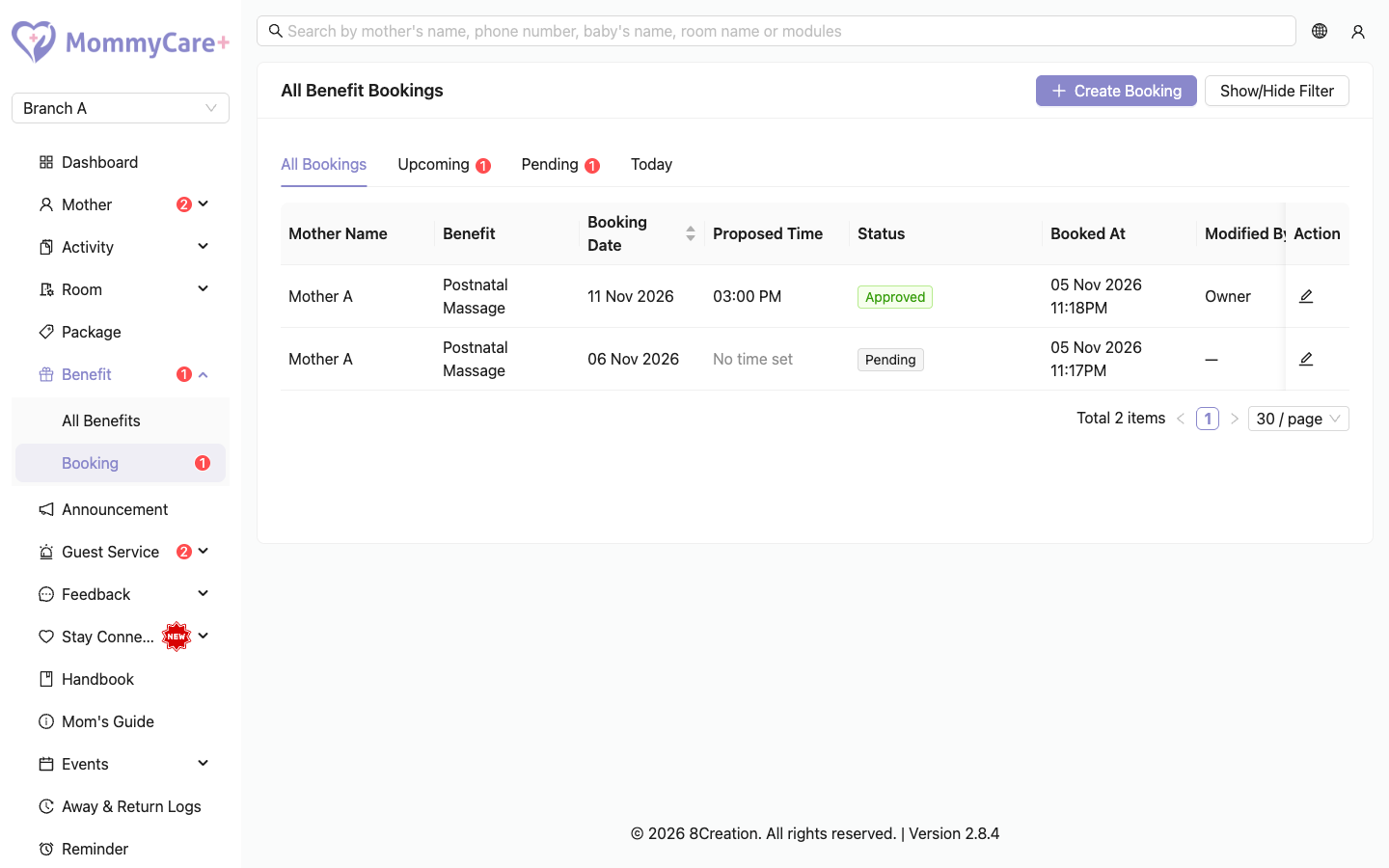
How to approve, reject, reschedule or cancel a booking
Click the booking to see its actions:
| Action | What to do | What the mother gets |
|---|---|---|
| Approve | Set the time and confirm | "Booking Confirmation" with the time. A reminder the day before and one hour before. A QR code in her app. |
| Reject | Enter a reason and confirm | "Booking Cancelled". Her voucher is free to use again. |
| Reschedule | Choose the new date and time | "Booking Rescheduled" with the new date and time. The old reminders are cancelled. |
| Cancel | Enter a reason and confirm | "Booking Cancelled". Her voucher is free to use again. |
How to book for a mother
- On Benefit → Booking, click Create Service Booking.
- Choose the mother and her benefit.
- Choose a date (free slots are shown, up to 60 days ahead), and optionally a time and a remark.
- Save.
If you set a time, the booking is approved and she is notified straight away.
Completing a booking
On the day, staff open Scan Attendees in the Staff App and scan the QR code on her booking. The booking becomes Completed. See Scan attendees.
Troubleshooting
| What you see | Why, and what to do |
|---|---|
| The mother sees the benefit under Other Benefits ("Benefits require voucher purchase at the reception counter to book.") | She has no voucher left for it. Give her one on her Benefits tab. |
| "This benefit has expired and is no longer available for booking." | Her voucher has expired. Change its expiry date on her Benefits tab. |
| "This benefit is already fully claimed." | All her vouchers are booked or used. |
| "This date is fully booked. Please select another date." | That day's slots are taken. Choose another day, or raise the Daily Slot. |
| The mother can't pick today | Bookings start from tomorrow. Book for her with Create Service Booking if needed. |
| A product doesn't show in the Mother App | Products aren't booked in the app. Mark them as claimed here. |
| The mother got no notification after booking | She is only notified when staff approve, reject, reschedule or cancel. |
| "The QR code is no longer valid because it has already been used." | The booking is already completed, or isn't approved yet. |
| Her benefits changed at check-in | Check-in gives her the benefits of the package she checked in with. Extra benefits stay. |
| "This action is not allowed for the current booking status." | The booking was already rejected, cancelled or completed. |