Two-factor authentication (2FA)
Two-factor authentication adds a second step to the Portal login: after your password, you enter a 6-digit code from an authenticator app on your phone, such as Google Authenticator or Microsoft Authenticator. The centre owner switches it on per branch.
2FA applies to the Portal only. The Staff App, Mother App and Room Service Dashboard don't ask for a code.
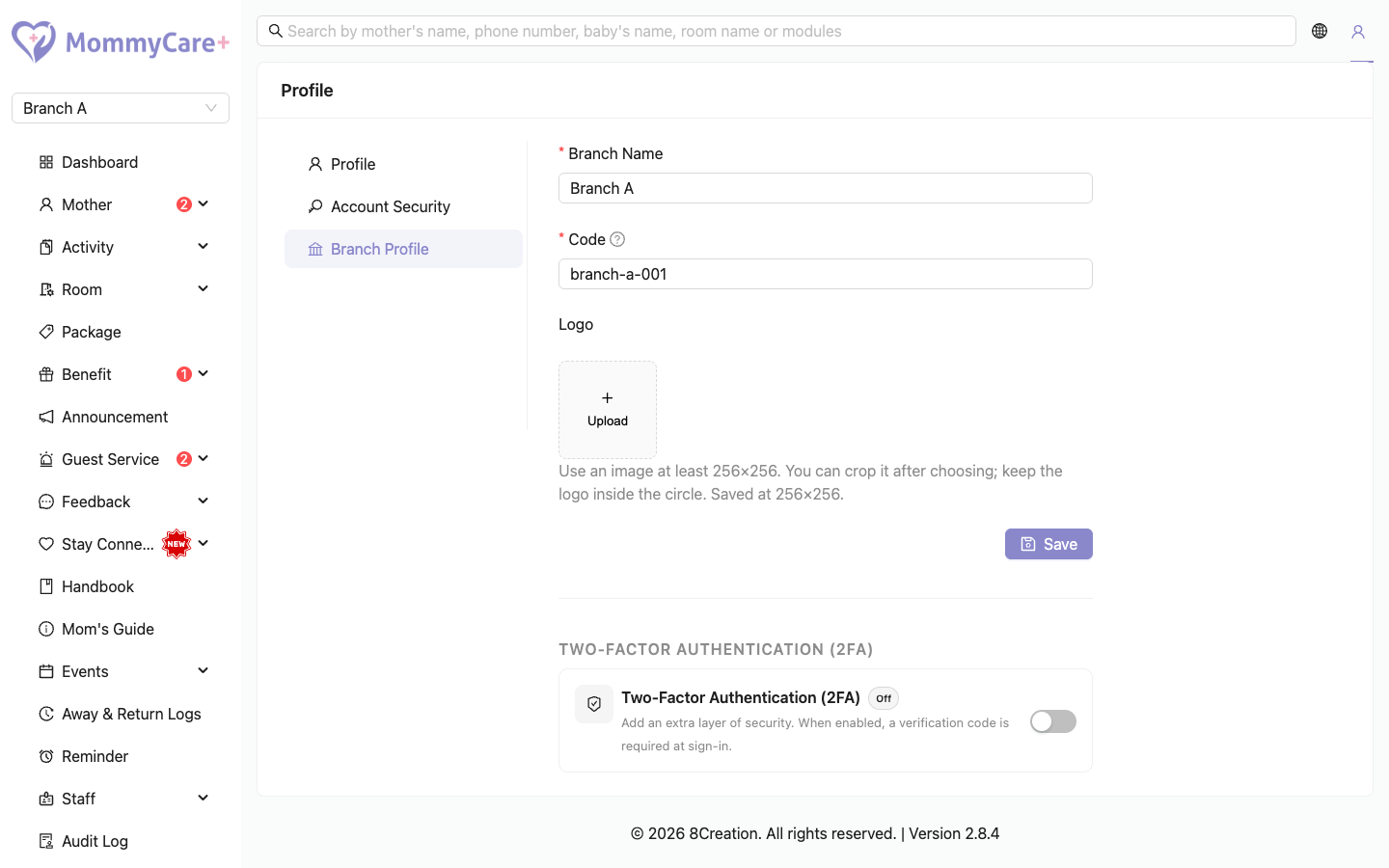
How to turn 2FA on or off (centre owner)
- Open the account menu at the top right and choose My Account.
- Go to the Branch Profile tab.
- Switch Two-Factor Authentication (2FA) on.
- Read the warning and click OK.
Turning 2FA on logs out everyone in this branch on every device, including you. Everyone logs in again, and sets up 2FA the first time.
Turning 2FA off logs nobody out. From then on, logins skip the code.
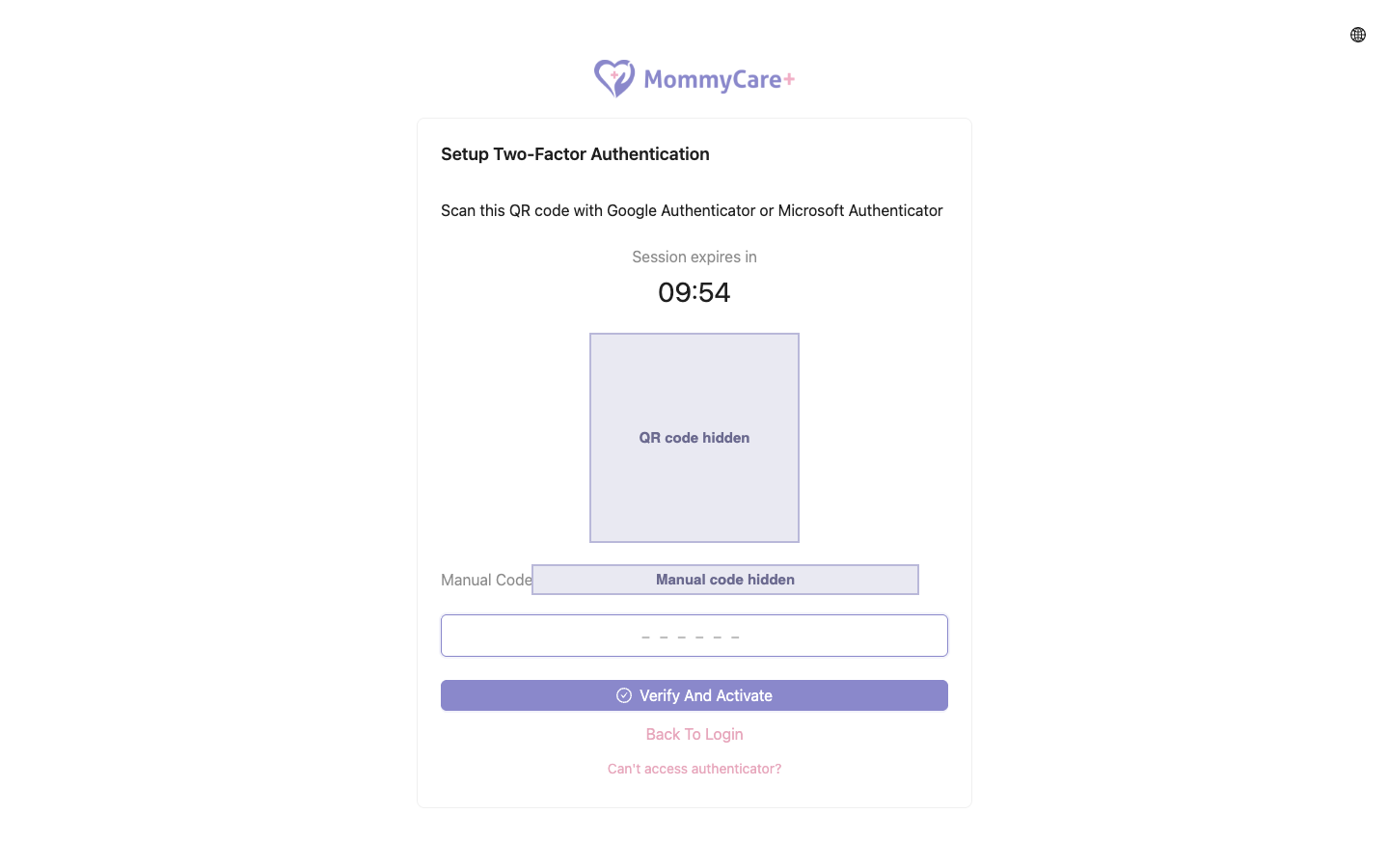
How to set up 2FA (your first login after it's turned on)
- Log in with your email and password as usual.
- The setup screen shows a QR code, and the same code as text in groups of four.
- In your authenticator app, scan the QR code, or type in the text code.
- Enter the 6-digit code the app shows, then click Verify And Activate.
You are logged in. From now on, every login in this branch asks for a code.
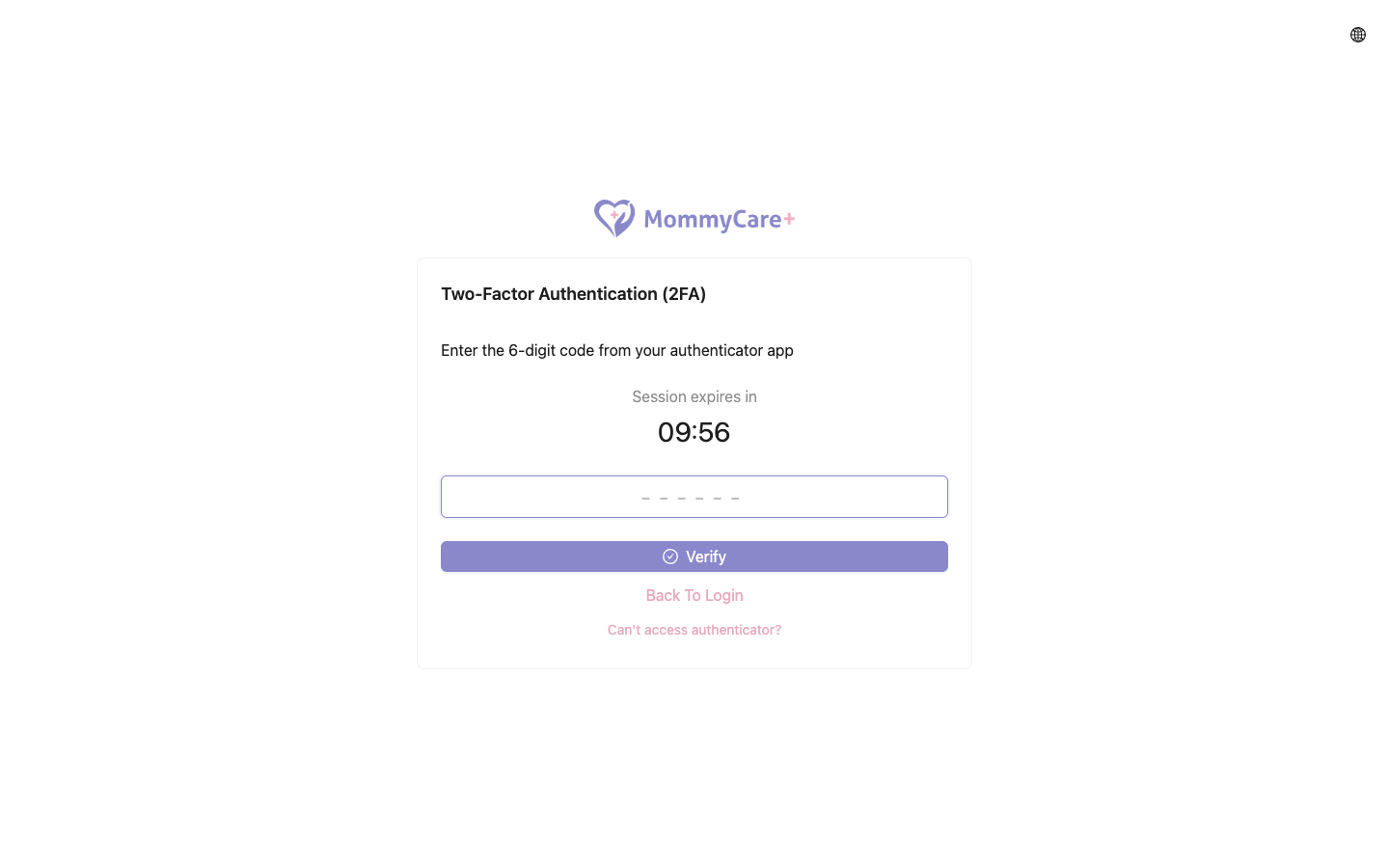
How to log in with 2FA
- Enter your email and password.
- Open your authenticator app, enter the current 6-digit code for MommyCare+, and click Verify.
You have 10 minutes to enter the code. A countdown shows the time left.
2FA is set for each branch separately. If you switch to a branch without 2FA, no code is asked.
Troubleshooting
| What you see | Why, and what to do |
|---|---|
| "The code you entered is incorrect." | Enter the code the app is showing right now. The codes change every few seconds. |
| "Your setup session has expired." / "Your verify session has expired." | The 10 minutes ran out. Start again from the email step. |
| Everyone in the branch was logged out at once | The centre owner just turned on 2FA. Everyone logs in again and sets it up. |