My account
- Location: the account menu at the top right → My Account
- Who can do this: every Portal user, for their own account
My Account has these tabs:
- Profile: your name and email
- Account Security: your password, and the devices you're logged in on
- Branch Profile: centre owner only. See Branch management.
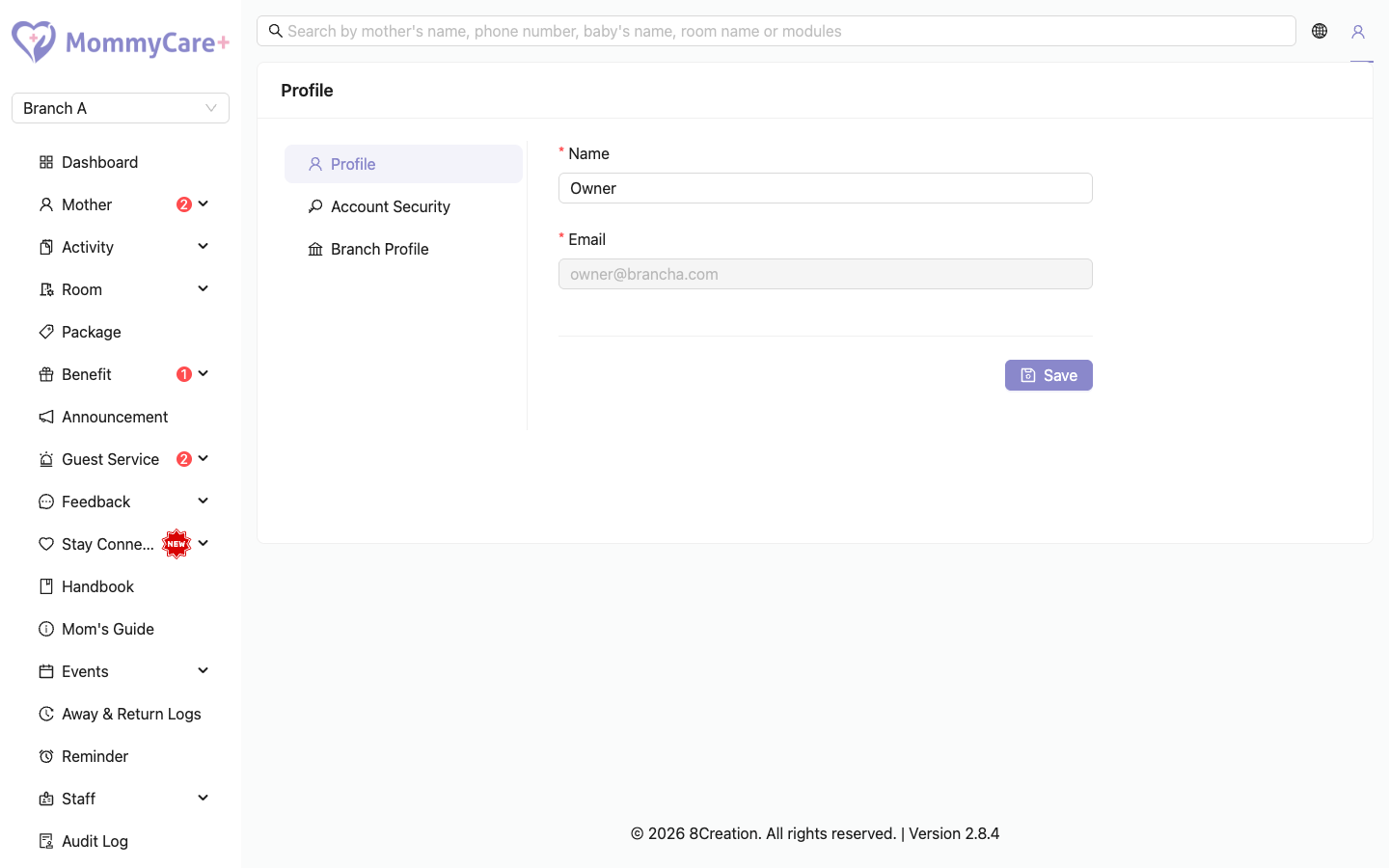
How to change your name
- Go to My Account → Profile.
- Change your name and click Save.
The new name shows in the header straight away. You can't change your email here. Ask whoever manages staff to change it on the staff list.
How to change your password
- Go to My Account → Account Security.
- Enter your current password, then your new password twice.
- Click Save.
The page also shows when your password was last changed.
caution
Changing your password logs you out on every other device, including the Staff App and the Room Service Dashboard.
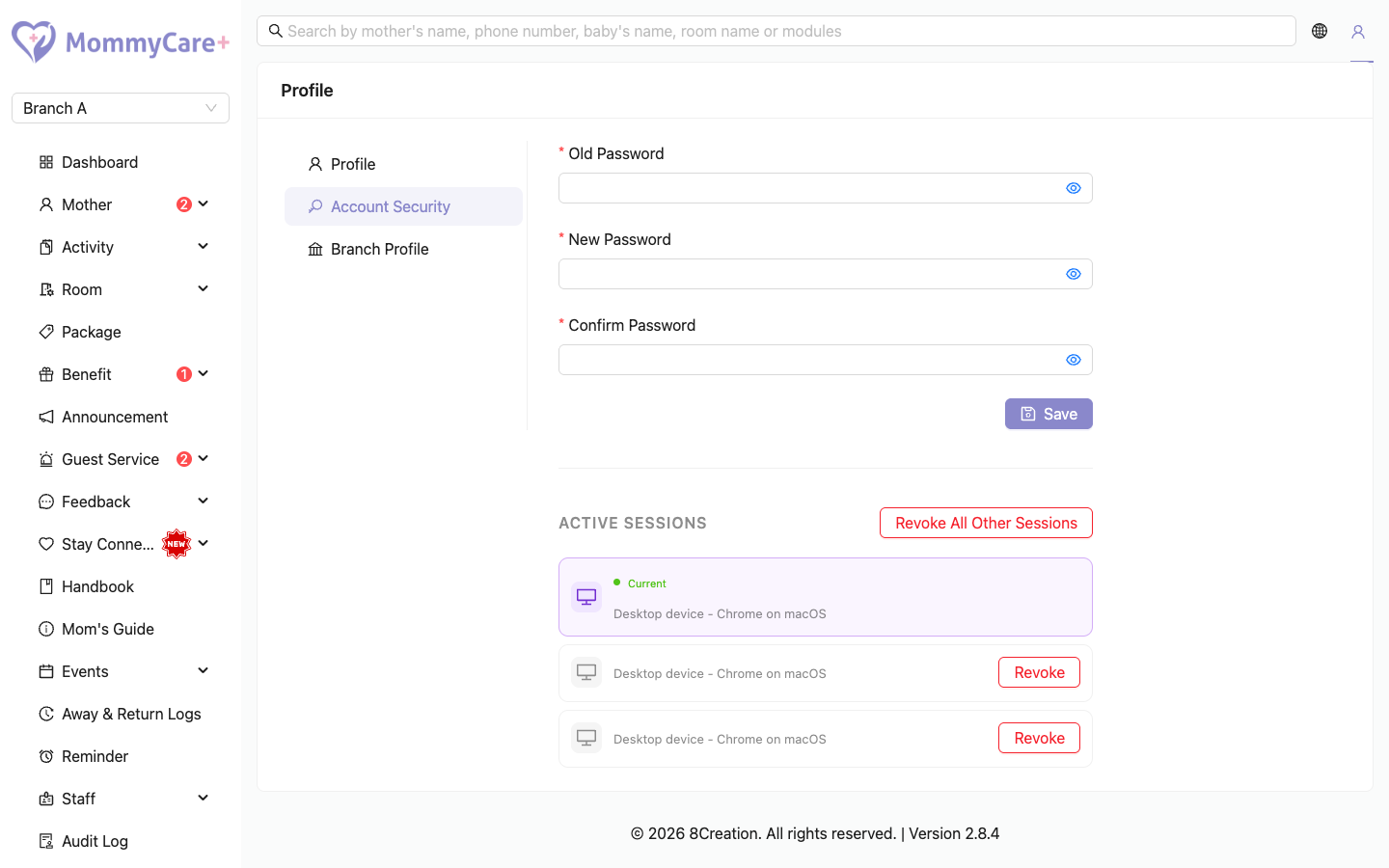
How to see where you're logged in, and log out other devices
Account Security lists your active sessions. The one you're using now is first. Each session shows the device and browser, for example "Desktop - Chrome on macOS".
- To log out one device, click Revoke on it and confirm.
- To log out everywhere except this browser, click Revoke All Other Sessions and confirm.
The other device is logged out the next time it does anything.
How to log out
Open the account menu at the top right and click Logout.
Troubleshooting
| What you see | Why, and what to do |
|---|---|
| "The password you entered is incorrect." | The current password is wrong. |
| "Password must be at least 8 characters, include uppercase, lowercase, and a digit." | Choose a stronger password. |
| You don't see Branch Profile | Only the centre owner has it. |