Branches
A centre can have several branches. Each branch has its own rooms, packages, staff roles, mothers and content.
- Location: Branch in the account menu at the top right (branch list), and My Account → Branch Profile (the current branch)
- Who can do this: the centre owner only. Anyone who works in more than one branch can switch branch.
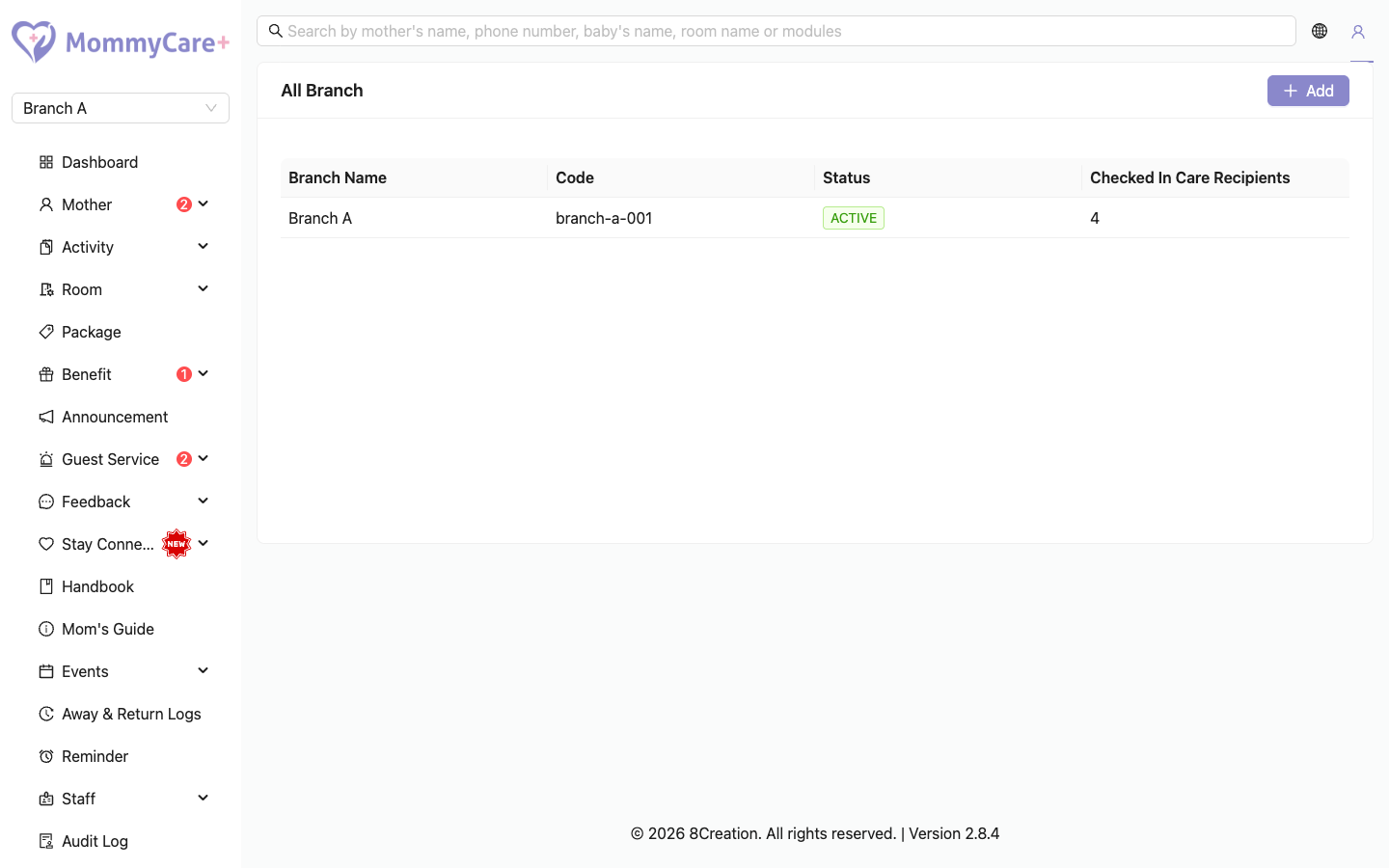
How to see your branches
Open Branch from the account menu at the top right. Each branch shows its Branch Name, Code, Status and Checked In Care Recipients: the number of checked-in mothers plus their babies.
How to add a branch
- On the branch list, click Add.
- Enter the Branch Name and Code.
- Optionally add a Logo: upload one, or choose Copy from another branch.
- Click Save.
The new branch appears in the list and in the header's branch menu. You are its centre owner. It also gets the same premium features (such as Baby Overview) as the branch you're in now.
Each branch code must be different from your other branches' codes. Branch names can repeat.
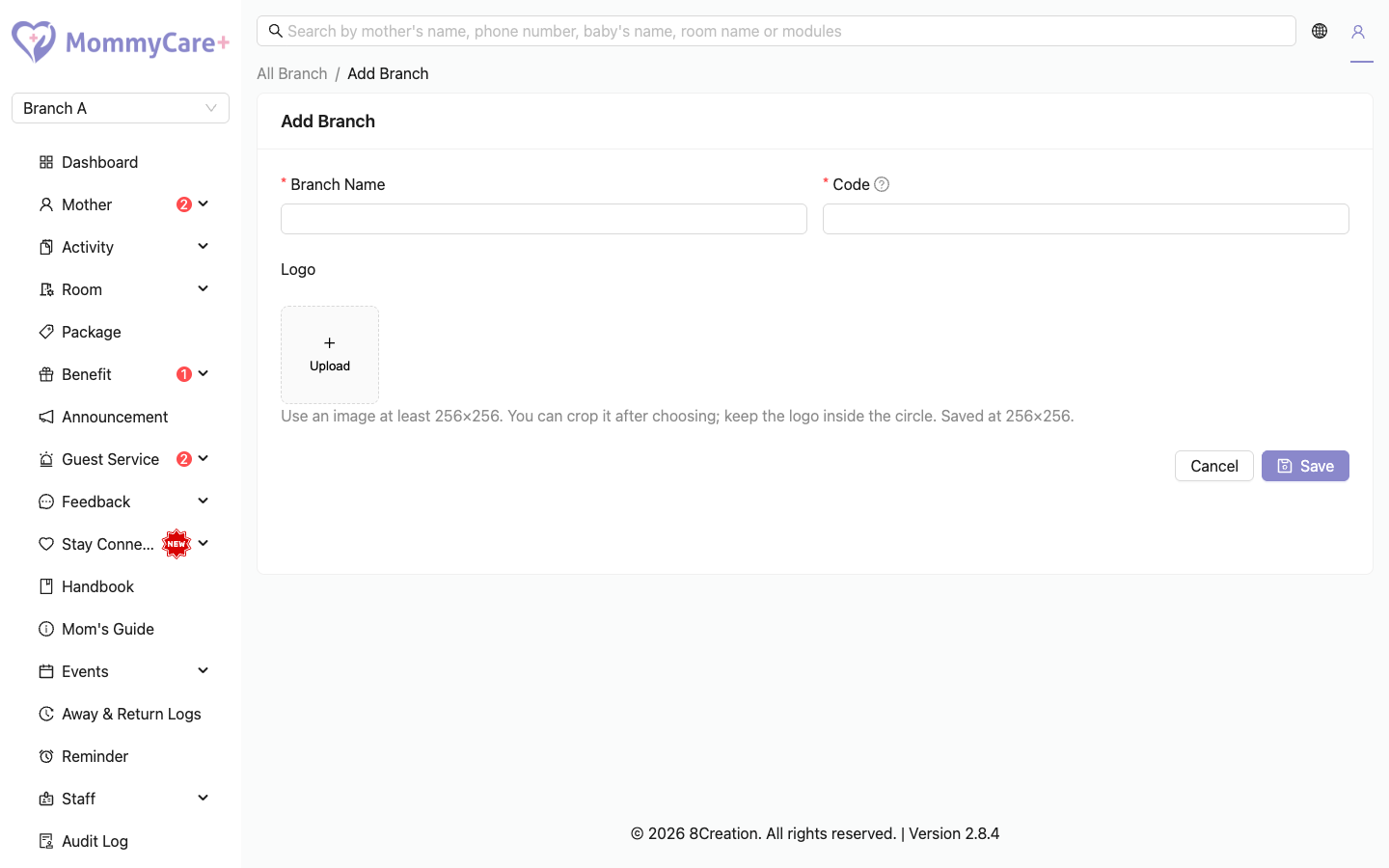
How to change the branch name, code or logo
These changes apply to the branch you're in now.
- Go to My Account → Branch Profile.
- Change the Branch Name, Code or Logo.
- Click Save.
About the logo
- It must be a PNG or JPEG under 5 MB, ideally at least 256 × 256. After choosing it, you crop it to a circle.
- It shows as the icon on phone notifications from this branch, and on Stay Connected in the Mother App.
- To use the same logo everywhere, click Apply logo to all branches and confirm. This replaces the logo of all your other branches.
- To remove it, delete it in the uploader and save. Notifications then use the app's default icon.
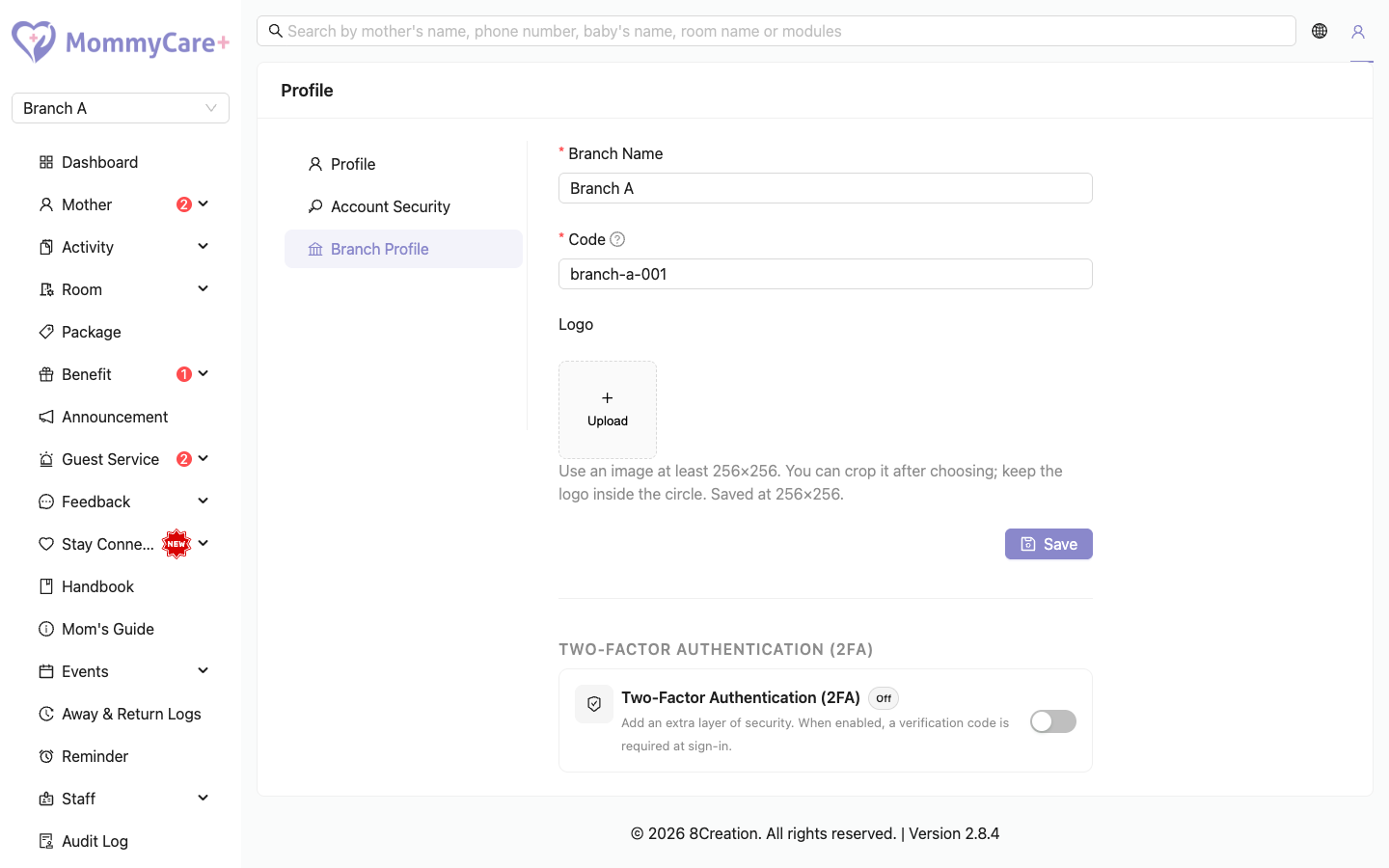
Two-factor authentication is also switched on or off here. See Two-factor authentication.
How to switch branch
- Click the branch name in the Portal header.
- Choose the branch.
The page reloads in that branch. Your menus follow your role in the new branch, so you may see different menus. You only see branches where your role has Portal access and you are Active.
In the apps and on the Room Service Dashboard, switch branch from their own branch menu.
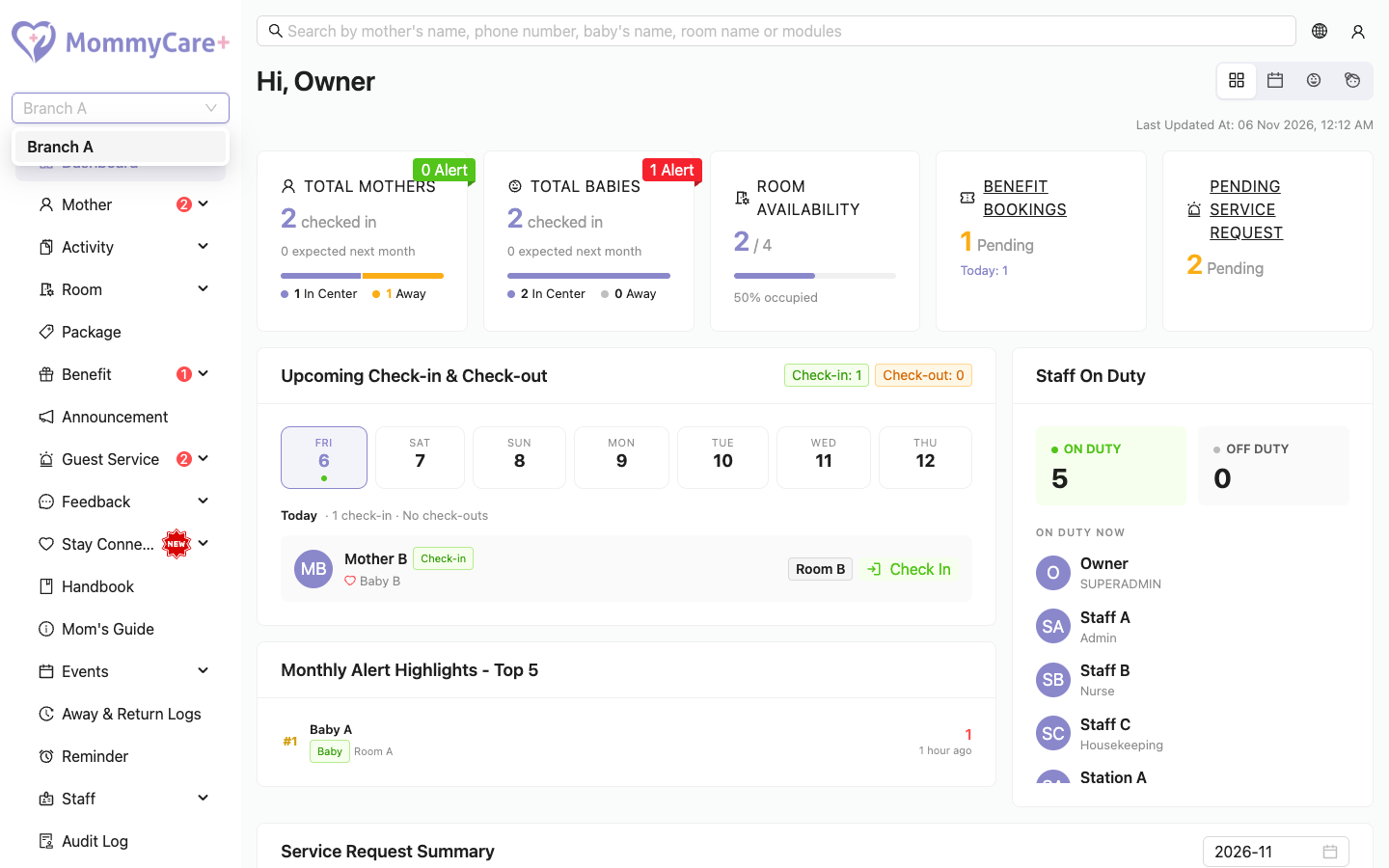
Switching branch in one browser tab logs out the other tabs that are still on the old branch. Reload them.
Troubleshooting
| What you see | Why, and what to do |
|---|---|
| Branch isn't in the menu | Only the centre owner sees it. |
| A staff member doesn't see a branch in the branch menu | They aren't Active in that branch, or their role there has no Portal access. |
| "This record already exists…" when adding a branch | Another of your branches already uses that code. |
| Everyone in a branch was logged out | 2FA was just turned on for that branch. |
| You can't deactivate a branch | Branch status is managed by MommyCare+, not in the Portal. Contact support. |
| "Session expired" in another tab | You switched branch in a different tab. Reload the page. |