Check-out & branch transfer
- Location: Mother → All Onboarded Mothers → open the mother's profile → Check Out or Transfer Branch
- Who can do this: staff whose role has All Onboarded Mothers
You can also check a mother out from the Upcoming Check-in & Check-out card on the Dashboard.
How to check a mother out
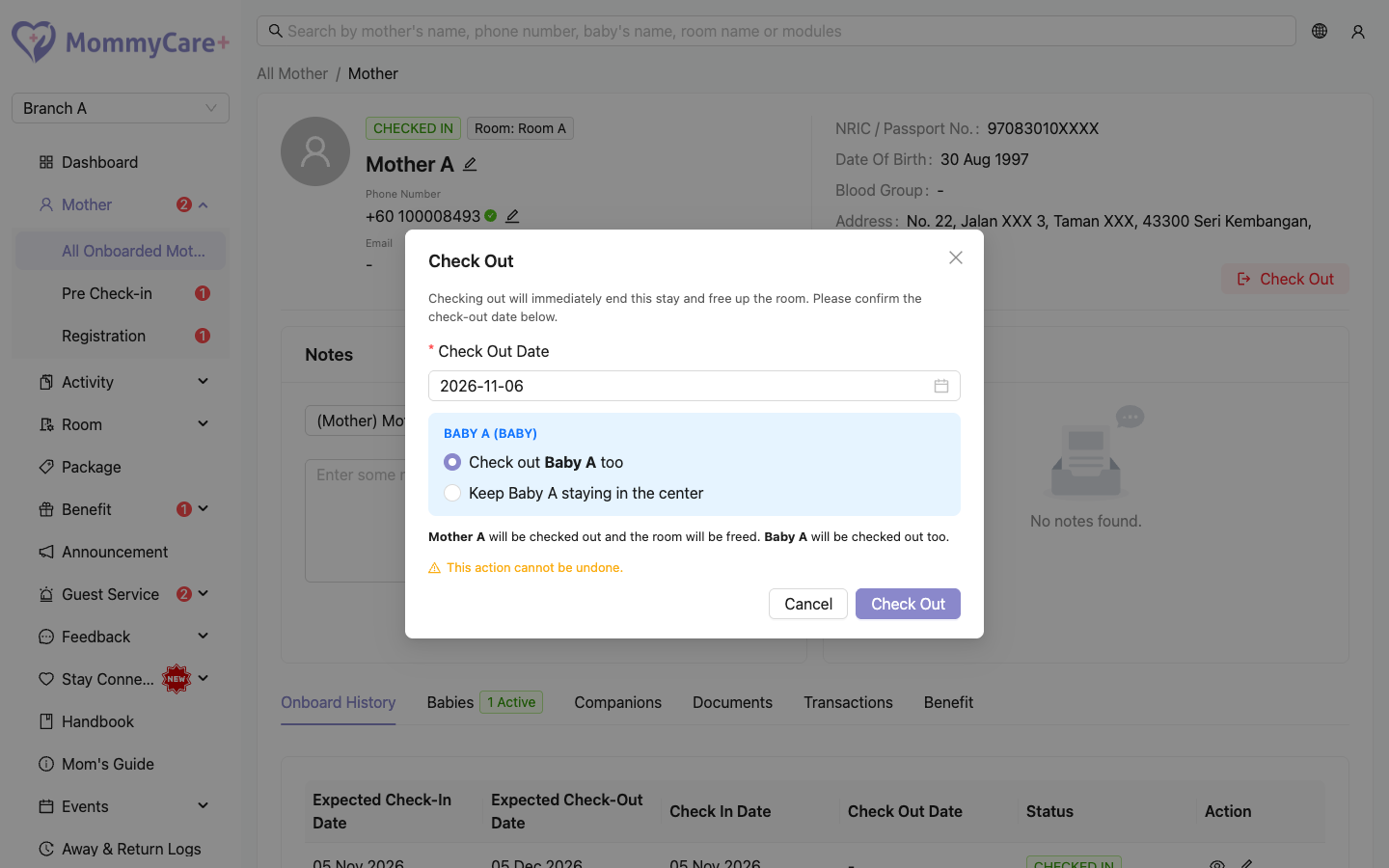
- Open the mother's profile and click Check Out.
- Check the check-out date.
- For each baby, choose:
- Check out (baby) too: the baby leaves with her. This is the default.
- Keep (baby) staying in the center: the baby stays and is checked out later.
- Read the summary of who will be checked out and who will stay, then confirm.
What happens
- Her stay becomes Checked Out. Each baby leaving with her is checked out too.
- Her room becomes Available.
- Her reminders stop, and so do those of the babies leaving. A baby who stays keeps their reminders.
- Her alert and away flags are cleared. Pending service requests are closed (Expired).
- Feedback forms set to be sent at check-out go to her.
- Her next stay starts fresh: she accepts the handbook again.
Her records are kept in the Portal. Whether she can still see this stay's reports in the Mother App depends on Restrict report access after check-out in App settings.
The check-out date saved is the moment you confirm, even if you picked another date.
How to check out a baby who stayed
A mother who left a baby in the centre shows Checked Out · Mother with a green Baby Staying tag, and her profile still has a Check Out button.
- Open her profile and click Check Out.
- The dialog says "The mother has already checked out. Choose which babies to check out now."
- For each baby, choose Check out (baby) or Keep (baby) staying in the center.
- Confirm.
The chosen babies are checked out with today's date, and their reminders stop. When no baby is left, the Baby Staying tag and the Check Out button disappear.
While a baby stays, staff see the baby (without the mother) in the Staff App and on the Room Service Dashboard, and keep recording reports.
If a baby who left comes back during the mother's current stay, see Babies → check a baby back in.
How to transfer a mother to another branch
You can move a booking, or a mother who is already checked in, to another branch of your centre.
- Open her profile (or her row on Mother → Pre Check-in) and click Transfer Branch.
- Choose the branch under Transfer To, and the stay dates.
- Read the warning, tick I have read the above and confirm I want to proceed with this transfer., and confirm.
What happens
- Before check-in: her booking, babies and delivery details move to the other branch's Pre Check-in list.
- Already checked in: she is checked out here, and her room becomes Available. She appears in the other branch's Pre Check-in list with her babies, and that branch checks her in as usual. Her deposit goes with her and can't be changed there.
- Her past transactions stay in this branch.
- Custom intake form fields that only exist in this branch aren't shown at the other branch.
- She is logged out of the app here. When she logs in again, she is in the new branch.
Transfer Branch only appears if your centre has another active branch. To move a registration that hasn't been onboarded yet, see Registration.
Troubleshooting
| What you see | Why, and what to do |
|---|---|
| A checked-out mother still has a Check Out button and a Baby Staying tag | She left a baby in the centre. Check Out now checks out that baby. |
| "Select at least one baby to check out." | Choose Check out for at least one baby. |
| The saved check-out date isn't the date you picked | The check-out date is always when you confirmed. |
| Transfer Branch isn't shown | Your centre has no other active branch, or she has checked out and left a baby in the centre. |
| "The selected branch is not available for transfer." | That branch isn't active. |
| "Please confirm you have read the above before transferring." | Tick the confirmation box. |
| After a transfer, the mother says the app looks empty | She logs in again, and the app opens the branch with her booking. Her old branch stays in her branch list if she had checked in there. |