Onboard & check in
After a mother registers, you onboard her to create her booking. Before she arrives, she fills in the pre-check-in form. When she arrives, you check her in to a room.
- Location: Mother → Registration (onboard), Mother → Pre Check-in (pre-check-in and check-in)
- Who can do this: staff whose role has Registration (to onboard) and All Pre Check-in Mothers (to check in)
How to onboard a mother
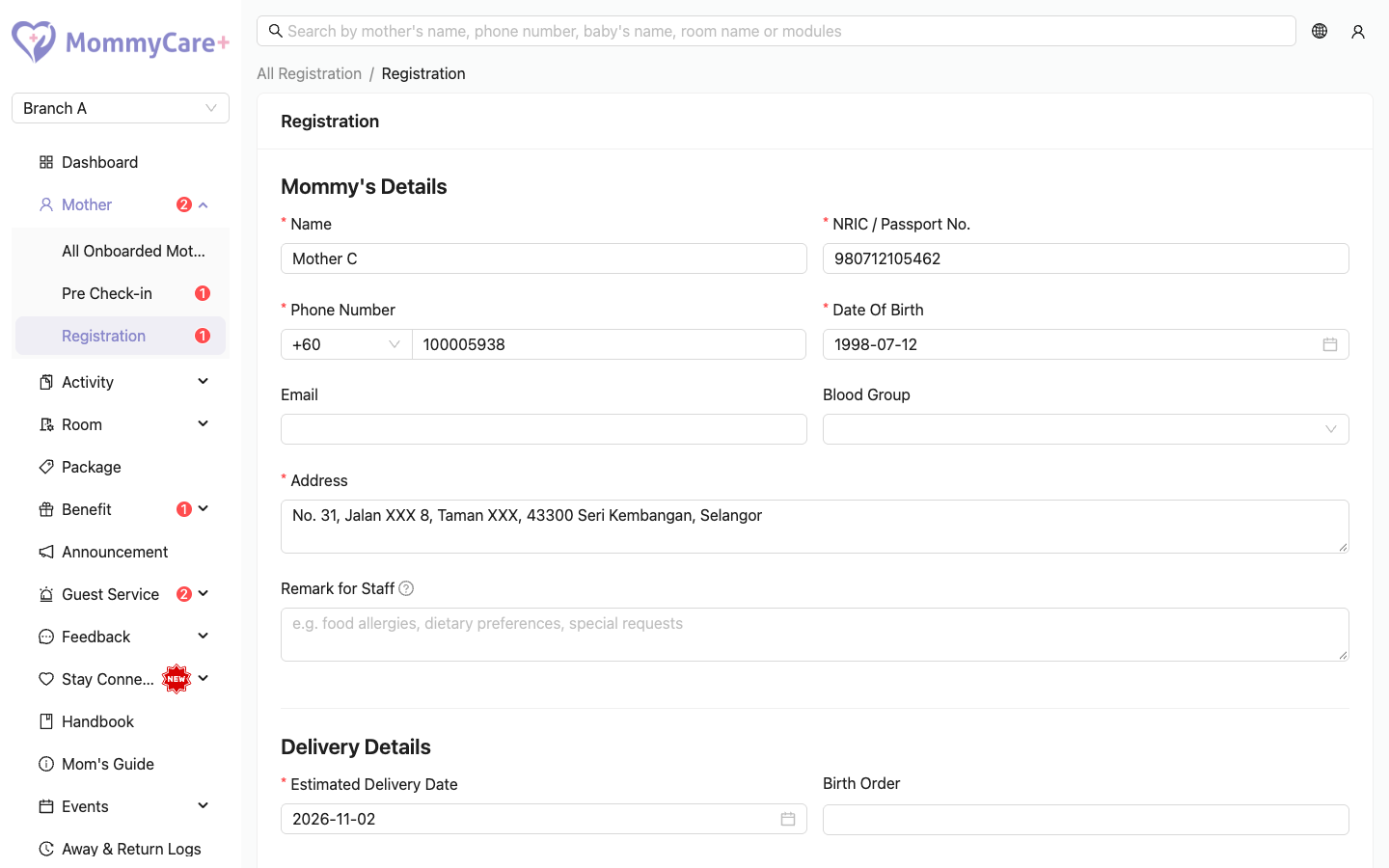
- Go to Mother → Registration and click Onboard on her registration.
- Check her details. You can correct them here.
- Fill in the booking:
- Package
- Expected Check-In Date and Expected Check-Out Date
- optionally a planned room, or just a room type
- Deposit Paid
- Tick Send invitation link to mother to send her the app invitation by WhatsApp.
- Click Confirm Onboard.
What happens
- Her app account is created (or linked, if she has stayed with you before), with her babies and companions.
- Her booking appears under Mother → Pre Check-in with the status Pending.
- The deposit is recorded in her Transaction tab as "Deposit Paid".
- If you ticked it, she gets a WhatsApp message with the app download link. She signs up in the app with her phone number.
Check the deposit amount carefully. It can't be changed after onboarding. To record more payments later, use the Transaction tab on her profile.
- To save your corrections without creating the booking yet, click Save instead.
- A planned room is only a plan. It doesn't mark the room as Occupied. If it overlaps another booking, the Portal lists the conflict and asks you to confirm.
- If the phone number already belongs to a mother, the Portal shows her name and asks you to confirm. The new booking is then added to her existing account.
The Pre Check-in list
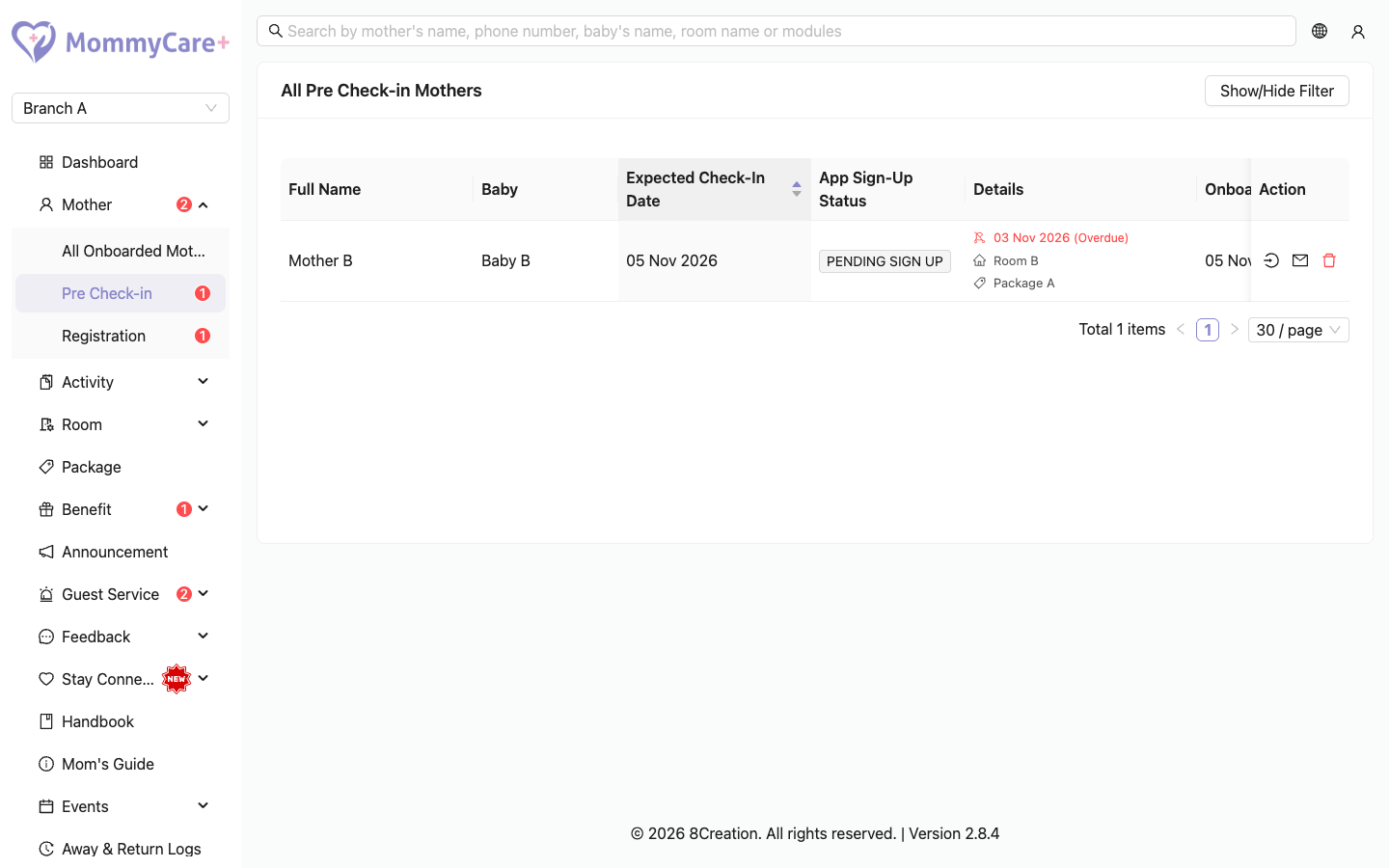
Mother → Pre Check-in lists mothers who are booked but not checked in yet:
- Full Name and Expected Check-In Date
- App Sign-Up Status: Signed Up, or Pending Sign Up if she hasn't created her app password yet
- Onboarded Date
- Details: babies, expected delivery date, room and package. A warning shows when the expected delivery date is near.
Filter by expected check-in date to see who is arriving soon.
How to resend the app invitation
If she hasn't signed up, click Resend Invitation Link on her row and confirm. WhatsApp opens on your device with a welcome message and the app download link. Send it to her.
If she says she didn't receive it, see Common Questions.
How to send the pre-check-in link
The pre-check-in form collects her delivery details and her babies' details before she arrives.
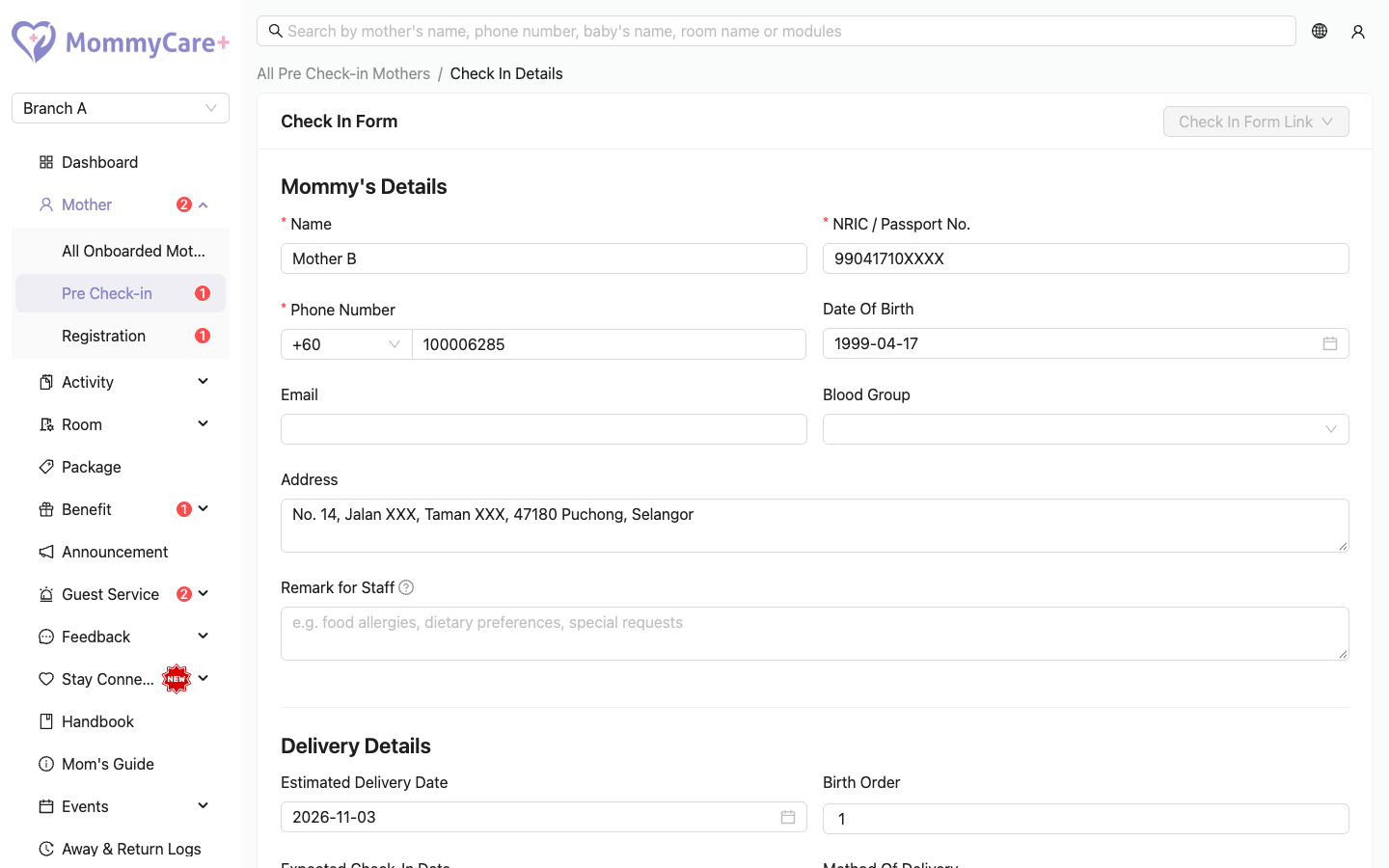
- On Mother → Pre Check-in, click Check In on her row to open her check-in page.
- Click Copy Check-in Form Link, then Copy Link or Send via WhatsApp.
When she submits the form, her booking moves to Pre Check In. The link works for 7 days, and stops working once she has submitted it.
How to update a booking before check-in
- Open her check-in page from Mother → Pre Check-in.
- Change her details, delivery details, babies, package, room or room type, expected dates, vehicle number, remark or other fields.
- Click Save.
If you choose a room type but no room, the booking appears in the Unassigned list on Room Allocation.
How to check a mother in
- On Mother → Pre Check-in, click Check In on her row.
- Check her details, her delivery details and her babies.
- Confirm the Package and choose an Available room. Only rooms of the package's room types are offered.
- Choose the Staff In Charge: the staff responsible for her. Anyone active with Staff App access can be picked.
- Optionally add a remark. It is added to her notes after check-in.
- Click Confirm Check In.
What happens
- She shows as Checked In. Her room becomes Occupied.
- Her package's benefits are added to her account, ready to book. See Benefits & bookings.
- The package price is recorded in her Transaction tab as "Signed Package".
- Mom's Guide starts sending her guides, and staff can record reports for her and her babies.
- When she next opens the Mother App, she accepts the handbook first.
The check-in date saved is the moment you click Confirm Check In, even if you picked another date. To correct it, edit her stay afterwards (see below).
How to change her room, dates or package during the stay
- Go to Mother → All Onboarded Mothers and open her profile.
- Open the Onboard History tab and click Edit on the current stay.
- Change what you need:
- the expected check-in and check-out dates, or the actual check-in date
- the room: moving her to another room keeps a record of both rooms and their dates. The old room becomes Available.
- the package: the price difference is recorded in her transactions, for example "Upgraded package: Package A → Package B (Add 3000)"
- the Staff In Charge
- her delivery details
- Click Save.
You can also open a stay by clicking it on Room Allocation.
Changing the package during a stay doesn't change her benefits. Add or remove benefits on her Benefits tab if needed.
Once she has changed rooms, her check-in date is locked.
How to delete a booking
You can delete a booking before check-in, for example if she cancels.
- On Mother → Pre Check-in, click the Delete icon on her row.
- Read the warning and confirm.
Her booking, baby and delivery details are removed. If she has no other stay in this branch, she is removed from the branch too. Her registration doesn't come back.
To move a booking to another branch instead, see Check-out & branch transfer.
Troubleshooting
| What you see | Why, and what to do |
|---|---|
| "This mother currently has an active admission in this branch and cannot start a new one." | She already has a booking or stay here that isn't checked out. Use that one. |
| Phone Number Already Registered when onboarding | She already has an account. Confirm it's her, and the booking is added to her account. |
| A Room conflict list asks you to confirm | The planned room overlaps another booking. You can confirm: nothing is blocked until check-in. |
| "This room is already occupied for the selected dates. Please choose a different room or adjust the dates." | Another mother is checked in to that room on those dates. Choose another room. |
| "This room does not belong to the selected package." | The room's type isn't one of the package's room types. |
| The mother's pre-check-in link says it has expired | It's more than 7 days old, or she has already submitted it. Copy a new link if needed. |
| The saved check-in date isn't the date you picked | The check-in date is always when you clicked Confirm Check In. Correct it by editing the stay. |
| "The expected check-out date must be after today." / "…cannot be before the expected check-in date." | Fix the dates. |
| Her benefits didn't change after a package change | Changing the package during a stay doesn't change her benefits. Adjust them on her Benefits tab. |
| "You have reached the maximum number of resend invitations…" | Wait 5 minutes and try again. |
| A checked-out stay can't be edited | Past stays are read-only. |