Activity reports & Daily Summary
Staff record care reports in the Staff App (see Create report). In the Portal you review them, correct mistakes, and export them.
- Location: Activity → Activity Report and Activity → Daily Summary
- Who can do this: staff whose role has the Activity Report permissions (view, edit, delete)
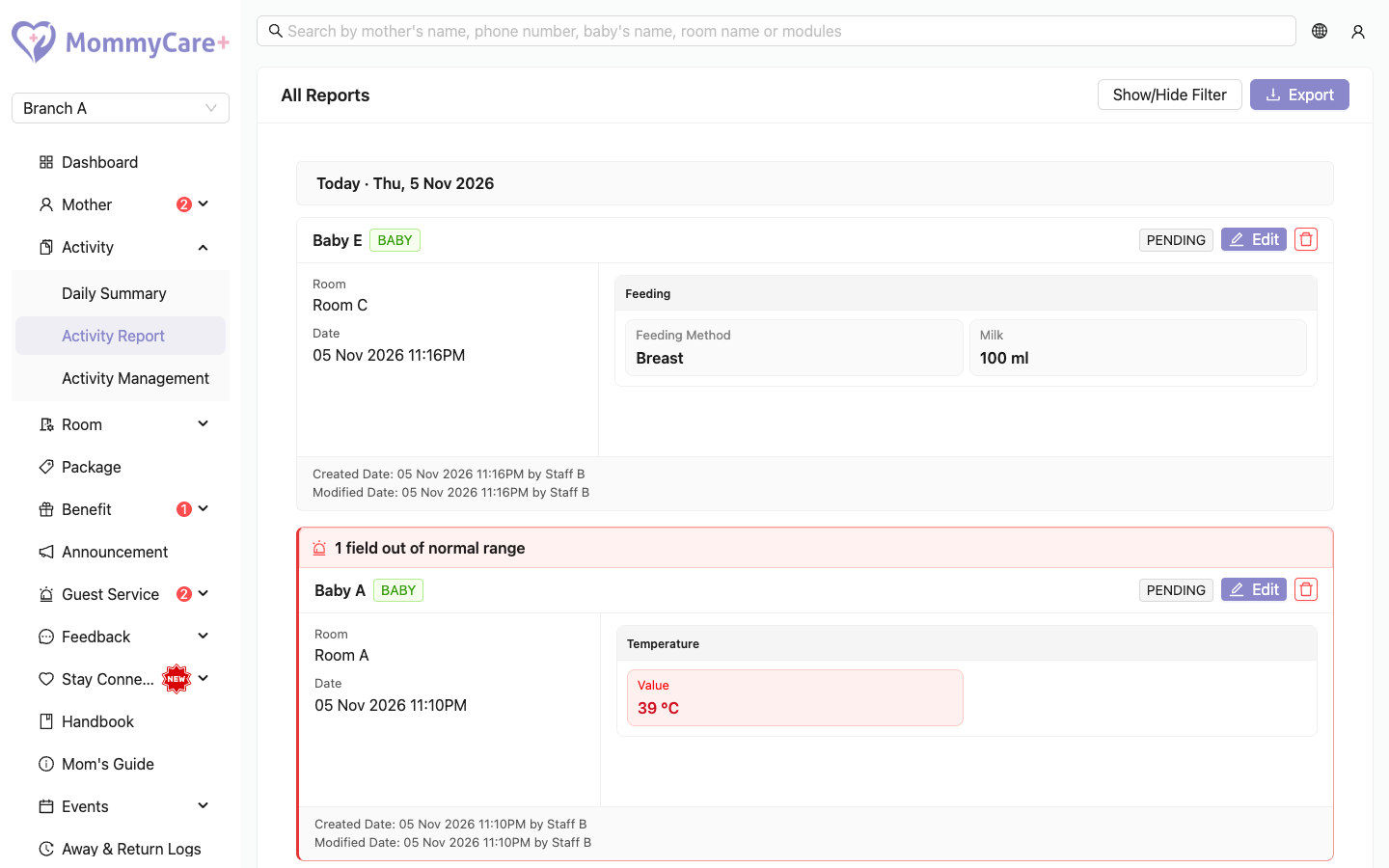
The report list
Reports are grouped by day, with Today and Yesterday labels. Each report card shows:
- who it's for, their room, the date and the activity
- the status: Unsend (saved, but not delivered to the mother yet) or Sent
- the values recorded. Values outside the normal range are red, and the card says how many fields are out of range, for example "2 fields out of normal range".
- photos and videos
- who created and last changed it
- Edit History (n) if it has been changed since it was created
Alert reports have a red border.
How to find reports
Click Show/Hide Filter, then filter by name, alert, activity, date range, mother or baby, or status, and click Filter.
From the Dashboard, clicking the alert counts opens this list already filtered to alerts.
How to correct a report
- Click Edit on the report card.
- Correct the values and save.
You can correct any report, even one already sent. The mother isn't notified of the change. Every change is listed under Edit History.
How to delete a report
- Click Delete on the report card.
- Confirm. This can't be undone.
The report is removed everywhere, including from the mother's app.
If Restrict staff to assigned mothers is on (in App settings), only the centre owner can edit or delete reports in the Portal.
How to export reports
- Filter the list to the reports you want.
- Click Export, then choose:
- Download Excel: downloads the file now
- Export via Email: the file is emailed to you when it's ready ("Your report is being generated and will be emailed to you shortly.")
The file has the date and start time, the name, mother or baby, room, activity, fields, who carried it out, and photo thumbnails. Alert rows are red and bold.
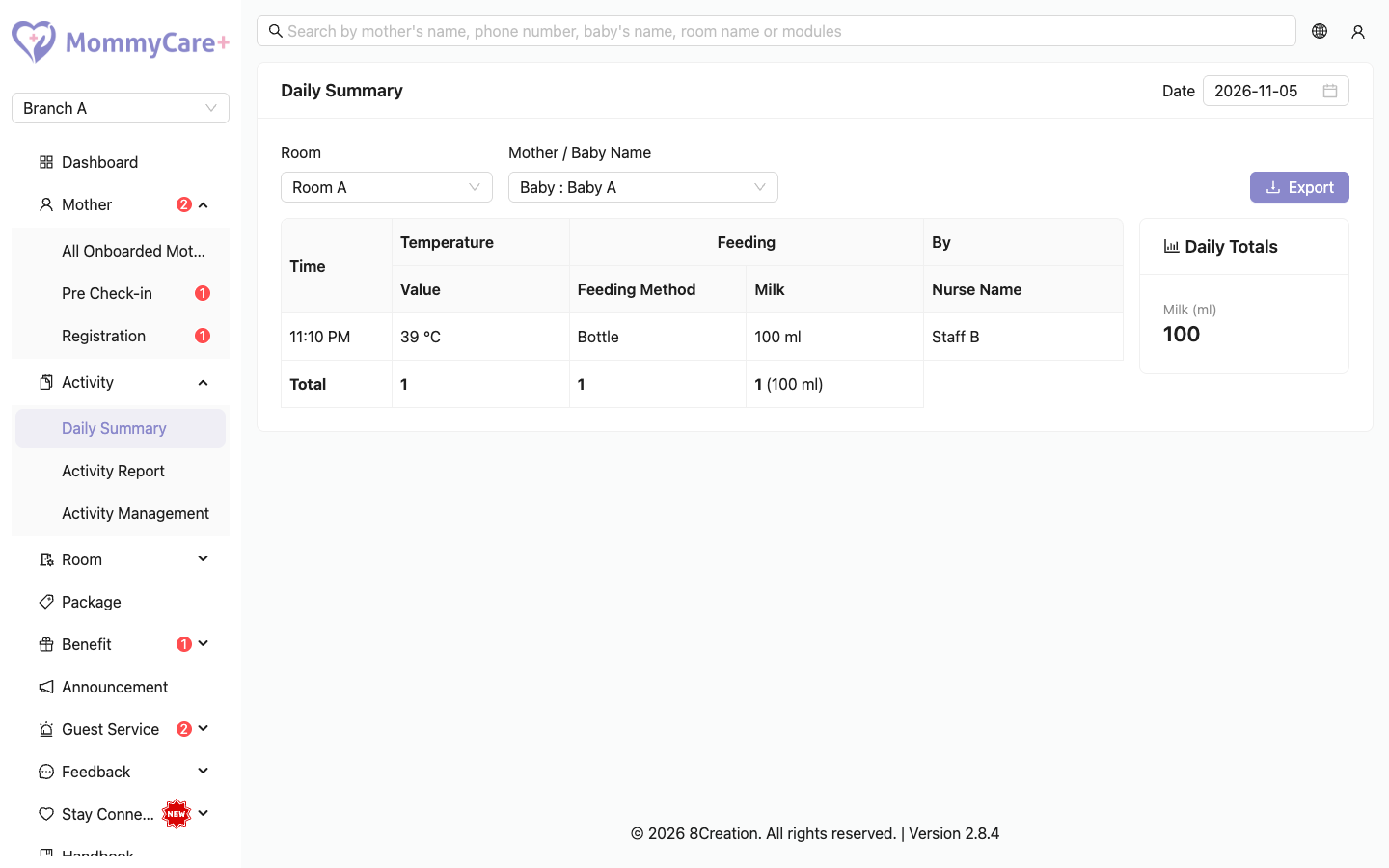
How to see one day for a mother or baby (Daily Summary)
- Go to Activity → Daily Summary.
- Choose the day, the room, and the mother or baby.
The summary shows a table of that day's reports:
- Time, then a column for each activity and field (with units), and who did it
- a Total row: how many times each was recorded and, for fields with Total Up in Daily Summary Report turned on, the total. For example, two feeds of 60 ml and 90 ml show "2 (150 ml)".
- Daily Totals: fields with the same name added up across activities
Click Export to download it as Excel ("Mother Daily Report" or "Baby Daily Report").
A baby who stayed in the centre after the mother checked out can still be chosen by room.
Troubleshooting
| What you see | Why, and what to do |
|---|---|
| A report shows Unsend | Staff saved it but haven't sent it yet. Staff with Send Report send it from the Staff App. |
| A report never gets sent | Its activity's Report sending mode is Disabled. |
| "You're not allowed to access this." when editing or deleting | Restrict staff to assigned mothers is on. Only the centre owner can edit or delete reports. |
| The emailed export never arrives | You have no email address on your account, or check your spam folder. |
| "Only (shown) of (total) reports are included in this summary." | That day has more than 500 reports for that person. Export the reports from the list instead. |
| A value of 0 didn't count as an alert | Zero or empty values never raise an alert. |
| The mother can't see who did the activity | Show "Carried Out By" to mother is off in App settings. |