Announcements
Tell staff and mothers about changes, for example new visiting hours. Publishing an announcement sends a phone notification, and it stays in the app's notifications under ANNOUNCEMENT. One announcement can be pinned so it pops up on the app Home screen until each person has read it.
- Location: Announcement
- Who can do this: staff whose role has the Announcement permissions (view, add, edit, delete, publish)
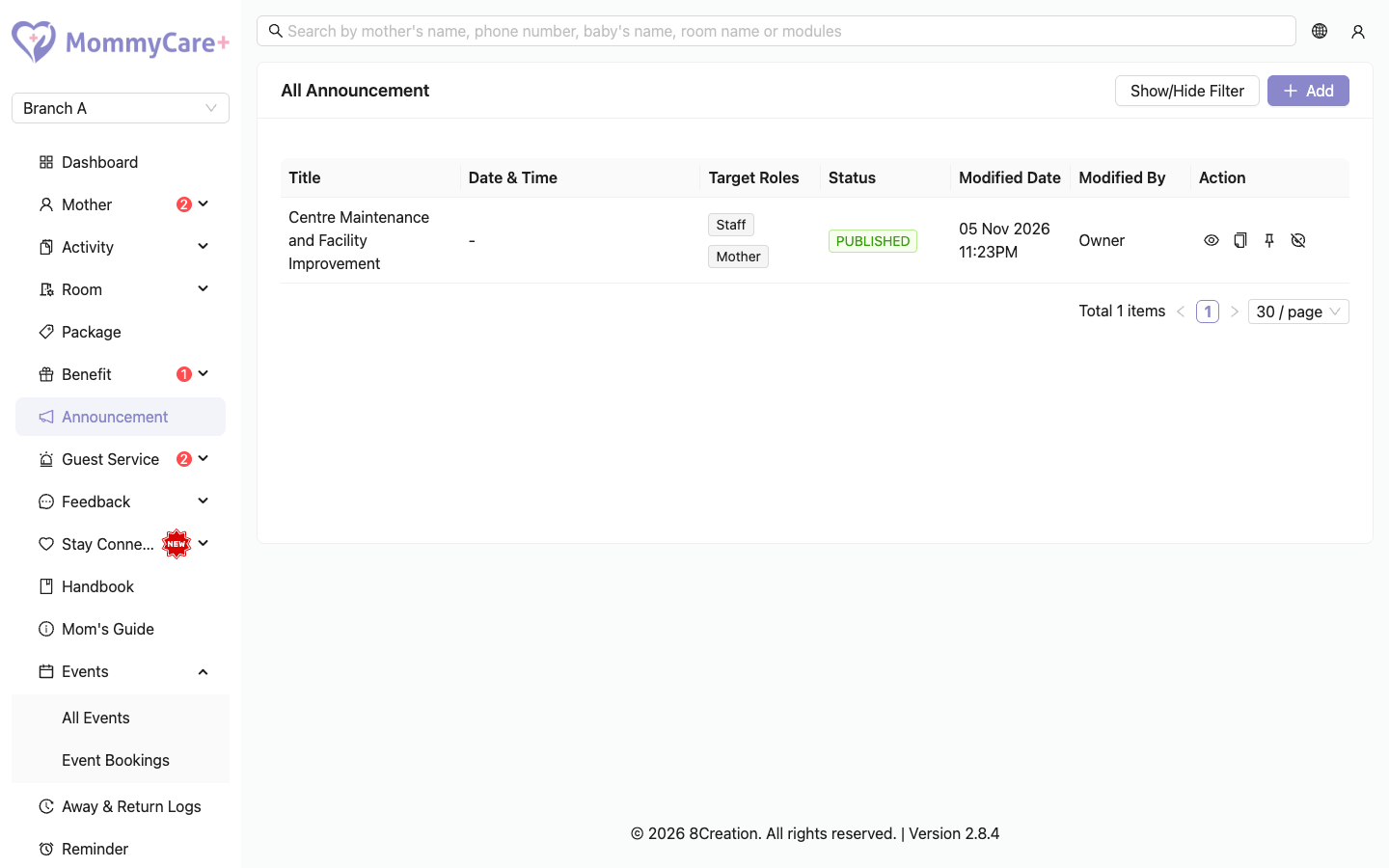
The list shows each announcement's title, who it is for, its status, and when it was last changed.
Statuses
| Status | Meaning | What you can do |
|---|---|---|
| Pending | Saved, not published | Edit, publish, duplicate, delete |
| Scheduled | Will publish itself at the time shown | Edit, duplicate, delete |
| Published | Visible in the apps | Unpublish, pin or unpin, duplicate |
| Unpublished | Taken down | Edit, publish, duplicate |
How to add an announcement
- Click Add.
- Enter the Title and Description. You can add a photo, links and attachments.
- Choose who it is for:
- Staff: everyone with the Staff App, including guest-service-only staff
- Mother: then pick each mother by name
- Optionally:
- Auto-publish: choose a Date & Time. The announcement publishes itself then.
- Auto-unpublish: choose an Unpublish Date. The announcement is taken down then.
- Click Save.
The announcement is saved as Pending (or Scheduled with Auto-publish). Nothing is sent yet.
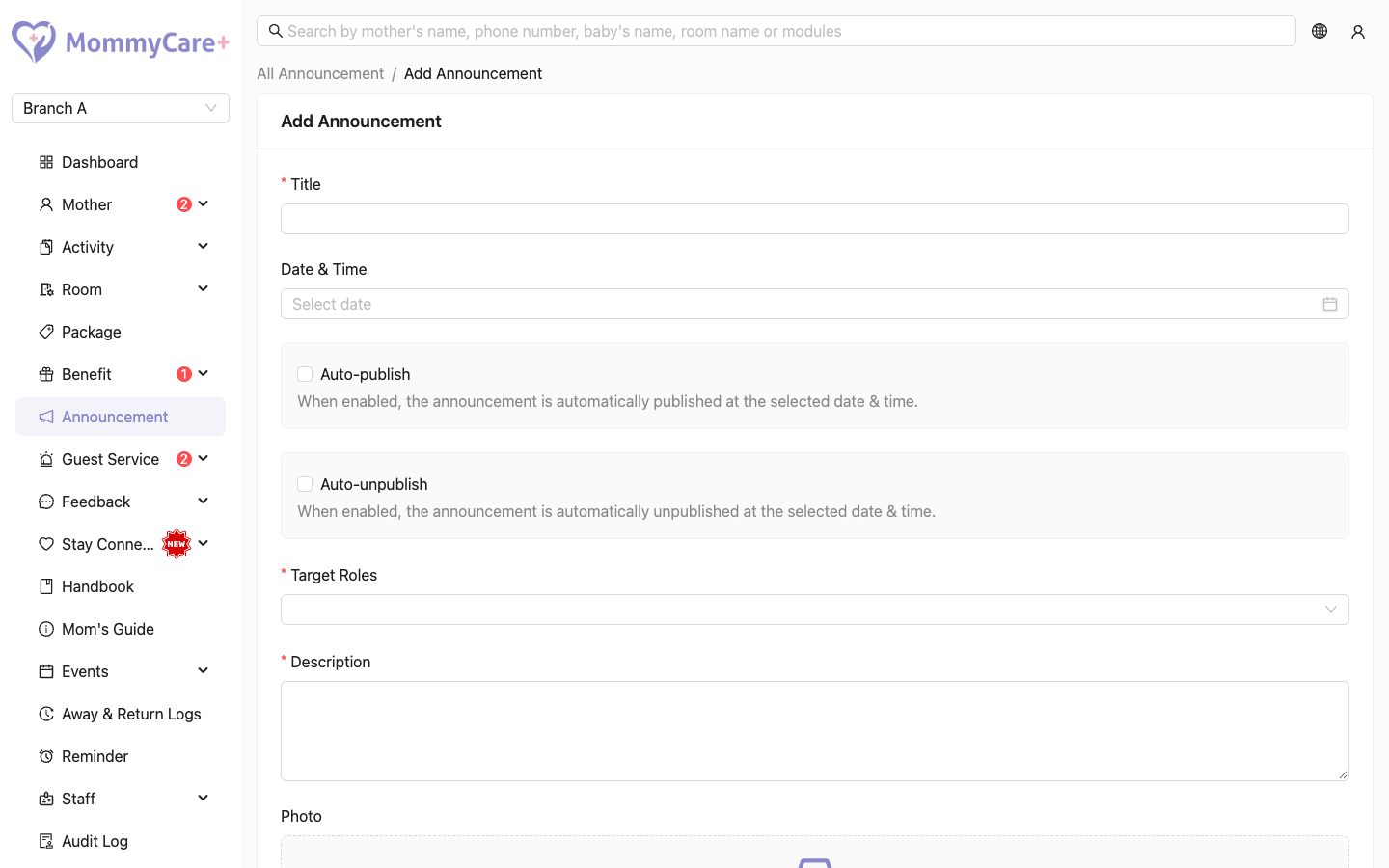
Choosing Mother alone reaches nobody. You must pick the mothers by name.
How to publish an announcement
Click the Publish icon and confirm. You can publish now, or set a date and time to schedule it.
When it publishes, everyone it is for gets a phone notification (staff only if they're on duty) and an entry in their notifications list.
Only publishing sends a notification. Editing an announcement later doesn't send it again.
How to pin an announcement
Click the Pin icon on a published announcement.
In the Staff App and Mother App, a pop-up shows the announcement's title on the Home screen, with Read Now and Read Later. It keeps appearing until the person taps one of them. While it is pinned, Home also shows its title as a banner.
- Only one announcement can be pinned at a time. Unpin the old one first.
- Unpinning and pinning again makes it pop up for everyone again.
- Unpublishing an announcement also unpins it.
How to edit or duplicate an announcement
- Edit: click Edit, make your changes and click Save. Published announcements can't be edited: unpublish first.
- Duplicate: click Duplicate to start a new announcement with the same content.
How to unpublish or delete an announcement
- Unpublish: click the Unpublish icon and confirm. It disappears from the apps. If someone taps its old notification, they see "Announcement not found."
- Delete: click the Delete icon and confirm. Only Pending or Scheduled announcements (never published) can be deleted.
How to find an announcement
Click Show/Hide Filter, enter the title, status or audience, and click Filter.
Troubleshooting
| What you see | Why, and what to do |
|---|---|
| A mother didn't get the announcement | She wasn't picked by name. Edit the announcement and add her (unpublish first if it's published). |
| "The scheduled date must be in the future…" | The time you chose has passed. |
| "The unpublish date must be in the future and after the publish date…" | Choose a later unpublish date. |
| "You can only pin one announcement at a time. Please unpin the existing announcement first." | Unpin the other announcement first. |
| "You're not allowed to modify announcements in this status." | Published announcements can't be edited, and published or unpublished ones can't be deleted. Unpublish to edit, or duplicate it. |
| "The target audience for this announcement is invalid or incomplete…" | Edit it and choose who it's for again. |
| The pinned pop-up keeps showing | It shows until the person taps Read Now or Read Later. Opening it from notifications doesn't count. |
| A staff member didn't get a phone notification | They are off duty. It's still in their notifications list. |