Registration
Registration is the first step of a mother's stay. She fills in an online form with her details, her companions and her babies, and signs a consent form. You then onboard her to create her booking. See A mother's stay, step by step for the whole journey.
- Location: Mother → Registration
- Who can do this: staff whose role has Registration. Changing the form fields needs Manage Intake Forms Setting.
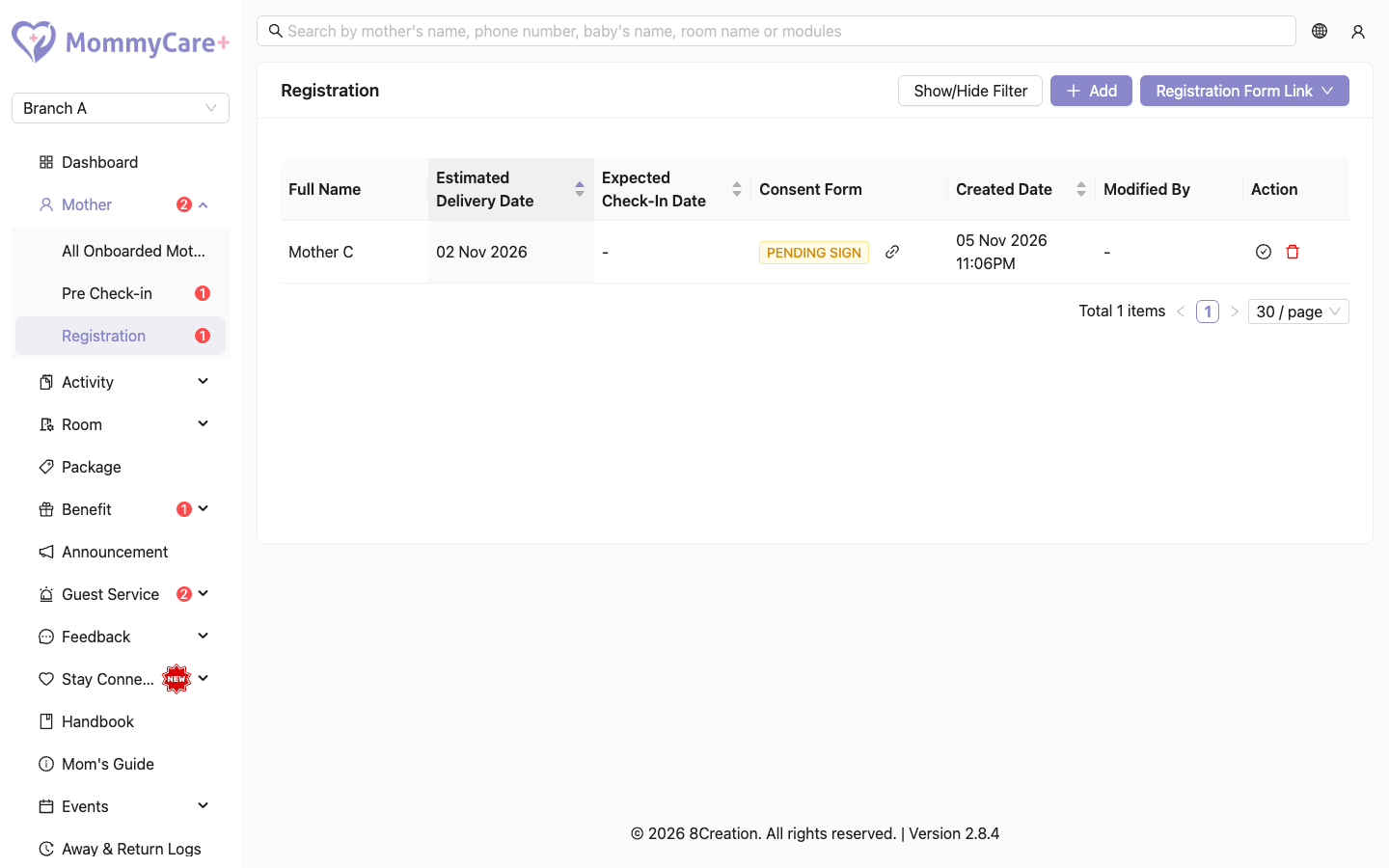
The list shows registrations waiting to be onboarded: Full Name, Expected Delivery Date, Expected Check-in Date, Consent Form, and when each was created and by whom. Search by name, phone or email.
How to send the registration link
- Go to Mother → Registration.
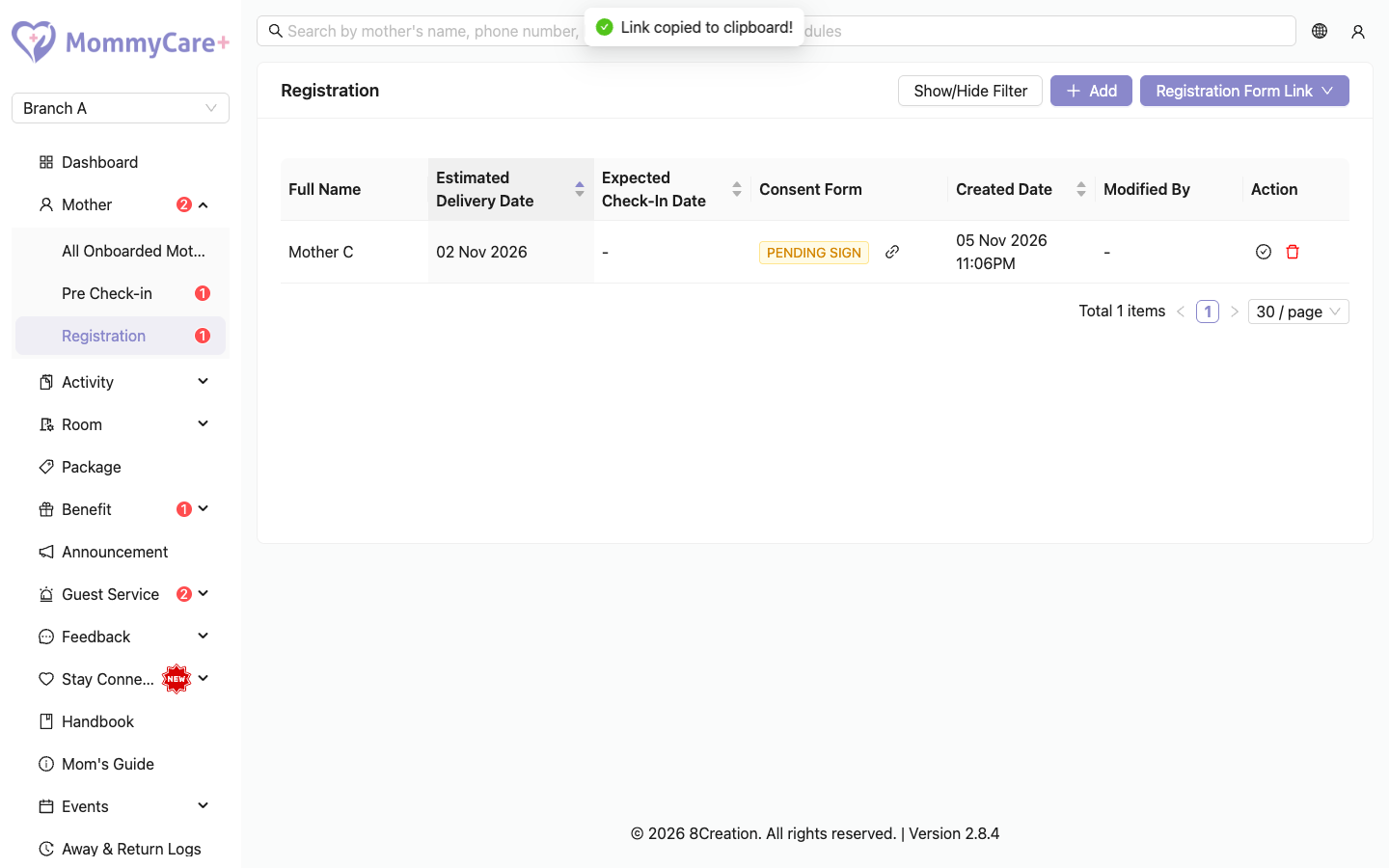
- Click Copy Registration Form Link.
- Choose:
- Copy Link, then paste it into a message to the mother, or
- Send via WhatsApp, which opens WhatsApp with a ready-made message naming your centre, with the link.
The link works for 7 days, and only for this branch.
What the mother does
- She opens the link and fills in her details, her companions and her babies, including the expected delivery and check-in dates.
- If your branch added an attachment (for example house rules), she reads it.
- She taps Submit, signs the consent form with her finger, and confirms.
Her registration appears in your list. The consent form PDF is ready about a minute later. Click View Consent Form in the Consent Form column to see it.
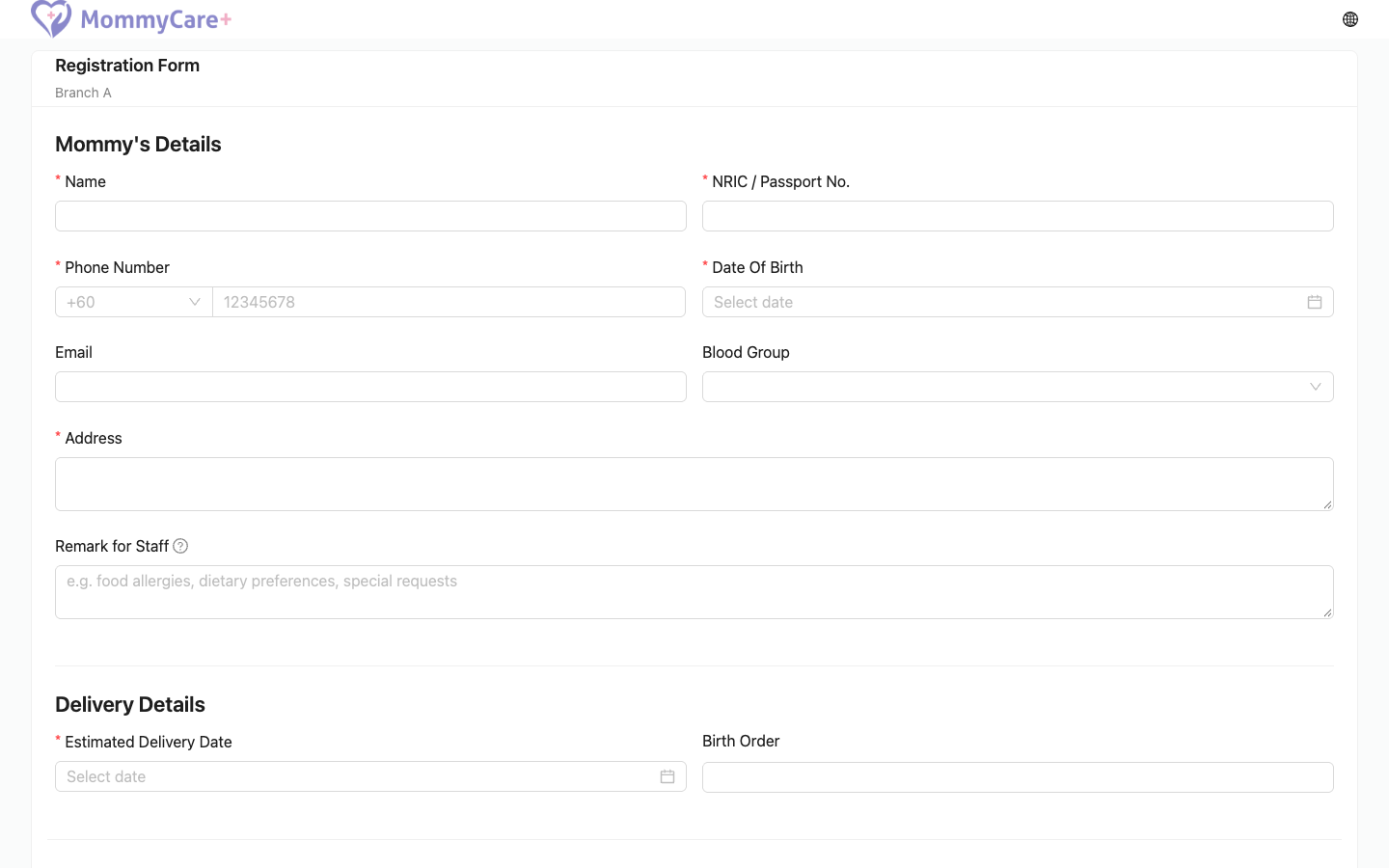
Once she opens the link, the form stays open for up to 1 hour. If she takes longer, she opens the link again and starts a fresh form.
How to register a mother yourself
Use this when the mother registers at the front desk or over the phone.
- Click Register Mother.
- Fill in the form with her, and save.
- The registration has no signature yet. In the Consent Form column, click Copy Consent Form Link, then Copy or Send via WhatsApp to send her the consent link.
- She opens the link, checks her details (she can't change them), signs and submits.
What to do next
When the registration is ready, click Onboard on it to create her booking. See Onboard & check in.
If she hasn't signed the consent form, the Portal asks whether to onboard her anyway.
How to move a registration to another branch
- Click Transfer Branch on the registration.
- Choose the branch under Transfer To, and confirm.
The registration moves to the other branch's Registration list. This option only appears if your centre has another active branch.
How to delete a registration
- Click the Delete icon on the registration.
- Confirm.
You can only delete a registration that hasn't been onboarded yet.
How to choose what the forms ask
There are three forms: Registration, Pre-check-in and Check-in. You can change which fields each one shows.
- Location: Setting → Intake Forms
- Go to Setting → Intake Forms and choose the form.
- For each field, choose whether it is Shown and whether it is Required. Drag fields to change their order.
- To add your own question, click Add field and choose its type: text, long text, number, date, dropdown, multi-select or yes/no (optionally with "Not sure").
- Any field can be moved to any form. For example, you can ask for a check-in field already at registration.
- Under Registration Form → Attachment, you can upload a PDF the mother must read and agree to when she registers.
- Save.
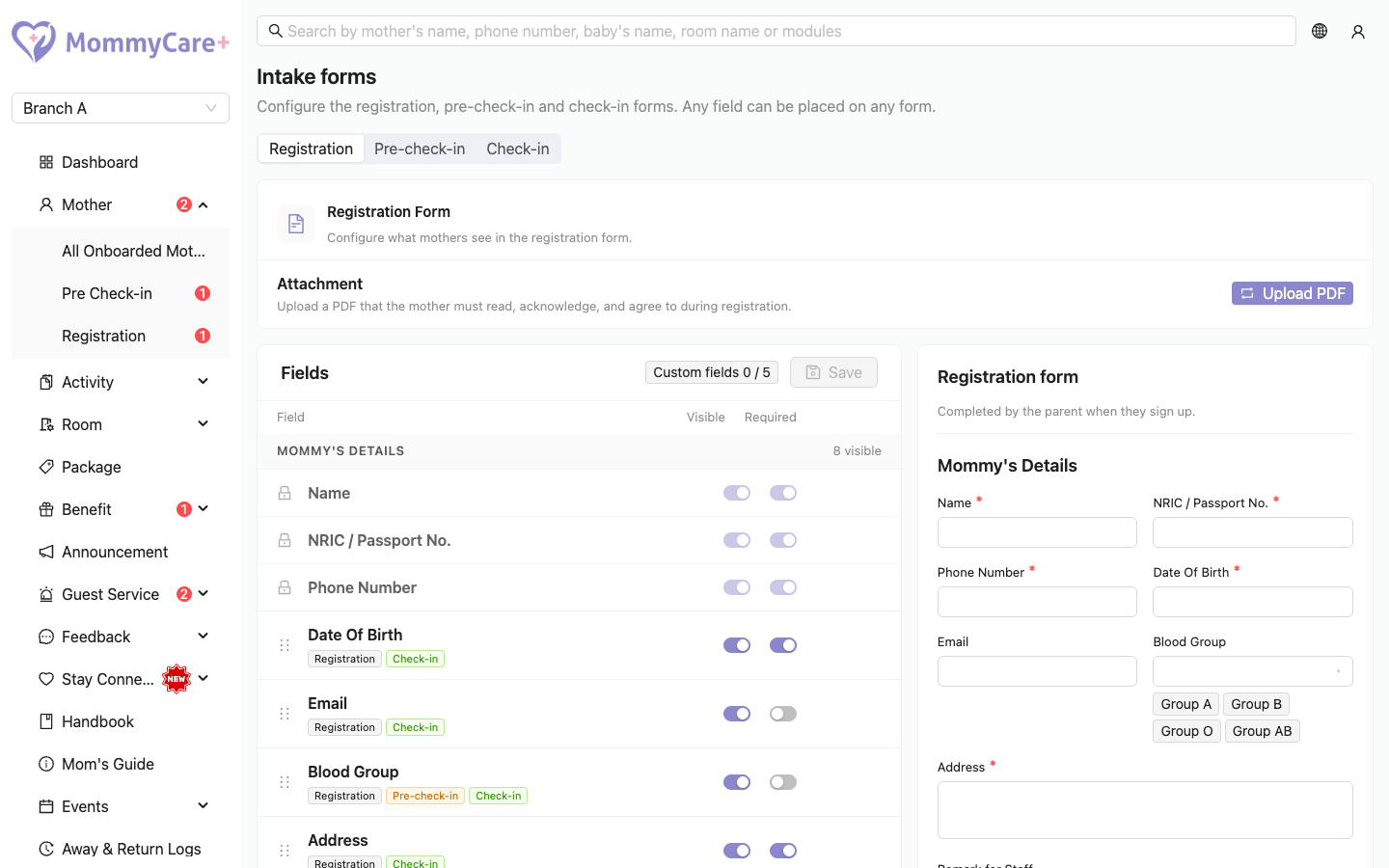
- The mother's name, NRIC, phone number, check-in date, and the baby and companion sections are always on the registration form.
- You can add up to 5 of your own fields across all three forms.
- If someone else saves the intake forms while you're editing, your save is refused. Reload the page and make your change again.
Troubleshooting
| What you see | Why, and what to do |
|---|---|
| The mother sees "This link has expired. Please ask the centre for a new link." | The link is more than 7 days old, or the registration was already onboarded, deleted or moved to another branch. Send her a new link. |
| The form said the link expired after she had it open a long time | The form stays open for up to 1 hour. She opens the link again. |
| The consent link says it's already signed | She has already signed. Check View Consent Form. |
| The consent link shows "This record is not exists." | The registration was deleted. |
| No consent PDF yet | Wait a minute and reload the page. |
| A registration disappeared from the list | It was onboarded (it's now under Pre Check-in), deleted, or moved to another branch. |
| "You are not allowed to delete this enrolment because it has already been onboarded." | She is already booked. Delete the booking from Pre Check-in instead. |
| A field you want isn't on the form | Show it, or add it, in Setting → Intake Forms. |
| "You can add up to 5 custom fields across all forms." | Remove a custom field you no longer need first. |
| Transfer Branch isn't shown | Your centre has no other active branch. |