Room Allocation & forecast
Room Allocation shows every room as a row on a timeline, with each mother's booking as a bar. Use it to plan rooms, spot free dates, and move bookings. The Overview / Forecast tab shows how full the branch is by day and by month.
- Location: Room → Room Allocation
- Who can do this: staff whose role has Room Forecast. Editing a stay from the board also needs access to the mother's stay.
The timeline
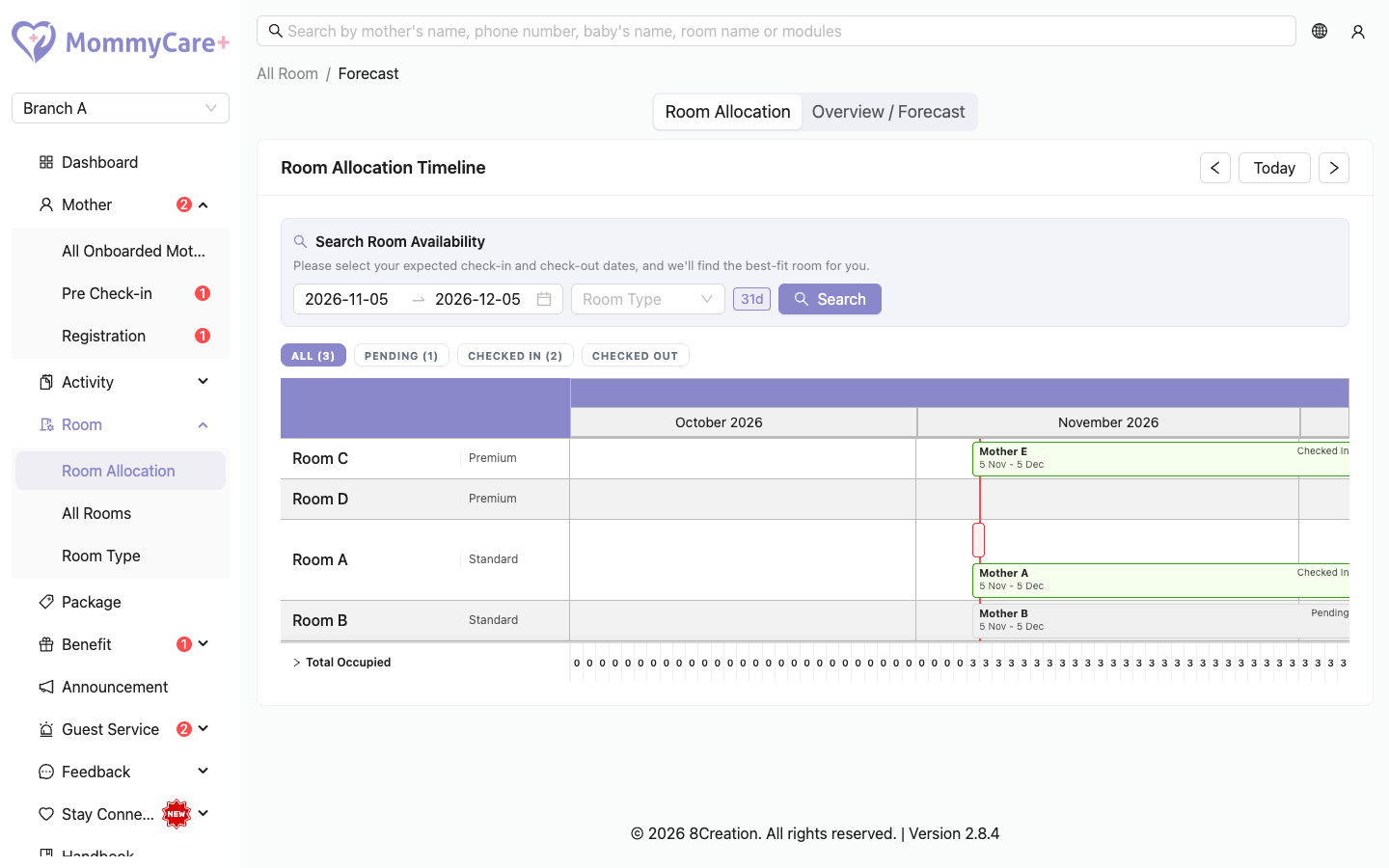
- Each row is a room. Each bar is a booking, coloured by status: green checked in, red checked out, grey pending or pre-check-in.
- If a mother changed rooms, her stay shows as two bars that join, one in each room.
- Gaps between bookings, from today on, are marked as vacant.
- The status tabs (All, Pending, Checked-in, Checked-out) filter the bars, with counts. All counts pending and checked-in bookings.
- Filter by room type to see one type only.
- The footer shows how many rooms are occupied each day. Expand it to see the mothers and babies.
- If a mother still hasn't checked out after her expected date (an overstay), her bar stretches to today.
How to find a free room for a date range
- In Search Room Availability above the timeline, choose the expected check-in and check-out dates.
- Optionally choose a room type.
- Click Search.
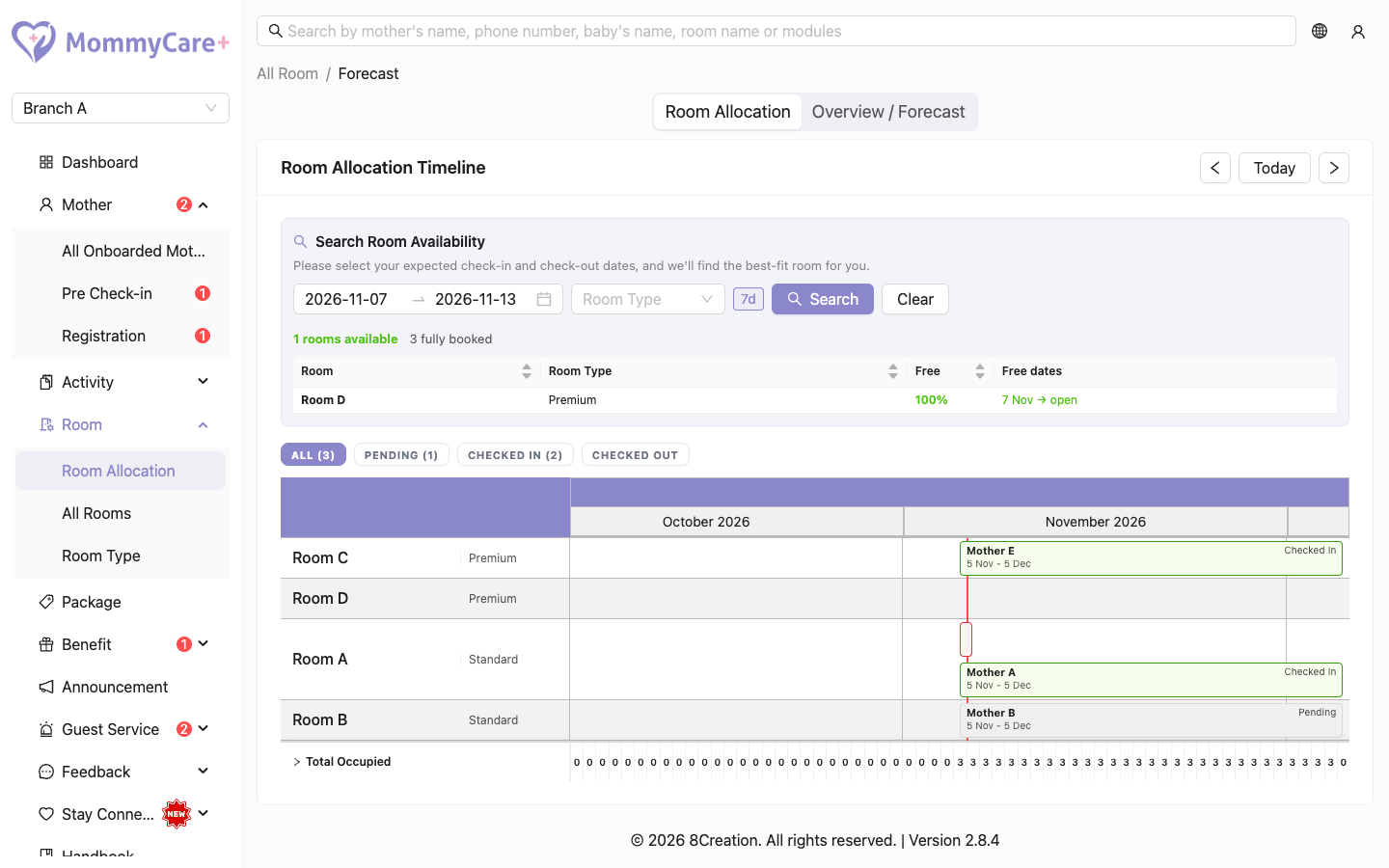
Each room is listed with:
- Free: how much of the period it is free, as a percentage
- Free dates: the free periods, for example "3 Aug – 9 Aug", or "12 Aug → open" when nothing is booked after that
The best fit is listed first. The summary shows how many rooms are available and how many are fully booked. Click a room to move the timeline to those dates. Click Clear to remove the results.
How to change a booking from the timeline
- Click the booking's bar.
- The stay opens. Change the room or the dates.
- Save.
Checked-out bookings open read-only.
If the new dates overlap another booking in that room, the Portal asks you to confirm (Room conflict). If the room isn't part of the package, it asks you to confirm that too (Room Not In Package).
Bookings not on the timeline
- Unassigned Queue: bookings with a room type but no specific room yet. Click one to give it a room.
- Not shown on the calendar: bookings missing a room or an expected check-out date. Add the missing detail to show them on the timeline.
How to export the timeline
Click Export to download the timeline as an Excel file. Each booking is one merged cell across its days. Bookings without a room aren't included.
Occupancy forecast
Open the Overview / Forecast tab.
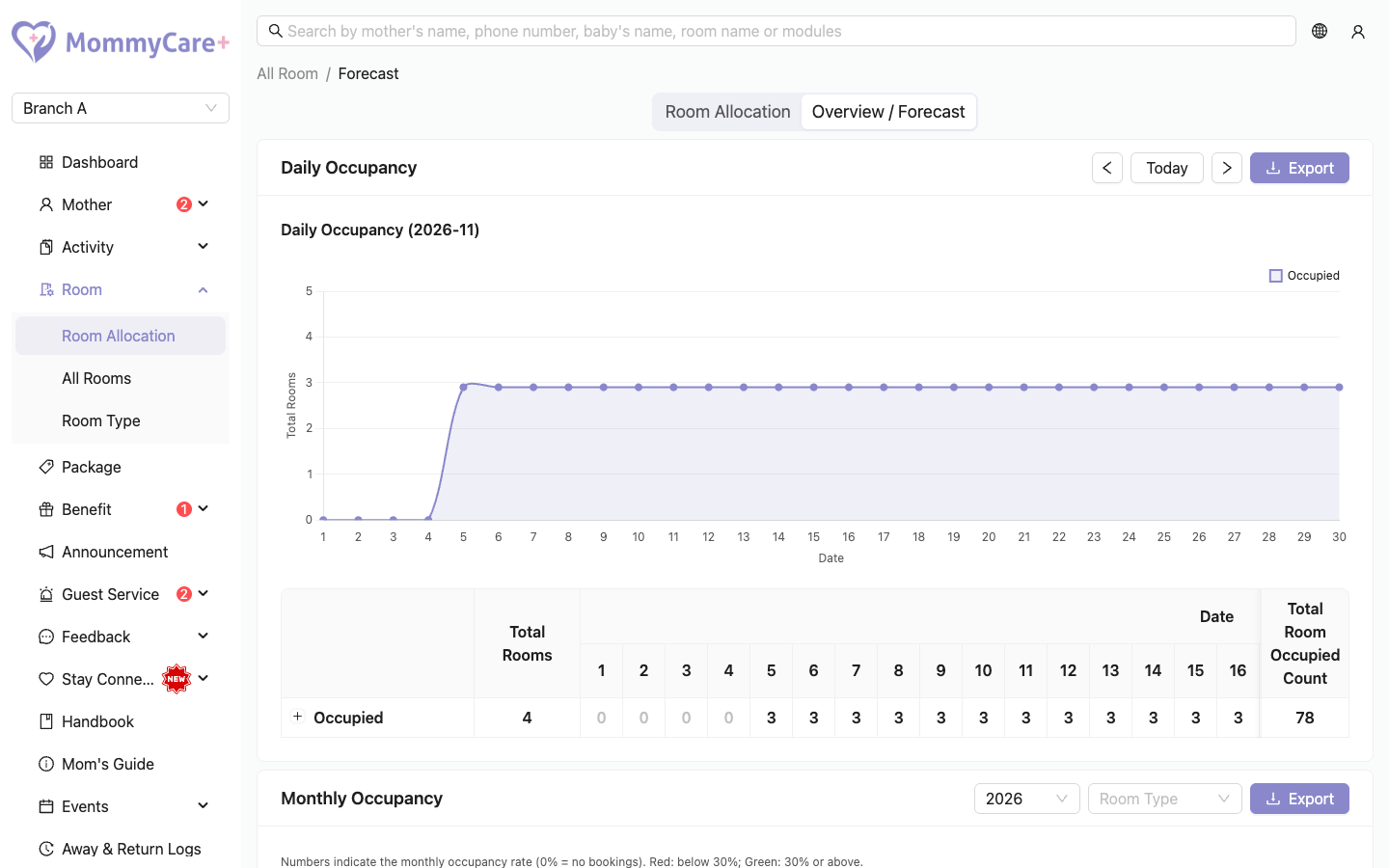
- Daily Occupancy: occupied rooms per day for a month, in total and per room type, with a chart. Use the arrows to change month.
- Monthly Occupancy: occupied days per room for each month of a year, and each month's occupancy rate. Green means 30% or above, red means below 30%. Filter by room type to see one type only.
Click Export on either to download it as Excel. A room with two bookings on the same day counts once.
Troubleshooting
| What you see | Why, and what to do |
|---|---|
| The page opens on the timeline, not the chart | Room Allocation is the default tab. The charts are under Overview / Forecast. |
| A booking isn't on the timeline | It has no room, or no expected check-out date. Check the Unassigned Queue and not shown on the calendar lists. |
| A bar runs past its check-out date | The mother is still checked in after her expected check-out date. Check her out, or change the date. |
| Export is greyed out | There's no data for that period. |
| You can't pick a start date in the past in the search | The availability search only looks forward from today. |