Mother list & profile
All Onboarded Mothers lists every mother who has been booked in this branch. Each mother's profile holds her details, babies, companions, documents, stays, payments and benefits.
- Location: Mother → All Onboarded Mothers
- Who can do this: staff whose role has All Onboarded Mothers
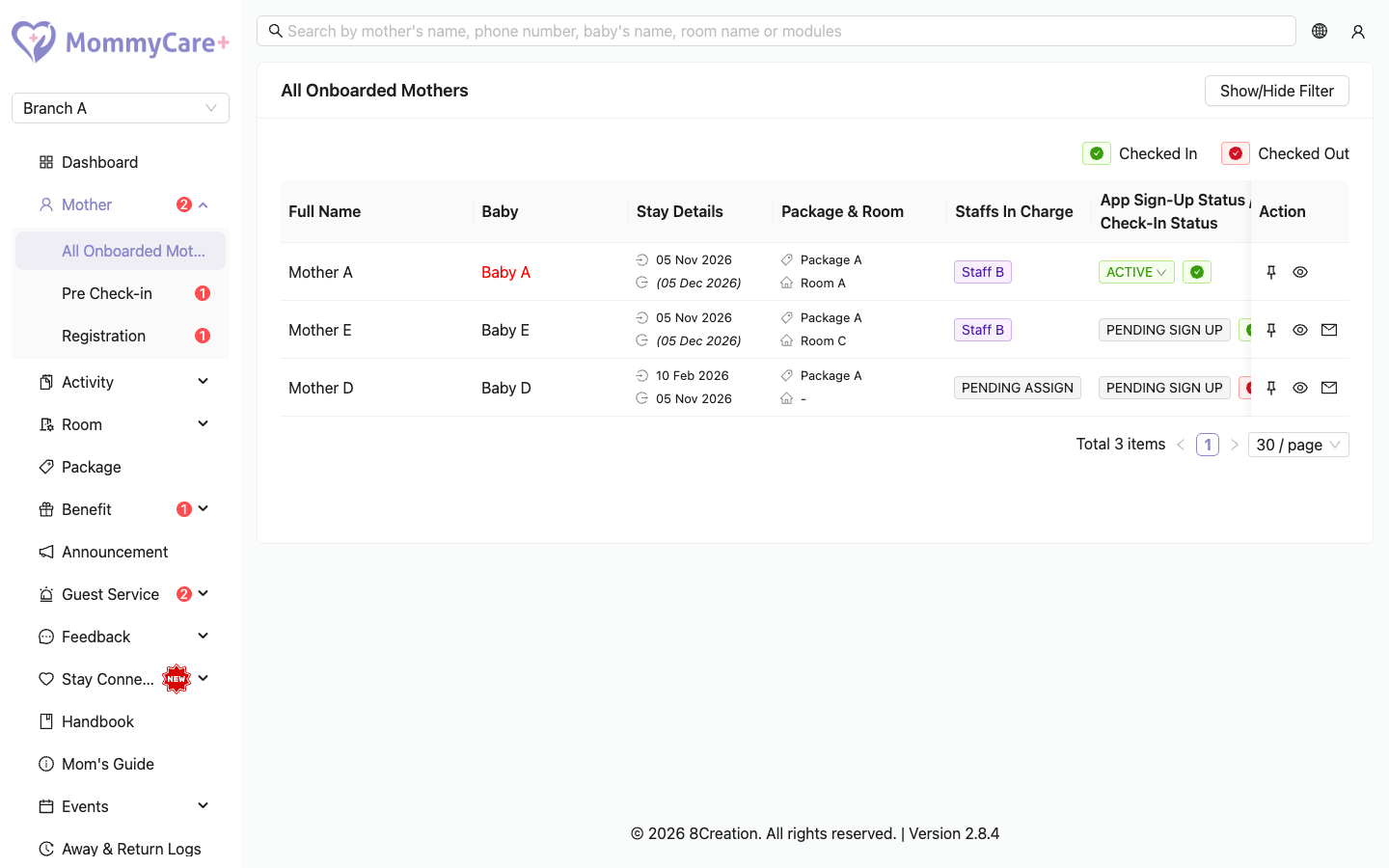
The mother list
Each row shows:
- Full Name
- Stay Details: her dates
- Package / Room
- Staffs In Charge
- Babies: names, with the day of stay for babies in the centre. A baby's name is red when it has an alert.
- App Sign-Up Status / Check-In Status: Pending Sign Up if she hasn't created her app password yet, otherwise Active or Inactive. Point to it to see her stay status. A green Baby Staying tag means she has checked out but left a baby in the centre.
How to find a mother
Click Show/Hide Filter, enter her name or phone number, or choose Checked In or Checked Out, then click Filter.
You can also search for a mother, baby or room from the search box at the top of every Portal page.
How to pin a mother to the top
Click the Pin icon on her row and confirm. She stays at the top of the list, highlighted, until you click Unpin.
How to resend the app invitation
For a mother showing Pending Sign Up, click Resend Invitation on her row. She gets the WhatsApp invitation with the app download link again.
How to activate or deactivate a mother
- Click her status tag (Active or Inactive).
- Confirm.
A deactivated mother can't use the Mother App in this branch, and her reminders are stopped.
How to open a mother's profile
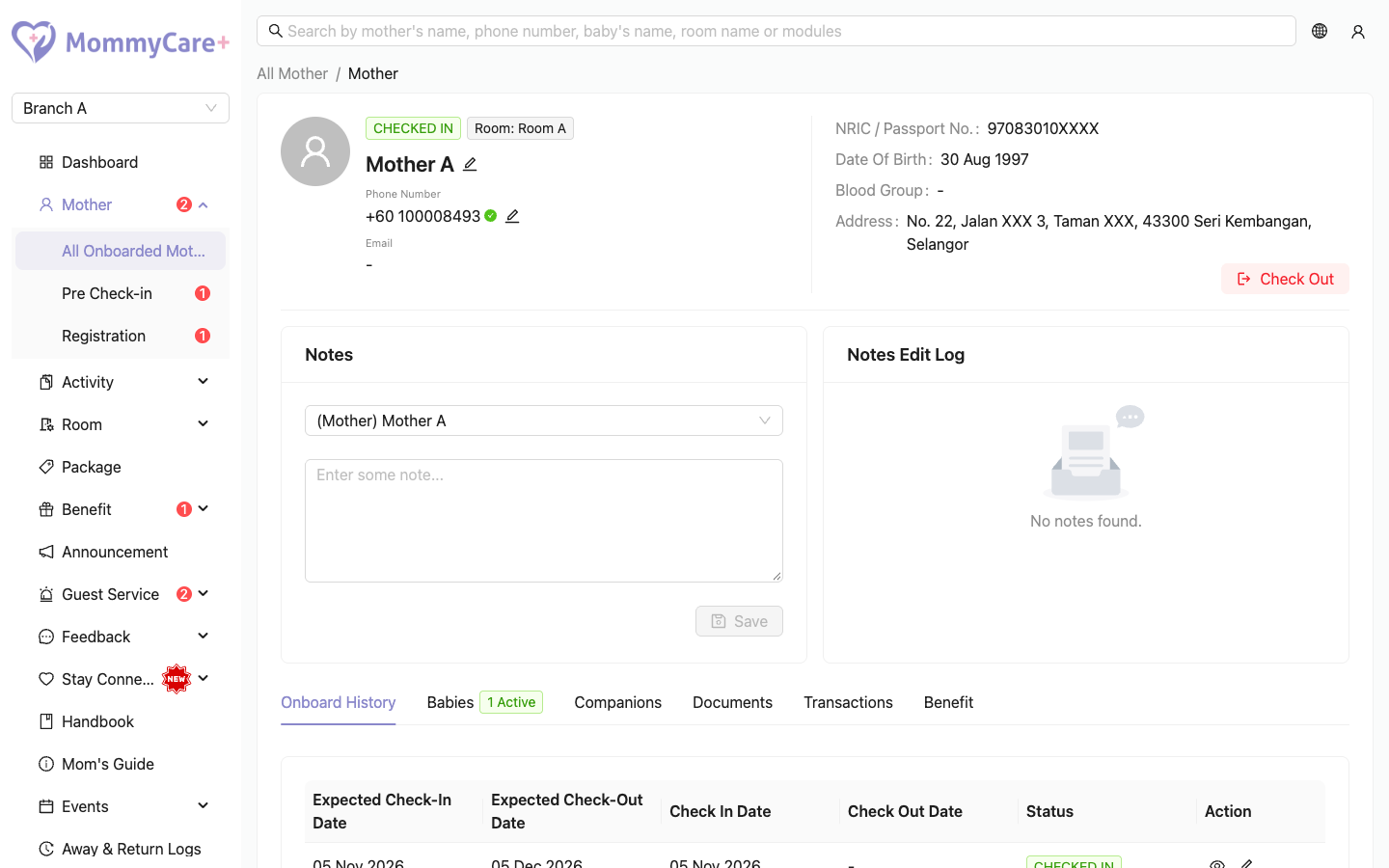
Click the View Profile icon on her row. The profile shows:
- her display name (and the name she registered in the app, if different), NRIC, date of birth, blood group, address, phone number and email. "-" means empty.
- her stay status
- the Note card
- the tabs Babies, Companions, Documents, Onboard History, Transaction and Benefits. The Babies tab shows how many babies are in the centre, for example "2 Active".
The Check Out and Transfer Branch buttons are also here. See Check-out & branch transfer.
How to change her display name
The display name is what staff see for her in this branch, in the apps, on service requests and in notifications. It doesn't change the name in her own app profile.
- On her profile, edit the display name.
- Confirm Save this display name?
How to change her phone number
- She hasn't signed up yet: enter the new number and save. It changes straight away.
- She has signed up:
- Enter the new number. A 6-digit code is sent to the new number by WhatsApp.
- Ask her for the code and enter it within 5 minutes.
- Her number changes and she is logged out of the app. She logs in again with the new number.
You can cancel a change that is waiting for its code. Phone numbers can't be changed after she has checked out.
How to write a note
- On her profile, find the Note card.
- Write the note and click Save.
Staff get a "New Notes Added" notification. You can also write a note for one of her babies from the baby's details. Staff can write notes in the Staff App too.
If Restrict staff to assigned mothers is on (in App settings), only her Staff In Charge and the centre owner are notified.
How to see her stays
Open the Onboard History tab. It lists her stays in this branch. Click one to see its package, rooms, dates, deposit, delivery details, babies and consent form. Past stays are read-only.
To change the current stay (room, dates, package or Staff In Charge), click Edit. See Onboard & check in.
Each stay also has an Edit History, listing who changed what, and when.
How to add a document
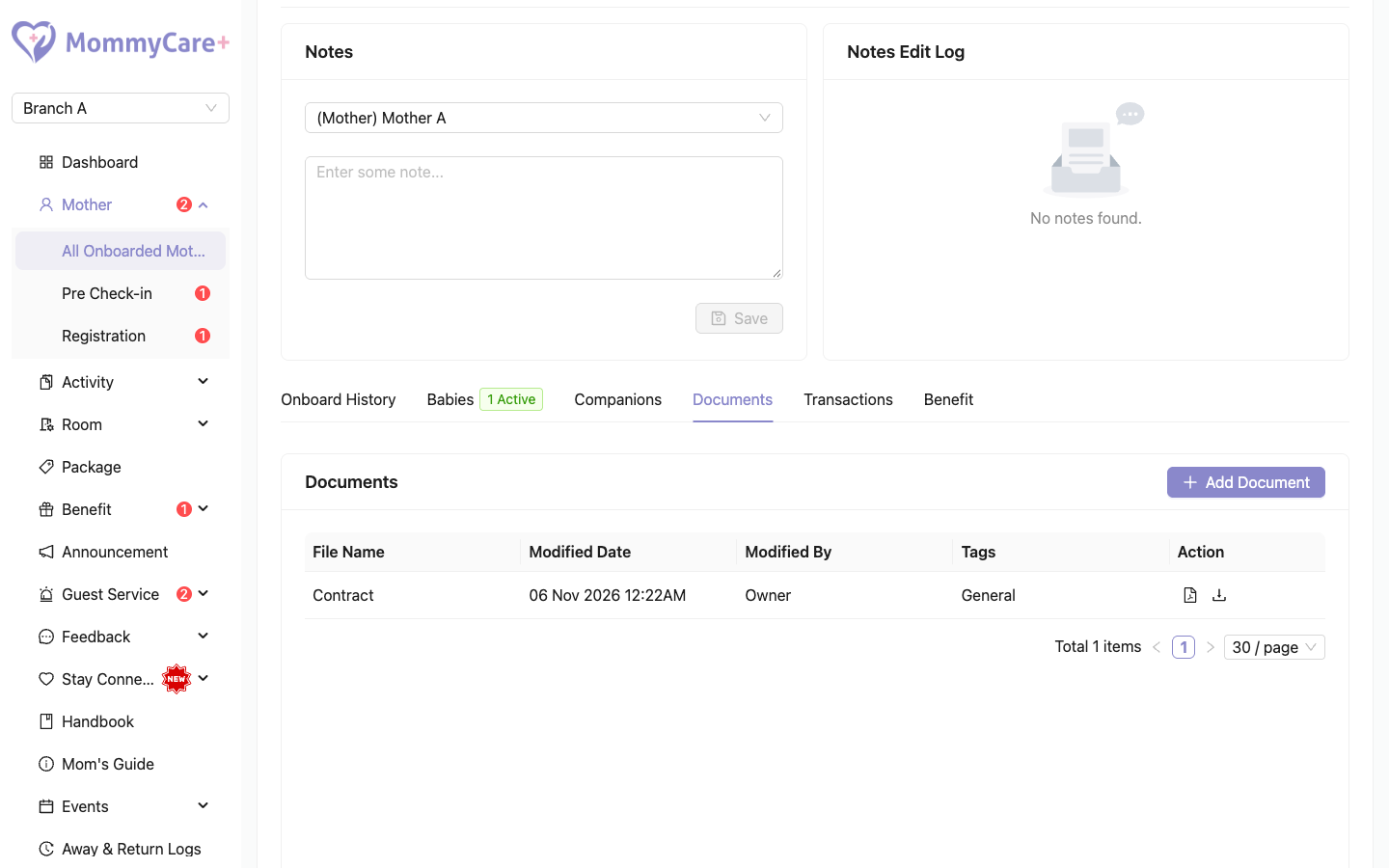
- Open the Documents tab and click Add Document.
- Give it a name, upload the file, and optionally add tags (for example "Contract").
- Click Save.
Tags help you sort and find documents. A document with no tags shows "General". The mother can open and download her documents in the Mother App under Contracts & Document.
How to record a payment
- Open the Transaction tab and click Add Payment.
- Enter the amount, choose the payment method (Bank Transfer, Cash or E-Wallet) and add a remark.
- Click Save.
Some entries are added automatically:
| Entry | When |
|---|---|
| Deposit Paid | At onboarding |
| Signed Package (a negative amount) | At check-in: the package price |
| Upgraded package… / Downgraded package… | When her package is changed during a stay |
Babies, companions and benefits
- Babies
- Companions
- The Benefits tab: see Benefits & bookings.
Troubleshooting
| What you see | Why, and what to do |
|---|---|
| Status shows Pending Sign Up | She hasn't created her app password yet. Use Resend Invitation. |
| You can't change her phone number directly | She has already signed up. A code is sent to the new number. |
| The phone change is refused after check-out | Phone numbers can't be changed once she has checked out. |
| "This email / phone number already exist, please try with other entry." | Another account uses that number. |
| A checked-out mother has a green Baby Staying tag | She left a baby in the centre. See Check-out & branch transfer. |
| A deactivated mother can't log in to the app | Deactivating blocks her app access in this branch. Activate her again. |
| A baby's name shows in red | That baby has an alert. Check its latest reports. |