Staff
Add everyone who works in the branch, and give each one a role. A person can work in several branches, with a different role in each.
- Location: Staff → All Staff
- Who can do this: staff whose role has the Staff permissions (view, add, edit)
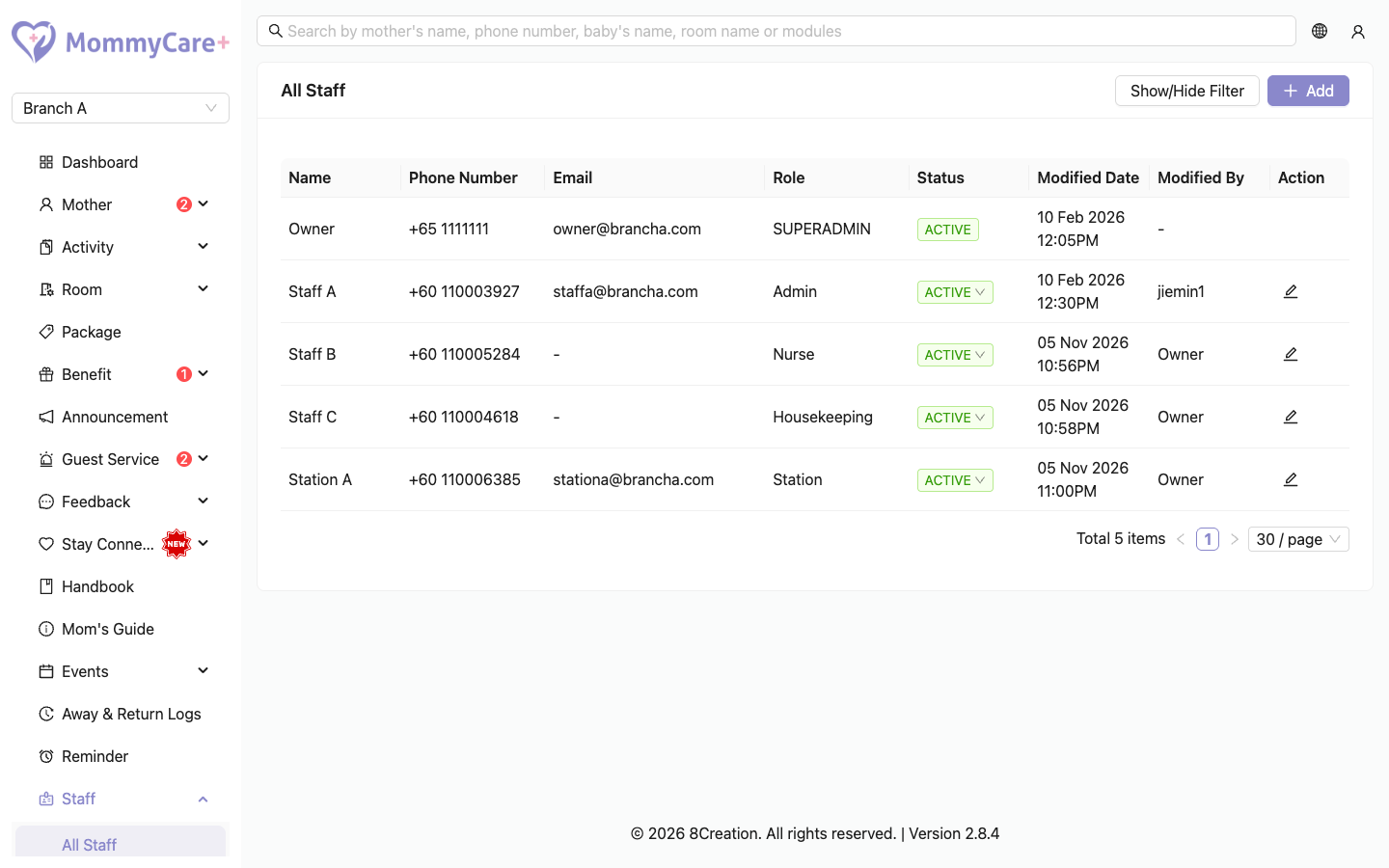
The list shows each person's Name, Phone Number, Email, Role and Status, and when they were last changed and by whom. The centre owner is listed too, but can't be edited or deactivated.
How to add a staff member
Staff are added by phone number.
- Click Add.
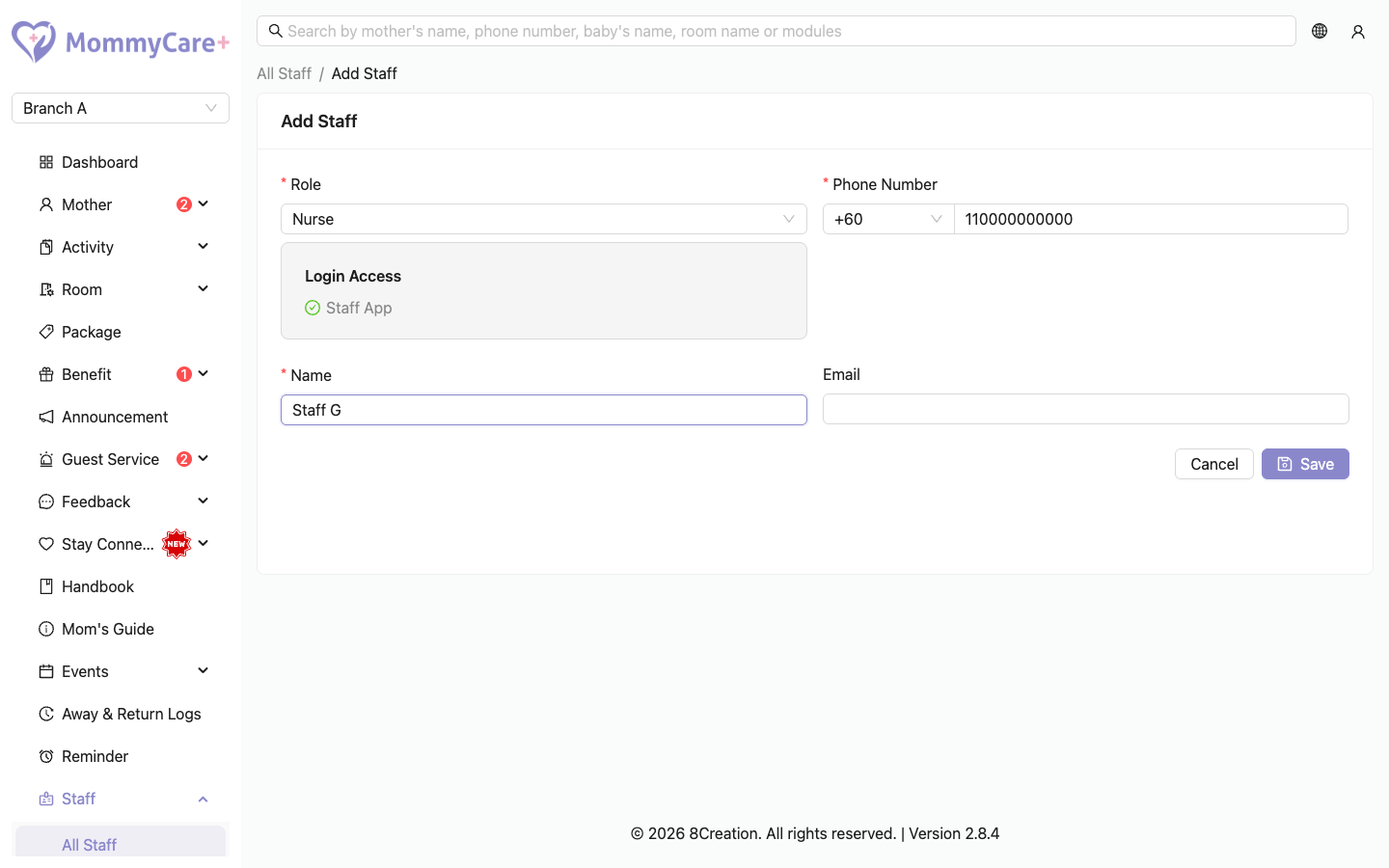
- Choose the Dial Code and enter the Phone Number.
- What happens next depends on the number:
- The number already has an account (for example, the person works at another of your branches): the Portal shows "Existing account found: (name)". Confirm it's the right person.
- A new number: enter their name.
- Choose the Role.
- Enter an email if the role has Portal or Room Service Dashboard access. For Staff App-only roles, email is optional.
- Click Save.
What happens next
- A new person shows as Pending. They finish their own setup the first time they log in: they enter a WhatsApp code and set a password. If they have an email, they also get an invitation email. See Log in.
- An existing account is added as Active straight away, with their existing password.
How to edit a staff member
- Click the Edit icon on the person.
- Change the name, phone number, email or role.
- Click Save.
The name, phone number and email belong to the person, so a change applies in every branch they work in. The role applies to this branch only.
Changing someone's role logs them out on all their devices. If the new role has no Staff App access, they are also removed as the staff in charge of checked-in mothers, and from active reminders. The form warns you first.
How to activate or deactivate a staff member
- Click the person's status tag (Active or Inactive).
- Confirm.
Deactivating someone:
- logs them out of this branch the next time they do anything
- removes them as the staff in charge of checked-in mothers
- removes them from active reminders
- removes them from guest services that send requests to them by name
Activating them again lets them log in, but doesn't put them back on mothers, reminders or guest services. Add them again where needed.
Pending staff can't be activated or deactivated until they finish their first login.
Staff who can't log in because they have no email
If someone's role needs an email and they don't have one, the list shows a banner such as "2 staff can't log in to Portal because they have no email." Click the link in the banner to list them, then edit each one to add an email.
How to find staff
Click Show/Hide Filter, choose the name, status, email or role, and click Filter.
Troubleshooting
| What you see | Why, and what to do |
|---|---|
| A staff member shows Pending and the status can't be clicked | They haven't finished their first login yet. |
| "Missing email" next to someone | Their role needs an email to log in. Edit them and add one. |
| The phone field says the number is already in this branch | That person is already on the list. Search for them instead. |
| "This email is already tied to another user. Please try with different email." | Another account uses that email. Use a different one. |
| "This email is used to log in to another branch and cannot be removed." | The person's role in another branch needs the email. Keep it. |
| "You're not allowed to edit the Superadmin account." | The centre owner can't be edited here. |
| A staff member was suddenly logged out everywhere | Their role was changed. |
| A nurse stopped seeing a mother's reminders | Their role lost Staff App access, or they were deactivated. Add them back to the mother and the reminders. |