Rooms
Add every room in the branch. Mothers are given a room at check-in.
- Location: Room → All Rooms
- Who can do this: staff whose role has the Room permissions (view, add, edit, delete)
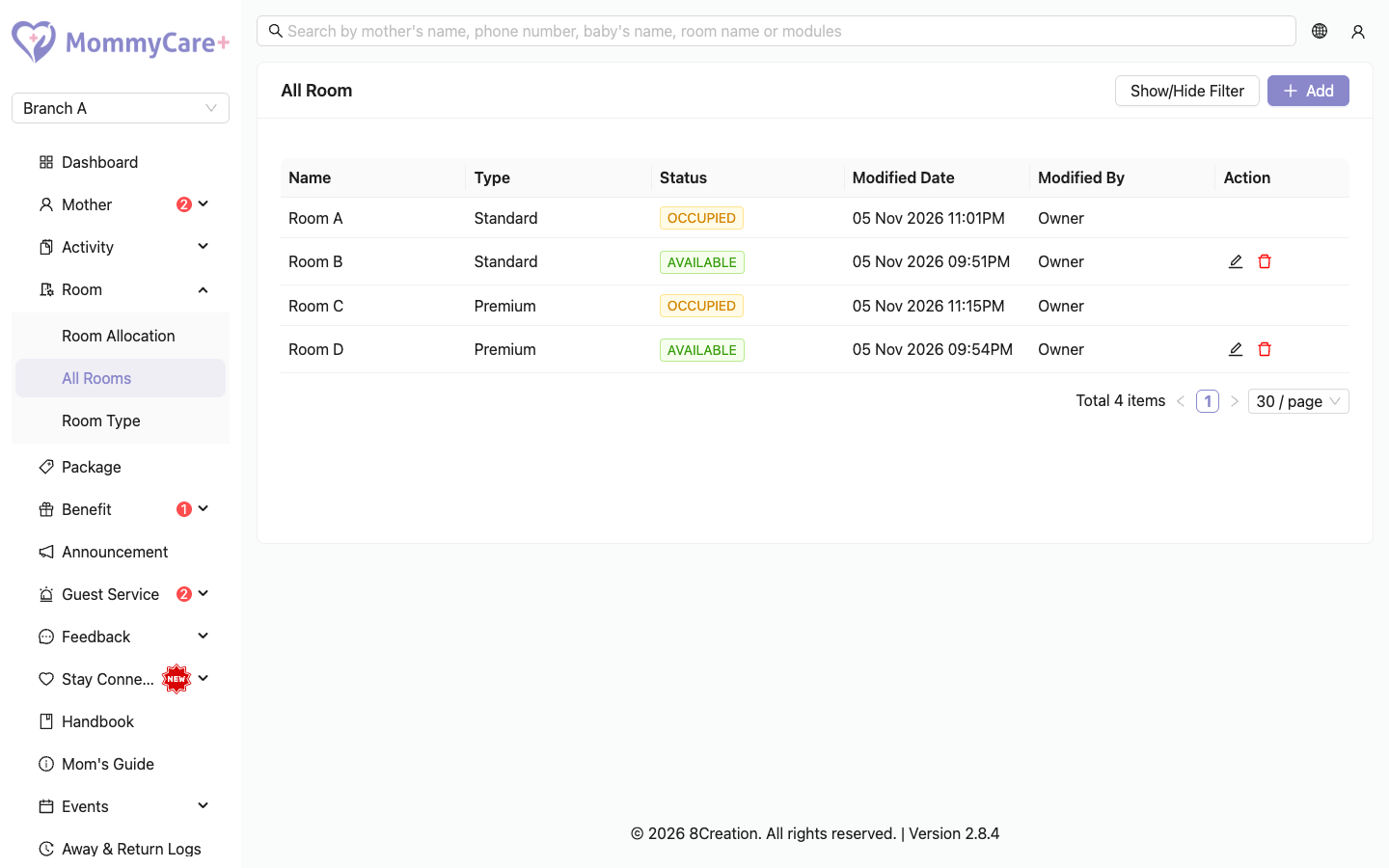
The list shows each room's Name, Type and Status, and when it was last changed and by whom:
- Available: no mother is checked in to it
- Occupied: a mother is checked in to it. Occupied rooms can't be edited or deleted.
A room picked for a booking before check-in (a planned room) stays Available until the mother actually checks in.
How to add a room
- Click Add.
- Enter the room name (for example Room A) and choose its Room Type.
- Click Save.
New rooms start as Available.
note
Your subscription plan allows a set number of rooms across all your branches. When you reach it, you can't add more rooms until the plan is upgraded.
How to edit a room
- Click the Edit icon on the room.
- Change the name or type, and click Save.
How to delete a room
- Click the Delete icon on the room.
- Confirm.
You can't delete a room someone is staying in.
How to find a room
Click Show/Hide Filter, choose the name, type or status, and click Filter. For example, filter by Available to see free rooms.
To see which rooms are free over a period of dates, use Room Allocation instead.
Troubleshooting
| What you see | Why, and what to do |
|---|---|
| A room has no Edit or Delete | It is Occupied. Wait until the mother checks out or moves room. |
| "You have reached the maximum number of rooms allowed for your current subscription plan…" | The plan's room limit is reached across all your branches. Contact MommyCare+ to upgrade. |
| "This record already exists…" | Another room in this branch has that name. Names aren't case-sensitive. |
| A room isn't offered at check-in | It isn't Available, or its type isn't one of the mother's package room types. |